Week 1: Introduction: Jupyter and Fabcloud
The Fab Future course on Data Science with Professor Neil started on November 18, 2026.
Connect to Jupyter Server
The students in the class were directed to create accounts and access the following platforms/tools:
- fablab.io
- Jupyter Server
- Git Repository (GitLab)
- Public Website (via JupyterLab)
Connect to Jupyter Server
1.2 JupyterHub?
JupyterHub is a server application that lets multiple users run Jupyter notebooks platform with access to computational environments and resources withouth installation and maintenance tasks. It runs in the cloud and makes it possible to serve a pre-configured computing environment is especially useful in classrooms and labs.
2. Steps to Update Code and Push to Git Repo
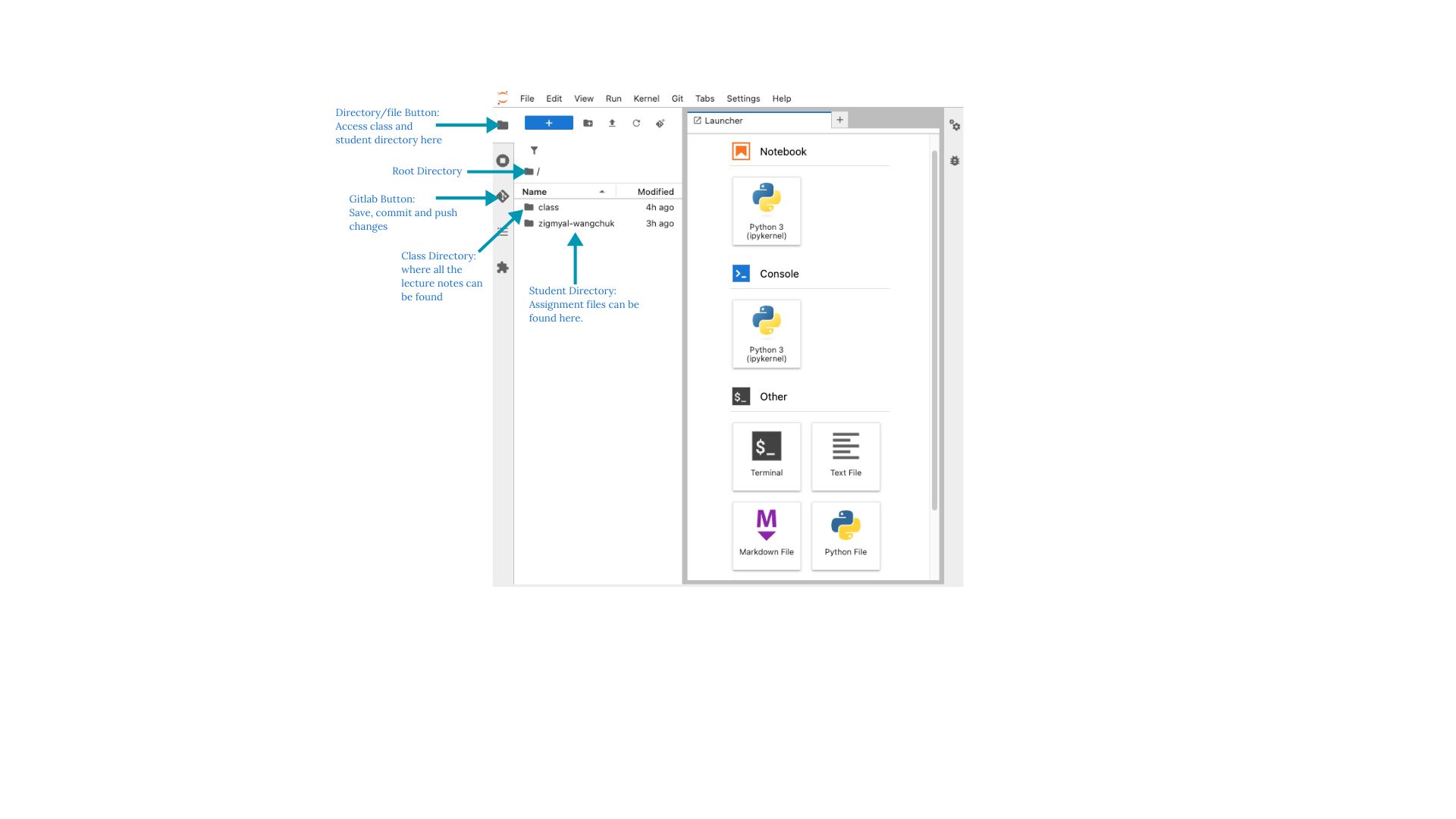
2.1 Root Interface
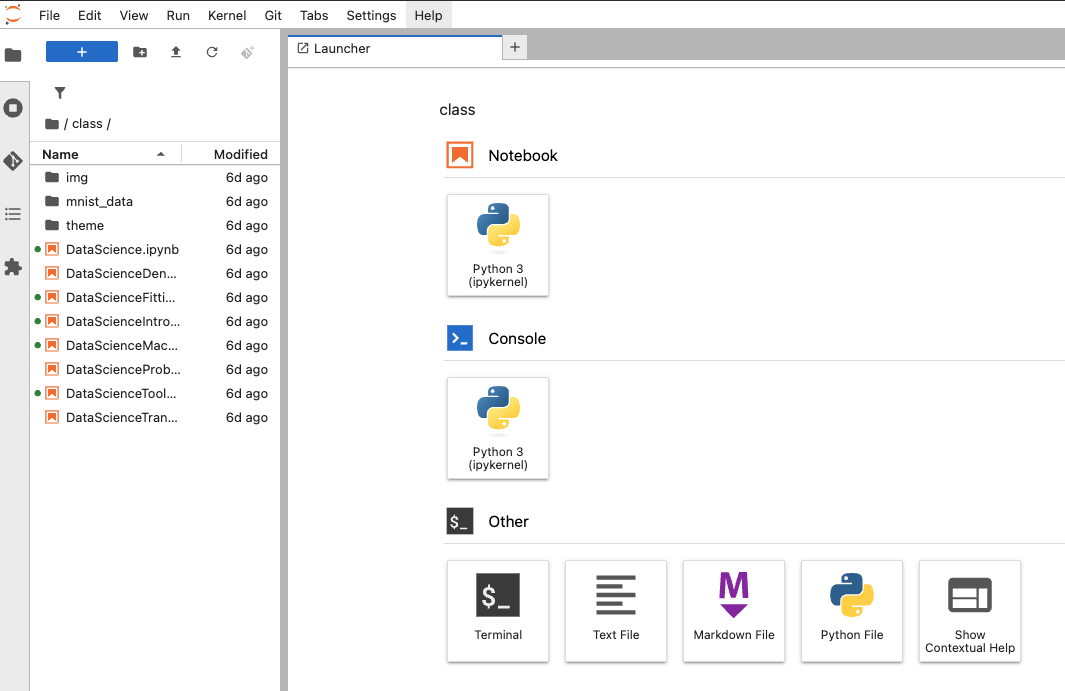
2.2 Class Interface
2.3 Student Interface
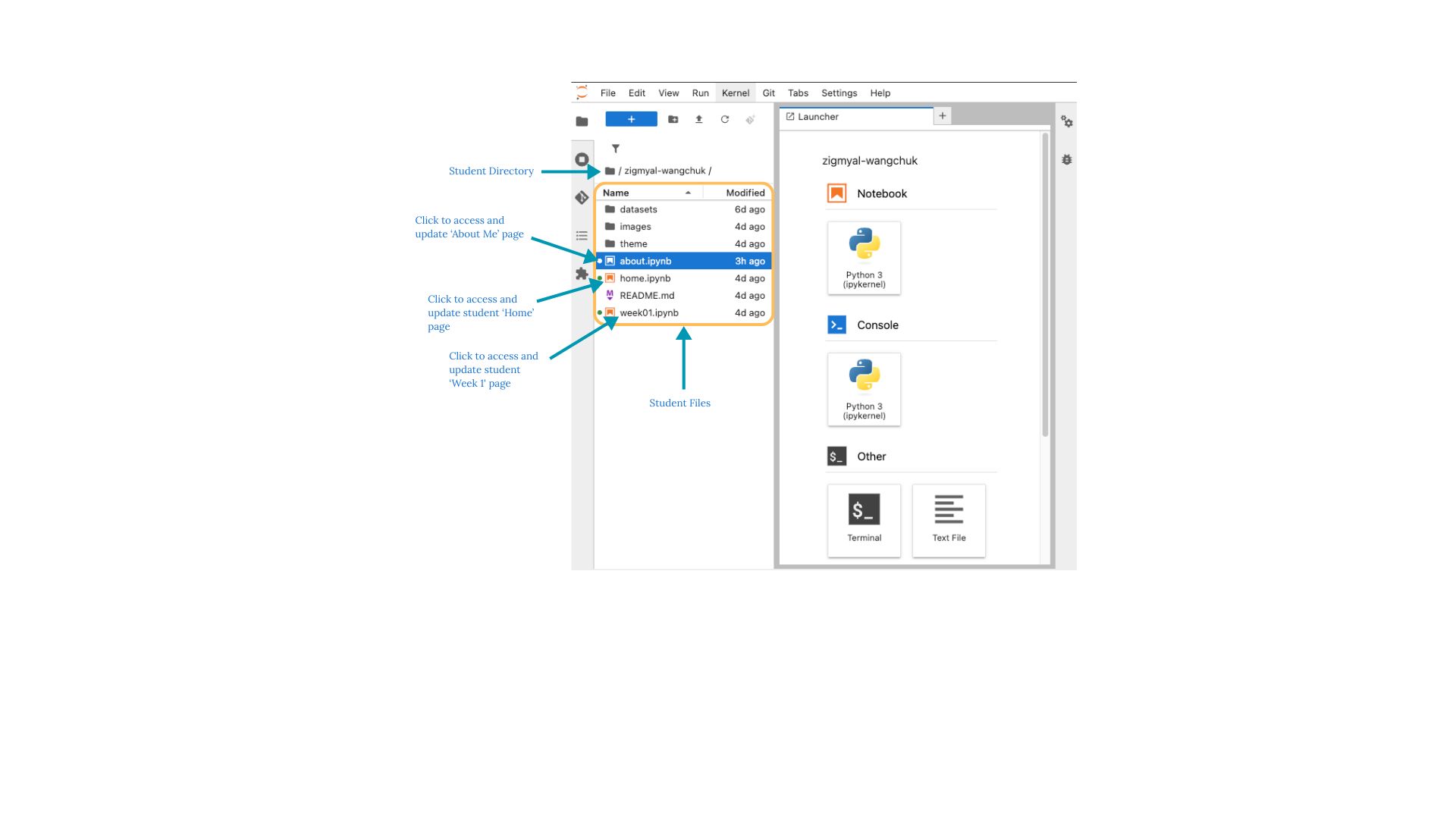
To access the student files, click on the [student-name] in Root Directory. You will find an interface with the following details:
- Student files and directory
2.24 Student Page Details and Update
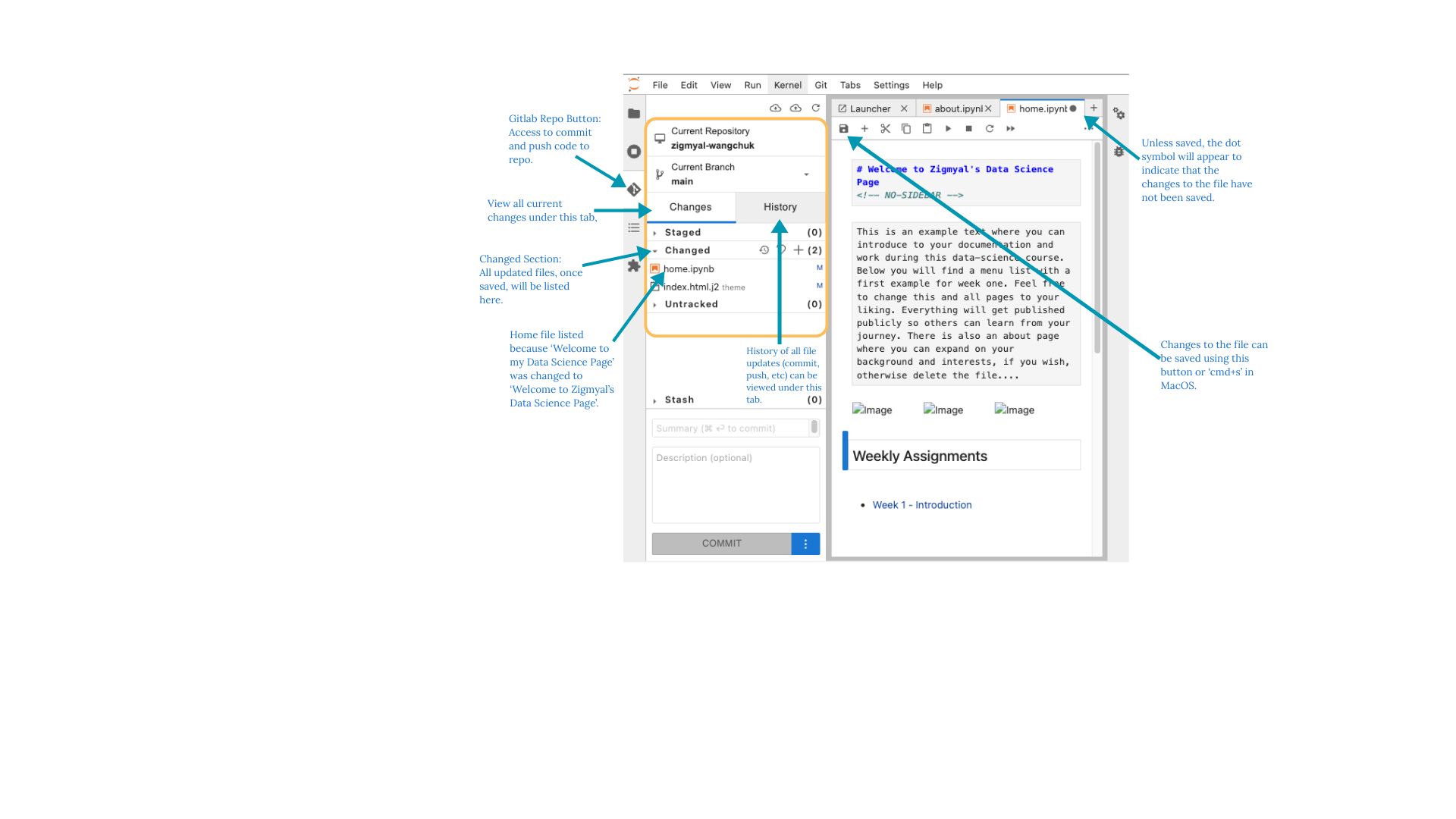
You can view addtional details by clicking on the Git Tab to view the following:
- Current Repository
- Current Branch
- Changes Section - To track recent changes
- History Section - List of historical changes made
If you click on a file, a working window in launched on the side where you can:
- Update current file with 'markdown' or 'code' blocks
- Save current file
- Run current file
2.5 Adding Updated File to Staged
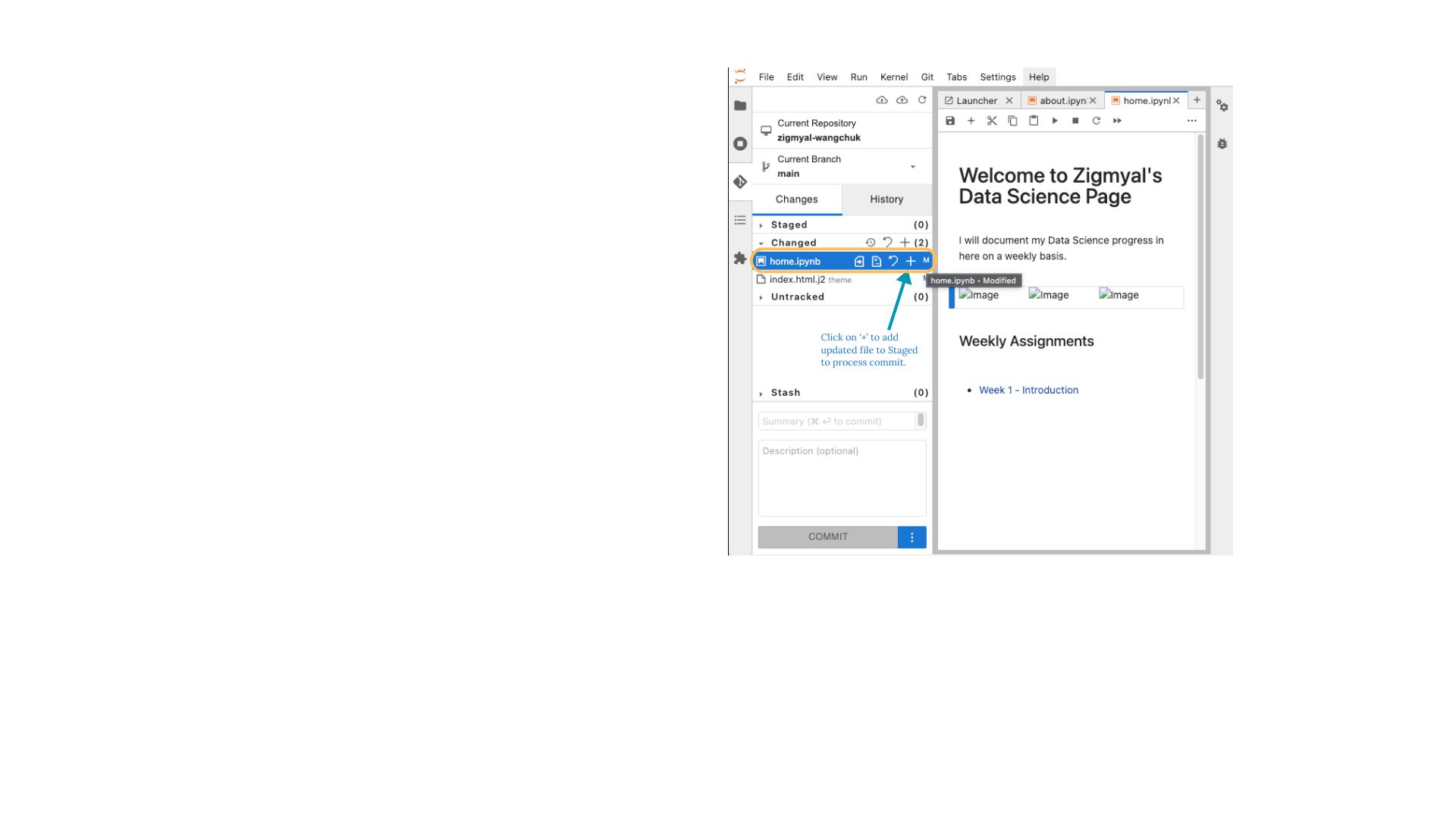
Once a page has been updated and saved, it shows up under the 'Changed' in the Git Tab. You will need to add the updated file to the 'Staged' section by clicking on the '+' next to the file name.
2.6 Commiting Staged File
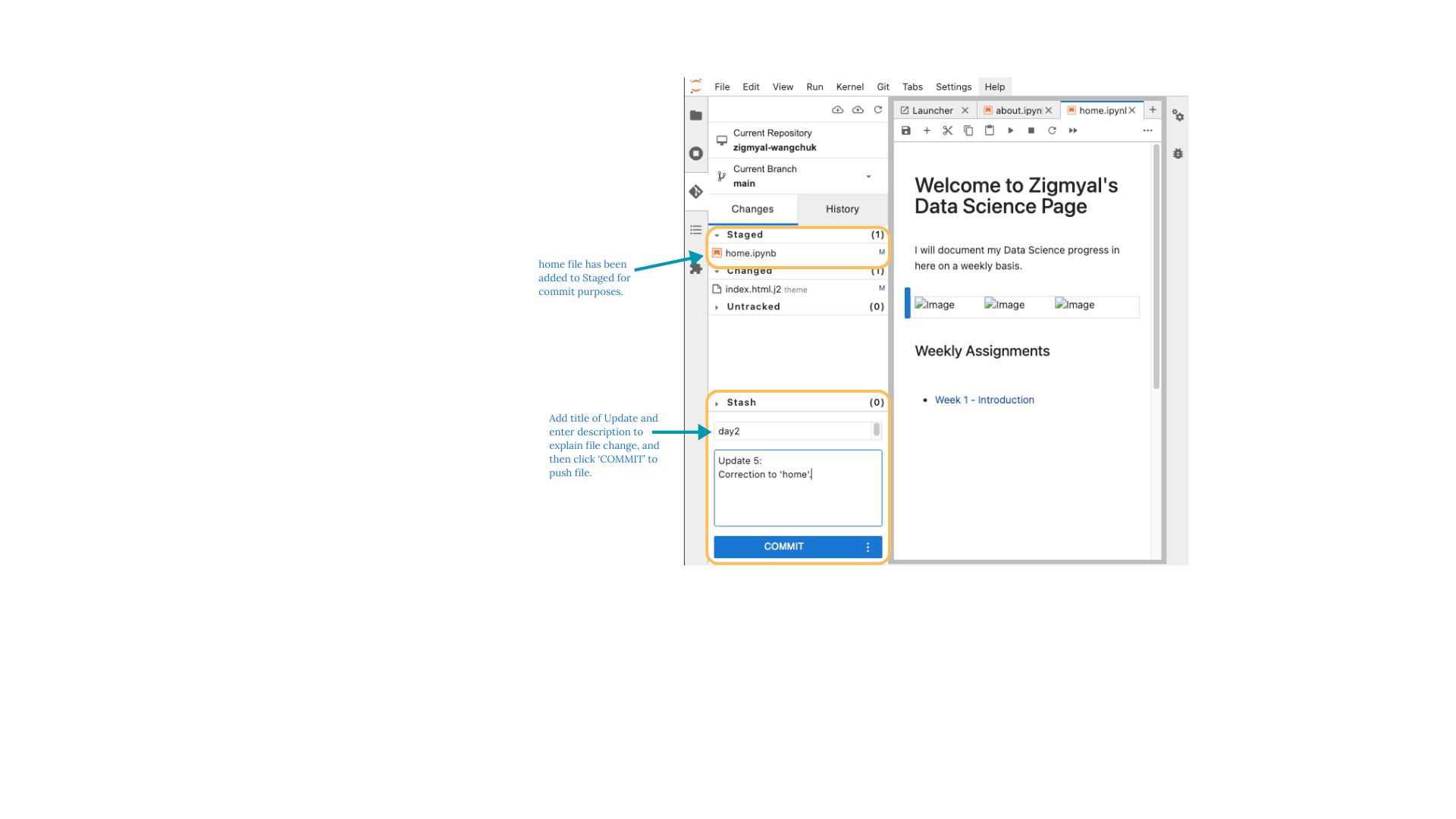
Once the file has been added to 'Staged', enter additional detials to the new commit
2.7 Successul Commit and Push
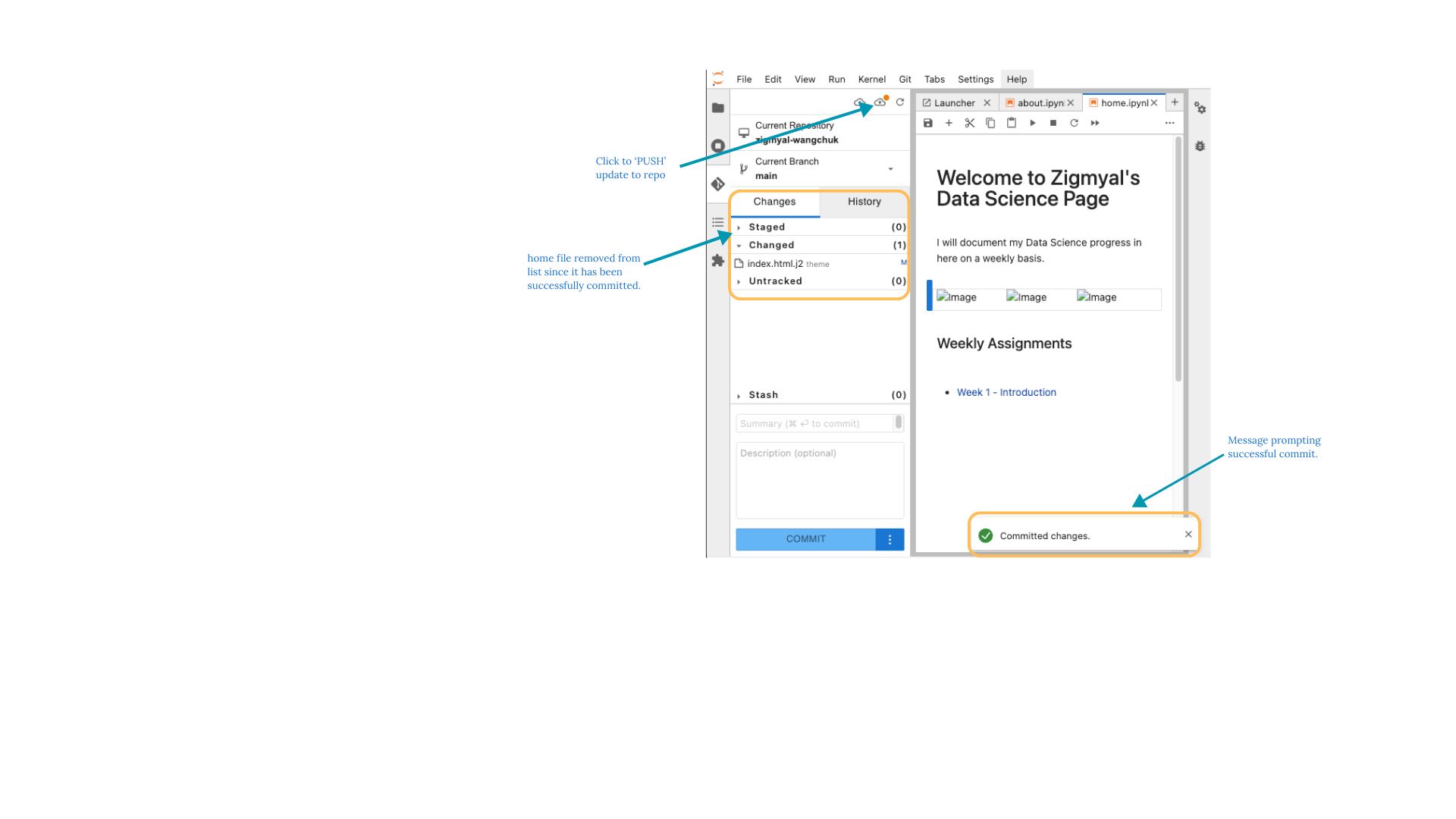
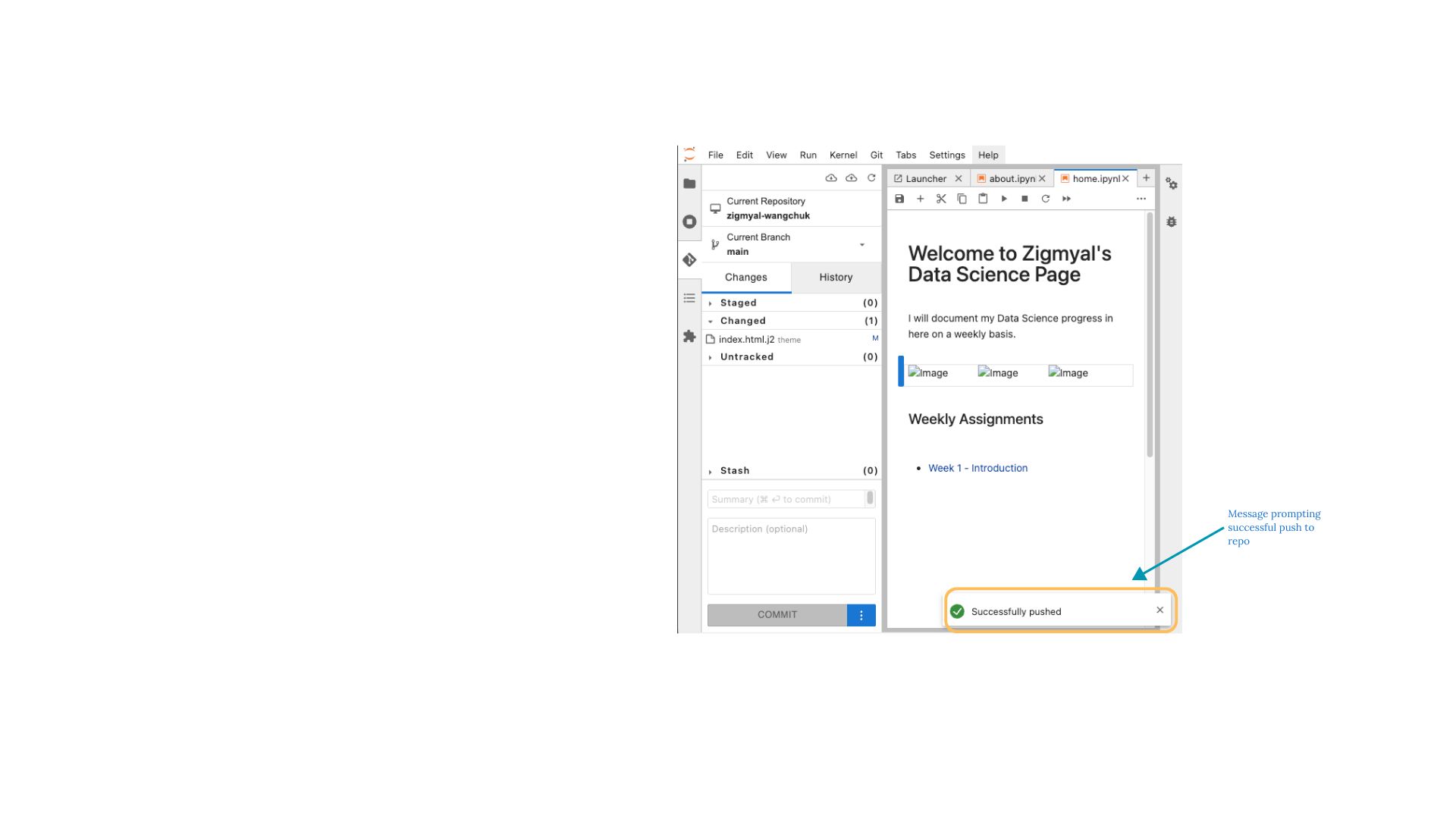
2.8 Successul Push