< Home
Week 1: Tools, Visualization & Dataset
Notes and Tools
1. Jupyter Tools
'''
Code below is from 'DataScienceTools' in Professor Neil's Jupyter notebook
I used ChatGPT to get additional details using the following command:
"Explain the following code using easy to understand comments:"
'''

# Import ipywidgets to create buttons and other interactive widets in Jupyter
import ipywidgets as widgets

# This function updates the counter and prints a message
def button_update():
    global count    # User the flobal variable 'count' to keep track of presses
    output.clear_output()    # Clear previous text inside the output area
    count += 1    # Increase the count by 1 each time the button is clicked
    print(f'Hello world x {count}') # Display how many times the button was pressed with Hello World text

# This function is called automatically when the button is clicked
def button_handler(self):
    # 'with output:' sends everything printed inside the block to the output widget
    with output:
        button_update()    # Call the function that updates the counter and prints text

# Create a button widget with a label shown on it
button = widgets.Button(description='Click here')

# Create an output widget where text will be displayed
output = widgets.Output()

# Initialize the counter variable
count = 0

# Connect the button click event to the handler function
# When the button is clicked, button_hander() is executed
button.on_click(button_handler)

# Display the button and the output area in the notebook
display(button, output)
Button(description='Click here', style=ButtonStyle())
Output()
2. Python Packages
- Numpy: Numpy is a core Python library for numberical computing. It provides fast support for large, multi-dimensional arragys and mathematical operations used in data science, engineering and AI. Source
- Matplotlib:Matplotlib is a Python library used for creating statuc, animated, and interactive visualizations such as line graphs, bar charts, and plots. It helps turn data into visual insights. Source
- Scikit-learn: scikit-learn (often imported as sklearn) is a machine learning library for Python. It includes many standard algorithms for classification, regression, clustering and dimensionality reduction, plus tools for preprocessing data and evaluating models. Source
- Jax:JAX is a Python library designed for high performance numerical computing and machine learning research. It is similar to NumPy but adds powerful features such as just-in-time compilation, and easy execution on CPUs, GPUs, and TPUs. JAX is widely used in research because it allows you to write simple mathematical code that runs very fast and scales well to modern hardware. Source
- PyTorch:PyTorch is an open source machine learning and deep learning framework developed by Meta. PyTorch is widely used in both academic research and industry, especially for deep learning models such as neural networks and transformers. Source
'''
Code below is from 'DataScienceTools' in Professor Neil's Jupyter notebook
I used ChatGPT to get additional details using the following command:
"Explain the following code using easy to understand comments and elaborate the user and output of each function and method, especially how 'pi' was calculated:"
'''

# Import numpy, which is used for fast numerical calculations
import numpy as np

# N is the number of terms used in the approximation
# Larger N gives a more accurate value of pi
N = 10000000

# Create an array of numbers from 1 to N (inclusive)
# np.arange (start, stop) creates values up to stop - 1,
# so we use (N + 2) to include N
i = np.arange(1,(N+1))

# Print eh shape of the array (how many elements it has)
print(f'    shape: {i.shape}')

# Print the first 10 values to show how the array starts
print(f'    start: {i[0:10]}')

# Print the data type of the array elements
print(f'    type: {i.dtype}')

# Compute an approximation of pi using a mathematical series
# Each element of i is used in the formula:
# 0.5/((i-0.75)*(i-.25))
# Numpy applies this calculation to every element in the array
# np.sum() then adds all those values together
# This is called vectorized computation, and it is much faster than using loops
# The more terms N is added, the closer the result gets to pi
pi = np.sum(0.5/((i-0.75)*(i-.25)))

# Print the value of pi
print(f'pi ~= {pi}')
    shape: (10000000,)
    start: [ 1  2  3  4  5  6  7  8  9 10]
    type: int64
pi ~= 3.1415926035897934
A quick dive into "pi = np.sum(0.5/((i-0.75)*(i-.25)))" and how vectorized computation is faster than using loops
The explanation and code below were generated using ChatGPT with the following commands:
- Explain where this pi series comes from mathematically
- Compare speed with and without numpy
1. Explain where this pi series comes from mathematically (Prompt to ChatGPT)
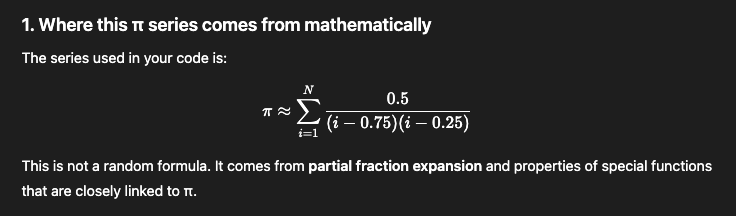
Why summing approximates pi?
- The series is infinite
- The code uses the first N terms
- As N increases, the sum converges to pi
- 10 million terms gets many correct decimal places
Why this series converges fast?
- Each term shrinks roughly like (1 / k^2)
- Faster decay means faster convergence
2. Compare speed with and without numpy
'''
Without numpy
'''

import time

N = 10000000
start = time.time()

pi = 0.0
for i in range(1, N + 1):
    pi += 0.5 / ((i - 0.75) * (i-0.25))

end = time.time()
total_time = end - start

print(f'pi ~= {pi}')
print(f'Python loop time: {total_time}')
pi ~= 3.1415926035880983
Python loop time: 2.5250332355499268
'''
With numpy
'''
import numpy as np

N = 10000000
start = time.time()

i = np.arange(1,(N+1))
pi = np.sum(0.5/((i-0.75)*(i-.25)))

end = time.time()
total_time = end - start

print(f'pi ~= {pi}')
print(f'Python loop time: {total_time}')
pi ~= 3.1415926035897934
Python loop time: 0.06701827049255371
Visualization
Matplotlib
'''
The following code is from GeeksforGeeks and StackOverFlow
It was used to get a general understanding on Matplotlib
'''

# Import the pyplot module from matplotlib
import matplotlib.pyplot as plt

# Prepare a simple date for the plot
x = [1, 2, 3, 4, 5]    # x-axis values
y = [2, 4, 8, 16, 32]    # y-axis values

# Plot the data
plt.plot(x, y)

# Add labels and a title
plt.xlabel("X axis")    # Text label for the horizontal axis
plt.ylabel("Y axis")    # Text label for the vertical axis
plt.title("Simple Line Plot")    # Plot title

# Display the plot
plt.show()

Dataset Assignment
As part of this course, I wanted to explore a few dataset
Formula One (F1) Dataset
I've decided to work on Formula One (F1) dataset from FastF1. I watch F1 quite often and always wondered the type of data used by the team strategists and the race analysts.
This should be fun and I am expecting things to get a bit messy with data and functions.
FastF1 Intro
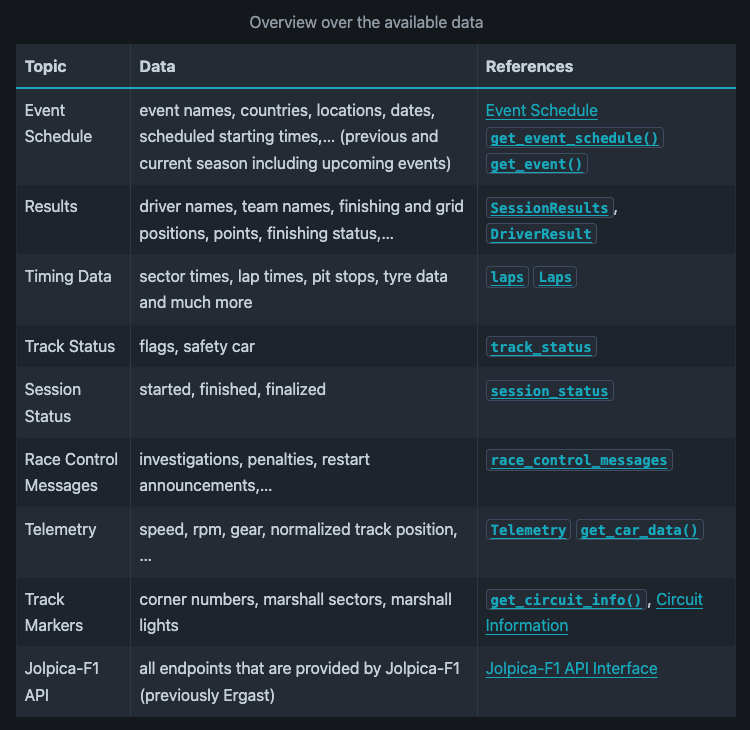
FastF1 gives access to F1 lap timing, car telemetry and position, tyre data, weather data, the event schedule and sesssion results. (fastf1.dev)
FastF1 Features
- Access to F1 timing data, sessions results, etc.
- Full support to access both current and historical F1 data.
- All data is provided in the form of extended Pandas DataFrames to make working with the data easy.
- Integration with Matplotlib for data visualization
- Implements caching for all API requests to speed up scripts.
Accesing FastF1 Data
The default workflow with FastF1 is to create a Session object using get_session().
The following is an overview of available data in FastF1:
FastF1 Installation
FastF1 requires Pytohn 3.9 or higher. It is recommended to install FastF1 using pip:
pip install fastf1
You can also install using conda:
conda install -c conda-forge fastf1
FastF1 Import
Once installed, FastF1 can be imported into your Jupyter environment with:
import fastf1
FastF1 Cache and Load Session
Create a directory in your root folder called "fastf1_cache_dir" or "fastf1_cache". A few code samples use "fastf1_cache" but I will used "fastf1_cache_dir" because it's good to be little explicit when you're learning and for future references.
fastf1.Cache.enable_cache("fastf1_cache_dir")
Once it's been cached, a Session can be loaded with the following code:
session = fastf1.get_session(year, gp, session_name)
session.load()
session
FastF1 Weather data
Not always available for all races, but some sessions include weather dataframe:
Weather is available sometimes
weather = getattr(session, "weather_data", None) weather.head() if weather is not None else "No weather_data attribute found in this FastF1 version/session."
FastF1 Lap Table (FastF1 site states that this is the goldmine. It digital gold !!! [Maybe not like crypto, but could be])
This is where most features are available:
- LapTime, Sector1/2/3
- TyreLife, Compound, Stint
- Pit in/out flags
- TrackStatus
- Speed Traps, etc
laps = session.laps
laps.head()
To see all available columns
lap.columns.tolist()