Tools - 20th November 2025
Visualization dataset
Revision of the last class
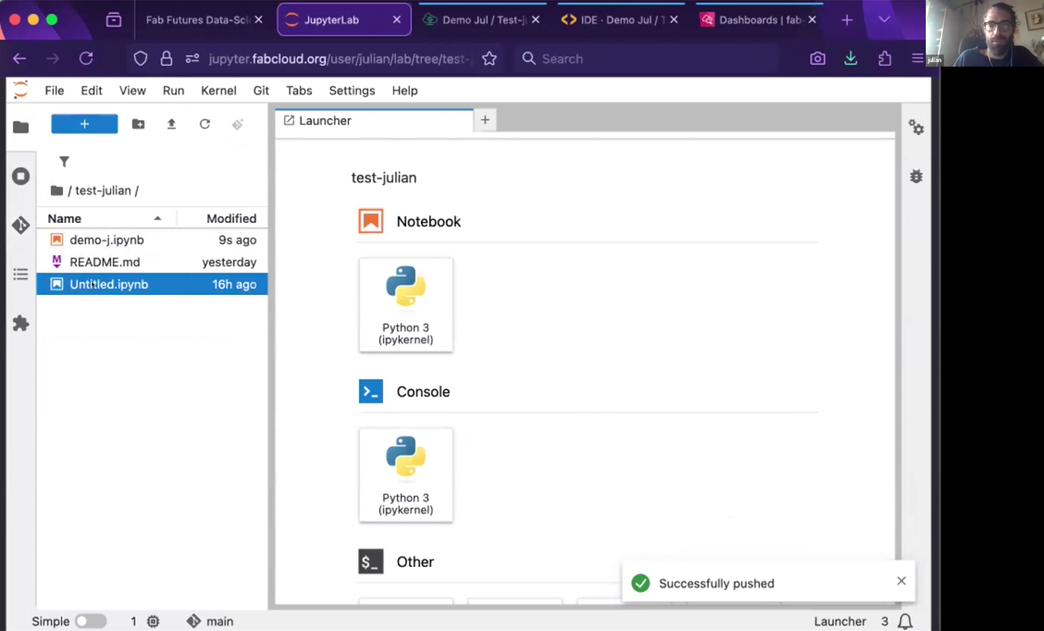
Mr. Jullian show how to rename the files, usuage of gitlibs and pushing icons
Modules imported
import pandas as pd
import matplotlib.pyplot as plt
import seaborn as sns
import pandas as pd
datasets = pd.read_excel("datasets/student_data_analysis_filled.xlsx")
datasets.head()
| Student ID | Student Name | Class | Assignment 1 | Assignment 2 | Midterm | Final Exam | Total Marks | Percentage | Grade | |
|---|---|---|---|---|---|---|---|---|---|---|
| 0 | S001 | Sonam Wangchuk | VIII | 70 | 65 | 60 | 75 | 270 | 67.5 | C |
| 1 | S002 | Dechen Lhamo | VIII | 71 | 66 | 61 | 76 | 274 | 68.5 | C |
| 2 | S003 | Karma Dorji | VIII | 72 | 67 | 62 | 77 | 278 | 69.5 | C |
| 3 | S004 | Thinley Om | VIII | 73 | 68 | 63 | 78 | 282 | 70.5 | B |
| 4 | S005 | Pema Choden | VIII | 74 | 69 | 64 | 79 | 286 | 71.5 | B |
datasets = pd.read_excel("datasets/student_data_analysis_filled.xlsx")
print("Data shape:", df.shape)
df.head()
Data shape: (20, 10)
| Student ID | Student Name | Class | Assignment 1 | Assignment 2 | Midterm | Final Exam | Total Marks | Percentage | Grade | |
|---|---|---|---|---|---|---|---|---|---|---|
| 0 | S001 | Sonam Wangchuk | VIII | 70 | 65 | 60 | 75 | 270 | 67.5 | C |
| 1 | S002 | Dechen Lhamo | VIII | 71 | 66 | 61 | 76 | 274 | 68.5 | C |
| 2 | S003 | Karma Dorji | VIII | 72 | 67 | 62 | 77 | 278 | 69.5 | C |
| 3 | S004 | Thinley Om | VIII | 73 | 68 | 63 | 78 | 282 | 70.5 | B |
| 4 | S005 | Pema Choden | VIII | 74 | 69 | 64 | 79 | 286 | 71.5 | B |
- While importing my datasets, it only appear limited rows and columns. so i tried to display all the rows and colums. I explore youtubes and also used chatgpt.
pd.set_option('display.max_rows',None)
pd.set_option('display.max_columns',None)
datasets
| Student ID | Student Name | Class | Assignment 1 | Assignment 2 | Midterm | Final Exam | Total Marks | Percentage | Grade | |
|---|---|---|---|---|---|---|---|---|---|---|
| 0 | S001 | Sonam Wangchuk | VIII | 70 | 65 | 60 | 75 | 270 | 67.50 | C |
| 1 | S002 | Dechen Lhamo | VIII | 71 | 66 | 61 | 76 | 274 | 68.50 | C |
| 2 | S003 | Karma Dorji | VIII | 72 | 67 | 62 | 77 | 278 | 69.50 | C |
| 3 | S004 | Thinley Om | VIII | 73 | 68 | 63 | 78 | 282 | 70.50 | B |
| 4 | S005 | Pema Choden | VIII | 74 | 69 | 64 | 79 | 286 | 71.50 | B |
| 5 | S006 | Jigme Tenzin | VIII | 75 | 70 | 65 | 80 | 290 | 72.50 | B |
| 6 | S007 | Kinley Yangzom | VIII | 76 | 71 | 66 | 81 | 294 | 73.50 | B |
| 7 | S008 | Tshering Dorji | VIII | 77 | 72 | 67 | 75 | 291 | 72.75 | B |
| 8 | S009 | Ugyen Wangmo | VIII | 78 | 65 | 68 | 76 | 287 | 71.75 | B |
| 9 | S010 | Sangay Phuntsho | VIII | 79 | 66 | 69 | 77 | 291 | 72.75 | B |
| 10 | S011 | Kezang Dema | VIII | 70 | 67 | 70 | 78 | 285 | 71.25 | B |
| 11 | S012 | Choki Gyeltshen | VIII | 71 | 68 | 71 | 79 | 289 | 72.25 | B |
| 12 | S013 | Phub Zam | VIII | 72 | 69 | 60 | 80 | 281 | 70.25 | B |
| 13 | S014 | Tandin Wangdi | VIII | 73 | 70 | 61 | 81 | 285 | 71.25 | B |
| 14 | S015 | Passang Lham | VIII | 74 | 71 | 62 | 75 | 282 | 70.50 | B |
| 15 | S016 | Namgay Dorji | VIII | 75 | 72 | 63 | 76 | 286 | 71.50 | B |
| 16 | S017 | Chimi Yangzom | VIII | 76 | 65 | 64 | 77 | 282 | 70.50 | B |
| 17 | S018 | Ngawang Tshering | VIII | 77 | 66 | 65 | 78 | 286 | 71.50 | B |
| 18 | S019 | Dawa Tshering | VIII | 78 | 67 | 66 | 79 | 290 | 72.50 | B |
| 19 | S020 | Pelden Lhamo | VIII | 79 | 68 | 67 | 80 | 294 | 73.50 | B |
Bargraph
import matplotlib.pyplot as plt
import numpy as np

# Example: multiple subjects per student
students = df["Student Name"]
subjects = df.columns[1:]  # assuming first column is "Student Name"

# Set figure size dynamically
plt.figure(figsize=(len(students)*0.5 + 2, len(subjects)*1 + 2))  # width, height

# Plot multiple columns for each student
x = np.arange(len(students))  # the label locations
width = 0.1  # width of each bar

for i, subject in enumerate(subjects):
    plt.bar(x + i*width, df[subject], width=width, label=subject)

plt.xticks(x + width*len(subjects)/2, students, rotation=45)
plt.xlabel("Students")
plt.ylabel("Marks")
plt.title("Students' Marks in Different Subjects")
plt.legend()
plt.tight_layout()
plt.show()

Sankey graph
First i should what is sankey graph is meant for "Sankey diagrams are powerful visual tools used to show flows, connections, and how something moves from one stage to another. They are especially useful when the size of the flow matters."(OpenAI, 2025) - Target - Source and values
import pandas as pd
import plotly.graph_objects as go
df = pd.read_excel("datasets/student_data_analysis_filled.xlsx")
df.head()
| Student ID | Student Name | Class | Assignment 1 | Assignment 2 | Midterm | Final Exam | Total Marks | Percentage | Grade | |
|---|---|---|---|---|---|---|---|---|---|---|
| 0 | S001 | Sonam Wangchuk | VIII | 70 | 65 | 60 | 75 | 270 | 67.5 | C |
| 1 | S002 | Dechen Lhamo | VIII | 71 | 66 | 61 | 76 | 274 | 68.5 | C |
| 2 | S003 | Karma Dorji | VIII | 72 | 67 | 62 | 77 | 278 | 69.5 | C |
| 3 | S004 | Thinley Om | VIII | 73 | 68 | 63 | 78 | 282 | 70.5 | B |
| 4 | S005 | Pema Choden | VIII | 74 | 69 | 64 | 79 | 286 | 71.5 | B |
import pandas as pd
import plotly.graph_objects as go

# Step 1: Create the DataFrame
data = {
    "Student ID": ["S001","S002","S003","S004","S005","S006","S007","S008","S009","S010",
                   "S011","S012","S013","S014","S015","S016","S017","S018","S019","S020"],
    "Student Name": ["Sonam Wangchuk","Dechen Lhamo","Karma Dorji","Thinley Om","Pema Choden",
                     "Jigme Tenzin","Kinley Yangzom","Tshering Dorji","Ugyen Wangmo","Sangay Phuntsho",
                     "Kezang Dema","Choki Gyeltshen","Phub Zam","Tandin Wangdi","Passang Lham",
                     "Namgay Dorji","Chimi Yangzom","Ngawang Tshering","Dawa Tshering","Pelden Lhamo"],
    "Grade": ["C","C","C","B","B","B","B","B","B","B","B","B","B","B","B","B","B","B","B","B"]
}

df = pd.DataFrame(data)

# Step 2: Define nodes for Sankey (Students + Grades)
labels = df["Student Name"].tolist() + df["Grade"].unique().tolist()
label_indices = {label: i for i, label in enumerate(labels)}

# Step 3: Define source, target, and values
source = [label_indices[name] for name in df["Student Name"]]  # Students
target = [label_indices[grade] for grade in df["Grade"]]       # Grades
value = [1]*len(df)  # Each student counts as 1

# Step 4: Create the Sankey diagram
fig = go.Figure(data=[go.Sankey(
    node=dict(
        pad=15,
        thickness=20,
        line=dict(color="black", width=0.5),
        label=labels,
        color="skyblue"
    ),
    link=dict(
        source=source,
        target=target,
        value=value,
        color="lightgreen"
    )
)])

fig.update_layout(title_text="Student to Grade Sankey Diagram", font_size=12)
fig.show()

(Bhatt, 2022)
Click here
Headmap
A heatmap is a visual representation of data where values are represented by colors, and it’s commonly used in data analysis and visualization. In Jupyter Notebook, you can create heatmaps using Python libraries like Seaborn, Matplotlib, or Plotly.
Purpose of a Heatmap
Show patterns in data – e.g., which students scored higher or lower.
Compare multiple variables at once – e.g., Assignment 1 vs Assignment 2 vs Midterm.
Highlight high or low values – colors make differences easy to see.
Visualize correlations – often used in statistics to show relationships between variables.
import pandas as pd
import seaborn as sns
import matplotlib.pyplot as plt

# Step 1: Create the DataFrame
data = {
    "Student Name": ["Sonam Wangchuk","Dechen Lhamo","Karma Dorji","Thinley Om","Pema Choden",
                     "Jigme Tenzin","Kinley Yangzom","Tshering Dorji","Ugyen Wangmo","Sangay Phuntsho",
                     "Kezang Dema","Choki Gyeltshen","Phub Zam","Tandin Wangdi","Passang Lham",
                     "Namgay Dorji","Chimi Yangzom","Ngawang Tshering","Dawa Tshering","Pelden Lhamo"],
    "Assignment 1": [70,71,72,73,74,75,76,77,78,79,70,71,72,73,74,75,76,77,78,79],
    "Assignment 2": [65,66,67,68,69,70,71,72,65,66,67,68,69,70,71,72,65,66,67,68],
    "Midterm": [60,61,62,63,64,65,66,67,68,69,70,71,60,61,62,63,64,65,66,67],
    "Final Exam": [75,76,77,78,79,80,81,75,76,77,78,79,80,81,75,76,77,78,79,80],
    "Total Marks": [270,274,278,282,286,290,294,291,287,291,285,289,281,285,282,286,282,286,290,294]
}

df = pd.DataFrame(data)

# Step 2: Set student names as index
df_heatmap = df.set_index("Student Name")

# Step 3: Create the heatmap
plt.figure(figsize=(12,8))
sns.heatmap(df_heatmap, annot=True, cmap="YlGnBu", linewidths=.5)
plt.title("Heatmap of Student Scores")
plt.show()

1. Data

The most important component. Heatmaps require numerical data, often organized in a table or matrix.
Rows usually represent categories (e.g., students).
Columns usually represent variables or features (e.g., Assignment 1, Assignment 2, Midterm).
Data can also be a correlation matrix if you want to visualize relationships.

Example:
Student	Assignment 1	Assignment 2	Midterm	Final Exam
Sonam	70	65	60	75
Dechen	71	66	61	76
2. Python Libraries

You need libraries that can handle data visualization:
Pandas – for organizing and handling data in DataFrames.
Seaborn – easiest way to create heatmaps in Python.
Matplotlib – used by Seaborn to plot figures.
Optional: Plotly for interactive heatmaps.

3. Data Preprocessing
Before plotting:
Set row labels (e.g., student names) as the index.
Ensure all values are numeric.
Handle missing values (NaN) if necessary.
Normalize data if you want colors to be relative.

4. Heatmap Parameters
When creating a heatmap, you often customize:
Annotations (annot) – display numbers on cells.
Color map (cmap) – color scheme (e.g., YlGnBu).
Line widths (linewidths) – for separating cells.
Figure size – to make the heatmap readable.

5. Plotting
Finally, you use Seaborn or another library to render the heatmap. Example:
sns.heatmap(df, annot=True, cmap="YlGnBu", linewidths=0.5)
plt.title("Heatmap Title")
plt.show()
What it does
Each row = a student
Each column = an assessment
Colors represent scores (darker = higher, lighter = lower)
annot=True shows the numeric values in each cell
Functions
Linear
import pandas as pd
import matplotlib.pyplot as plt
from sklearn.linear_model import LinearRegression
from sklearn.model_selection import train_test_split

# Step 1: Create the dataset
data = {
    "Student ID": ["S001","S002","S003","S004","S005","S006","S007","S008","S009","S010",
                   "S011","S012","S013","S014","S015","S016","S017","S018","S019","S020"],
    "Assignment 1": [70,71,72,73,74,75,76,77,78,79,70,71,72,73,74,75,76,77,78,79],
    "Assignment 2": [65,66,67,68,69,70,71,72,65,66,67,68,69,70,71,72,65,66,67,68],
    "Midterm": [60,61,62,63,64,65,66,67,68,69,70,71,60,61,62,63,64,65,66,67],
    "Final Exam": [75,76,77,78,79,80,81,75,76,77,78,79,80,81,75,76,77,78,79,80],
    "Total Marks": [270,274,278,282,286,290,294,291,287,291,285,289,281,285,282,286,282,286,290,294]
}

df = pd.DataFrame(data)

# Step 2: Features and target
X = df[["Assignment 1", "Assignment 2", "Midterm", "Final Exam"]]
y = df["Total Marks"]

# Step 3: Train Linear Regression
X_train, X_test, y_train, y_test = train_test_split(X, y, test_size=0.2, random_state=42)
model = LinearRegression()
model.fit(X_train, y_train)

# Step 4: Predict
y_pred = model.predict(X)

# Step 5: Plot actual vs predicted Total Marks
plt.figure(figsize=(10,6))
plt.scatter(range(len(y)), y, color='blue', label='Actual Total Marks')
plt.plot(range(len(y)), y_pred, color='red', label='Predicted Total Marks', linewidth=2)
plt.xlabel('Student Index')
plt.ylabel('Total Marks')
plt.title('Linear Regression: Actual vs Predicted Total Marks')
plt.legend()
plt.grid(True)
plt.show()

Different Tools for Data visualization
- for my grade four children in different classes
Types of visualization tools: Matplotlib, Seaborn, Pandas Plotting, and Plotly.
I will first structure your dataset, then show visualizations for: Pass/Fail comparison
Pass % vs Fail % Mean Mark vs National Mean Bar charts and line charts Interactive charts
Import datasets
import pandas as pd
Pass % by section

Fail % by section

Passed vs Failed

Mean Mark vs National Mean

Distribution of marks (if available)
Import Seabon and Load Datasets
import pandas as pd
import seaborn as sns
import matplotlib.pyplot as plt

sns.set_theme(style="whitegrid")
df = pd.read_excel("datasets/Cl IVABC ICT result Analysis Term 1 2025.xlsx")
df.head()
| Unnamed: 0 | Unnamed: 1 | Unnamed: 2 | Unnamed: 3 | Unnamed: 4 | Unnamed: 5 | Unnamed: 6 | Unnamed: 7 | Unnamed: 8 | Unnamed: 9 | |
|---|---|---|---|---|---|---|---|---|---|---|
| 0 | NaN | NaN | NaN | NaN | Class IVABC | Midterm 2025 | NaN | NaN | NaN | NaN |
| 1 | NaN | Class | Section | Total Students | Total Stds Passed | Total Stds Fail | Total Pass % | Total Fail % | Mean Mark | National Mean Mark |
| 2 | NaN | IV | A | 28 | 22 | 6 | 78.571429 | 21.428571 | 75.7 | 67.09 |
| 3 | NaN | IV | B | 28 | 24 | 5 | 85.714286 | 17.857143 | 71.7 | 75 |
| 4 | NaN | IV | C | 28 | 13 | 15 | 46.428571 | 53.571429 | 57.9 | 67.09 |
Tool- Matplotlib
Visualization Toolkit Setup
import pandas as pd import matplotlib.pyplot as plt import seaborn as sns import plotly.express as px
plt.style.use('seaborn-v0_8') sns.set_theme()
# =========================================================
# SEABORN DASHBOARD FOR CLASS IVABC DATASET
# =========================================================

import pandas as pd
import seaborn as sns
import matplotlib.pyplot as plt

sns.set_theme(style="whitegrid")  # Seaborn theme

# Load dataset
df = pd.read_excel("datasets/Cl IVABC ICT result Analysis Term 1 2025.xlsx")

# =========================================================
# CREATE DASHBOARD
fig, axes = plt.subplots(3, 2, figsize=(16, 15))
fig.suptitle("Class IVABC Term 1 2025 - Data Analysis Dashboard", fontsize=18)

# 1. Pass % by Section
sns.barplot(data=df, x="Section", y="Pass %", palette="Blues_d", ax=axes[0,0])
axes[0,0].set_title("Pass Percentage by Section")

# 2. Fail % by Section
sns.barplot(data=df, x="Section", y="Fail %", palette="Reds_d", ax=axes[0,1])
axes[0,1].set_title("Fail Percentage by Section")

# 3. Passed vs Failed Students
df_melted = df.melt(id_vars=["Section"],
                    value_vars=["Total Passed", "Total Failed"],
                    var_name="Category",
                    value_name="Count")
sns.barplot(data=df_melted, x="Section", y="Count", hue="Category", palette="Set2", ax=axes[1,0])
axes[1,0].set_title("Passed vs Failed Students")

# 4. Mean Mark vs National Mean
sns.lineplot(data=df, x="Section", y="Mean Mark", marker="o", label="Mean Mark", ax=axes[1,1])
sns.lineplot(data=df, x="Section", y="National Mean", marker="o", label="National Mean", ax=axes[1,1])
axes[1,1].set_title("Mean Mark vs National Mean")
axes[1,1].set_ylabel("Marks")

# 5. Correlation Heatmap
sns.heatmap(df.corr(numeric_only=True), annot=True, cmap="coolwarm", ax=axes[2,0])
axes[2,0].set_title("Correlation Heatmap")

# 6. Distribution of Mean Marks
sns.histplot(df["Mean Mark"], kde=True, color="skyblue", bins=10, ax=axes[2,1])
axes[2,1].set_title("Distribution of Mean Marks")

# Adjust layout
plt.tight_layout(rect=[0, 0, 1, 0.96])
plt.show()
---------------------------------------------------------------------------
ValueError                                Traceback (most recent call last)
Cell In[16], line 20
     17 fig.suptitle("Class IVABC Term 1 2025 - Data Analysis Dashboard", fontsize=18)
     19 # 1. Pass % by Section
---> 20 sns.barplot(data=df, x="Section", y="Pass %", palette="Blues_d", ax=axes[0,0])
     21 axes[0,0].set_title("Pass Percentage by Section")
     23 # 2. Fail % by Section

File /opt/conda/lib/python3.13/site-packages/seaborn/categorical.py:2341, in barplot(data, x, y, hue, order, hue_order, estimator, errorbar, n_boot, seed, units, weights, orient, color, palette, saturation, fill, hue_norm, width, dodge, gap, log_scale, native_scale, formatter, legend, capsize, err_kws, ci, errcolor, errwidth, ax, **kwargs)
   2338 if estimator is len:
   2339     estimator = "size"
-> 2341 p = _CategoricalAggPlotter(
   2342     data=data,
   2343     variables=dict(x=x, y=y, hue=hue, units=units, weight=weights),
   2344     order=order,
   2345     orient=orient,
   2346     color=color,
   2347     legend=legend,
   2348 )
   2350 if ax is None:
   2351     ax = plt.gca()

File /opt/conda/lib/python3.13/site-packages/seaborn/categorical.py:67, in _CategoricalPlotter.__init__(self, data, variables, order, orient, require_numeric, color, legend)
     56 def __init__(
     57     self,
     58     data=None,
   (...)     64     legend="auto",
     65 ):
---> 67     super().__init__(data=data, variables=variables)
     69     # This method takes care of some bookkeeping that is necessary because the
     70     # original categorical plots (prior to the 2021 refactor) had some rules that
     71     # don't fit exactly into VectorPlotter logic. It may be wise to have a second
   (...)     76     # default VectorPlotter rules. If we do decide to make orient part of the
     77     # _base variable assignment, we'll want to figure out how to express that.
     78     if self.input_format == "wide" and orient in ["h", "y"]:

File /opt/conda/lib/python3.13/site-packages/seaborn/_base.py:634, in VectorPlotter.__init__(self, data, variables)
    629 # var_ordered is relevant only for categorical axis variables, and may
    630 # be better handled by an internal axis information object that tracks
    631 # such information and is set up by the scale_* methods. The analogous
    632 # information for numeric axes would be information about log scales.
    633 self._var_ordered = {"x": False, "y": False}  # alt., used DefaultDict
--> 634 self.assign_variables(data, variables)
    636 # TODO Lots of tests assume that these are called to initialize the
    637 # mappings to default values on class initialization. I'd prefer to
    638 # move away from that and only have a mapping when explicitly called.
    639 for var in ["hue", "size", "style"]:

File /opt/conda/lib/python3.13/site-packages/seaborn/_base.py:679, in VectorPlotter.assign_variables(self, data, variables)
    674 else:
    675     # When dealing with long-form input, use the newer PlotData
    676     # object (internal but introduced for the objects interface)
    677     # to centralize / standardize data consumption logic.
    678     self.input_format = "long"
--> 679     plot_data = PlotData(data, variables)
    680     frame = plot_data.frame
    681     names = plot_data.names

File /opt/conda/lib/python3.13/site-packages/seaborn/_core/data.py:58, in PlotData.__init__(self, data, variables)
     51 def __init__(
     52     self,
     53     data: DataSource,
     54     variables: dict[str, VariableSpec],
     55 ):
     57     data = handle_data_source(data)
---> 58     frame, names, ids = self._assign_variables(data, variables)
     60     self.frame = frame
     61     self.names = names

File /opt/conda/lib/python3.13/site-packages/seaborn/_core/data.py:232, in PlotData._assign_variables(self, data, variables)
    230     else:
    231         err += "An entry with this name does not appear in `data`."
--> 232     raise ValueError(err)
    234 else:
    235
    236     # Otherwise, assume the value somehow represents data
    237
    238     # Ignore empty data structures
    239     if isinstance(val, Sized) and len(val) == 0:

ValueError: Could not interpret value `Section` for `x`. An entry with this name does not appear in `data`.

import pandas as pd
import seaborn as sns
import matplotlib.pyplot as plt

# Set Seaborn theme
sns.set_theme(style="whitegrid")
# Load Excel file
df = pd.read_excel("datasets/Cl IVABC ICT result Analysis Term 1 2025.xlsx")

# Display first 5 rows
df.head()
| Unnamed: 0 | Unnamed: 1 | Unnamed: 2 | Unnamed: 3 | Unnamed: 4 | Unnamed: 5 | Unnamed: 6 | Unnamed: 7 | Unnamed: 8 | Unnamed: 9 | |
|---|---|---|---|---|---|---|---|---|---|---|
| 0 | NaN | NaN | NaN | NaN | Class IVABC | Midterm 2025 | NaN | NaN | NaN | NaN |
| 1 | NaN | Class | Section | Total Students | Total Stds Passed | Total Stds Fail | Total Pass % | Total Fail % | Mean Mark | National Mean Mark |
| 2 | NaN | IV | A | 28 | 22 | 6 | 78.571429 | 21.428571 | 75.7 | 67.09 |
| 3 | NaN | IV | B | 28 | 24 | 5 | 85.714286 | 17.857143 | 71.7 | 75 |
| 4 | NaN | IV | C | 28 | 13 | 15 | 46.428571 | 53.571429 | 57.9 | 67.09 |
# Remove spaces and special characters from column names
df.columns = df.columns.str.strip().str.replace(' ', '_').str.replace('%','pct')

# Check the new column names
print(df.columns.tolist())
['Unnamed:_0', 'Unnamed:_1', 'Unnamed:_2', 'Unnamed:_3', 'Unnamed:_4', 'Unnamed:_5', 'Unnamed:_6', 'Unnamed:_7', 'Unnamed:_8', 'Unnamed:_9']
print("Dataset shape:", df.shape)
print("\nColumns:\n", df.columns)
print("\nFirst 5 rows:")
display(df.head())
Dataset shape: (5, 10)

Columns:
 Index(['Unnamed:_0', 'Unnamed:_1', 'Unnamed:_2', 'Unnamed:_3', 'Unnamed:_4',
       'Unnamed:_5', 'Unnamed:_6', 'Unnamed:_7', 'Unnamed:_8', 'Unnamed:_9'],
      dtype='object')

First 5 rows:
| Unnamed:_0 | Unnamed:_1 | Unnamed:_2 | Unnamed:_3 | Unnamed:_4 | Unnamed:_5 | Unnamed:_6 | Unnamed:_7 | Unnamed:_8 | Unnamed:_9 | |
|---|---|---|---|---|---|---|---|---|---|---|
| 0 | NaN | NaN | NaN | NaN | Class IVABC | Midterm 2025 | NaN | NaN | NaN | NaN |
| 1 | NaN | Class | Section | Total Students | Total Stds Passed | Total Stds Fail | Total Pass % | Total Fail % | Mean Mark | National Mean Mark |
| 2 | NaN | IV | A | 28 | 22 | 6 | 78.571429 | 21.428571 | 75.7 | 67.09 |
| 3 | NaN | IV | B | 28 | 24 | 5 | 85.714286 | 17.857143 | 71.7 | 75 |
| 4 | NaN | IV | C | 28 | 13 | 15 | 46.428571 | 53.571429 | 57.9 | 67.09 |
import pandas as pd import seaborn as sns import matplotlib.pyplot as plt
Load dataset (ensure the file path is correct)
df = pd.read_excel("datasets/Cl IVABC ICT result Analysis Term 1 2025.xlsx")
Clean column names
df.columns = df.columns.str.strip().str.replace(' ', '_').str.replace('%','pct')
Ensure the column is numeric
df['Total_Pass_pct'] = pd.to_numeric(df['Total_Pass_pct'], errors='coerce')
Plot Bar Chart
plt.figure(figsize=(7,5)) ax = sns.barplot(data=df, x="Section", y="Total_Pass_pct", palette="Blues_d")
Add values on top of bars
for p in ax.patches: height = p.get_height() ax.annotate(f"{height:.1f}", # Display value with 1 decimal (p.get_x() + p.get_width()/2, height), ha='center', va='bottom', fontsize=10)
plt.title("Pass Percentage by Section") plt.ylabel("Pass %") plt.xlabel("Section") plt.ylim(0, 100) # Optional: set y-axis from 0 to 100 plt.show()
Types of data visualizaiton tools
Reference (https://www.geeksforgeeks.org/r-language/types-of-data-visualization/)
Bhatt, B. (2022, March 18). Generating Sankey diagrams or alluvial diagrams with Python's Plotly library | Jupyter Notebook [Video]. YouTube. https://www.youtube.com/watch?v=yyVwvBUFRwY&t=213s
OpenAI. (2025, December 5). ChatGPT conversation. ChatGPT. https://chatgpt.com
import pandas as pd
df = pd.read_csv("datasets/StudentPerformance.csv")
df.head()
| Hours Studied | Previous Scores | Extracurricular Activities | Sleep Hours | Sample Question Papers Practiced | Performance Index | |
|---|---|---|---|---|---|---|
| 0 | 7 | 99 | Yes | 9 | 1 | 91.0 |
| 1 | 4 | 82 | No | 4 | 2 | 65.0 |
| 2 | 8 | 51 | Yes | 7 | 2 | 45.0 |
| 3 | 5 | 52 | Yes | 5 | 2 | 36.0 |
| 4 | 7 | 75 | No | 8 | 5 | 66.0 |