< Home
Week 1-1: Introduction
Class Review - motivation
The first class of Fab Future - Data Science was started to understand the background of this course, class and the scope of "Data Science". Neil show some historical and very insightful examples of the data visualization such as John Snow's Colera Map, Florence Nightingale's nursing care visualizaiton. Most inspirable thing for me is the "Numerical Recipes - The art of Scientific Computing", which I have ever read 20 years ago.... I read this book when I was a undergraduate student, 20 years ago, in the C programming course. I was both nostalgic and incredibly excited to see this book cited as a reference point for modern “Data Science”. I will read the latest version of the book again...
There are a lot of curricurm, teaching course of Data Science all over the world. At least in Japan, many university are opened the department called "Data Science", and, I am also one of the student who are engaged into this field for long time, then recently I have recieved the Ph.D degree named "Data Science".
“Insight from data” may sound classical at first glance. After all, across many fields—from statistics to both quantitative and qualitative research in the social sciences—the notion of letting data speak has long been established. What is intriguing, however, is that “Data Science” has re-emerged as a next-generation skill within the Fab Lab community network, a global ecosystem grounded in making almost anything. I wanted to take this class to explore how Fab Labs and Data Science can work together to address real-world problems. That is why I decided to enroll.
Assignment 1 - Select and document a data set to analyze
I searched some dataset that could be used with (mostly) free license. Here are links of each dataset.
I will choose one offline data and one live data in the next session...
Dataset as my concern
=== Offline ===
This dataset represents Global Trends in Sustainable Development Goals: 2000 to 2023. It includes two files: 1) 2023 sustainable development goal index, 2) Time sequenced data of SDG index since 2000 to 2022.
Human Development Report Data API
Human Development Data is provided by United Nation Human Development Report. It includes various kinds of data about livelihood in each countries. Manual is here. You can also download Human Development Report data (Time seriese Human Development Index, Gender Development Index.... ) with XLSX format form here.
=== Online (livedata) ===
The OpenSky Network API provide live data of flight information. The data could be accessed via REST.
Open Weather Map provide REST API to get realtime weather cast based on GPS lat/lon info. According to the description in Pricing page, First 1000 API calls per day are FREE.
Dataset about Japan
Public Transportation Open Data Center Japan
This site provide various kinds of offline/online dataset related Transportation jn Japan such as Railway, Bus, Airlines... Some of them are used as CC-BY 4.0, and most of them can used with developer registeration (Only Ja-jp lang).
Data that are collected in realtime
Realtime Environment Sensing Data
If I cound launch my jupyter notebook in my Note PC, I can connect to my sensor devices, which I created over 10 years ago to make an open-source environment monitoring system, to collect environmental data in my room. I tried it and I cound found out it would be possible. Please also see here.
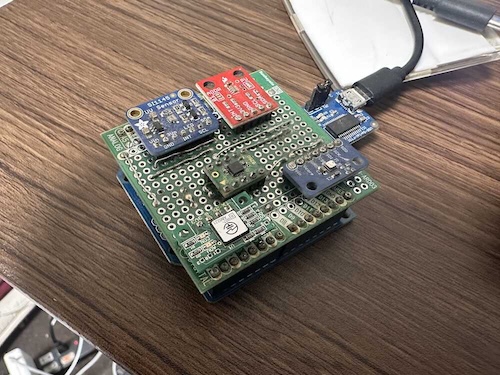
Realtime status data of my Prusa Core One
Recently, I got Prusa Core One and Prusa GPIO Hackerble board. So, I am thinking to logging my Core One status and plot it. I am not sure what can I use it for, but just technical concern.
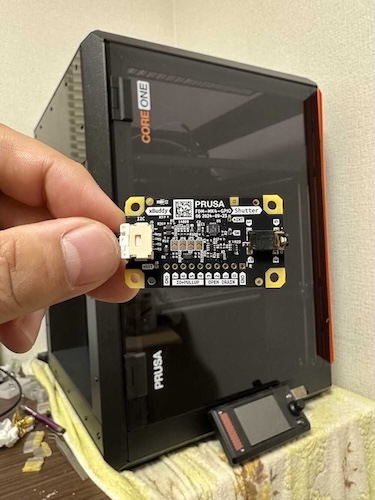
Assignment 2 - Connect to a JupyterLab server and become familiar with the user interface
How to Access to Jupyter Lab Server
- Go to Jupyter Lab Server (https://jupyter.fabcloud.org). And, you can see the Login Page into the Jupyter Lab.
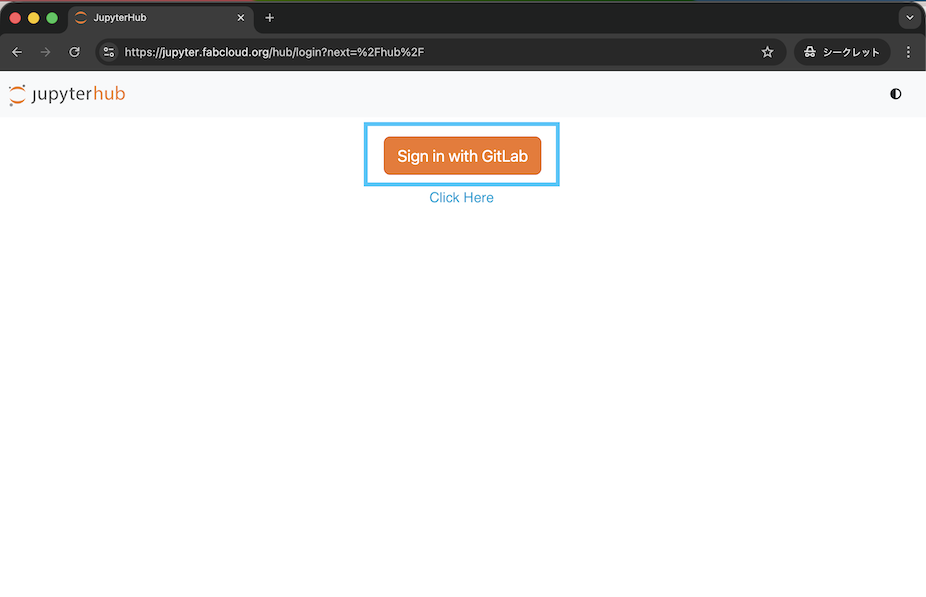
- Signin with Fab Cloud Account.
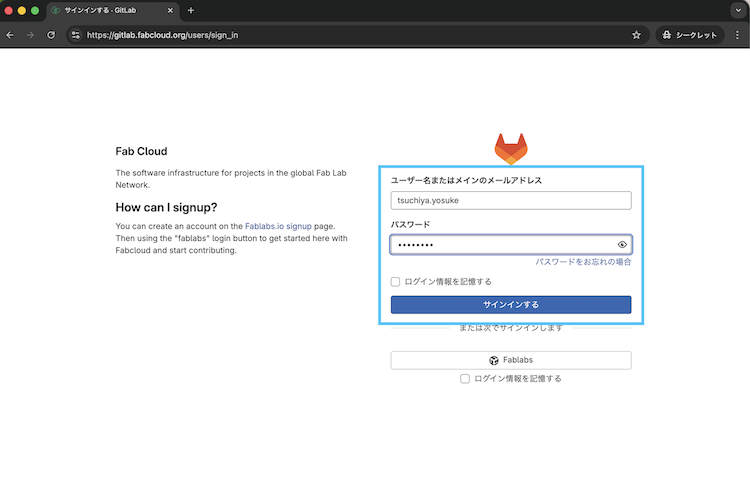
- Then, you can see the launcher page. Looking the left side, you can find two folders. "Curricurum" is a class repository, we can read Neil's Class documents here. My name's folder (in case of me "yosuke-tsuchiya") is the working repository for assignments.
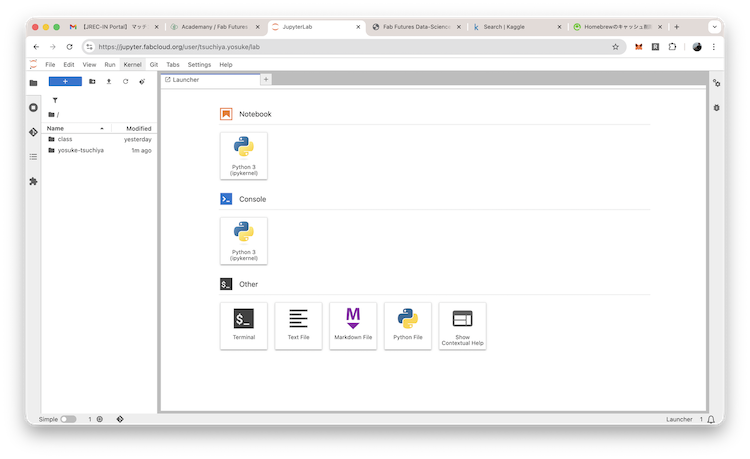
- Looking inside of "yosuke-tsuchiya" folder, I can see some files and folders.
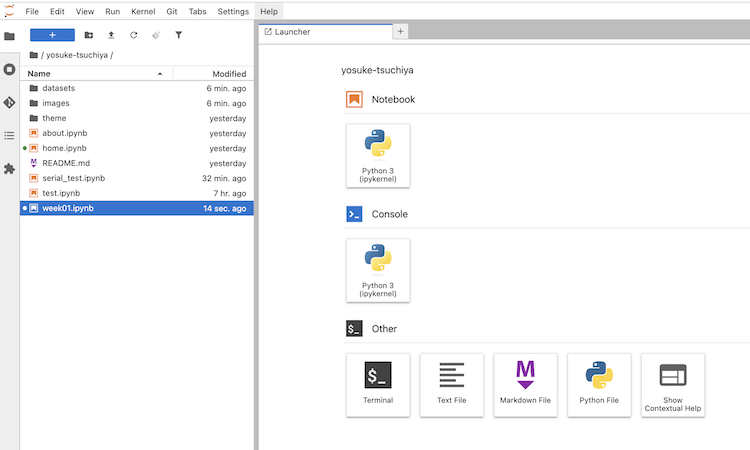
- .ipynb files are to write and run python code for analyzing data, and document it. We can use Markdown to write documentation.
- "dataset" folder is to put various formats of data file such as .csv, .json, .sqlite ... and so on for analysis.
- "image" folder is to put images to insert into the documents by Markdown.
Basic use of Jupyter Notebook
In Jupyter notebook, I can write text with markdown as shonwn below:
start with new file
To start to write code and documentation on Jupyter, first, click "Python 3 (ipkernel)" in notebook section.
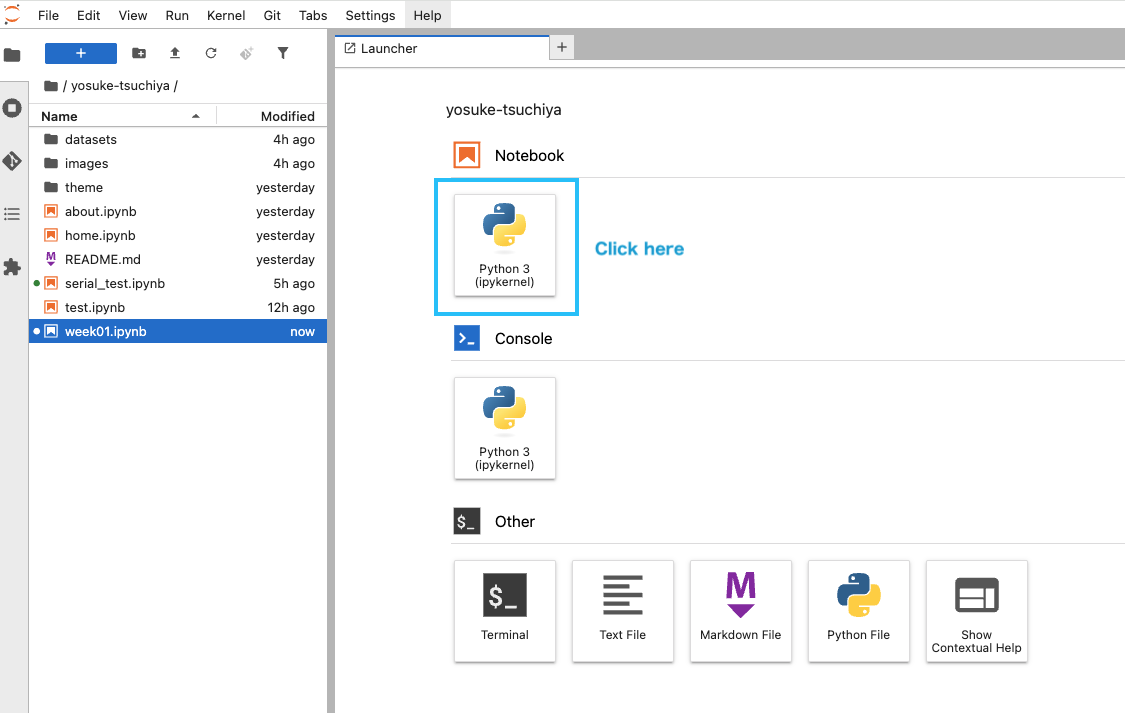
Then, new ipynb file are created and come to see in the screen.
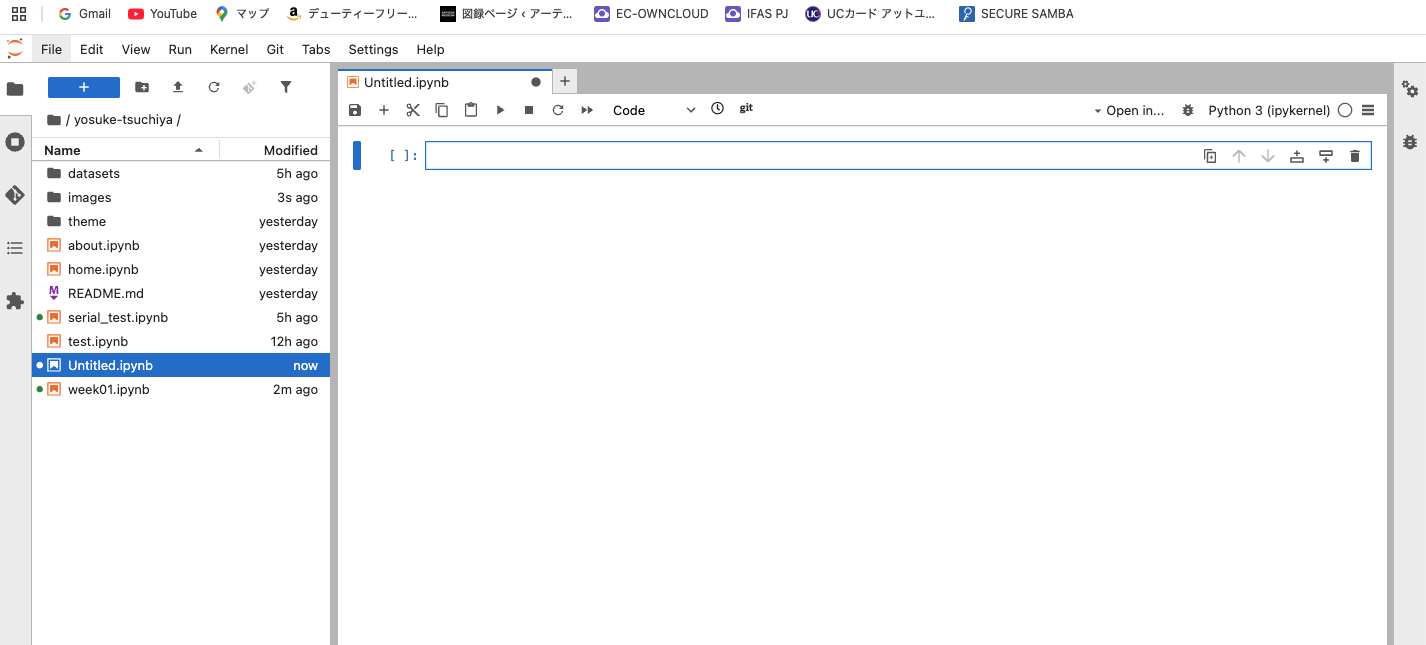
Write documentation with markdown
Push[+]button to add new "cell", and select the style "Markdown".
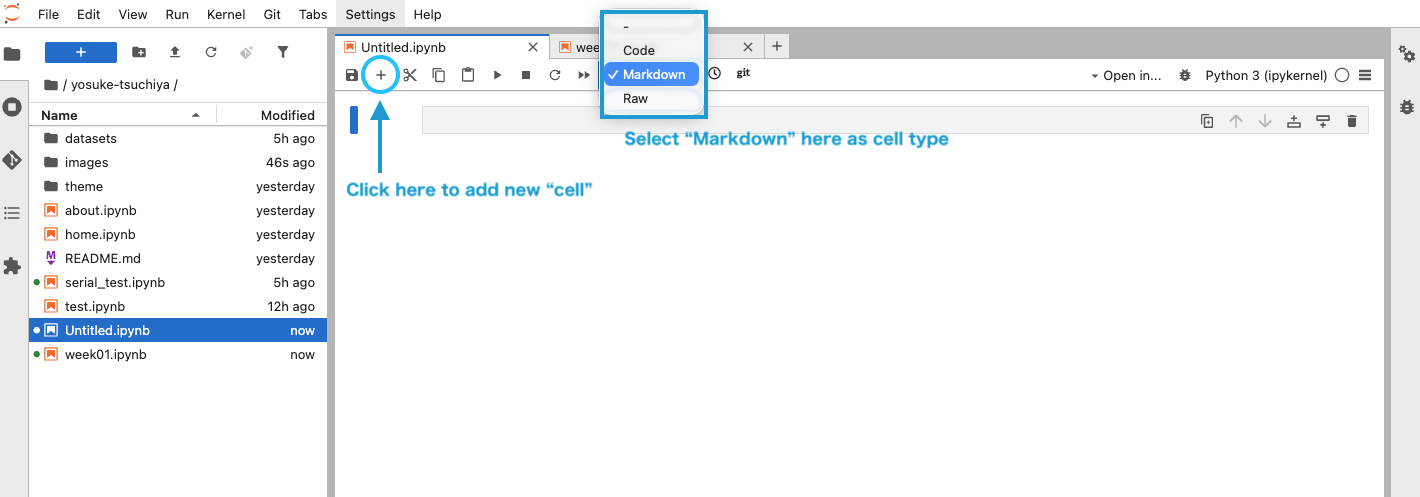
Then, the cell is added and I can write the text with markdown.
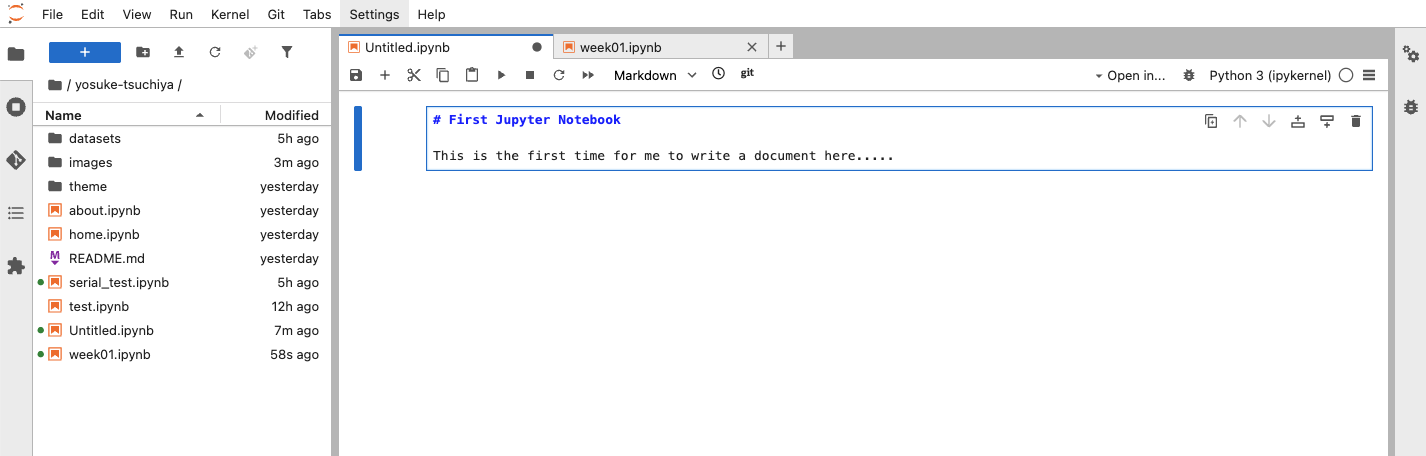
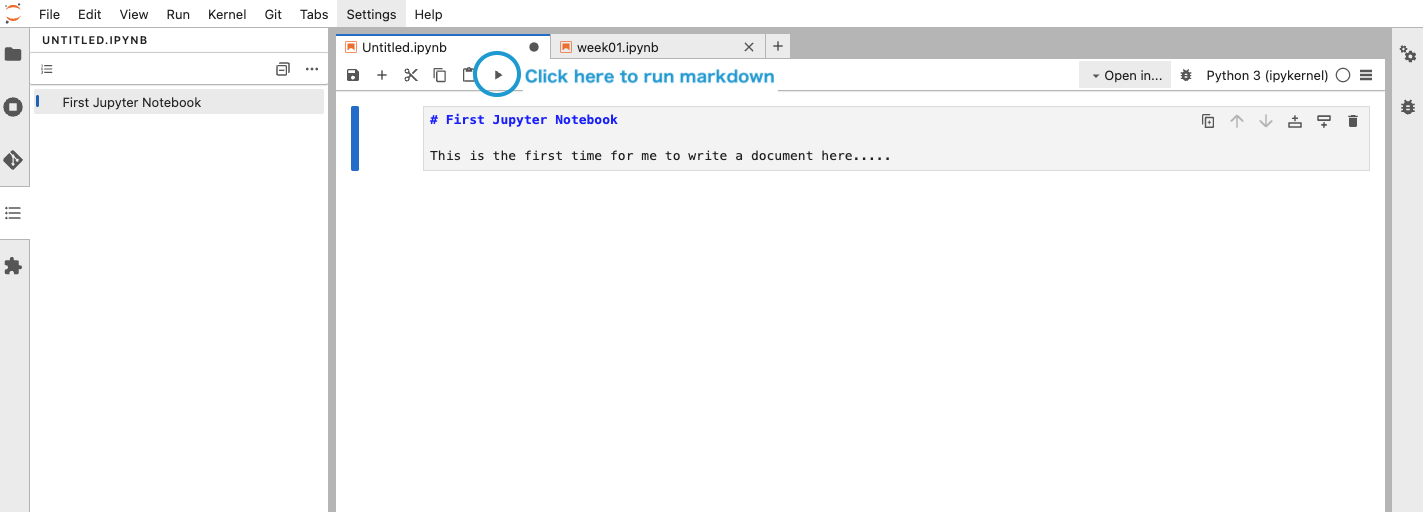
After write up the text, push "Run" button in the toolbar
Then, the text comes up that styled with Markdown.
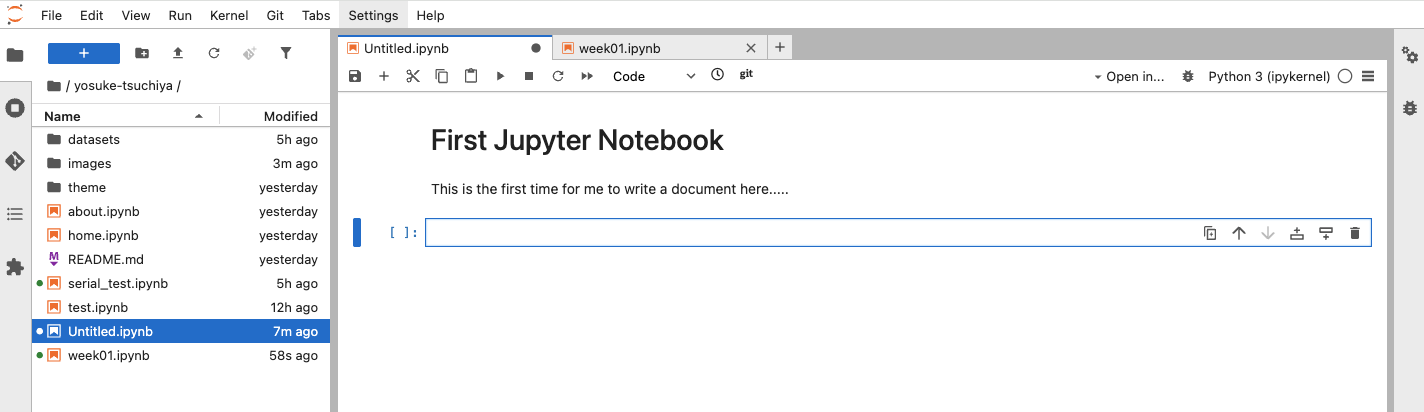
write and run python code
Push [+] button to add new cell, and select the cell style as "code"
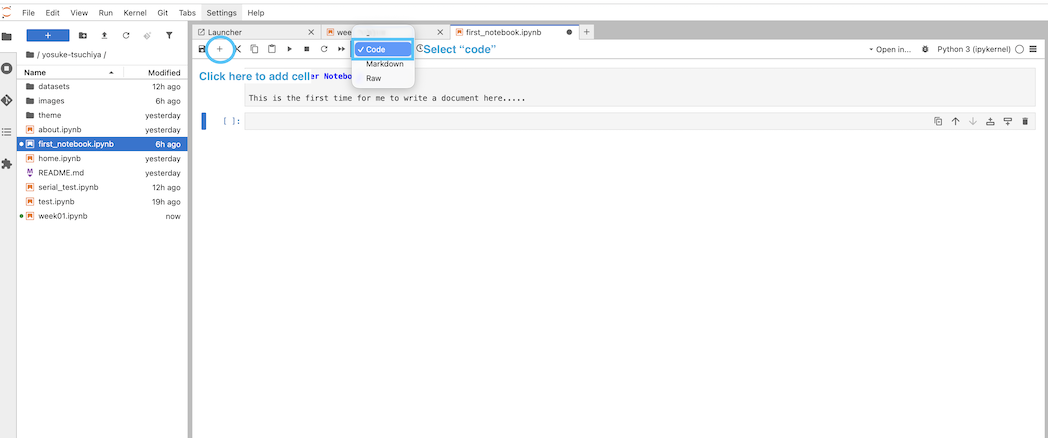
Then, write a code in the cell.
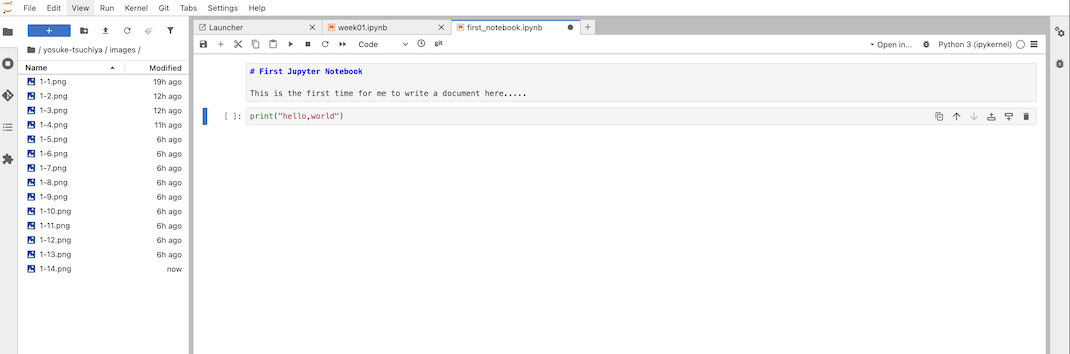
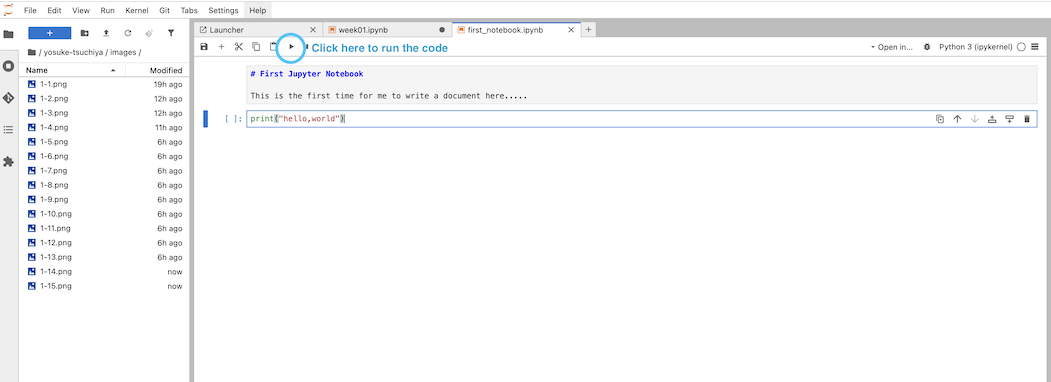
After writing up the code, push "Run" button in the toolbar.
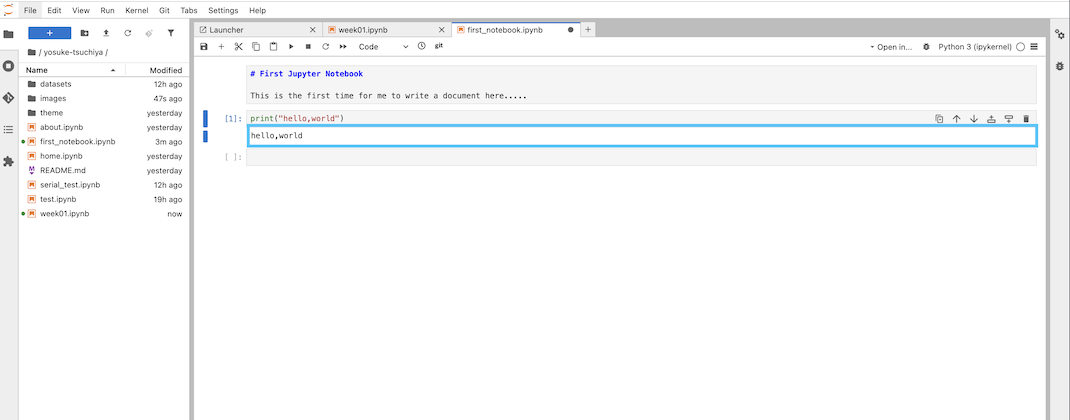
Then, the result of code come into cell output area.
Save the file
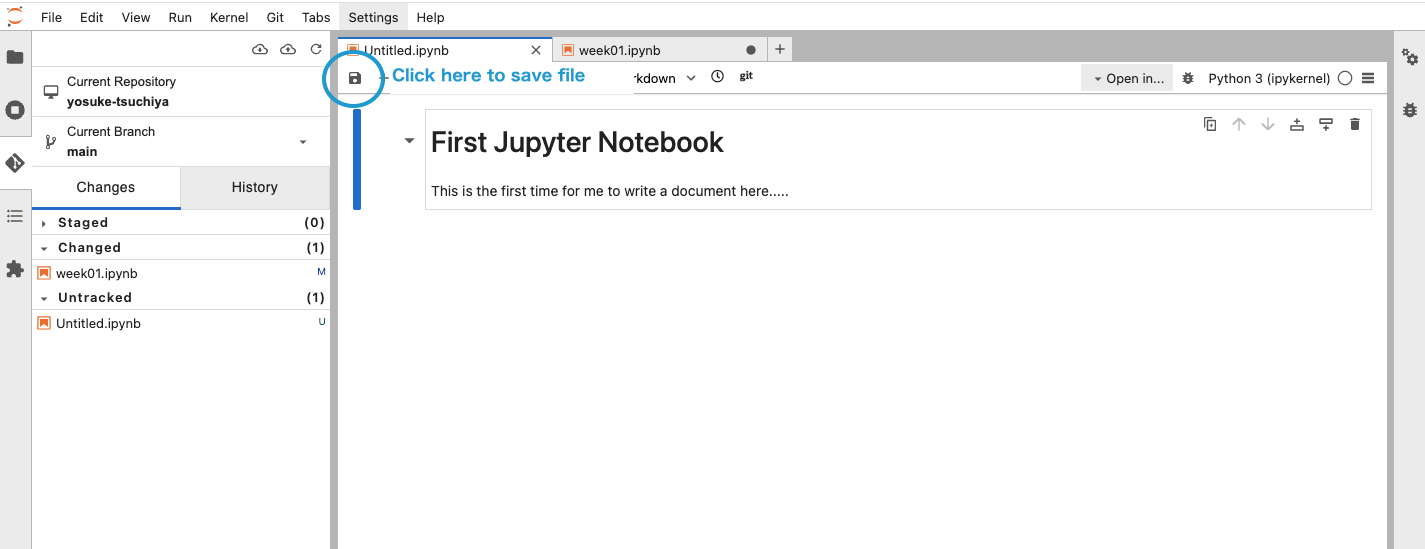
Click top-left floppy icon to save the file.
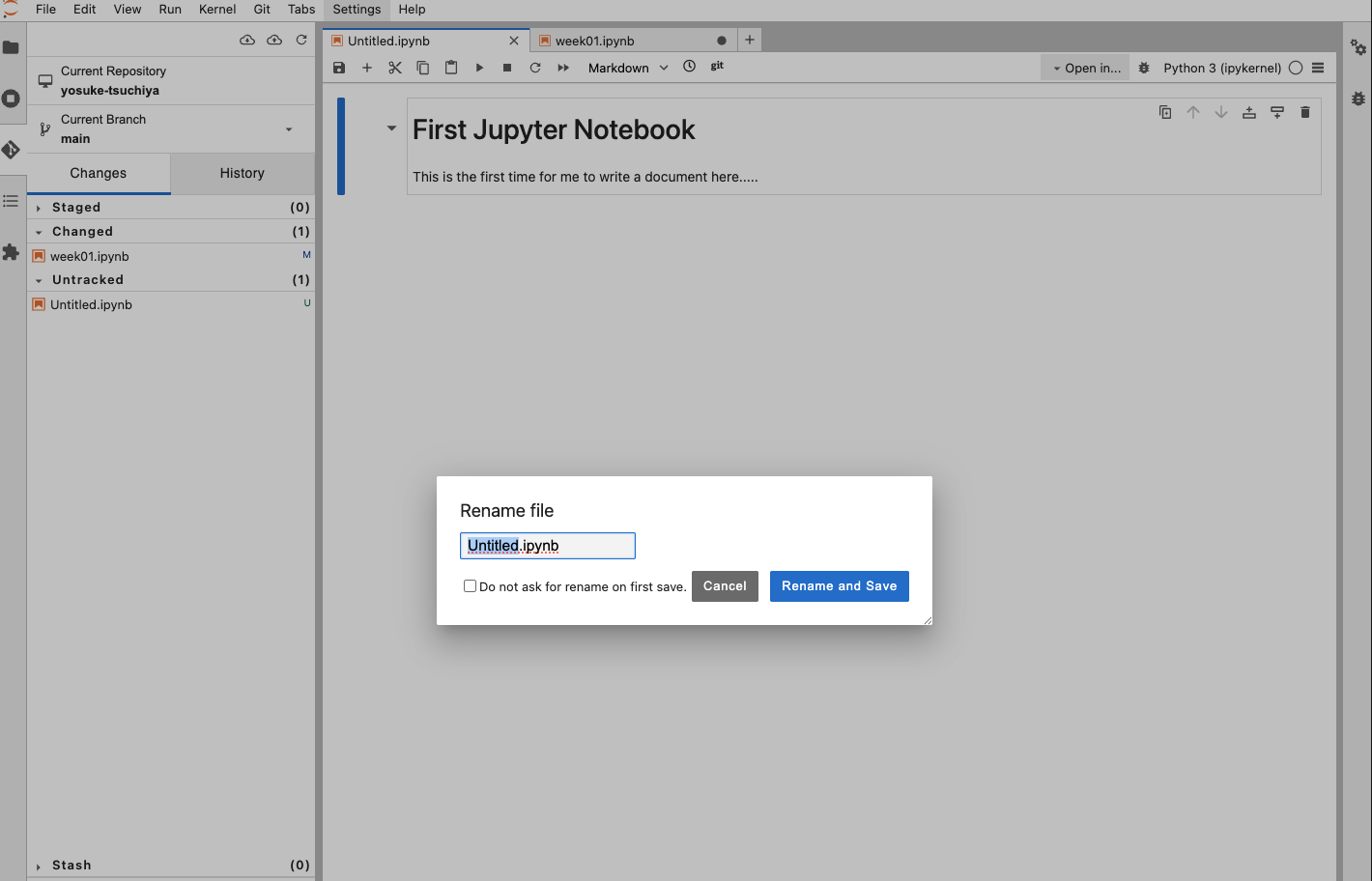
If you have saved first time, you need to write down the file name with replacing "Untitled". Then push "Rename and Save"
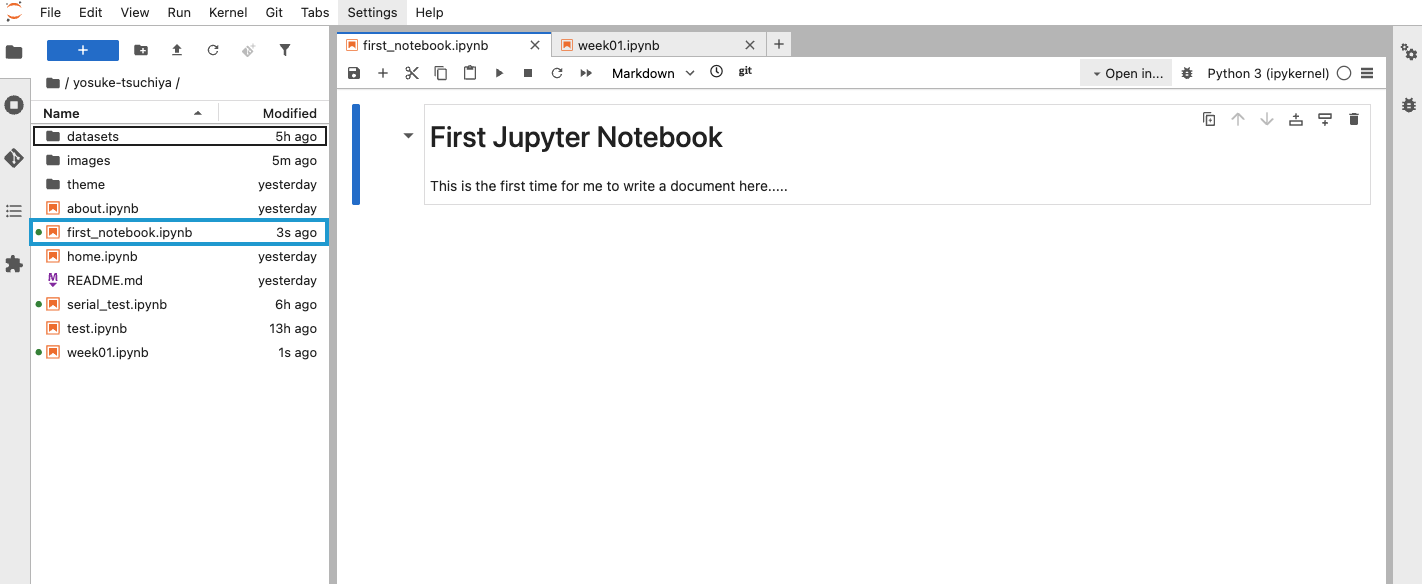
Finally, new file is added in the left side bar.
Upload to Fabcloud repository via Git
Push "Git" button on the left side.
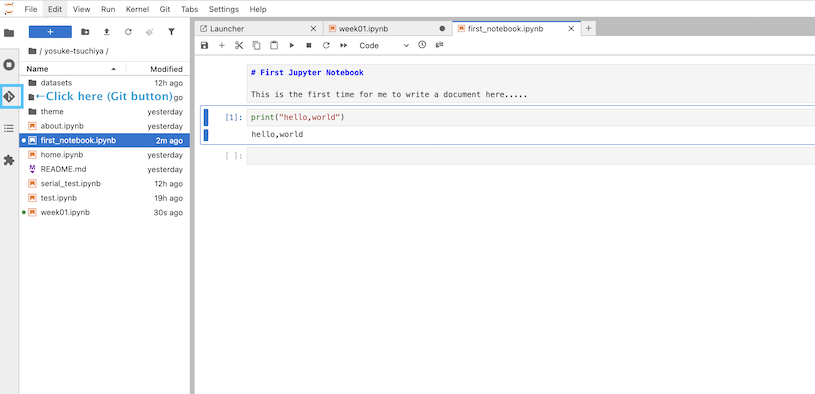
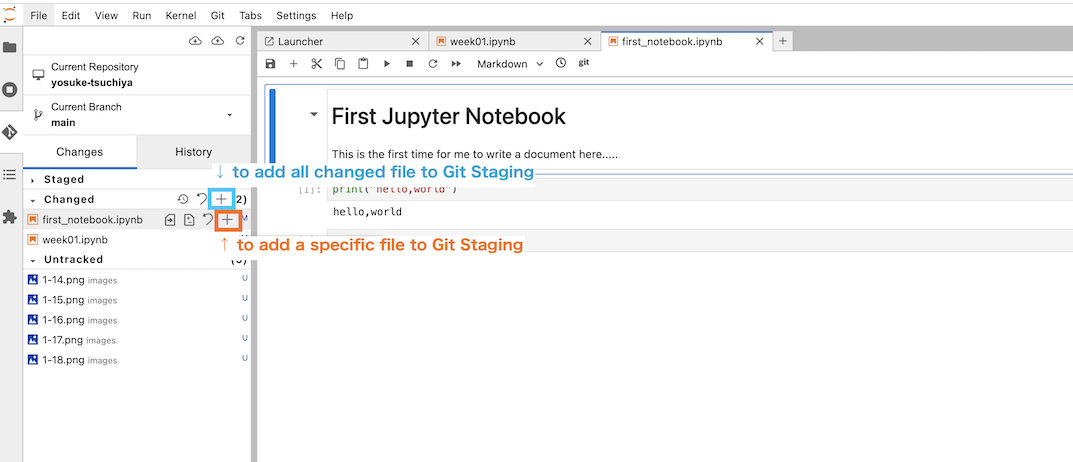
Push [+] button on the right of file name for adding it to "staged". You can push [+] button on the right of "Changed" for adding all "Changed" files to "Staged". This aciton is the same with the git command "git add".
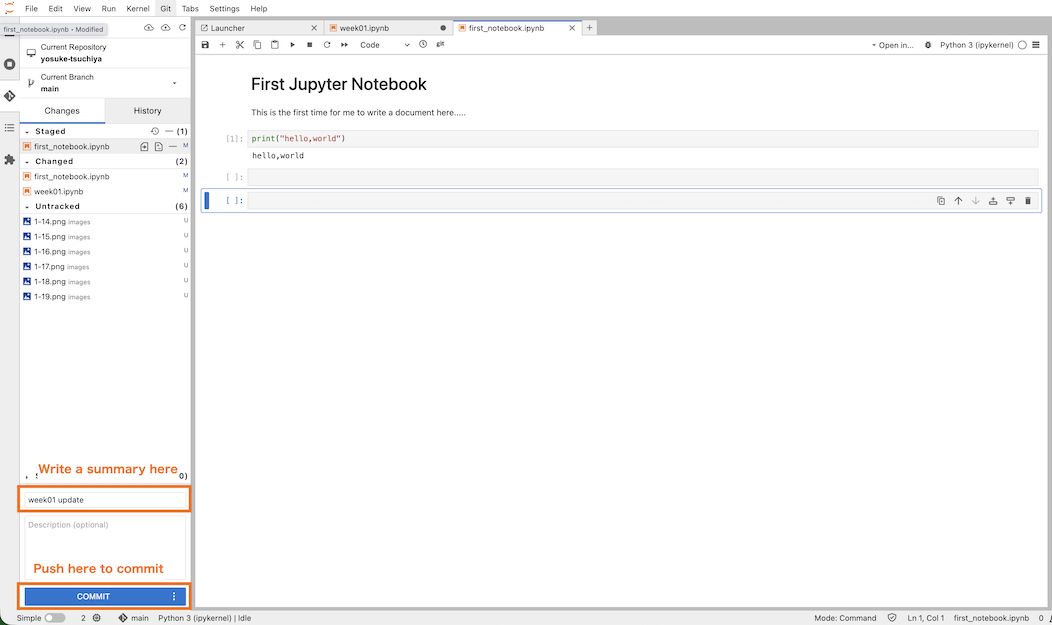
Then, I can see the added file in the "staged". Write the sammary in the below form. Then, push "commit" button.
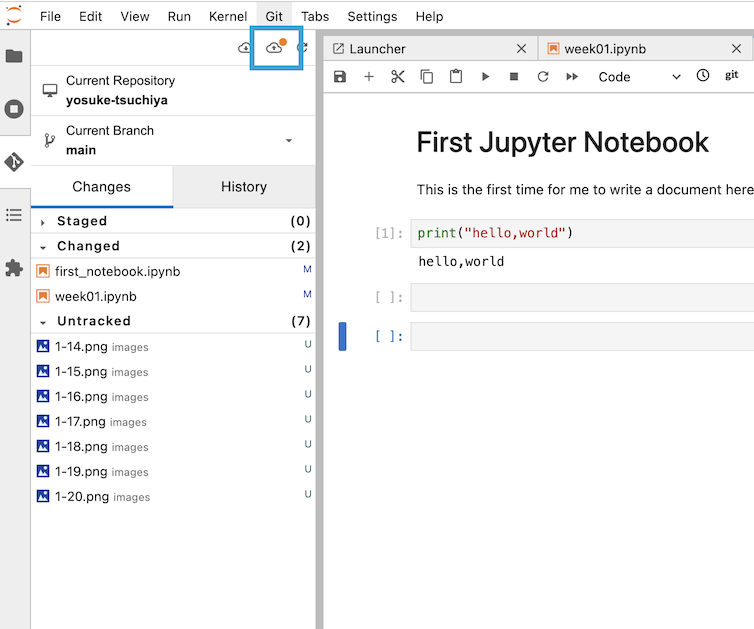
Finally, click the above "Push" button to upload to the repository.
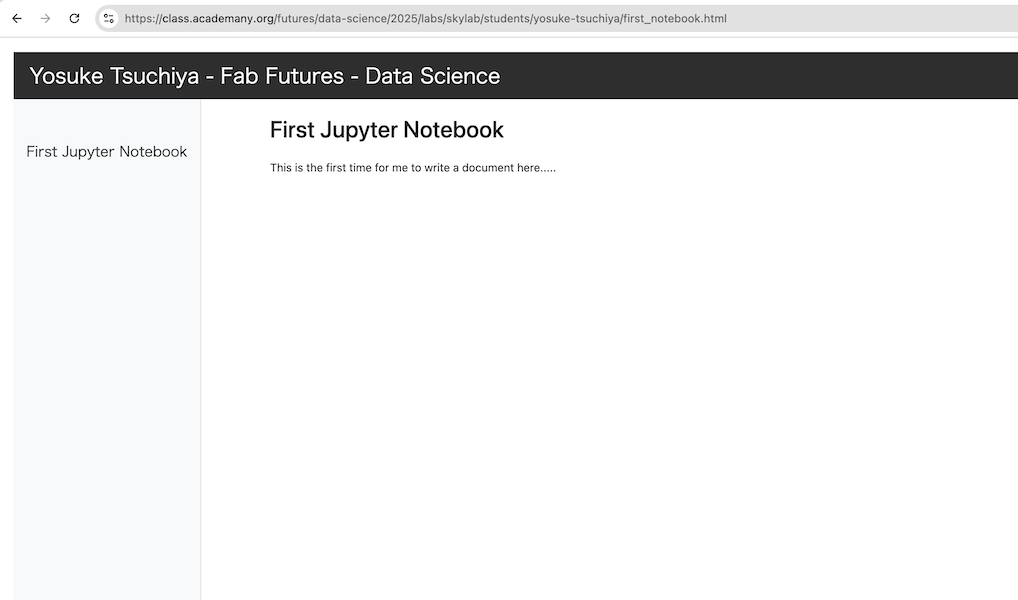
If the push would be succeeded, my new updated would come on my website. The file is converted from .ipynb to .html, and we can see on this url: https://class.academany.org/futures/data-science/2025/labs/skylab/students/yosuke-tsuchiya/first_notebook.html
Python code
This is an example file to introduce you to Juypter Labs and show you how you can organise and document your work. Feel free to edit this page as you please. The topmost cell is a small navigation to go back home and optionally you could link the following week here (ie week 2), when you start working on it to help visitors.
print("Hello world")
Hello world
!python --version
Python 3.13.9
Test math
1+1
2
x = 2 + 1
x * 4
12