Session 2: Internet security
— PART 1 —
TLS Handshake trace
Trace a real TLS handshake and an encrypted data segment. Identify how the session is established — cipher suite, certificate, key exchange — and confirm what an observer can and cannot see.
Useful links
Tutorials
- tcpdump : observer le trafic réseau
- SSL Handshake Capture with tcpdump
- TCPDump : capturer et analyser le trafic réseau sur Linux
Tools
Research
Steps
- Install tcpdump
- Install Wireshark
- Trying to find the right command:
- First: trying to track everything with
sudo tcpdump -i eth0 - Then: trying to capture the results with
-w /filename.pcap - Experimenting with cutting the query with 32 bytes and others queries like
tcpdump 'tcp[tcpflags] & (tcp-syn|tcp-fin) != 0' - Ending phase: obtaining the right command and reading the file with Wireshark
Attempts
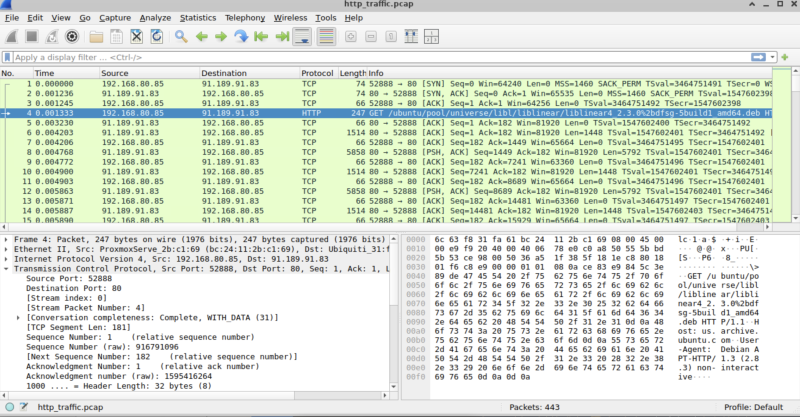
- tried to listen the port 80 to obtain the http traffic with:
sudo tcpdump -nn -i eth0 port 80 -w http_traffic.cpac
But I was not able to see the handshake
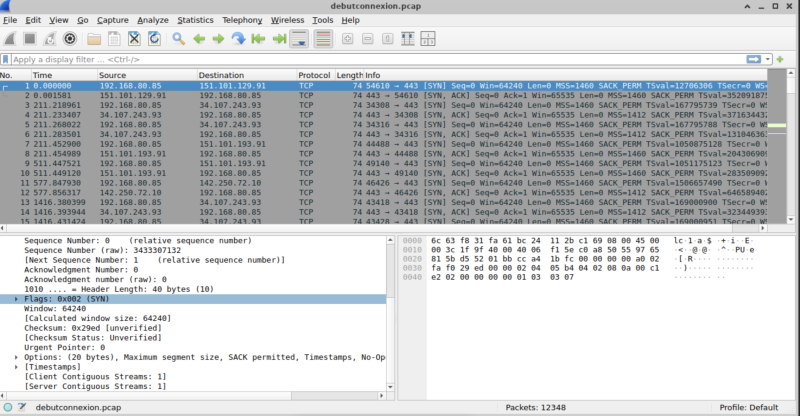
- tried to listen the TCP connexion with (SYN packets):
sudo tcpdump -nn -i eth0 'tcp[tcpflags] & tcp-syn !=0' -w debutconnection.cpac
Obtained flag SYN
- tried to listen the first part of the handshake with (ACK packets):
sudo tcpdump -nn -i eth0 'tcp[13] ==2' -w etape1handshake.cpac
*plan to listen the the accepted connections and the denied ones (RST packets):
sudo tcpdump -nn -i eth0 'tcp[tcpflags] & tcp-rst != 0'
*plan to listen the normal ended connections (FIN packets)
Terminal code and result
tcpdump capture of the TSL connection
tcpdump -i any 'port 443 and (tcp[tcpflags] & (tcp-syn|tcp-ack) == tcp-syn)'
Wireshark analysis
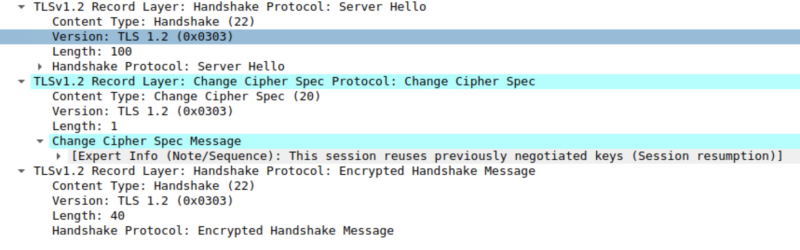
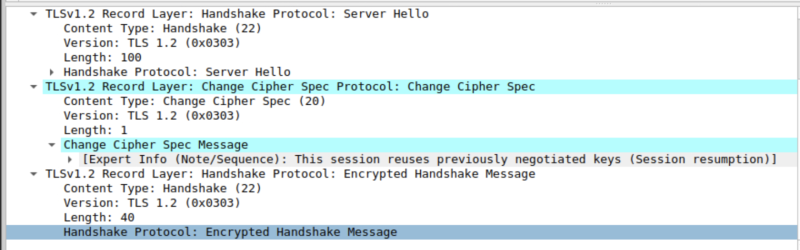
With filter: ssl.handshake.type
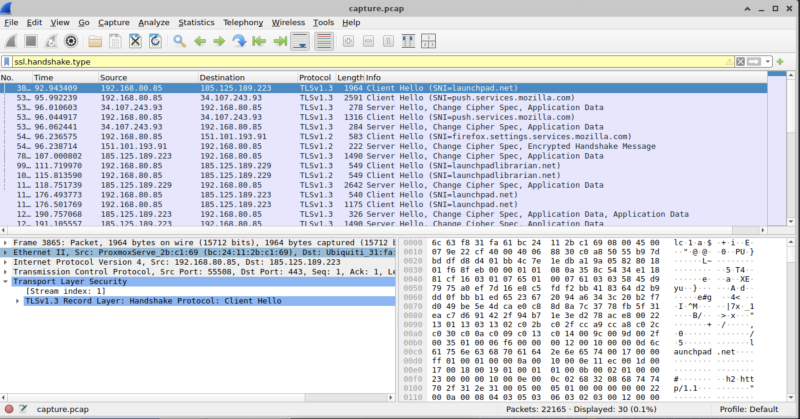
Answers to the questions
- Client Hello
- Server Hello
- Change Cipher Spec
- Encrypted message Handshake –> You can’t see the message/ You can’t see the keys –> You can see the TLS version / You can see the different steps of the handshake
### — PART 2 —
Port scan and firewall
Your VM will be subjected to a port scan. Determine what it reveals about your exposed services, then configure the firewall to reduce what’s reachable from outside.
Useful links
Understanding Nmap Scan with Wireshark
Research
- install nmap
-
trying different scans
-
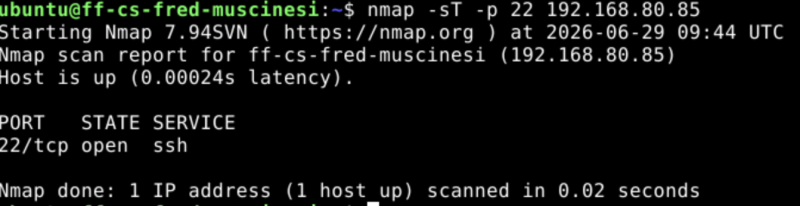
-sT
nmap -sT -p 22 192.168.80.85