Session 2 Internet security
After setting the tunnel to the VM I could start the assignement of the second lecture.
I wanted to try the 4 tools mentionned by Neil:
- tcpdump
- wireshark
- nmap
- IP tables
The first two have traffic capture and packet analyzing capabilities.
TCPDUMP
I started with tcpdump
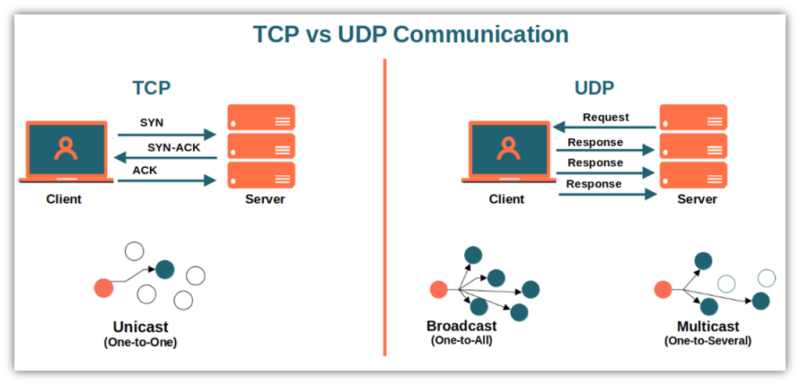
Quick reminder what TCP is as compared as UDP.
ubuntu@ff-cs-aline-becq:~$tcpdump
but got the
tcpdump: eth0: You don't have the permission to perform this capture on that device
(socket: Operation not permitted)
Sudo was missing.
sudo tcpdump
is the right command Loads of packets got captured. Nothing needed to be installed.
pCap format can be used.
Amazing illustrated magazine as introduction https://jvns.ca/tcpdump-zine.pdf In love with this visual, outreach work https://wizardzines.com/ <3 Will definetly print this one: https://wizardzines.com/networking-tools-poster.pdf I got lost in that rabbit hole and got late on the rest.
As I rencountered some issue with the capture part of WireShark I could chain Tcpdump and Wireshark.
WireShark
I then installed Wireshark
sudo apt get wireshark
Tried to run it
sudo wireshark
Got a warning and an error related to GUI.
I read some fix with su -l but didn’t quite get it.
“The su command lets you switch to another user account or run commands with another user’s privileges. ”
-l makes it a login shell
I installed tygervnv-viewer. Tried
sudo -E wireshark
as it is supposed to allow X11 forwarding (a method that allows users to run graphical applications on a remote server and display them on their local machine using SSH)
Did not work better
Then tried to change the Display variable export DISPLAY=:0.0 /usr/bin/wireshark
Did not work either How could I restore the display value?
-D to list the display wireshark sees?
wireshark -D
ubuntu@ff-cs-aline-becq:~$ wireshark -D
1. eth0
2. any
3. lo (Loopback)
4. bluetooth-monitor
5. nflog
6. nfqueue
7. dbus-system
8. dbus-session
9. ciscodump (Cisco remote capture)
10. dpauxmon (DisplayPort AUX channel monitor capture)
11. randpkt (Random packet generator)
12. sdjournal (systemd Journal Export)
13. sshdump (SSH remote capture)
14. udpdump (UDP Listener remote capture)
15. wifidump (Wi-Fi remote capture)
No -D lists the interfaces on which to capture –display lists the displays
Another suggestion is to use tshark, a command-line version of wireshark I installed it.
Once able to access Desktop VPN I could launch Wireshark but encountered an error: I wasn’t authorized to capture on eth0 partly because I did not allow non-superuser to capture packets during the install. It reminded me of the tcpdump error.
To fix this I tried
sudo dpkg-reconfigure wireshark-common
sudo usermod -a -G wireshark ubuntu
I closed and reopened Wireshark, the error indeed disappeared but eth0 didn’t appear in the Capture list anymore :/
I looked for similar issues on forums found this one.
That seems to be a problem linked to the fact that we are inside a VM. They recommend gksudo (deprecated?), graphical applications were allowed to be run with root privileges.
Some recommand to launch Wireshark as root and some absolutly not ^^
Lets decompose the last sudo. It will append the user group with the Ubuntu user(me). I also found recommandation to use this line sudo gpasswd -a $USER wireshark, which seems pretty similar.
Another adjustment can be made to dumpcap as described here.
$ sudo setcap cap_net_raw,cap_net_admin+eip /usr/bin/dumpcap
Still not working, I tried a capture and got the “Couldn’t run /usr/bin/dumpcap in child process: Permission denied” message.
I tried to restart my VM. Doesn’t seem possible from the interface.
Given all those complications I will do the Wireshark exercices outside of the VM. I log out of SSH with Ctrl+D. An alternative would be to do the capture with tcpdump and to analyze with Wireshark.
I installed Wireshark on my Raspberry and launched it with sudo wireshark. My Raspberry is connected to Internet through wifi so I listened to wlan and recorded while I searched for futures academy website. I recorded the handshake in a pcap format.
nmap
Is a tool to scan ports. Before using it make sure you have the authorization, that could be an infraction.
I installed nmap
sudo apt get nmap
Seems to be working
network topology
I am using an wireless access point, so in order to retrieve its IP I use
ip route
as described on this page.
Handshake exercice
“TLS Handshake Trace
Trace a real TLS handshake and an encrypted data segment. Identify how the session is established — cipher suite, certificate, key exchange — and confirm what an observer can and cannot see.”
From the recording with WireShark the certificate exchange was not obvious. I looked for help. I can look for Hello as filter
Port scan & firewall exercice
Your VM will be subjected to a port scan. Determine what it reveals about your exposed services, then configure the firewall to reduce what’s reachable from outside.
Rephrasing it I understand that I have to look for scanning in the traffic, I don’t have the time nor the IP to help me. I can look for exchanges that end with ack from my machine with no reply from the server. nmap was probably used for the scanning. I can use IPtables afterwards to ban the IP responsible for the scan.
Research exercice
For each of the following systems, research and document 3 parts what threat does it address? what’s the trust model? what’s the residual risk?
- PGP (end to end email security)
- SSH (secure remote access)
- VPN / IPsec (network-layer tunneling)
- MACsec (link-layer encryption)
- DNS Security (DNSSEC & DNS spoofing)
- IDS / IPS (detection vs. prevention)
| Name | Threat addressed | Trust model | Residual risk |
|---|---|---|---|
| PGP | Confidentiality & authenticity at OSI layer 6 | Web of Trust | Integrity? |
| SSH | Confidentiality & authenticity | Zero Trust? | Integrity? |
| VPN/IPSEC | Confidentiality & authenticity at OSI layer 3 | Zero Trust? | Integrity? |
| MACSEC | Confidentiality & Integrity at OSI layer 2 | Zero Trust? | ? |
| DNSSEC |
Extra
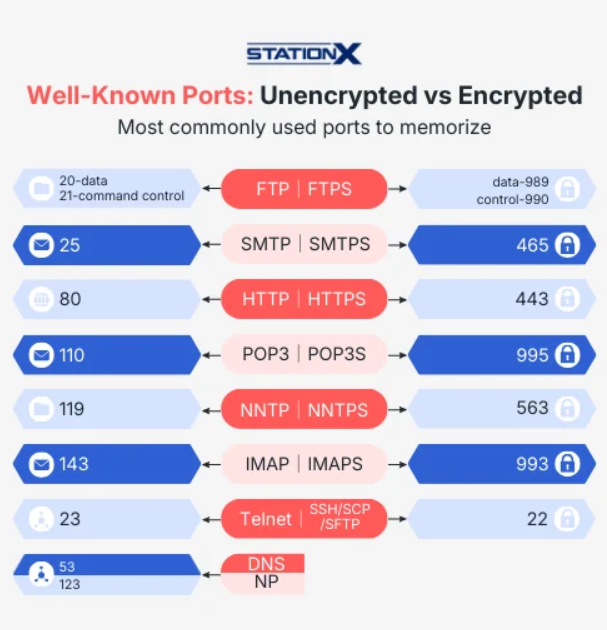
The TCP/UDP ports assignations are numerous as shown on this page. The assignations are defined by IANA (Internet Assignation Numbers Authority). I never realized there were so many protocols. A few are of particular interest. For example 22 for SSH, 53 for DNS, 443 for HTTPS, 500 for IPSec, 502 for Modbus.