Session 2: Internet security
Written assignment
For each of the following systems, research and document 3 parts what threat does it address? what’s the trust model? what’s the residual risk?
I used google search for this research. And I used google translate for collecting my english.
PGP (end to end email security)
This is a technology that ensures the content of an email cannot be read by anyone.
SSH (secure remote access)
A communication protocol used to connect to another computer over a network and securely perform remote operations or management.
VPN / IPsec (network-layer tunneling)
A technology that establishes a virtual tunnel at Layer 3 (the network layer) of the communication protocol to securely exchange data through robust encryption.
MACsec (link-layer encryption)
MACsec (Media Access Control Security) is a technology standardized under IEEE 802.1AE that encrypts communication data at the network data link layer (Layer 2).
DNS Security (DNSSEC & DNS spoofing)
This refers to the full range of measures taken to protect the Domain Name System (DNS), which functions as the phonebook of the Internet. A core technology in this regard is DNSSEC, which serves as a countermeasure against “DNS spoofing”—an attack that redirects users to fraudulent websites.
IDS / IPS (detection vs. prevention)
IDS (Intrusion Detection System) and IPS (Intrusion Prevention System) are security systems that monitor networks for anomalies and unauthorized traffic. The primary difference lies in the level of automation regarding the response to threats: IDS detects and notifies, whereas IPS detects and blocks or prevents the traffic.
TLS Handshake Trace
Trace a real TLS handshake and an encrypted data segment. Identify how the session is established — cipher suite, certificate, key exchange — and confirm what an observer can and cannot see.
Install Wireshark
At first, J.M suggested us to download Wireshark that can monitor communication between client and server.
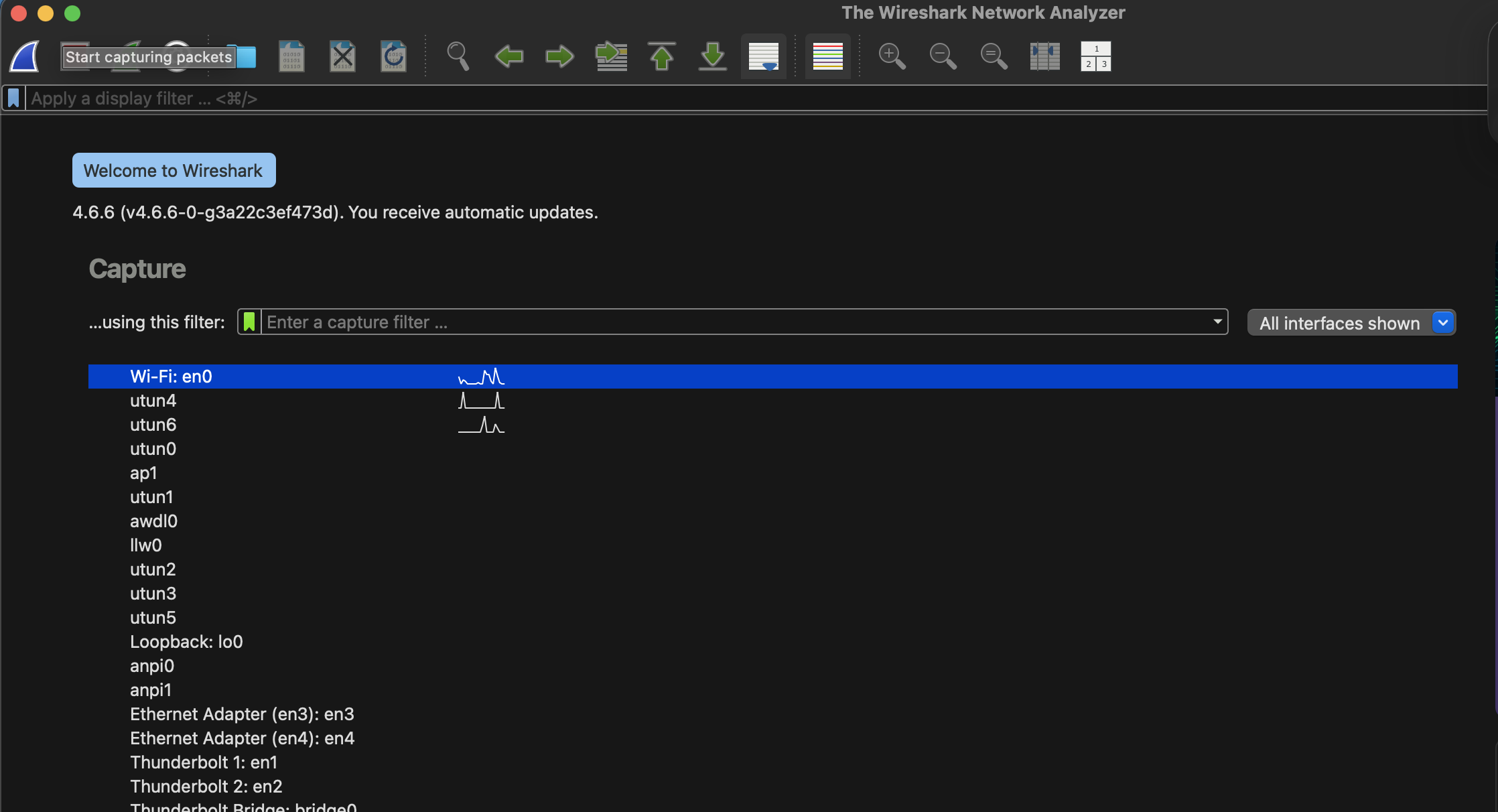
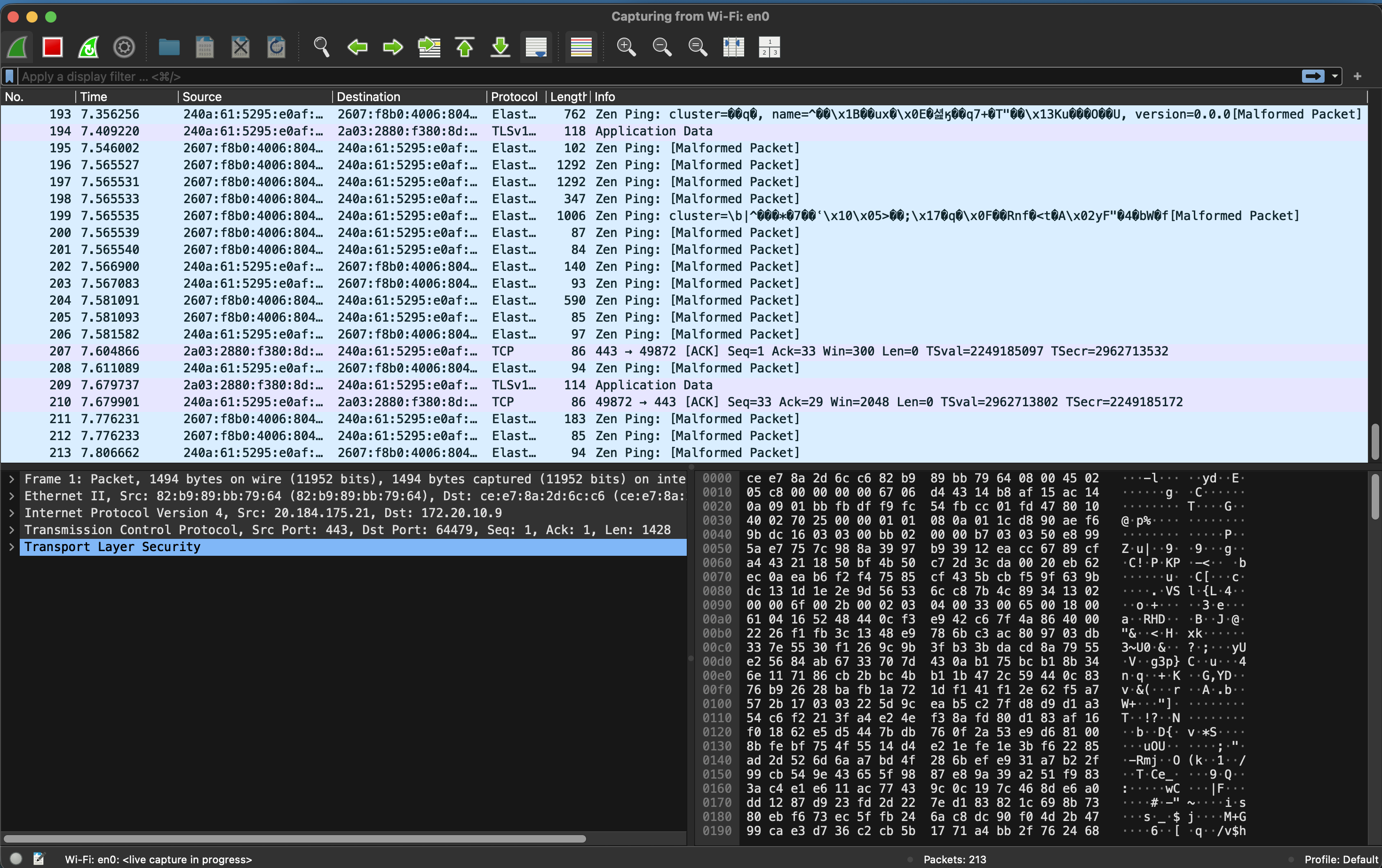
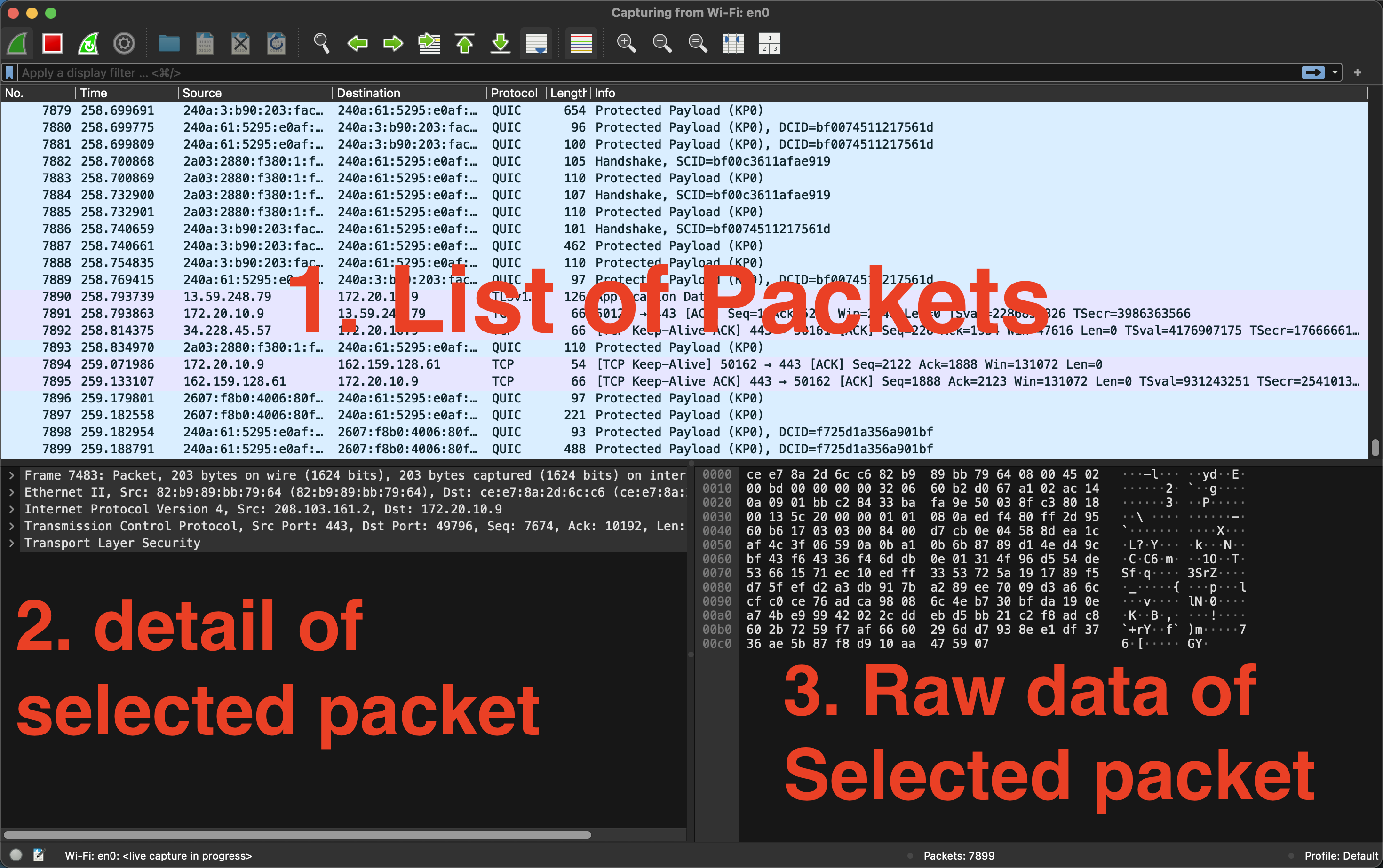
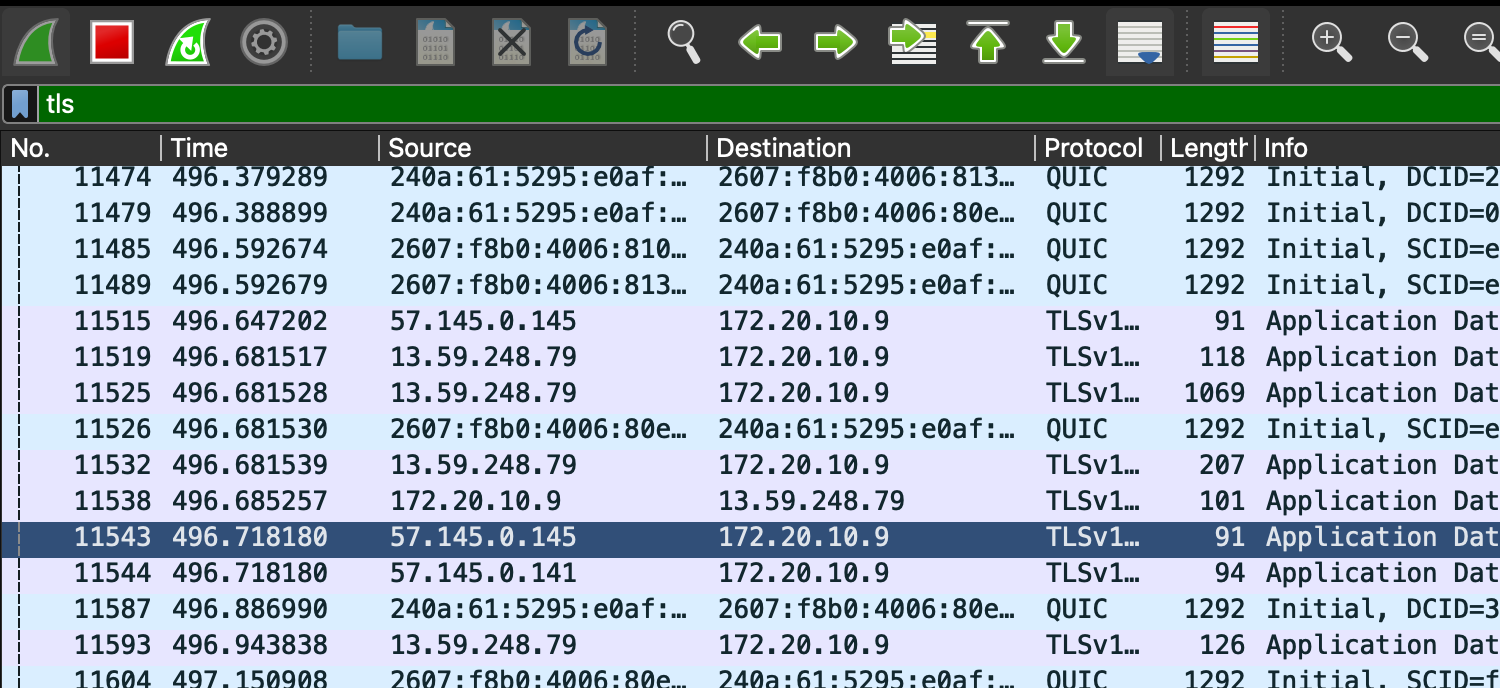
There are many packets I can see. So I tried to filter “TLS related packets” only.
I put “tls” on the filtering box.
Then I could filter.
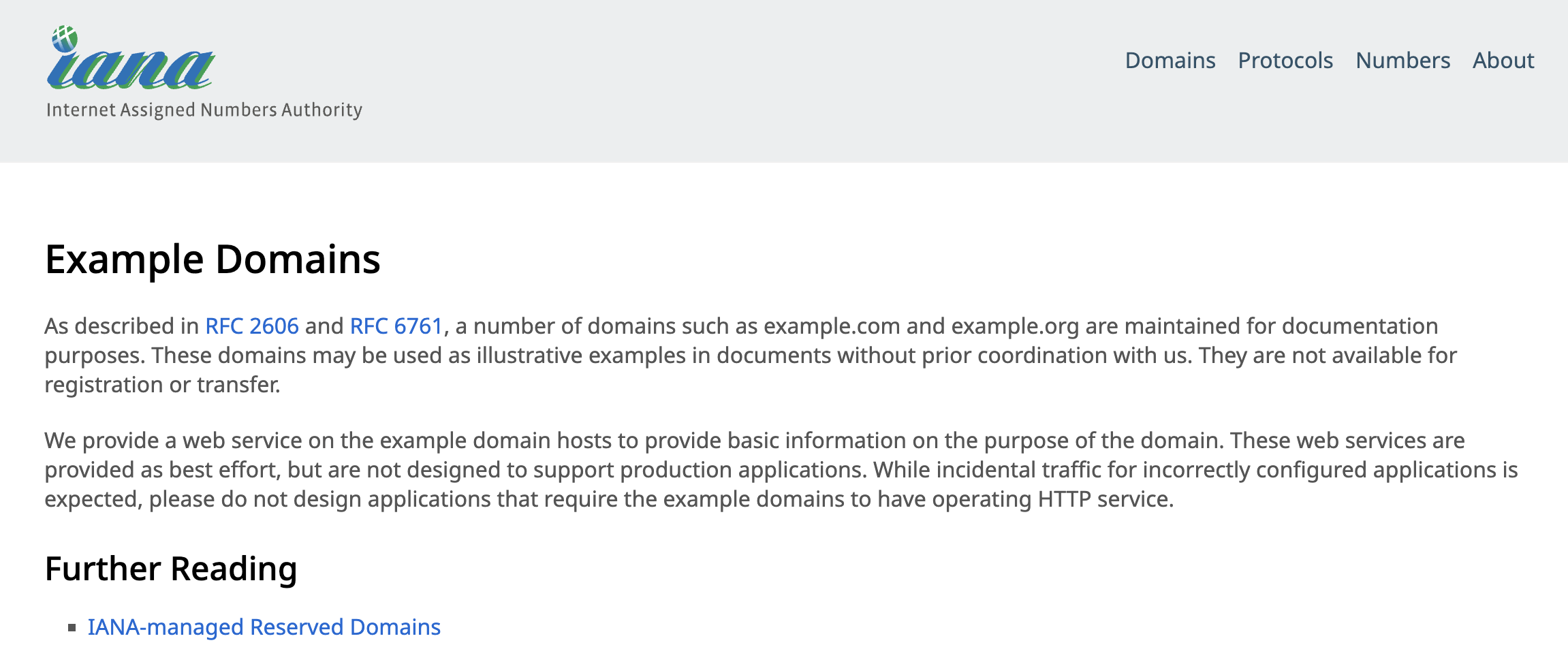
I tried to connect to https://example.com. And observed the hand shake.
This page is used for testing.
It is useful for checking communication as testing.
Also I filtered with “tls.handshake”. I wanted to focus on handshake packets.
I could see 3 packets seems like hand shake.
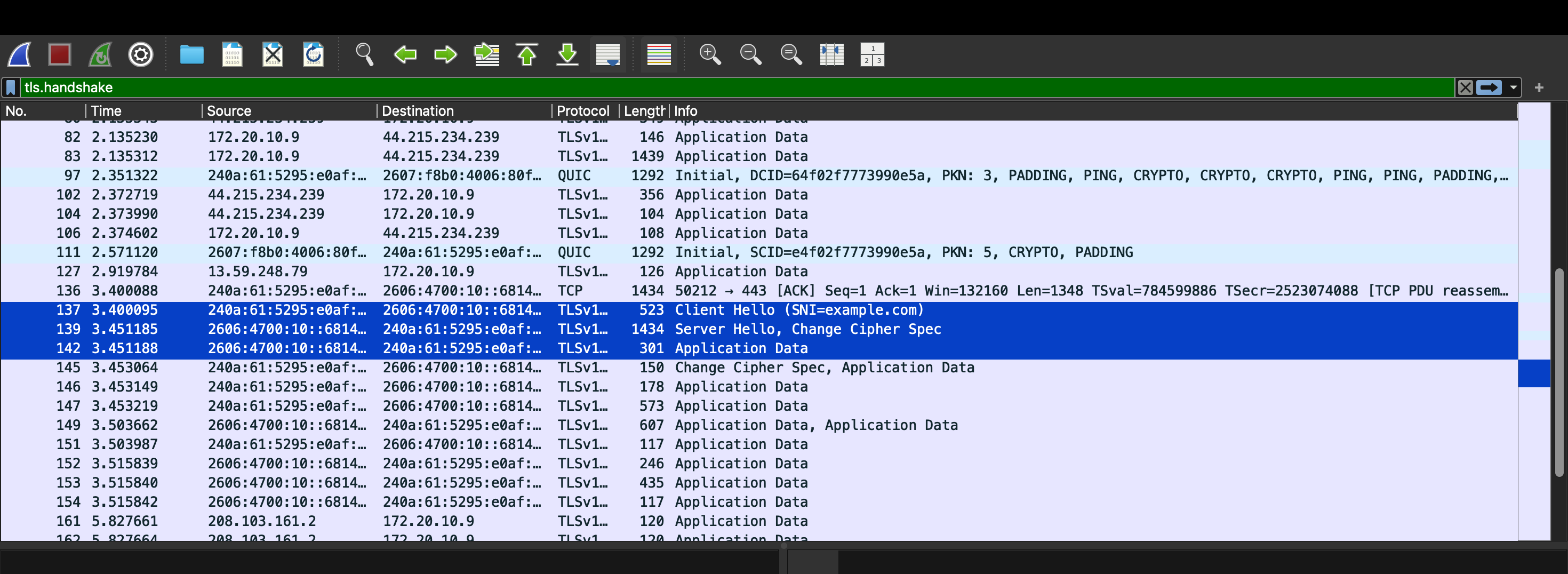
capturing
Analyze hand shake
I got a list of packets I can observe from Claude.
| # | Packet Name | Sender | What it does |
|---|---|---|---|
| 1 | Client Hello | Client | Sends a list of cipher suites it supports |
| 2 | Server Hello | Server | Selects one cipher suite and replies |
| 3 | Certificate | Server | Sends the certificate (identity + public key) |
| 4 | Server Key Exchange | Server | Sends Diffie-Hellman parameters |
| 5 | Client Key Exchange | Client | Sends the client-side DH contribution |
| 6 | Change Cipher Spec | Both | Declares “all further communication will be encrypted” |
| 7 | Application Data | Both | Actual HTTP data (encrypted) |
Following to this list, I will check my transaction.
First packet
I got packets as No.136 here.
        Handshake Type: Client Hello (1)
        Length: 1776
        Version: TLS 1.2 (0x0303)
        Random: d59f5e7cddf15845fc57ab23c0f35041b2d1ea6e7d9f7725541e9c7f1dff1462
        Session ID Length: 32
        Session ID: 693cab6aa4434b49ec62f31aacb046c496e4af18ddfb1416ea6da7b2a09b35d9
        Cipher Suites Length: 32
        Cipher Suites (16 suites)
I can see SNI too. SNI = Server Name Indication
Extension: server_name (len=16) name=example.com Type: server_name (0) Length: 16 Server Name Indication extension Server Name list length: 14 Server Name Type: host_name (0) Server Name length: 11 Server Name: example.com
First, client sent a SNI to server. It means which site client want to access. It is witten on first handshake packet. It means, even HTTPS connection, site url will be available as non encripted data.
Second packet
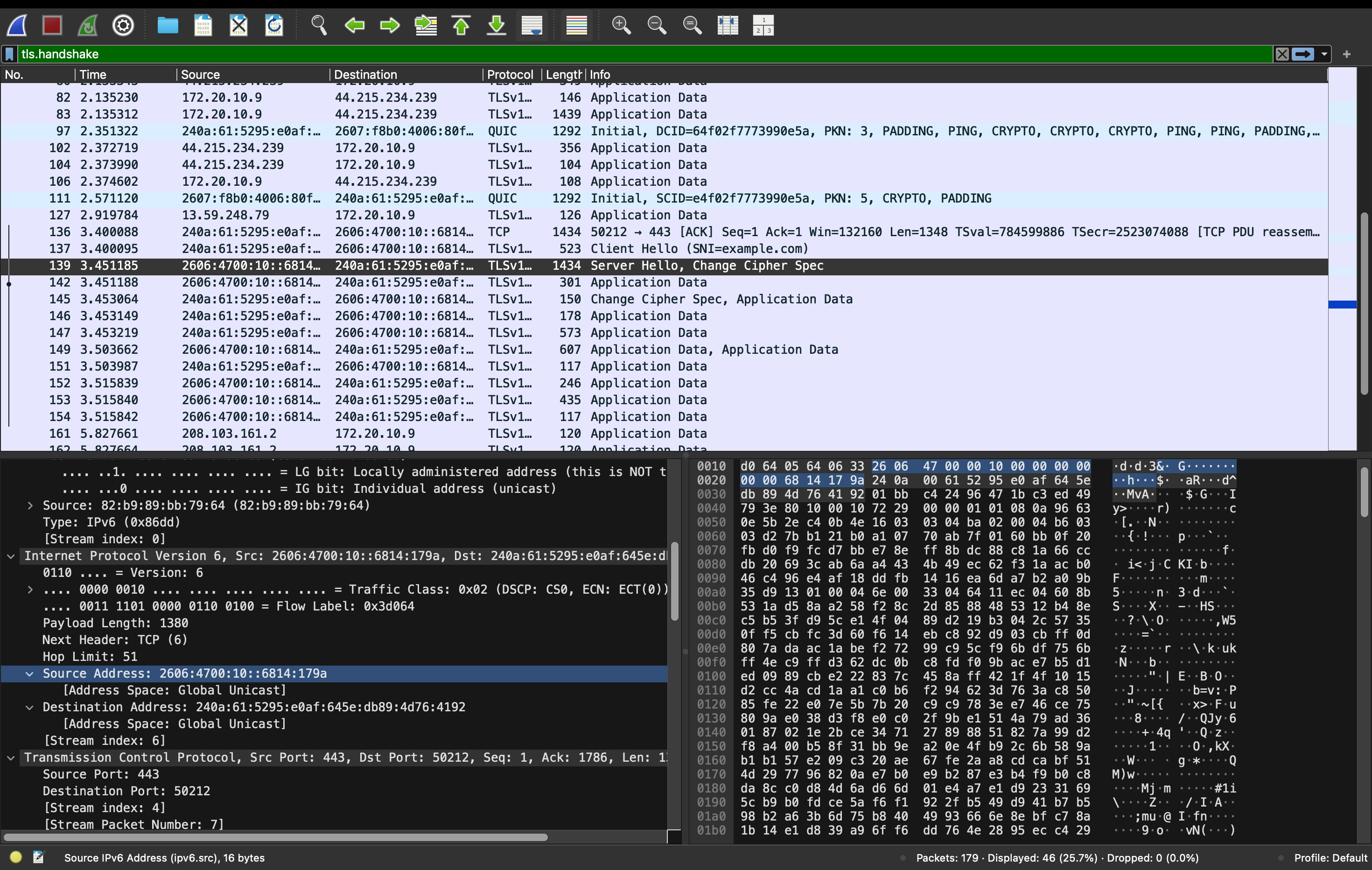 I could see the Server address and ports
- Source: 2606:4700:10::6814:179a ← example.com server
- Destination: 240a:61:5295:e0af:… ← my PC
-
Port: 443 → 50212
-
Cipher Suite: TLS_AES_128_GCM_SHA256
-
Key Exchange […]: a355726f73529a519236ab833f747baf618ecdba27421c4718484934b19e90fa75094bcaf45785fd3c353094b653c07aa4016a64e123cec96be5826d14b487b65110f2a0c1f3f53625d6b53f079a8a436c7481b91d097066c9a612519205d2747e6401692987fc1ba71f829112c
↑This is public key. The public parameters are visible to anyone, but they are mathematically useless without the private key. An observer can see them but cannot derive the shared session key from them. Visible but not useful to an attacker.

Port Scan & Firewall
Your VM will be subjected to a port scan. Determine what it reveals about your exposed services, then configure the firewall to reduce what’s reachable from outside.
I tried to see port from my PC to VM. I used nmap (Network Mapper). It is a tool for analyze used port.
brew install nmap nmap -sV 192.168.80.138
Starting Nmap 7.99 ( https://nmap.org ) at 2026-06-29 21:42 +0900
Nmap scan report for ff-cs-take (192.168.80.138)
Host is up (0.22s latency).
Not shown: 998 closed tcp ports (conn-refused)
PORT     STATE SERVICE VERSION
22/tcp   open  ssh     OpenSSH 9.6p1 Ubuntu 3ubuntu13.16 (Ubuntu Linux; protocol 2.0)
5901/tcp open  vnc     VNC (protocol 3.8)
Service Info: OS: Linux; CPE: cpe:/o:linux:linux_kernel

Service detection performed. Please report any incorrect results at https://nmap.org/submit/ .
Nmap done: 1 IP address (1 host up) scanned in 70.60 seconds
From this result, I could see 3 ports that is open. PORT STATE SERVICE VERSION - 22/tcp open ssh OpenSSH 9.6p1 Ubuntu - 3ubuntu13.16 (Ubuntu Linux; protocol 2.0) - 5901/tcp open vnc VNC (protocol 3.8)
SSH, VNC will be a threat if password is not enough strong.
Then, let’s try to set up firewall.
# Check the current status
sudo ufw status
>Status: inactive


# setting
# 1. allow SSH port first
sudo ufw allow 22/tcp

# 2. allow VNC only through local network(VPN)
sudo ufw allow from 192.168.80.0/24 to any port 5901

# 3. set default rule
sudo ufw default deny incoming
sudo ufw default allow outgoing

# 4. activate firewall
sudo ufw enable

# 5. confirmation
sudo ufw status verbose


>Status: active
Logging: on (low)
Default: deny (incoming), allow (outgoing), disabled (routed)
New profiles: skip

To                         Action      From
--                         ------      ----
5901/tcp                   ALLOW IN    Anywhere
22/tcp                     ALLOW IN    Anywhere
5901                       ALLOW IN    192.168.80.0/24
5901/tcp (v6)              ALLOW IN    Anywhere (v6)
22/tcp (v6)                ALLOW IN    Anywhere (v6)
Lets’s check using Nmap!
(base) take@MacBook-Air-3 ~ % nmap -sV 192.168.80.138
Starting Nmap 7.99 ( https://nmap.org ) at 2026-06-29 23:57 +0900
Note: Host seems down. If it is really up, but blocking our ping probes, try -Pn
Nmap done: 1 IP address (0 hosts up) scanned in 3.12 seconds
Ping is prevented by firewall. So I tried
nmap -Pn -sV 192.168.80.138
Starting Nmap 7.99 ( https://nmap.org ) at 2026-06-29 23:58 +0900
Nmap scan report for ff-cs-take (192.168.80.138)
Host is up (0.22s latency).
Not shown: 998 filtered tcp ports (no-response)
PORT     STATE SERVICE VERSION
22/tcp   open  ssh     OpenSSH 9.6p1 Ubuntu 3ubuntu13.16 (Ubuntu Linux; protocol 2.0)
5901/tcp open  vnc     VNC (protocol 3.8)
Service Info: OS: Linux; CPE: cpe:/o:linux:linux_kernel

Service detection performed. Please report any incorrect results at https://nmap.org/submit/ .
Nmap done: 1 IP address (1 host up) scanned in 149.89 seconds
Opening ports are same. But I confirmed that ping is prevented by fire wall.