Final Project: The USB Quacker (An Anti-Rubber Ducky Defense System)
Final Project Requirements: Analyze and harden the vulnerabilities of a computing system that you want to secure.

Psyduck is having a crisis. He wants to be a USB code quacker but he is also a duck.
Project Presentation
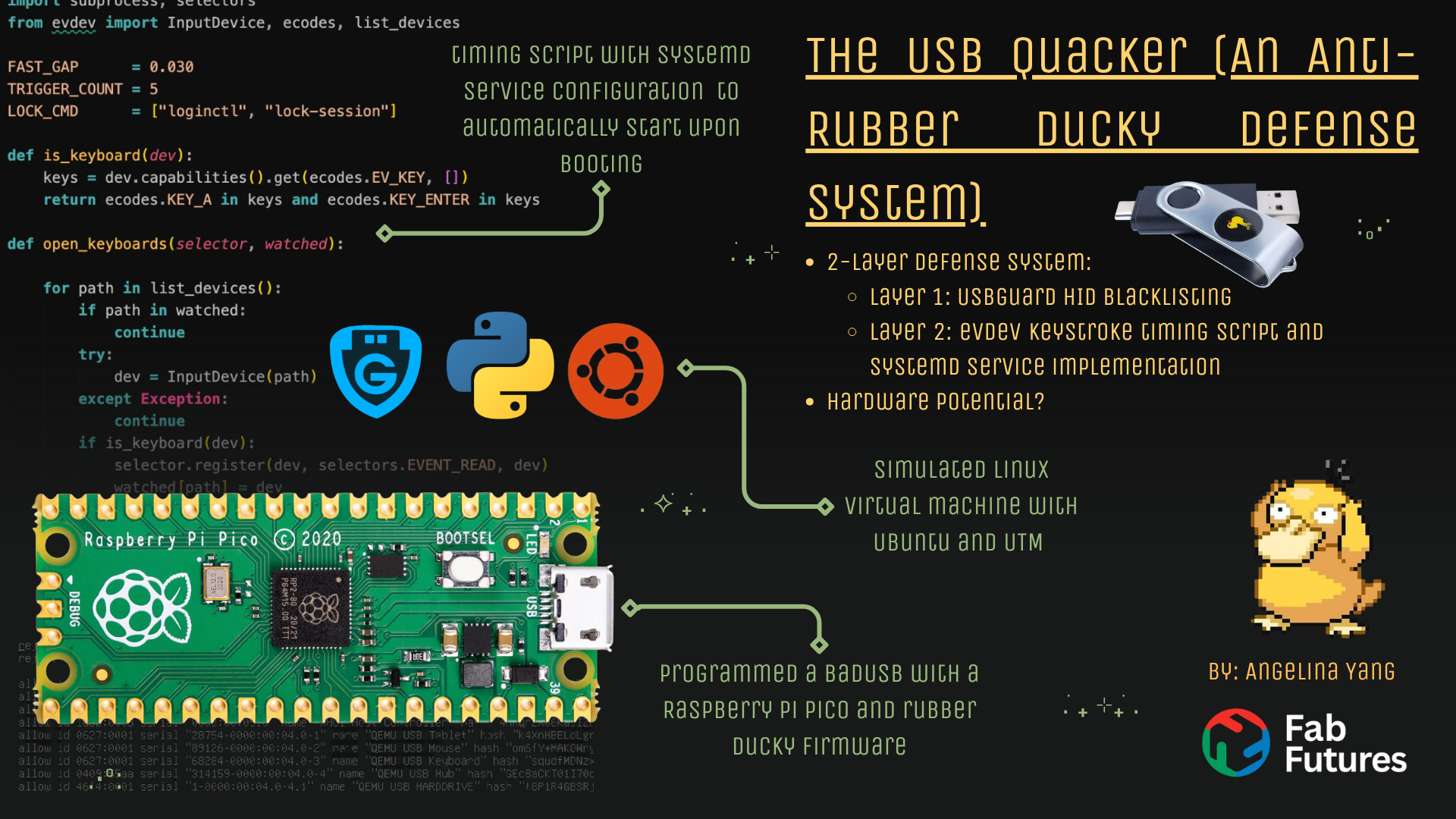
Context and Project Stimulus
After doing some research on a potential final project, I found that a lot of existing ideas depended on establishing a server or virtual machine, as we’ve done for many assignments in this class. While this route is interesting in nature, I wasn’t captivated by the sole software approach they took. Upon further searching, I landed upon the concept of the USB rubber ducky, a keystroke injection tool masked as an innocent flash drive, created by Hak5, that tricks the OS into thinking that it is a trusted keyboard. Once granted this access, it can execute pre-written scripts at superhuman typing speeds. Attackers can use it to instantly drop ransomware, steal passwords, or create stealthy backdoors. Because it simply “types” commands, it often bypasses traditional antivirus software and Endpoint Detection and Response (EDR) tools. ( •ө• )
The primary vulnerability as play here is human interface device, or HID Trust: When a keyboard enumerates, there’s no driver prompt or permission request; after all, the system assumes a human is pressing the keys. To counter this issue, I wanted to explore how a multi-layered security system can be built on my mac; separately, I found this fascinating paper from the Sri Shakthi Institute of Engineering and Technology, which uses machine learning to defend against rubber ducky attacks. In the future, I think it would be an interesting project to develop an “anti-rubber ducky USB,” whose purpose is to plug-in and counter other malicious USBs.
Getting Started with a Dummy Rubber Ducky USB
To build a defense system, I first needed to understand how the rubber ducky worked – or in other words, I needed to build a dummy rubber ducky. Thankfully, I found this tutorial, which used a simple Raspberry Pi Pico with Circuitpython and two versions of the rubber ducky firmware from this repo–I downloaded pico-ducky-v2.0-us and pico-ducky-main.
First, I held down the BOOTSEL button on my pico and plugged it into my mac. Doing this causes the RPI-RP2 drive to pop up in the sidebar of Finder.
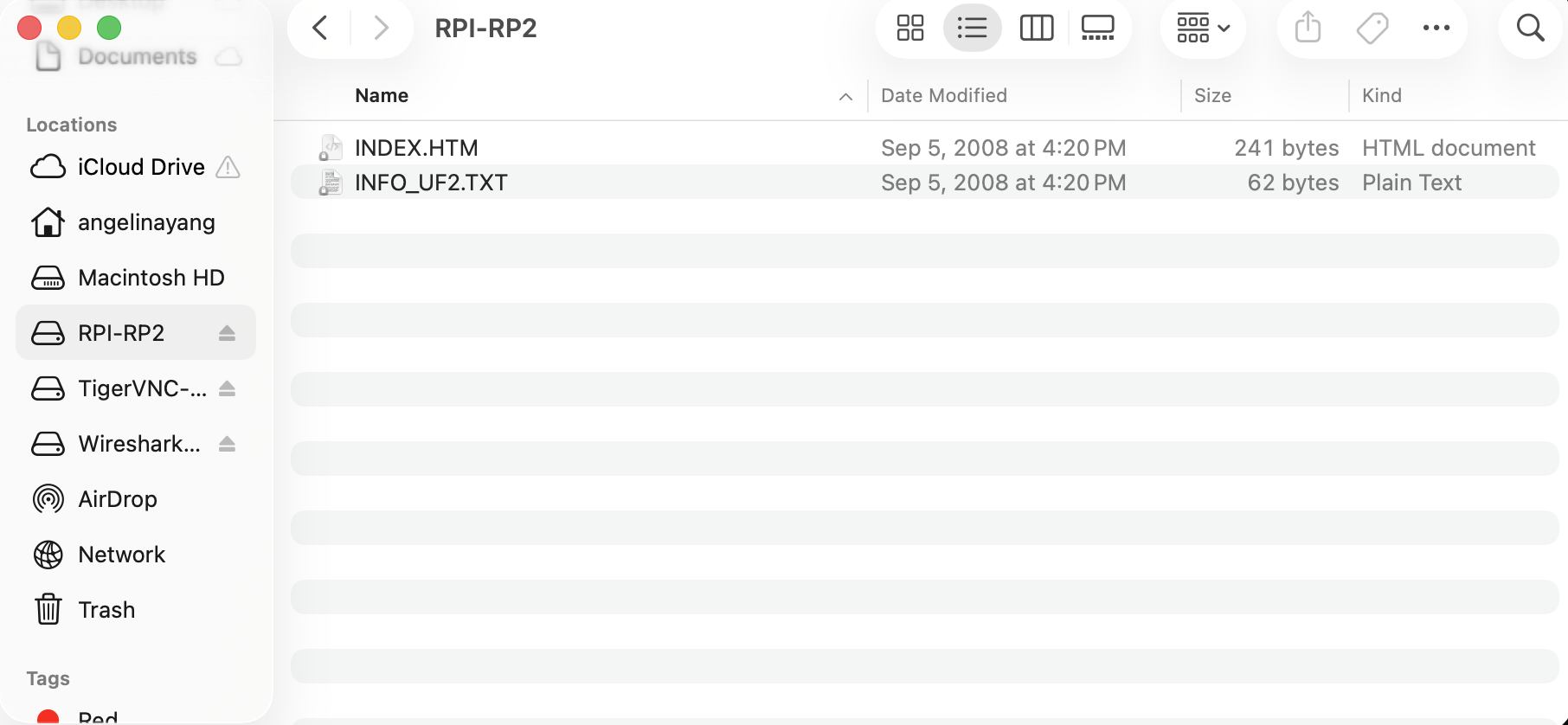
On Chrome, I downloaded the most recent CircuitPython firmware, which at this time was 10.2.1. From this page, I also downloaded the most recent CircuitPython bundle release. Note that this tutorial was written around the time of the 9.2 CircuitPython release. Updated or more recent versions will still work as long as the CircuitPython bundle / rubber ducky firmware are updated accordingly.
In Finder, I copied the uf2 CircuitPython file into RPI-RP2. The device shortly rebooted and repopulated as CIRCUITPY. Now, I can configure CircuitPython to act as a rubber ducky.
After unzipping the CircuitPython bundle folder, adafruit-circuitpython-bundle-10.x-mpy-20260710.zip, I copied the following folders and files from the lib folder over to the lib folder of the CIRCUITPY drive: adafruit_hid, asyncio, adafruit_debouncer.mpy, adafruit_wsgi.mpy, adafruit_ticks.mpy.
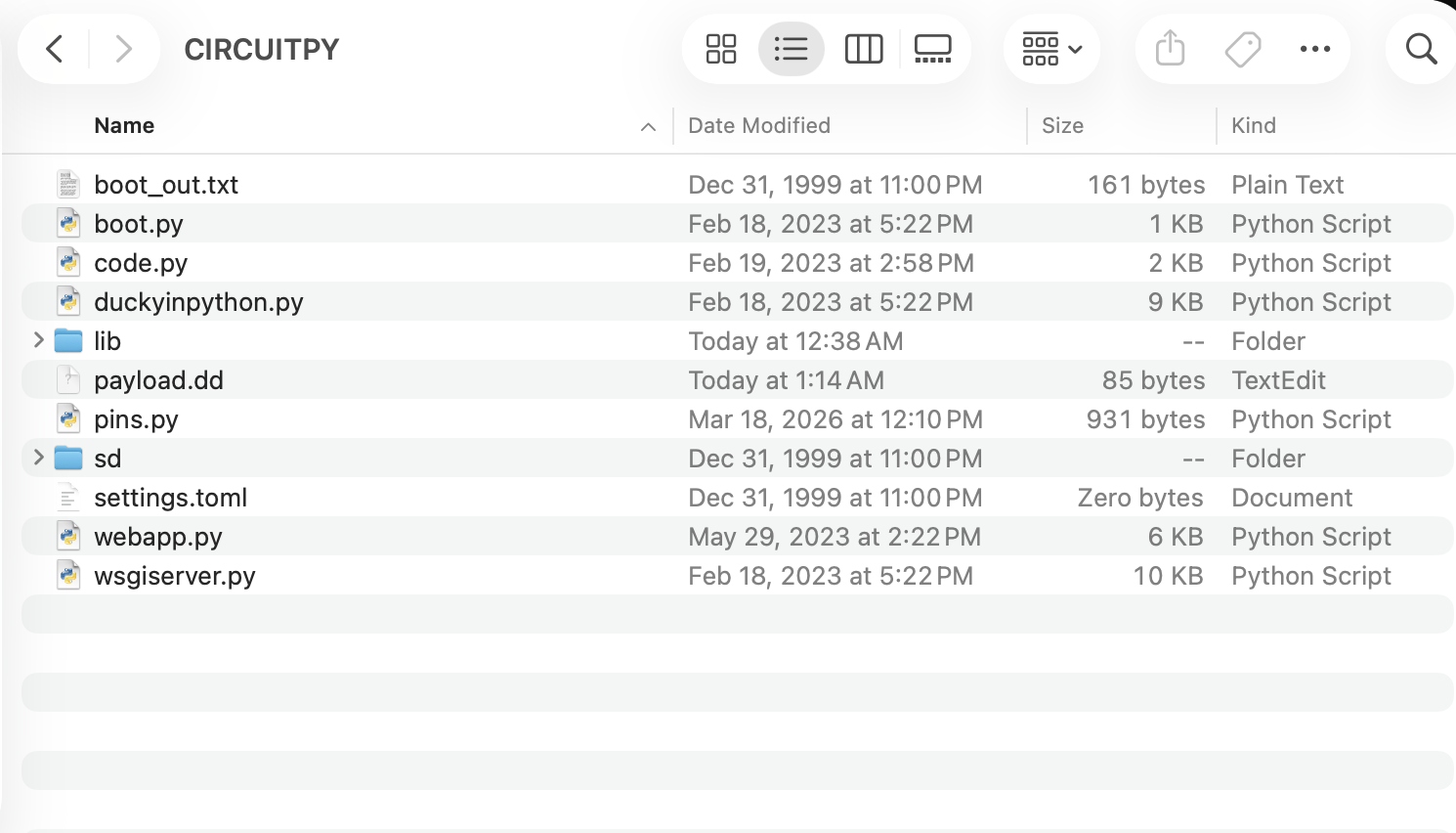
From the main rubber ducky repo folder, pico-ducky-main, I copied duckyinpython.py, code.py, webapp.py, wsgiserver.py, pins.py, and payload.dd to the root folder of the Pico. From pico-ducky-v2.0-us, I also copied boot.py. Here is what my folder looked like:
I opened the copied payload.dd file in a text editor and replaced its text with the following:
This is a rather simple “attack” that serves the demonstrate the basic capabilities of a rubber ducky to act as a keyboard and effectively trick the OS:
Note that for the actual hardening system, I’ll be using Linux. This video is just for demonstration.
Multi-Layered Approach to Securing the OS - Linux
The security defense system is multi-layered and consists of the following:
-
USB device control: Using USBGuard on Linux, users can curate a filter that rejects suspicious USB activity based on a set of rules.
-
Rate and timing detection: Let’s that the malicious USB can spoof the hardware identifiers of an authorized keyboard, thereby bypassing the blacklisting/whitelisting parameters set by USBGuard. Then what? Using a rate and timing detection script, the superhuman speeds at which a typical rubber ducky operates can be monitored and identified.
Layer 1: USB Device Control
This is where USB device-specific control kicks in. To begin, I downloaded UTM, a virtual machine software that bridges MacOS and Ubuntu, as well as the ARM64 version of Ubuntu 26.04. After opening the software, I clicked Create a New Virtual Machine > Virtualize (there is no need for an emulator for this specific project). I selected Linux as the operating system. When prompted for the Boot ISO Image, I clicked Browse, and selected the ARM64 Ubuntu .iso file I downloaded.
After pressing the play button, I selected Try or Install Ubuntu, following the subsequent on-screen instructions. I kept the settings default and defined my virtual machine as rubber_ducky with a username and password. Once I was able to log-in on UTM (boot from next volume), I installed USBGuard, a software framework for Linux designed to protect systems against unauthorized or malicious USB devices. It operates through USB device whitelisting and USB device blacklisting, meaning that it can permit only known devices to create interfaces to it via USB:
With USBGuard, there are a few options as to how to define the devices that are blacklisted. On one end, I could theoretically limit all HID activity. I tested this out by generating a trusted “baseline,” an initial policy, based on what is currently plugged into my laptop. I want my general USB-C to USB adapter to be accepted, so I plugged it in before running:
sudo usbguard generate-policy > rules.conf
sudo cp rules.conf /etc/usbguard/rules.conf
sudo systemctl enable --now usbguard
rules.conf to block the pico rubber ducky and other potential rubber ducky USBs. I opened the editing environment:
and added these two restrictive lines at the top of the file:
The reject with-interface { 03:*:* 08:*:* } command rejects any device that combines a keyboard with mass storage, the typical combination that rubber duckys use. Disecting this line further, 03:*:* is the HID class and 08:*:* is mass storage. If you’d like something specific, you can also go for a more specific/strict configuration rule such as reject id 2e8a * with-interface 03:*:8, which will block all USB devices made by Raspberry Pi. The rule identifies the device as Raspberry Pi based on the Vendor ID or VID, which is 2e8a – a unique marker.
I also added a single block command at the bottom of the file. This is the directive that deauthorizes a USB device. It prevents the device from communicating with the OS. I saved these changes by pressing ctrl + O, enter, and ctrl + X to exit. For reference, here is my modified rules.conf:

Last thing I need to do to ensure my testing environment was perfect was to confirm whether the pico rubber ducky was truly connecting to UTM. To check this, I clicked the little USB icon in the top right corner of my UTM window and connected my Pico device to the VM. Upon doing this, I typed in the CLI
The usbguard watch is used to monitor USB device activity and IPC (Inter-Process Communication) interface events in real time. It prints notifications to standard output (stdout) whenever a USB device is inserted, removed, allowed, or blocked by the system. When I input this command, here’s what popped up:

As you can see, USBguard has effectively blocked the pico rubber ducky! ᕙ( •̀ ᗜ •́ )ᕗ
Layer 2: Rate and Timing Detection
Although the USBguard mechanism is already a sturdy foundation (because the daemon intercepts devices at the kernel level), it isn’t fully impenetrable: researchers have found workarounds that relate to hardware cloning and keystroke timing to exploit loose policies. In other words, a programmable device (like this pico rubber ducky) can be programmed to spoof the exact hardware identifiers of an already-authorized keyboard.
If these clones are able to bypass these barriers, a lot of damage can be done in a short time. This is why, for the second layer of defense, I wanted to develop a python script that uses evdev (input event interface in the Linux kernel that collects raw signals from hardware) to monitor variance and typing speed. If a chain of keystrokes exhibit speeds below a certain “human” threshold, the trigger goes off and a session lock occurs.
In my VM, I downloaded all of the necessary packages:
I briefly skimmed the evdev documentation, but I didn’t find it very intuitive. Thus, with programming help from Claude, I completed the script. The script compares the time between each key press to the variable FAST_GAP, which was chosen based on the average typist’s inter-keystroke gap. Each time this condition is satisfied, a tally is added to TRIGGER_COUNT until the lock-down occurs. The biggest inspiration behind this program was this DuckHunt repository, which is built for Windows.
I made my python file:
and inserted the following code:
#!/usr/bin/env python3
import subprocess, selectors
from evdev import InputDevice, ecodes, list_devices

FAST_GAP      = 0.030   # seconds.
TRIGGER_COUNT = 5
LOCK_CMD      = ["loginctl", "lock-session"]

def is_keyboard(dev):
    keys = dev.capabilities().get(ecodes.EV_KEY, [])
    return ecodes.KEY_A in keys and ecodes.KEY_ENTER in keys

def open_keyboards(selector, watched):
    # (re)scan and start watching any keyboard we aren't already watching --
    # this is how a freshly plugged-in BadUSB keyboard gets picked up
    for path in list_devices():
        if path in watched:
            continue
        try:
            dev = InputDevice(path)
        except Exception:
            continue
        if is_keyboard(dev):
            selector.register(dev, selectors.EVENT_READ, dev)
            watched[path] = dev
            print(f"[+] watching {dev.path}  ({dev.name})")

def lock():
    print("[!] Inhuman typing speed detected -> locking session")
    subprocess.run(LOCK_CMD)

def main():
    selector = selectors.DefaultSelector()
    watched  = {}
    last     = {}   # per-device: timestamp of previous key-down
    fast_run = {}   # per-device: how many fast gaps in a row so far

    open_keyboards(selector, watched)
    print("Detector running. Ctrl-C to stop.")
    while True:
        open_keyboards(selector, watched)          # catch newly-plugged keyboards
        for key, _ in selector.select(timeout=0.5):
            dev = key.data
            try:
                for event in dev.read():
                    if event.type != ecodes.EV_KEY or event.value != 1:
                        continue                     # value==1 is key-DOWN only
                    now  = event.timestamp()         # kernel timestamp = accurate
                    prev = last.get(dev.path)
                    last[dev.path] = now
                    if prev is None:
                        continue
                    if now - prev < FAST_GAP:
                        fast_run[dev.path] = fast_run.get(dev.path, 0) + 1
                        if fast_run[dev.path] >= TRIGGER_COUNT:
                            lock()
                            fast_run[dev.path] = 0
                    else:
                        fast_run[dev.path] = 0        # human-speed gap resets the run
            except OSError:                           # device unplugged
                selector.unregister(dev)
                watched.pop(dev.path, None)

if __name__ == "__main__":
    main()
Temporarily disabling the USBguard blacklisting rules, I tested out this program by running
unplugging my pico rubber ducky, and re-plugging it in. Here’s what happened:
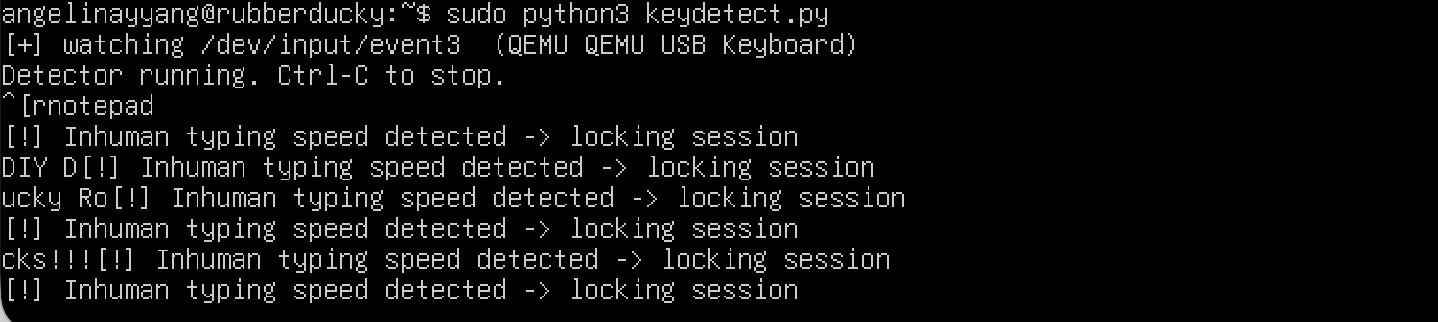
This is a good start, but I would ideally want this to be running in the background as a systemd service. However, this would require me to change the lock session feature as systemd system service runs as root with no session; instead, I opted to use logind (the central session manager for Linux operating systems) and lock the active session. Claude also suggested for me physlock in this modified lock mechanism: physlock grabs a virtual terminal, disables VT switching, and requires password authentication to release. Thus, I installed it:
And changed the LOCK_CMD variable in the keydetect.py script accordingly:
Before we create the service, I first stored my keydetect.py script in a dedicated virtual environment – an approach that this site suggested for its ability to isolate Python applications:
sudo mkdir -p /opt/keydetect
sudo cp keydetect.py /opt/keydetect/
sudo python3 -m venv /opt/keydetect/venv
sudo /opt/keydetect/venv/bin/pip install evdev
I then modified the keydetect.service file, which is a plain-text configuration file that instructs Linux on how to run, manage, and supervise a background process or application. It consists of [unit] (metadata and ordering), [service] (behavior and parameters), and [install] (boot behavior):
At first, I directly pasted what Claude recommended to me into the file, without really knowing what each part did:
[Unit]
Description=Keystroke-injection timing detector (BadUSB defense)
Documentation=local hardening assignment
After=multi-user.target

[Service]
Type=simple
ExecStart=/opt/keydetect/venv/bin/python3 /opt/keydetect/keydetect.py
Restart=on-failure
RestartSec=2

NoNewPrivileges=yes
ProtectSystem=strict
ProtectHome=yes
PrivateTmp=yes
ProtectKernelTunables=yes
ProtectControlGroups=yes
RestrictAddressFamilies=AF_UNIX

DeviceAllow=char-input rw
SupplementaryGroups=input

[Install]
WantedBy=multi-user.target
To test, I ran the following:
To observe the activity log pertaining to the systemd service, I also ran
Unfortunately, I ended up getting a permissions related error that indicated that the lock fired but nothing acted on it:
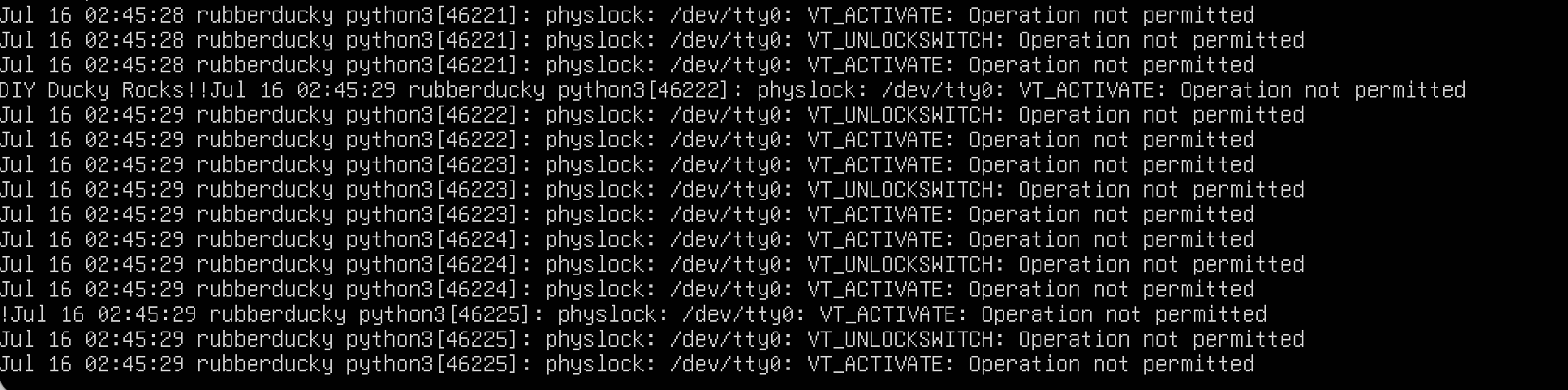
I played around with this for a while because I was honestly lost on what was causing this permissions error (especially since I was running from root?). I ended up just stripping down the [services] and tweaking the remaining values. Here is what I found worked in the end:
[Unit]
Description=Keystroke-injection timing detector (BadUSB defense)
Documentation=file:///opt/keydetect/README
After=multi-user.target

[Service]
Type=simple

ExecStart=/opt/keydetect/venv/bin/python3 /opt/keydetect/keydetect.py

Restart=on-failure
RestartSec=2

SupplementaryGroups=input
NoNewPrivileges=yes
ProtectHome=yes
PrivateTmp=yes

[Install]
WantedBy=multi-user.target
Changes-wise, I made adjustments to Documentation under [units]–changing it to an actual path rather than an arbitrary string. I also removed the onslaught of additional parameters, including ProtectSystem(mounts critical system directories as read-only), ProtectKernelTunables (makes kernel variables read-only for the service), ProtectControlGroups (makes the Linux Control Groups (cgroups) hierarchy completely read-only.), RestrictAddressFamilies=AF_UNIX (limits the network socket architectures the service can use), and DeviceAllow=char-input rw (whitelists access to a specific class of hardware devices).
Most of the aforementioned changes deal more with security, so I came to the conclusion that the DeviceAllow was the problematic setting.
Running sudo systemctl daemon-reload, sudo systemctl restart keydetect.service, and journalctl -u keydetect.service -f again, I tried plugging in my pico once more..and the physlock password screen popped up!!

Here is the demo:
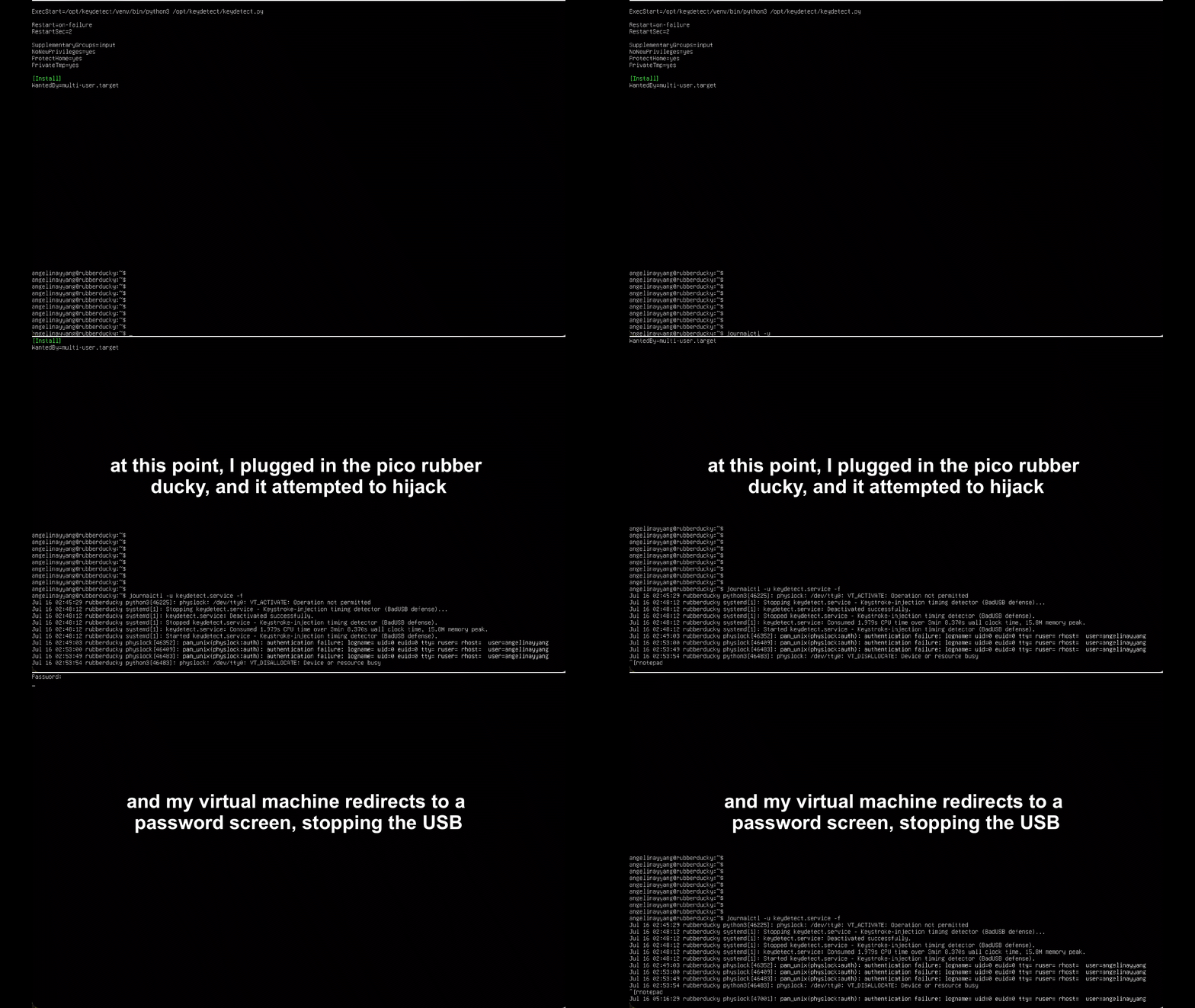
This is a pretty epic mechanism, but alas, there are still remaining vulnerabilities. To bypass these heuristic detections, rubber ducky scripts can and have historically been modified to add arbitrary delays (e.g., 30-35 milliseconds) between each keystroke. This can trick the defensive software into thinking the commands are being typed by a human rather than a machine. Additionally, this current software exhibits a slight delay, which is why the pico is able to attempt opening the notepad before being cut-off. This could be problematic in the future too.
Future Considerations
While researching this project, I also stumbled upon Quentin Bolsee’s SAMDucky USB PCB, a cool open-source SAMD version of the original Hak5 rubber ducky. I thought to myself: wouldn’t it be kind of cool to build an anti rubber ducky USB and instigate duck warfare? Rubber ducky firmware is always evolving and overcoming new obstacles, so I see a lot of potential with this idea.
This is merely a concept plan as of now, but there are several fascinating research papers which use machine learning to adapt defense mechanisms to new rubber ducky firmware.
Here is what the theoretical layout would look like: