PART 1 — Creating the chroot Jail Step 1 — Open Ubuntu Terminal
Login to Ubuntu.
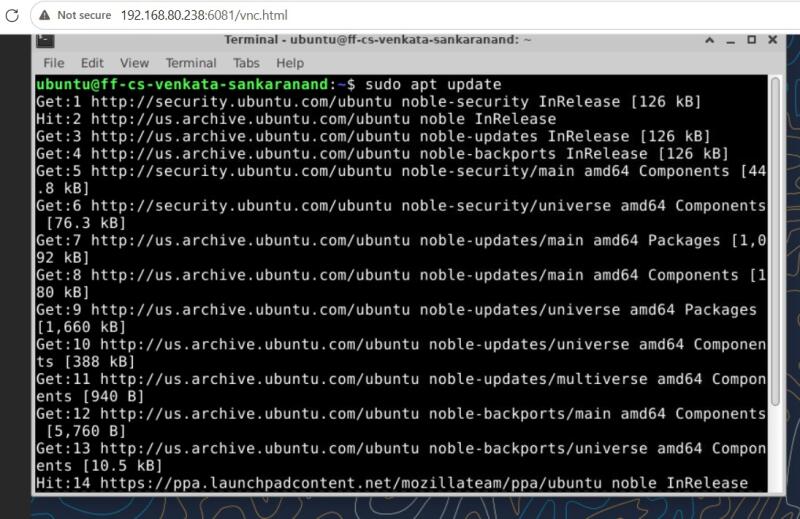
Open Terminal.
Step 2 — Update Ubuntu
Run:sudo apt update
It will ask your password.
Example
[sudo] password for student:
Enter your password.
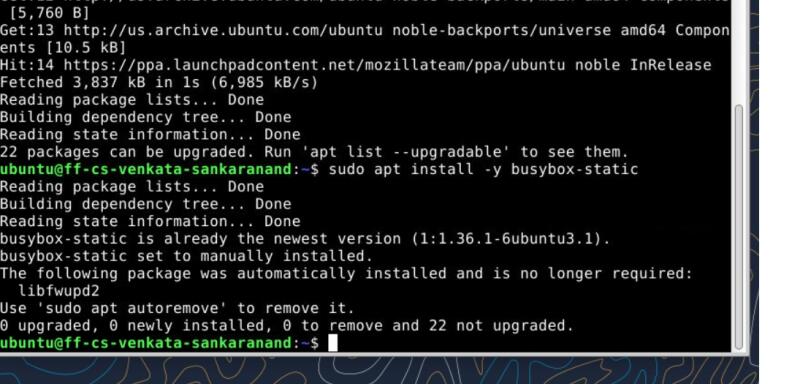
Step 3 — Install BusyBox Static
Run
sudo apt install -y busybox-static
Wait until installation finishes.
Step 4 — Verify BusyBox
Run
ls /bin/busybox*
You should see something like
/bin/busybox /bin/busybox-static
If only /bin/busybox exists, don’t worry yet—we’ll verify the correct path in the next step.
Step 5 — Create the Jail Folder
Run
mkdir -p ~/chroot_jail/bin
Check
ls ~/chroot_jail
Output
bin Step 6 — Copy BusyBox
First check where BusyBox is installed:
which busybox
or
ls -l /bin/busybox*
If /bin/busybox-static exists:
cp /bin/busybox-static ~/chroot_jail/bin/sh
If only /bin/busybox exists:
cp /bin/busybox ~/chroot_jail/bin/sh
Verify
ls ~/chroot_jail/bin
Output
sh Step 7 — Create Secret File
Run
echo “FLAG{CHROOT_IS_NOT_A_SECURE_SANDBOX_1206}” | sudo tee /host_secret.txt
Verify
cat /host_secret.txt
Output
FLAG{CHROOT_IS_NOT_A_SECURE_SANDBOX_1206} Step 8 — Enter the Jail
Run
sudo chroot ~/chroot_jail /bin/sh
If successful your prompt changes.

Congratulations!
You are now inside the jail.
PART 2 — Explore the Jail Step 9 — Check Current Directory
Run
pwd
Output
/ Step 10 — List Files
Run
ls -la /
Output
bin
Only the jail contents are visible.
Step 11 — Try Escaping
Run
cd ../../..
Then
pwd
Output
/
You cannot escape.
Step 12 — Try Reading the Secret
Run
cat /host_secret.txt
Output
cat: can’t open ‘/host_secret.txt’: No such file or directory
Success!
The host file is hidden.
Step 13 — Exit
Run
exit
You are back to Ubuntu.