Final Project: Observe network security through control LED of ESP32
Cyber security sounds really interesting to me, because we use internet and many digital devices every day and those security has meant significantly important to us day by day. However, I didn’t know almost anything about it and it seems too huge for me to find something for the final project. My classmate Rico advised me chatGPT what I should do as a final project. It answered and suggested several projects which are good to try for “beginner”. It suggested these 3 topics; - Improving the Security of an ESP32 Light Controller - Building and Hardening a Secure Ubuntu VM Server - Creating a File Tampering Detection System for Video and Design Files
At first, 2nd one seems interesting for me, Rico advised me 1st one is really good as a final project and I decided to do it.
Overview
I tried to understand the difference and importance of network security by gradually adding security level.
- Make simple LED model with ESP32(Xiao C3) and check the function
- Connect Wifi environment and observe the network traffic between LED light and PC by Wireshark
- Put ID/Password and observe the traffic(Basic authentication)
- Put TLS and observe the traffic(encrypting)
Preparation
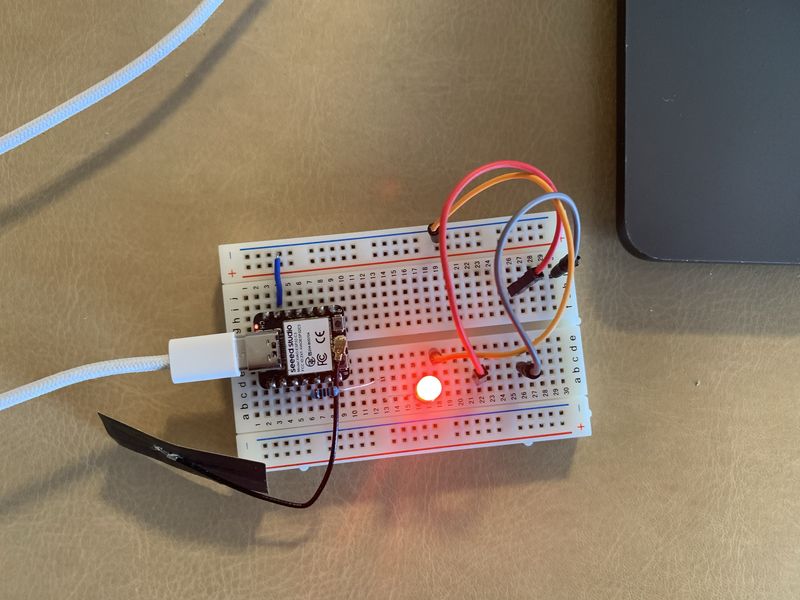
Assemble LED module
I made a simple LED light module with Xiao C3(ESP32) and check it with a sample code of Arduino IDE.
Wifi Connection
Next I change the code a bit while referencing my Fab Academy assignment page to connect Wifi and enable control LED from PC. I asked chatGPT about the transaction between ESP32 and PC and it showed me it.
Network Observation
I started observation of network traffic between ESP32 <-> PC by Wireshark.
1. wifi connection with no security
First step is just connecting 2 modules with wifi but no security.
Network transactions are as follows;
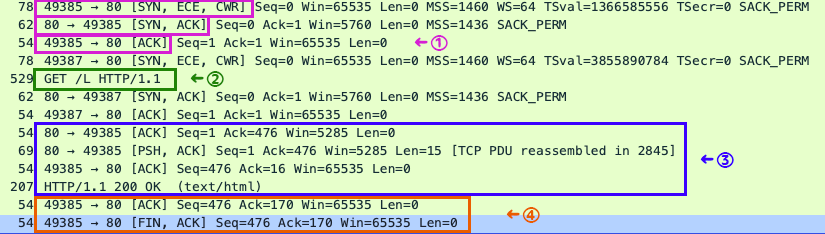 49385 : ESP32, 80: Browser(PC/Browser)
As it is almost first time to observe the traffic, I check each transaction.
1) Start TCP connection[TCP Handshake]
| Protocol | Meaning |
|---|---|
| 49385 -> 80 [SYN] | tart TCP connection[TCP Handshake] |
| 80 -> 49835 [SYN, ACK] | |
| 49835 -> 80 [ACK] |
2) Demand LED off from PC to ESP32
| Protocol | Meaning |
|---|---|
| (49385 -> 80) GET /L HTTP/ 1.1 | EDemand LED off from PC to ESP32 |
3) Execute
| Protocol | Meaning |
|---|---|
| 80 -> 49385 [ACK] | ESP32 got the request (and execute it) |
| 80 -> 49385 [PSH, ACK] | ESP32 sent back the data |
| (80 -> 49835) HTTP/1.1 200 OK (text/html) | ESP32 told exection is fine(200 OK) |
4) Finish communication
| Protocol | Meaning |
|---|---|
| 49385 -> 80 [ACK] | Browser tells getting the html data |
| 49385 -. 80 [FIN, ACK] | Transaction is done |
This connection is successful to connect and communicate. However anyone who knows ESP32 address can access this system easily. I connected firstly with PC, and then smartphone with any difficulty. Both devices can communicate and control the ESP32(LED).
2. HTTP Authentication (ID/password)
I ask chatGPT about adding HTTP basic(simple) authentication and it gave me a code for it.
Communications are almost same as first one, but they try to check ID and password and unauthorized when wrong password is put.
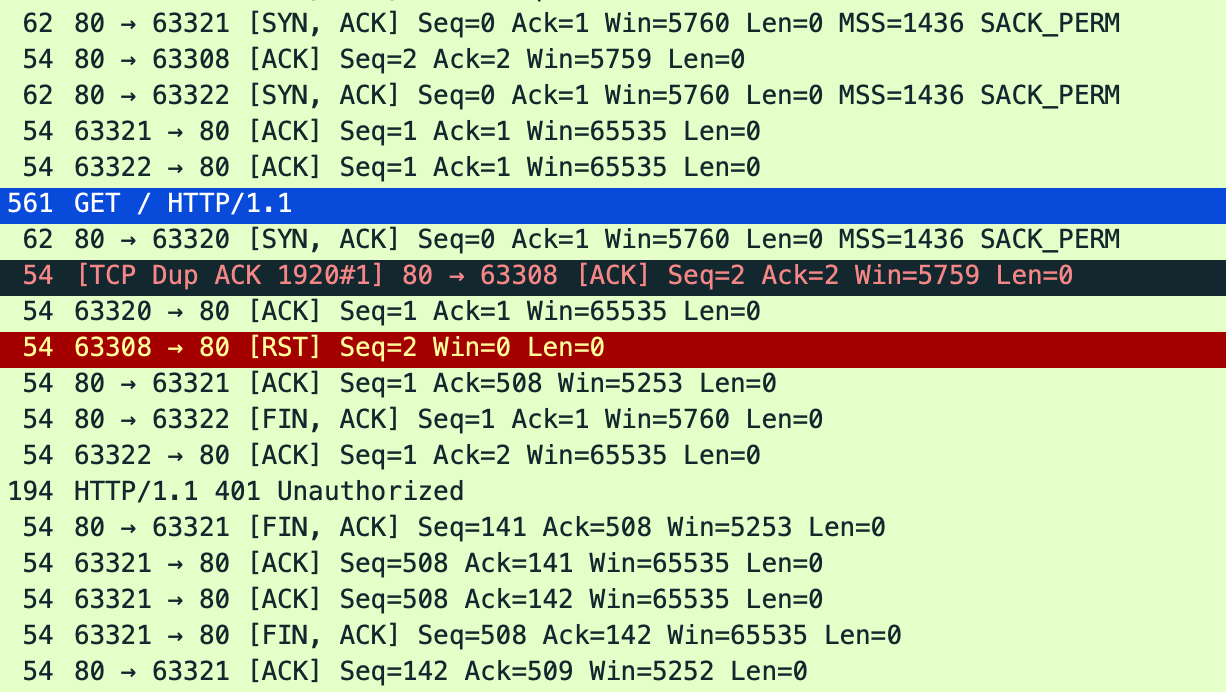 First try was communication between 63321(PC) and 80(ESP32).
I intended to fail for log in and it showed in
GET / HTTP/1.1 → HTTP/1.1 401 Unauthorized
First try was communication between 63321(PC) and 80(ESP32).
I intended to fail for log in and it showed in
GET / HTTP/1.1 → HTTP/1.1 401 Unauthorized
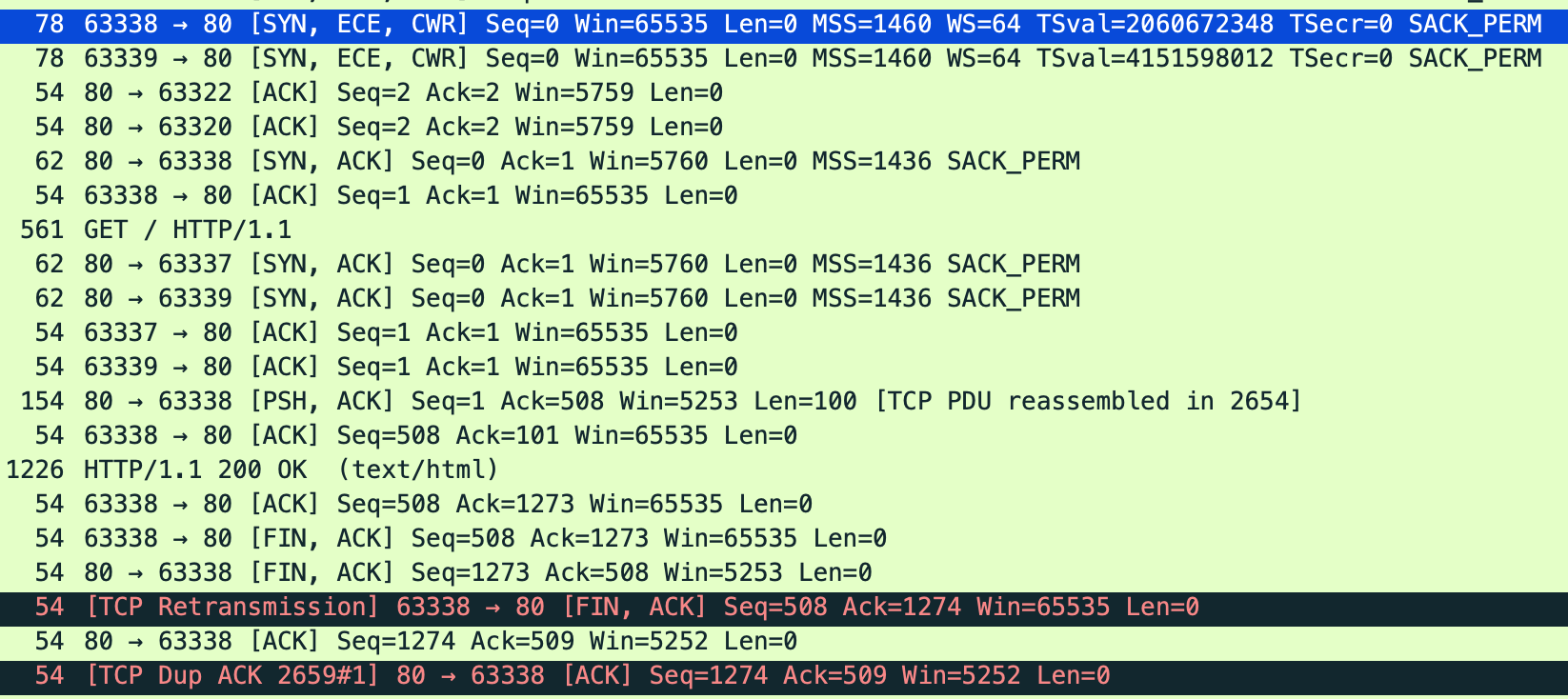 Then, I put correct ID and password to enter. This time, I could enter the page afterward.
This system is better than first one because we need to know ID and password to enter and control ESP32. However, we can see all data type(HTTP).
Then we need to encrypt the data.
3. Add TLS key
ChatGPT provides me the procedure to make TLS and check the network.
- Check the ESP32’s IP address ↓
- Create a certificate and private key on a Mac ↓
- Convert the certificate for use with the Arduino code ↓
- Modify the code for HTTPS ↓
- Open https://ESP32 IP address in a browser ↓
- Verify the encryption using Wireshark
I already use the ESP32’s address, so I use this address. Then I make a certificate and private key using openssl.
% mkdir ~/esp32-tls
% cd !$

% openssl req \
  -x509 \
  -newkey rsa:2048 \
  -nodes \
  -keyout server.key \
  -out server.crt \
  -days 365 \
  -subj "/CN=xxx.xxx.xxx.xxx" \
  -addext "subjectAltName=IP:xxx.xxx.xxx.xxx"
ChatGPT also told the meaning of openssl command: |Command Option|Meaning| |—|—| |-newkey rsa:2048|Create a new RSA private key| |-keyout server.key|Save the private key| |-x509|Create an X.509 certificate| |-out server.crt|Save the certificate|
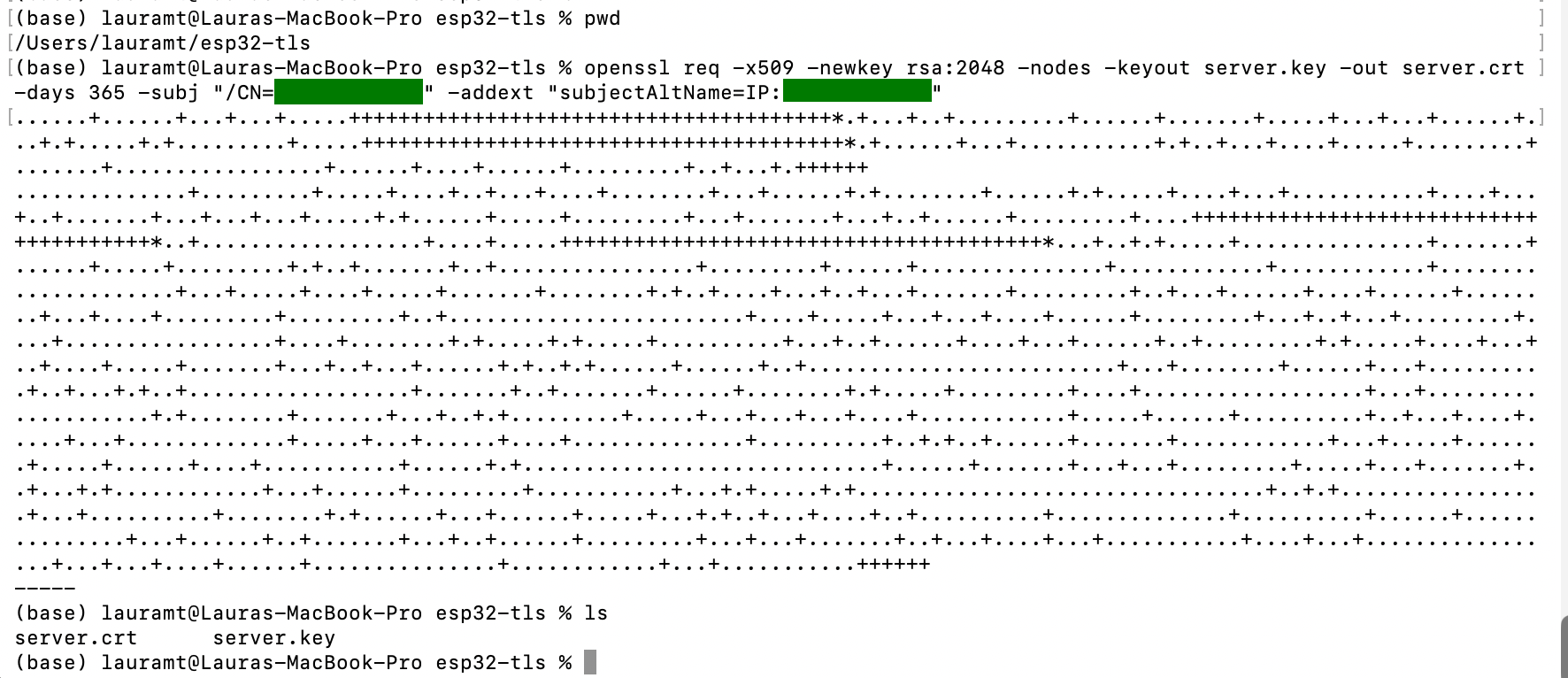
Now there are 2 files, server.crt : A certificate server.key : A private key
Then those files are change to the Arduino-readable files.
% xxd -i server.crt > server_crt.h
% xxd -i server.key > server_key.h

I asked to write a code using TLS to chatGPT and wrote it with following function. - HTTPS/TLS - Basic authentication by ID/password - LED ON/OFF - Use port 443 which is a HTTPS’s standard port
After I install the code to ESP32 and check it. I put https://xxx.xxx.xxx.xxx on the browser. However, browser refused to open the page and displayed the message below on the serial monitor:
HTTPS server started. E (163087) esp-tls-mbedtls: mbedtls_x509_crt_parse of public cert returned -0x2180 E (163088) esp-tls-mbedtls: Failed to set server pki context E (163089) esp-tls-mbedtls: Failed to set server configurations, returned [0x8015] (ESP_ERR_MBEDTLS_X509_CRT_PARSE_FAILED) E (163100) esp-tls-mbedtls: create_ssl_handle failed, returned [0x8015] (ESP_ERR_MBEDTLS_X509_CRT_PARSE_FAILED) E (163110) esp_https_server: esp_tls_create_server_session failed, 0x0001 E (163117) httpd: httpd_accept_conn: session creation failed
I asked again to chatGPT about this error. It says this error shows that ESP32 couldn’t read the certificate properly. In particular,
mbedtls_x509_crt_parse of public cert returned -0x2180
The error code -0x2180 occurs when the certificate format is invalid or the terminating character for the certificate data has not been passed correctly. With the method used here, it is highly likely that the array created by xxd -i does not contain the terminating \0. When passing a PEM-formatted certificate, Mbed TLS requires the length to be specified, including the NULL terminator.
So I changed the code around reading range of private key and certificate. I run the code again and check it. As this certificate is not official one, a warning message was coming out on the browser. I could reach the enter display(enter ID/password) anyway(when I click the line which said “it’s not safe”) and entered successfully.
So I observed the wireshark screen again with filter of
ip.addr = xxx.xxx.xxx.xxx && tcp.port == 443
List is as follows;
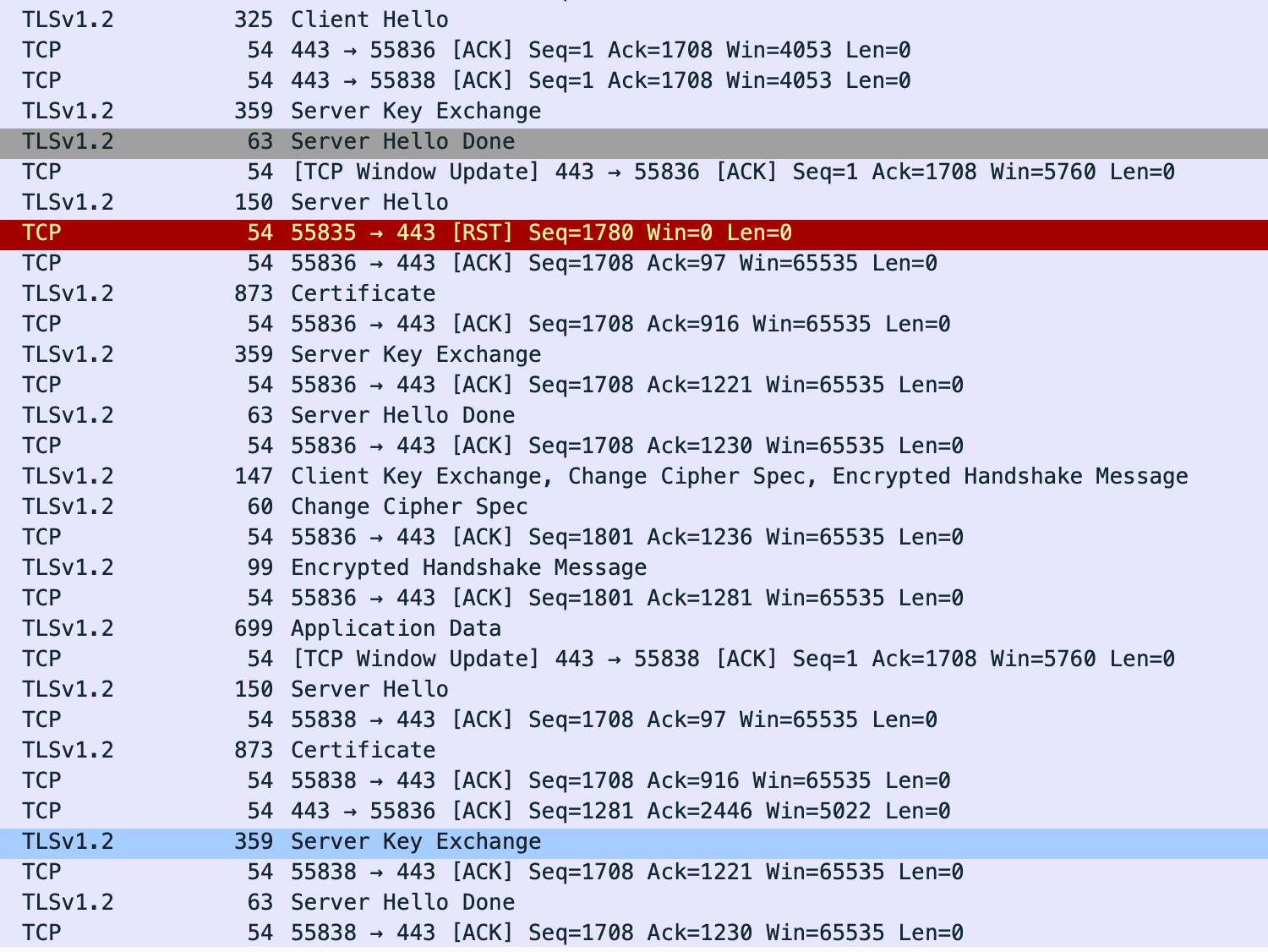
This time, client and server say “Hello” to start the connection and there is no direct message or type on the network, as it is said
Encrypted handshake Message
Application Data
Therefore, we can communicate each other with encrypted messages! and see how it works!
Question about making “key”
By the way, I got the question about the difference between “ssh-keygen” and “openssl”, as I learnt to use “ssh-keygen”. So I asked chatGPT again about it. It answered :
SSH-Keygen vs OpenSSL
Both commands use cryptographic keys, but they are mainly used for different purposes.
Command Main purpose Usually creates Common use ssh-keygenCreate keys for SSH authentication A private key and a public key Logging in to a server securely without a password opensslCreate and manage certificates, keys, and encryption files Private keys, certificate requests, and certificates HTTPS/TLS communication between a browser and a server 1. What is
ssh-keygen?
ssh-keygenis mainly used for SSH authentication.SSH is commonly used when you remotely connect to another computer.
For example:
bash
ssh user@192.168.1.50
You can create an SSH key pair with:
bash
ssh-keygen
It normally creates two files:
text
id_ed25519      → Private key
id_ed25519.pub  → Public key
The basic process is:
text
Your computer
    >|
    >| Proves that it has the private key
    >v
SSH server
The private key must remain secret. The public key is copied to the SSH server.
Typical uses of
ssh-keygen
- Logging in to Linux servers
- Connecting to GitHub or GitLab
- Authenticating without entering a password every time
- Proving the identity of an SSH client
2. What is
openssl?¶OpenSSL is a general-purpose cryptography tool.
It can create:
- Private keys
- Public keys
- Certificate Signing Requests, or CSRs
- TLS certificates
- Self-signed certificates
- File hashes
- Digital signatures
For HTTPS, OpenSSL is often used to create a server private key and a >server certificate.
For example:
bash
openssl req \
-x509 \
-newkey rsa:2048 \
-nodes \
-keyout server.key \
-out server.crt \
-days 365
This creates:
text
server.key  → Server private key
server.crt  → Server certificate
The basic TLS process is:
text
Browser
|
| Checks the server certificate
| Establishes an encrypted connection
v
HTTPS server
The certificate tells the browser which server it is communicating with. The >private key is used by the server during TLS communication.
Important difference
```text ssh-keygen → Mainly creates keys for SSH login and authentication
openssl → Creates keys and certificates for HTTPS/TLS ```
An SSH public key is not normally used as a browser certificate.
Similarly, a TLS certificate is not normally used as an SSH login key.
Why should we use OpenSSL this time?
In this project, the goal is to change the ESP32 web server from:
text
HTTP
to:
text
HTTPS
HTTPS uses TLS.
TLS requires the server to have:
- A private key
- A certificate
OpenSSL can create both files:
text
server.key
server.crt
ssh-keygenusually creates an SSH key pair, but it does not normally create an >X.509 certificate that a browser expects for HTTPS.Therefore, OpenSSL is more suitable for this project.
Simple comparison
Situation Recommended command Connect to a Linux server using SSH ssh-keygenConnect to GitHub using an SSH key ssh-keygenCreate an HTTPS server certificate opensslAdd TLS to an ESP32 web server opensslCreate a self-signed certificate for testing opensslCalculate a file hash opensslSummary
- Use
ssh-keygenfor SSH authentication.- Use
opensslfor TLS certificates and HTTPS.- This ESP32 project needs a certificate and a private key for TLS.
- Therefore, using
opensslis the appropriate choice this time.
What I’ve learnt
I could see the basic “history” how to improve the network security through simple LED controller. When I took the lecture, I could understand basic concept, but I didn’t have any idea how to implement in practice. Therefore, I’m so glad that I could see the process(even though this is really basic) and get more interest about the cyber security. Of course this is just a small step of beginning, I’d love to learn more about it!
Useful links
Code Example
Use the three backticks to separate code. Wifi
#include <WiFi.h>

// This is for document ssid and passwd

const char *ssid = "ssid";
const char *password = "passwd";

NetworkServer server(80);

void setup() {
  Serial.begin(115200);
  pinMode(5, OUTPUT);  // set the LED pin mode

  delay(10);

  // We start by connecting to a WiFi network

  Serial.println();
  Serial.println();
  Serial.print("Connecting to ");
  Serial.println(ssid);

  WiFi.begin(ssid, password);

  while (WiFi.status() != WL_CONNECTED) {
    delay(500);
    Serial.print(".");
  }

  Serial.println("");
  Serial.println("WiFi connected.");
  Serial.println("IP address: ");
  Serial.println(WiFi.localIP());

  server.begin();
}

void loop() {
  NetworkClient client = server.accept();  // listen for incoming clients

  if (client) {                     // if you get a client,
    Serial.println("New Client.");  // print a message out the serial port
    String currentLine = "";        // make a String to hold incoming data from the client
    while (client.connected()) {    // loop while the client's connected
      if (client.available()) {     // if there's bytes to read from the client,
        char c = client.read();     // read a byte, then
        Serial.write(c);            // print it out the serial monitor
        if (c == '\n') {            // if the byte is a newline character

          // if the current line is blank, you got two newline characters in a row.
          // that's the end of the client HTTP request, so send a response:
          if (currentLine.length() == 0) {
            // HTTP headers always start with a response code (e.g. HTTP/1.1 200 OK)
            // and a content-type so the client knows what's coming, then a blank line:
            client.println("HTTP/1.1 200 OK");
            client.println("Content-type:text/html");
            client.println();

            // the content of the HTTP response follows the header:
            client.print("Click <a href=\"/H\">here</a> to turn the LED on pin 5 on.<br>");
            client.print("Click <a href=\"/L\">here</a> to turn the LED on pin 5 off.<br>");

            // The HTTP response ends with another blank line:
            client.println();
            // break out of the while loop:
            break;
          } else {  // if you got a newline, then clear currentLine:
            currentLine = "";
          }
        } else if (c != '\r') {  // if you got anything else but a carriage return character,
          currentLine += c;      // add it to the end of the currentLine
        }

        // Check to see if the client request was "GET /H" or "GET /L":
        if (currentLine.endsWith("GET /H")) {
          digitalWrite(5, HIGH);  // GET /H turns the LED on
        }
        if (currentLine.endsWith("GET /L")) {
          digitalWrite(5, LOW);  // GET /L turns the LED off
        }
      }
    }
    // close the connection:
    client.stop();
    Serial.println("Client Disconnected.");
  }
}

// the loop function runs over and over again forever
void loop() {
  digitalWrite(LED_BUILTIN, HIGH);   // turn the LED on (HIGH is the voltage level)
  delay(1000);                       // wait for a second
  digitalWrite(LED_BUILTIN, LOW);    // turn the LED off by making the voltage LOW
  delay(1000);                       // wait for a second
}
TLS code (+server_crt.h, server_key.h)
#include <WiFi.h>
#include <esp_https_server.h>
#include <mbedtls/base64.h>

#include "server_crt.h"
#include "server_key.h"

// ========================================
// Wi-Fi settings (put real setting for testing)
// ========================================

const char* ssid = "YOUR_SSID";
const char* password = "YOUR_WIFI_PASSWORD";

// ========================================
// ID and password for web authentication
// ========================================
const char* webUsername = "admin";
const char* webPassword = "pd123";

// ========================================
// LED settings
// ========================================
const int pinLED = D1;

// HTTPS server
httpd_handle_t httpsServer = NULL;

// String used for Basic Authentication
String expectedAuthorization;


// ========================================
// Create the authentication string
//
// admin:password123
//       ↓ Base64
// Basic YWRtaW46cGFzc3dvcmQxMjM=
//
// It will be converted into this format.
// ========================================
void createAuthorizationValue() {
  String userAndPassword =
      String(webUsername) + ":" + String(webPassword);

  size_t outputLength = 0;

  // Calculate the required buffer size
  mbedtls_base64_encode(
      NULL,
      0,
      &outputLength,
      reinterpret_cast<const unsigned char*>(
          userAndPassword.c_str()
      ),
      userAndPassword.length()
  );

  unsigned char* encoded =
      new unsigned char[outputLength + 1];

  if (encoded == NULL) {
    Serial.println("Failed to allocate authentication buffer.");
    return;
  }

  int result = mbedtls_base64_encode(
      encoded,
      outputLength,
      &outputLength,
      reinterpret_cast<const unsigned char*>(
          userAndPassword.c_str()
      ),
      userAndPassword.length()
  );

  if (result != 0) {
    Serial.println("Failed to encode authentication data.");
    delete[] encoded;
    return;
  }

  encoded[outputLength] = '\0';

  expectedAuthorization =
      "Basic " + String(reinterpret_cast<char*>(encoded));

  delete[] encoded;
}


// ========================================
// Check Basic Authentication
// ========================================
bool checkAuthentication(httpd_req_t* request) {
  size_t headerLength =
      httpd_req_get_hdr_value_len(
          request,
          "Authorization"
      );

  // The Authorization header is missing
  if (headerLength == 0) {
    httpd_resp_set_status(
        request,
        "401 Unauthorized"
    );

    httpd_resp_set_hdr(
        request,
        "WWW-Authenticate",
        "Basic realm=\"ESP32 Secure LED\""
    );

    httpd_resp_set_type(
        request,
        "text/plain"
    );

    httpd_resp_send(
        request,
        "Authentication required.",
        HTTPD_RESP_USE_STRLEN
    );

    return false;
  }

  char* authorizationHeader =
      new char[headerLength + 1];

  if (authorizationHeader == NULL) {
    httpd_resp_send_err(
        request,
        HTTPD_500_INTERNAL_SERVER_ERROR,
        "Memory allocation failed."
    );

    return false;
  }

  esp_err_t result =
      httpd_req_get_hdr_value_str(
          request,
          "Authorization",
          authorizationHeader,
          headerLength + 1
      );

  if (result != ESP_OK) {
    delete[] authorizationHeader;

    httpd_resp_send_err(
        request,
        HTTPD_500_INTERNAL_SERVER_ERROR,
        "Could not read authentication header."
    );

    return false;
  }

  bool authenticated =
      expectedAuthorization.equals(
          authorizationHeader
      );

  delete[] authorizationHeader;

  if (!authenticated) {
    httpd_resp_set_status(
        request,
        "401 Unauthorized"
    );

    httpd_resp_set_hdr(
        request,
        "WWW-Authenticate",
        "Basic realm=\"ESP32 Secure LED\""
    );

    httpd_resp_set_type(
        request,
        "text/plain"
    );

    httpd_resp_send(
        request,
        "Incorrect ID or password.",
        HTTPD_RESP_USE_STRLEN
    );

    return false;
  }

  return true;
}


// ========================================
// Display the main page
// ========================================
esp_err_t handleRoot(httpd_req_t* request) {
  if (!checkAuthentication(request)) {
    return ESP_OK;
  }

  const char html[] = R"HTML(
<!DOCTYPE html>
<html lang="ja">
<head>
  <meta charset="UTF-8">
  <meta
    name="viewport"
    content="width=device-width, initial-scale=1"
  >

  <title>ESP32 Secure LED</title>

  <style>
    body {
      font-family: sans-serif;
      text-align: center;
      margin-top: 50px;
    }

    button {
      width: 130px;
      padding: 15px;
      margin: 10px;
      font-size: 20px;
      cursor: pointer;
    }

    #status {
      margin-top: 20px;
      font-size: 18px;
    }
  </style>
</head>

<body>
  <h1>ESP32 Secure LED</h1>

  <p>This page is protected by HTTPS and Basic Authentication.</p>

  <button onclick="controlLED('/on')">
    ON
  </button>

  <button onclick="controlLED('/off')">
    OFF
  </button>

  <div id="status">
    Waiting for operation
  </div>

  <script>
    async function controlLED(path) {
      const statusElement =
        document.getElementById('status');

      try {
        const response = await fetch(path, {
          method: 'GET',
          cache: 'no-store'
        });

        if (!response.ok) {
          throw new Error(
            'HTTP status: ' + response.status
          );
        }

        const result = await response.text();
        statusElement.textContent = result;
      } catch (error) {
        statusElement.textContent =
          'Communication error: ' + error.message;
      }
    }
  </script>
</body>
</html>
)HTML";

  httpd_resp_set_type(
      request,
      "text/html; charset=utf-8"
  );

  httpd_resp_set_hdr(
      request,
      "Cache-Control",
      "no-store"
  );

  return httpd_resp_send(
      request,
      html,
      HTTPD_RESP_USE_STRLEN
  );
}


// ========================================
// Turn the LED ON
// ========================================
esp_err_t handleLEDOn(httpd_req_t* request) {
  if (!checkAuthentication(request)) {
    return ESP_OK;
  }

  digitalWrite(pinLED, HIGH);

  Serial.println("LED: ON");

  httpd_resp_set_type(
      request,
      "text/plain; charset=utf-8"
  );

  return httpd_resp_send(
      request,
      "LED is ON",
      HTTPD_RESP_USE_STRLEN
  );
}


// ========================================
// Turn the LED OFF
// ========================================
esp_err_t handleLEDOff(httpd_req_t* request) {
  if (!checkAuthentication(request)) {
    return ESP_OK;
  }

  digitalWrite(pinLED, LOW);

  Serial.println("LED: OFF");

  httpd_resp_set_type(
      request,
      "text/plain; charset=utf-8"
  );

  return httpd_resp_send(
      request,
      "LED is OFF",
      HTTPD_RESP_USE_STRLEN
  );
}


// ========================================
// Start the HTTPS server
// ========================================
bool startHttpsServer() {
  httpd_ssl_config_t config =
      HTTPD_SSL_CONFIG_DEFAULT();

  // Standard HTTPS port
  config.port_secure = 443;

  // Certificate
  config.servercert =
      server_crt;

  config.servercert_len =
      server_crt_len;

  // Private key
  config.prvtkey_pem =
      server_key;

  config.prvtkey_len =
      server_key_len;

  esp_err_t result =
      httpd_ssl_start(
          &httpsServer,
          &config
      );

  if (result != ESP_OK) {
    Serial.print(
        "HTTPS server start failed: "
    );

    Serial.println(
        esp_err_to_name(result)
    );

    return false;
  }

  // Main page
  httpd_uri_t rootUri = {
    .uri = "/",
    .method = HTTP_GET,
    .handler = handleRoot,
    .user_ctx = NULL
  };

  // LED ON
  httpd_uri_t onUri = {
    .uri = "/on",
    .method = HTTP_GET,
    .handler = handleLEDOn,
    .user_ctx = NULL
  };

  // LED OFF
  httpd_uri_t offUri = {
    .uri = "/off",
    .method = HTTP_GET,
    .handler = handleLEDOff,
    .user_ctx = NULL
  };

  httpd_register_uri_handler(
      httpsServer,
      &rootUri
  );

  httpd_register_uri_handler(
      httpsServer,
      &onUri
  );

  httpd_register_uri_handler(
      httpsServer,
      &offUri
  );

  Serial.println("HTTPS server started.");

  return true;
}


// ========================================
// setup
// ========================================
void setup() {
  Serial.begin(115200);

  pinMode(pinLED, OUTPUT);
  digitalWrite(pinLED, LOW);

  createAuthorizationValue();

  Serial.println();
  Serial.print("Connecting to ");
  Serial.println(ssid);

  WiFi.begin(
      ssid,
      wifiPassword
  );

  while (WiFi.status() != WL_CONNECTED) {
    delay(500);
    Serial.print(".");
  }

  Serial.println();
  Serial.println("Wi-Fi connected.");

  Serial.print("IP address: ");
  Serial.println(WiFi.localIP());

  Serial.print("Open: https://");
  Serial.println(WiFi.localIP());

  startHttpsServer();
}


// ========================================
// loop
//
// ESP HTTPS Server handles requests using an internal task,
// so server.handleClient() from WebServer.h is not required.
// ========================================
void loop() {
  delay(1000);
}