Final Project: Secure Network & System in Home Fab Lab
Analyze and harden the vulnerabilities of a computing system that you want to secure
Target: Small Fab Lab Network Security
Analyzing the vulnerabilities
The networks and systems of many Fab Labs in Japan are almost always configured in the same way as typical home network environments. That’s because, it has the following vulnerabilities:
- Wi-Fi access: Could access just with shared key. Visitors to the lab—regardless of whether they are lab members or guests—can access the network simply by entering the SSID and passkey posted on the wall.
- Intranet Reliability: Since internal network traffic is not specifically monitored, even if a visitor’s computer is infected with malware and an attack is being launched from that computer, it would go unnoticed.
Given the recent ransomware incidents, even home labs will need to establish an environment that is closer to a “zero-trust” model in the future. On the other hand, implementing Wi-Fi access that does not use key sharing (such as WPA2 Enterprise) or deploying IPS/IDS systems requires the installation of appropriate enterprise-grade equipment and systems, but the cost remains too high relative to the size of the lab. There is a need to build a stable security network at a low cost and on a scale appropriate for the lab’s size, using open-source software and hardware.
How to harden the Lab Network?
In this Final Project, I will primarily use Raspberry Pi to build a secure network connection environment, verify connectivity from various types of devices (such as standard PCs, fab equipment like 3D printers, and IoT devices like the ESP32), and examine security measures for each device. I will test to implemente them in my home network, and if it would be succeeded, I will suggest to implement into the real Fab Lab in Japan (Kamakura or Skylab…).
Here is the topology of planned to harden network of the Fab Lab.
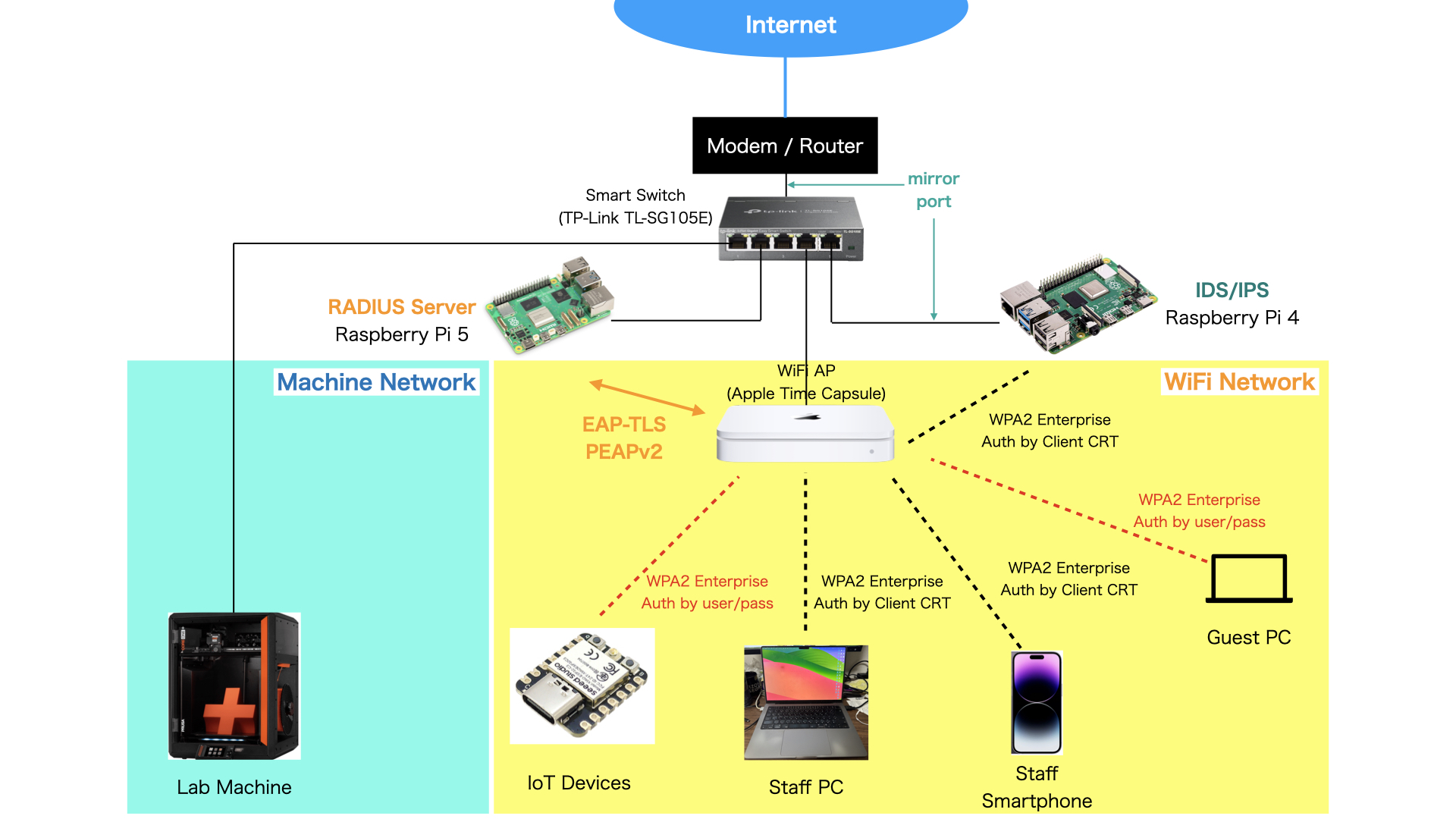
This project will demonstrate the following four points:
- For Wi-Fi connections, only devices issued certificates via 802.1x authentication will be allowed to connect
- Set up Free RADIUS on the Raspberry Pi to issue client certificates
- For guests, issue time-limited usernames and passwords to each guest
- Machine devices, such as 3D printers, connect via Ethernet LAN Cable
- Monitor and visualize all traffic within the network to detect unauthorized communications and other issues
- Set up Suricata (IDS/IPS) on a separate Raspberry Pi
- Place a switch capable of mirroring ports between the modem and the access point (AP), and send all traffic destined for the AP to Suricata via the mirror port to inspect packets
- Implement all remote connections to the network system (mainly Raspberry Pi) using a public/private key exchange method (or a compliant format)
- Example: All SSH connections from PC terminals to Raspberry Pi terminals will be implemented using a key exchange method
- For edge devices, implement hardware measures to ensure compliance with the network configuration described above
- Establish a WPA2 Enterprise connection using ESP32
Implementations
Public Key Authentications
Here is the lesson from the Session 01 and Session 02.
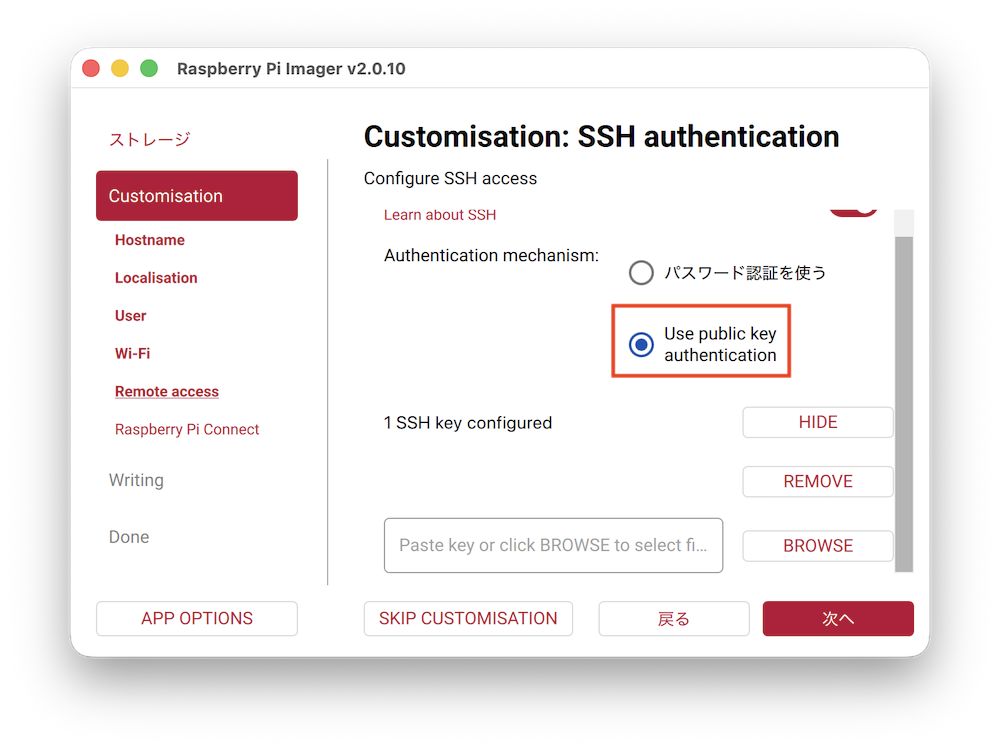
In the Raspberry Pi Imager, we can choose the type of SSH authentication. I choosed here “Use public key authentication”.
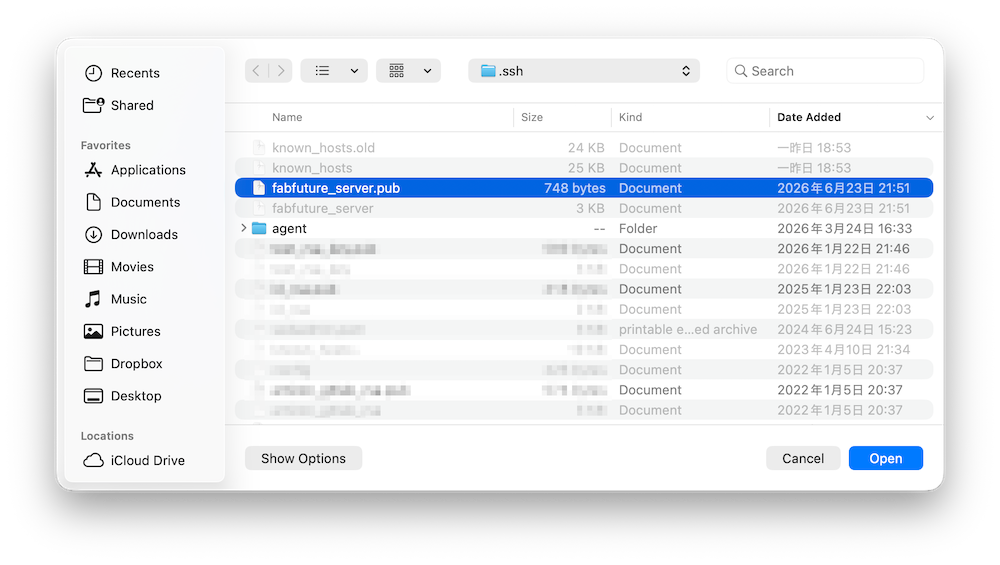
Then, choose a pub key file from “BROWSE” button.
Next, set it up as usual and write the OS image to the SD card. Once the write is complete, insert the card into the Raspberry Pi and boot it up.
Now, let’s try logging in using public-key authentication.
yosuke@ysk-M1Pro ~ % ssh -i .ssh/fabfuture_server 192.168.0.30
Linux ysk-raspi5 6.18.34+rpt-rpi-2712 #1 SMP PREEMPT Debian 1:6.18.34-1+rpt1 (2026-06-09) aarch64

The programs included with the Debian GNU/Linux system are free software;
the exact distribution terms for each program are described in the
individual files in /usr/share/doc/*/copyright.

Debian GNU/Linux comes with ABSOLUTELY NO WARRANTY, to the extent
permitted by applicable law.
Last login: Wed Jul 15 22:02:18 2026 from 192.168.0.12
yosuke@ysk-raspi5:~ $ ls
Desktop  Documents  Downloads  Music  Pictures  Public  Templates  Videos
yosuke@ysk-raspi5:~ $
Yeah! Logged in with public key authentication!
WPA2 Enterprise Authentication for Wi-Fi
In this project, I implemented WPA2 Enterprise authentication by setting up FreeRADISU on a Raspberry Pi 5. I will now outline the setup procedure.
About WPA2 Enterprise
WPA2 is one of the technical standards used to encrypt and secure communications over wireless LAN (Wi-Fi) networks. It is implemented in many Wi-Fi devices, and when set up in homes and other similar environments, the WPA2 Personal method is typically used. This method authenticates access to the Wi-Fi network using a pre-shared key. What I have defined as one of the “vulnerabilities” in this context is the fact that access to the lab’s Wi-Fi is often secured using WPA2 Personal, and that this “pre-shared key” is frequently posted on the lab walls.
In response to this, the authentication method introduced in this section is WPA2 Enterprise. This method is an advanced Wi-Fi security standard used in large-scale networks, such as those in enterprises. It authenticates users by issuing unique IDs and passwords for each user, or by issuing client certificates. To implement WPA2 Enterprise, it is necessary to set up a RADIUS (Remote Authentication Dial-In User Service) authentication system.
Setup of FreeRADIUS
FreeRADIUS is open source RADIUS system. It provide a poweful network authentications. It could also use in Raspberry Pi. So, first, I build the FreeRADIUS server in Raspberry Pi5 and connect the AP (Time Capsule) to the FreeRADIUS for WPA2 Authentications.
First, install FreeRADISU.
sudo apt-get install freeradius
The configuration for freeradius is here:
cd /etc/freeradius/3.0
Editing the clients.conf
emacs clients.conf
Add the Access Point for authentication.
client time_capsle {
       ipaddr = 192.168.x.x
       secret = password
       shortname = timecapsule
}
To test the EAP-TLS authentication, generate sample CA, server crt and client key.
root@ysk-raspi5:/etc/freeradius/3.0# cd certs
Then, edit configurations of each certs.
- ca.cnf: configuration for CA files.
- server.cnf: configuration for server crt.
- client.cnf: configuration for client sample crt.
The key point is to ensure that the locale settings are consistent across all configurations. Specifically, you should ensure that entries such as location (country), address, and commonName are the same, as shown below.
countryName     = JP
stateOrProvinceName = Kanagawa
localityName        = Kamakura
organizationName    = Skylab
emailAddress        = user@example.com
commonName      = "Example Certificate Authority"
Then, do “make” for generating the crt files.
root@ysk-raspi5:/etc/freeradius/3.0/certs# make
Then, start freeradius
sudo systemctl start freeradius
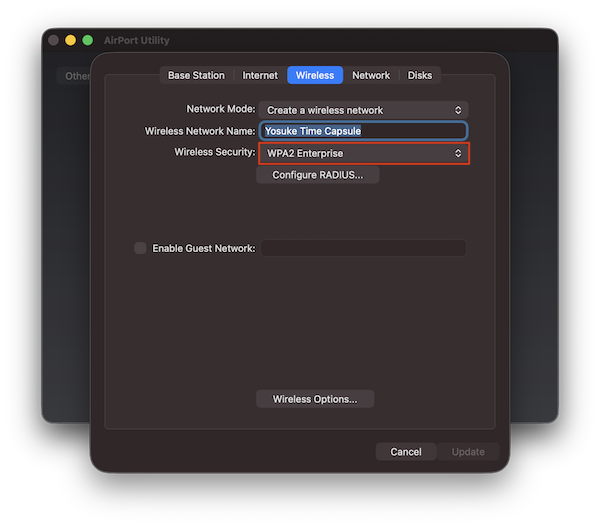
Next, configure my Wi-Fi Access Point (Time Capsule) with WPA2-Enterprise. With using AirMac Utility, access to my Time capsule.
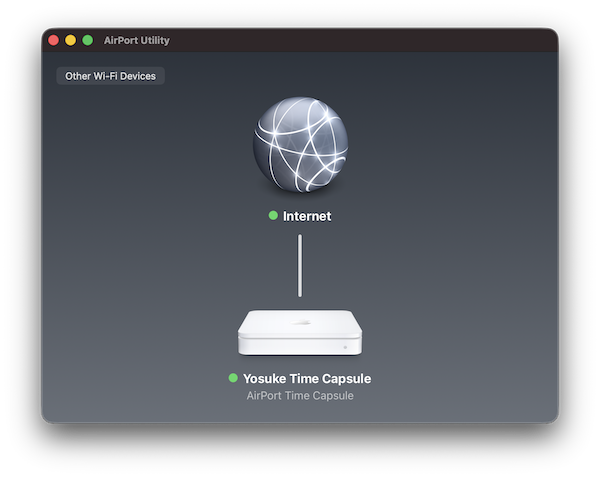
Then, open the “Wireless” tab, and choose “WPA2 Enterprise”
And, open “Configure RADIUS”, and add those configurations.
- Primary RADIUS Server IP: input Raspberry Pi’s IP address here. The IP address should be static.
- Primary Shared Secret: input the secret key that are set in the RADIUS configuration for the Access Point (wrote in secret = password in clients.conf).
- Primary Port: 1812 (as default)
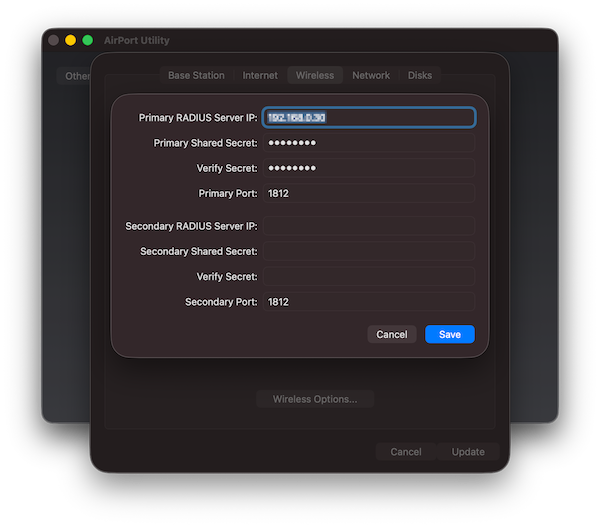
Then, click “save”, and going back to “Wireless” tab, and click “update”.
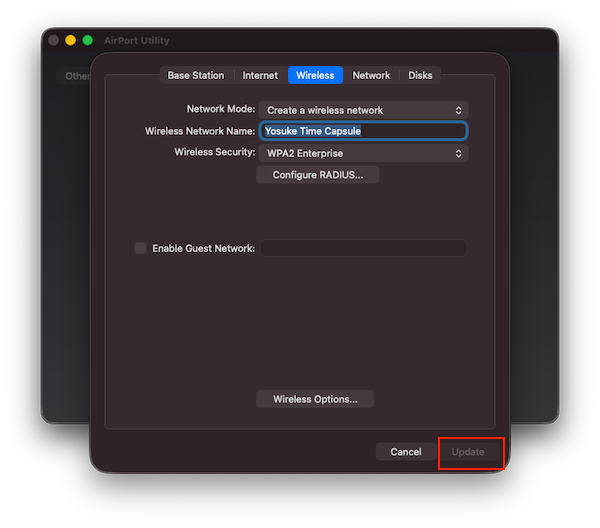
Now, the AP configuration are changed and restart it.... It take a few minutes to complete.
After that, try to connect from my Mac PC.... First, copy CA file(ca.pem) and client key file (emailAddress.p12) to my home directory.
root@ysk-raspi5:/etc/freeradius/3.0/certs# cp ca.pem /home/yosuke/
root@ysk-raspi5:/etc/freeradius/3.0/certs# cp yosuketsuchiya810\@gmail.com.p12 /home/yosuke/
root@ysk-raspi5:/etc/freeradius/3.0/certs# exit
exit
yosuke@ysk-raspi5:~ $ ls
Desktop  Documents  Downloads  Music  Pictures  Public  Templates  Videos  ca.pem  user@example.com.p12
yosuke@ysk-raspi5:~ $
Then, download it via SFTP.
yosuke@ysk-M1Pro freeradius % sftp -i ~/.ssh/fabfuture_server 192.168.0.30
Connected to 192.168.0.30.
sftp> get ca.pem
Fetching /home/yosuke/ca.pem to ca.pem
ca.pem                                                                                                                                    100% 1846   280.2KB/s   00:00
sftp> get user@example.com.p12
Fetching /home/yosuke/yosuketsuchiya810@gmail.com.p12 to user@example.com.p12
yosuketsuchiya810@gmail.com.p12                                                                                                           100% 2835   536.0KB/s   00:00
sftp> exit
Then, add ca.pem to Keychan Access. CA file should be add to “Certificate” section in the System keychains.
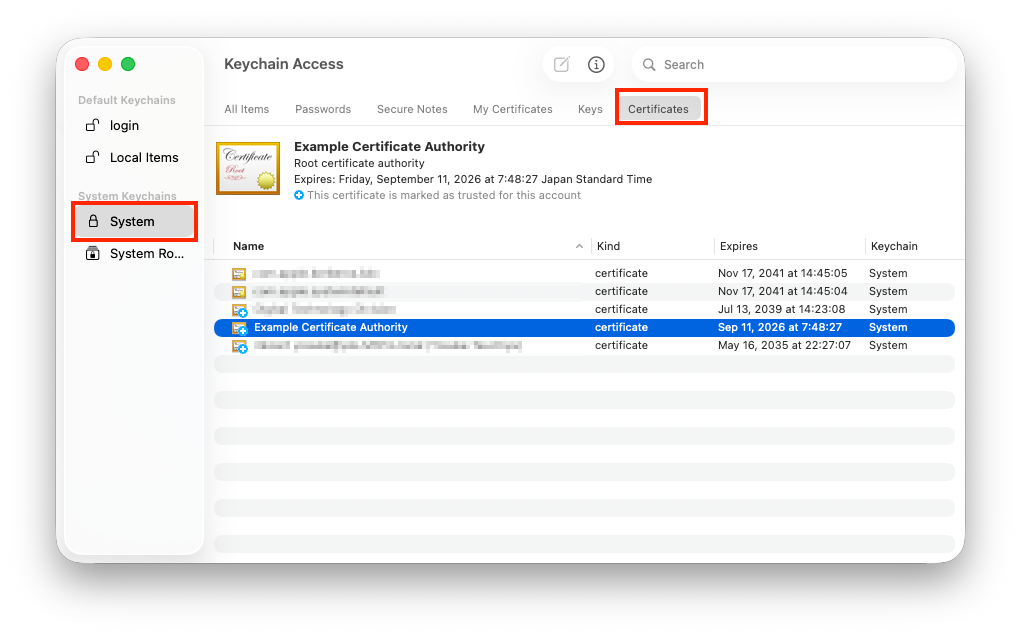
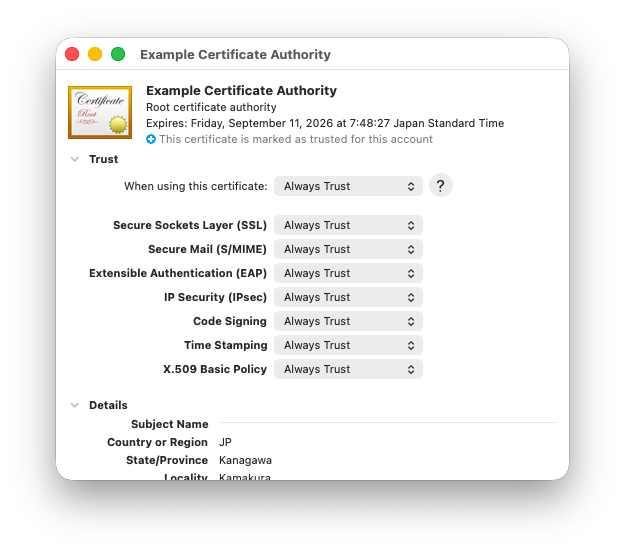
And, right click the CA and open “get info”. Then, set the CA as “Always Trust”
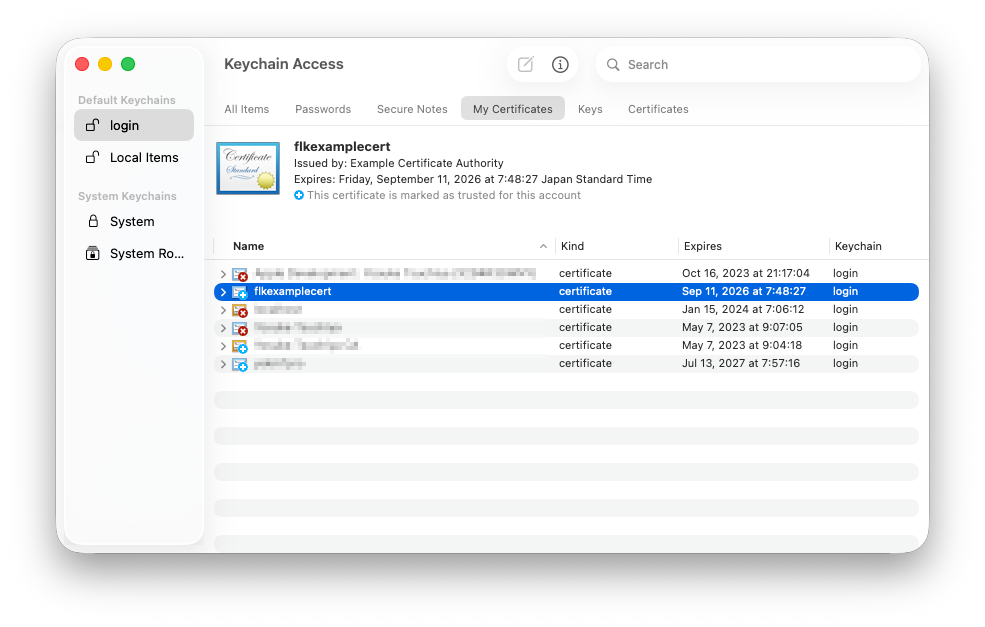
Add client key file to Keychain Access. Client key file should be added to “My Certificates” section in the “login” section. Also, set As “Always Trust”.
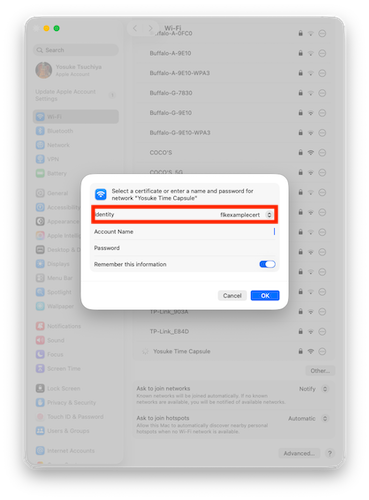
Then, try to connect to the AP. At this point, under “Identity” in the “Certificate” section, select the ‘commonName’ of the client certificate you just added (in this case, “flkcertexample”).
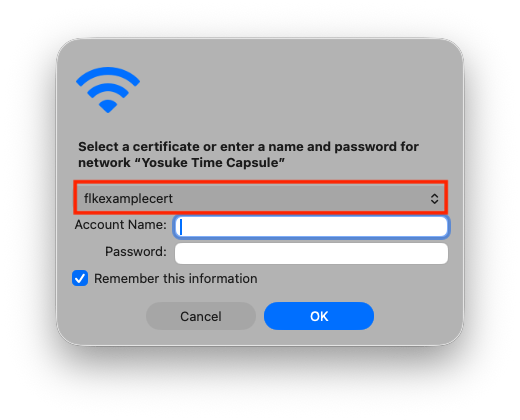
In some cases, you may be asked again as shown below, so select the certificate with the same “commonName” here as well. Note that since you are connecting using a client certificate this time, you can leave the “Account Name” and “Password” fields blank.
Afterthat, the AP send a root certificate, and client verify this certificate as “Always Trusted”.
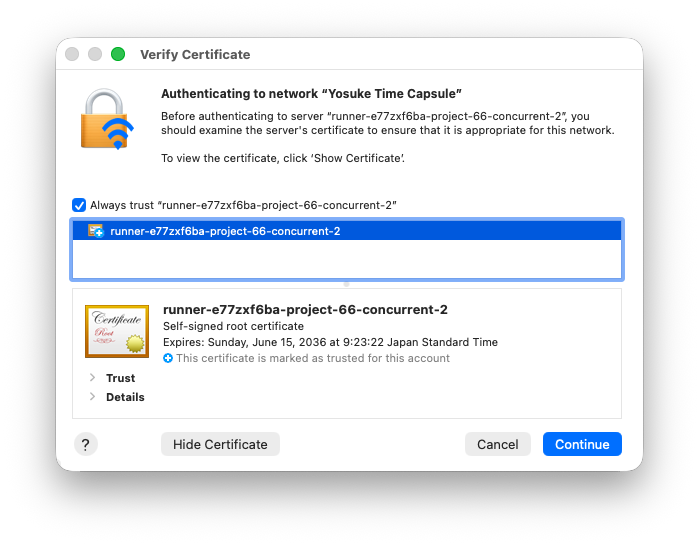
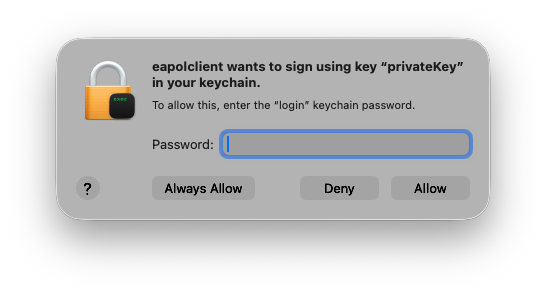
To add root CA to Keycahin files, the Mac PC asked to login password. This dialog may appear several times.
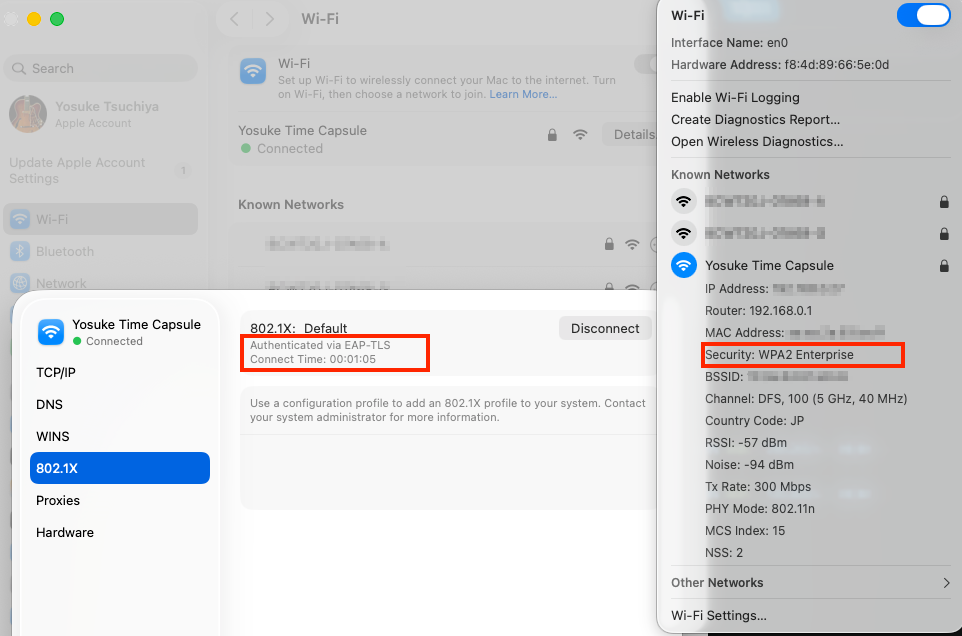
If all steps go smoothly, you’ll be able to connect to a WPA2-Enterprise access point using EPA-TLS! As shown below, the “802.1X” section of the Wi-Fi settings will display that you’re connected via EPA-TLS, along with the duration of the connection. Additionally, if you click the Wi-Fi icon in the upper-right corner of the toolbar while holding down the Option key, you can view the Wi-Fi connection details and confirm here as well that you’re connected via WPA2-Enterprise.
Authentication by Client Certification
Client Certificate file for each staff’s devices could be generated as follow.
First, write a configuration file. Here, I wrote a config for my iPhone.
[ req ]
default_bits            = 2048
input_password          = <write ca file password>
output_password         = <write any password>
distinguished_name      = req_distinguished_name
prompt                  = no

[ req_distinguished_name ]
C   = JP
ST  = Kanagawa
L   = Kamakura
O   = Fab Lab Kamakura
CN  = yskiphone
emailAddress = yosuketsuchiya810@gmail.com
Then, generate private and public key with openssl.
root@ysk-raspi5:/etc/freeradius/3.0/certs# openssl req -new -newkey rsa:2048 -keyout client_yskiphone.key -out client_yskiphone.csr -config client_yskiphone.cnf

root@ysk-raspi5:/etc/freeradius/3.0/certs# ls -la | grep yskiphone
-rw-r--r-- 1 root    root     283 Jul 14 15:45 client_yskiphone.cnf
-rw-r--r-- 1 root    root    1058 Jul 14 15:46 client_yskiphone.csr
-rw------- 1 root    root    1886 Jul 14 15:46 client_yskiphone.key
Next, issue a certificate with a CA signature, and generate .crt file.
root@ysk-raspi5:/etc/freeradius/3.0/certs# openssl ca -config ca.cnf -in client_yskiphone.csr -out client_yskiphone.crt -days 365
Using configuration from ca.cnf
Enter pass phrase for .//ca.key:
Check that the request matches the signature
Signature ok
Certificate Details:
        Serial Number: 5 (0x5)
        Validity
            Not Before: Jul 14 06:49:27 2026 GMT
            Not After : Jul 14 06:49:27 2027 GMT
        Subject:
            countryName               = JP
            stateOrProvinceName       = Kanagawa
            organizationName          = Fab Lab Kamakura
            commonName                = yskiphone
            emailAddress              = yosuketsuchiya810@gmail.com
Certificate is to be certified until Jul 14 06:49:27 2027 GMT (365 days)
Sign the certificate? [y/n]:y


1 out of 1 certificate requests certified, commit? [y/n]y
Write out database with 1 new entries
Database updated
root@ysk-raspi5:/etc/freeradius/3.0/certs#
root@ysk-raspi5:/etc/freeradius/3.0/certs# ls -la | grep yskiphone
-rw-r--r-- 1 root    root     283 Jul 14 15:45 client_yskiphone.cnf
-rw-r--r-- 1 root    root    4473 Jul 14 15:49 client_yskiphone.crt
-rw-r--r-- 1 root    root    1058 Jul 14 15:46 client_yskiphone.csr
-rw------- 1 root    root    1886 Jul 14 15:46 client_yskiphone.key
Last, crt file would be converted to .p12 file for iOS/MacOS keychain.
root@ysk-raspi5:/etc/freeradius/3.0/certs# openssl pkcs12 -export -in client_yskiphone.crt -inkey client_yskiphone.key -out client_yskiphone.p12 -certfile ca.pem -passout pass:<ca password>
Enter pass phrase for client_yskiphone.key:
root@ysk-raspi5:/etc/freeradius/3.0/certs# ls -la | grep yskiphone
-rw-r--r-- 1 root    root     283 Jul 14 15:45 client_yskiphone.cnf
-rw-r--r-- 1 root    root    4473 Jul 14 15:49 client_yskiphone.crt
-rw-r--r-- 1 root    root    1058 Jul 14 15:46 client_yskiphone.csr
-rw------- 1 root    root    1886 Jul 14 15:46 client_yskiphone.key
-rw------- 1 root    root    4115 Jul 14 15:55 client_yskiphone.p12
root@ysk-raspi5:/etc/freeradius/3.0/certs#
So, client_yskiphone.p12 would be imported to my iphone using AirDrop or something.
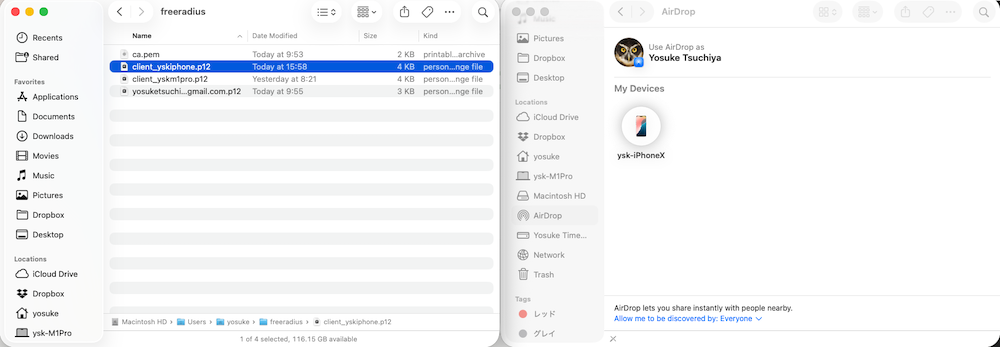
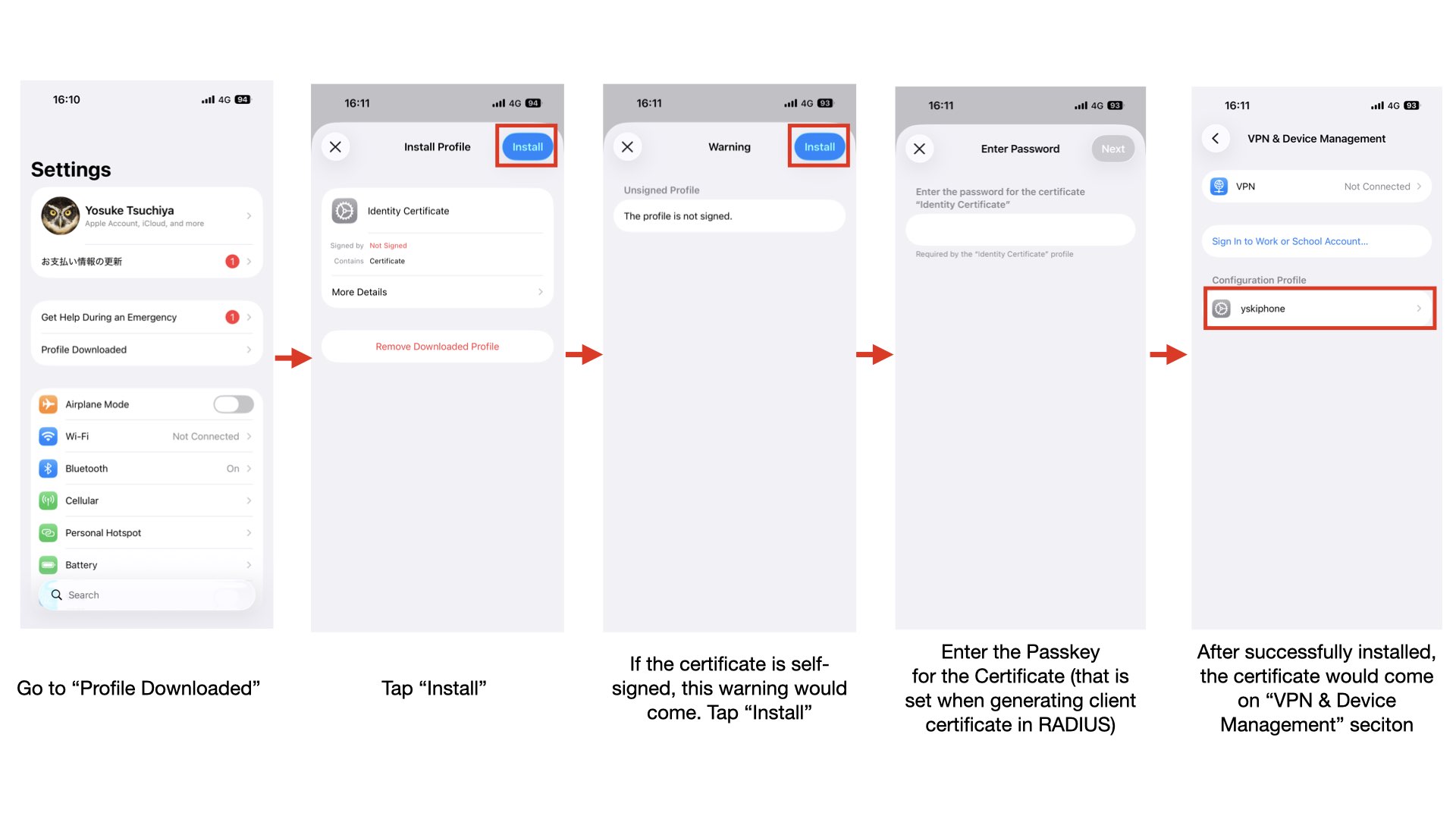
Received the certificate in the iPhone, and you can find the profile could be selected on “Settings”. Here is the procedure for installing the certificate on the iOS devices.
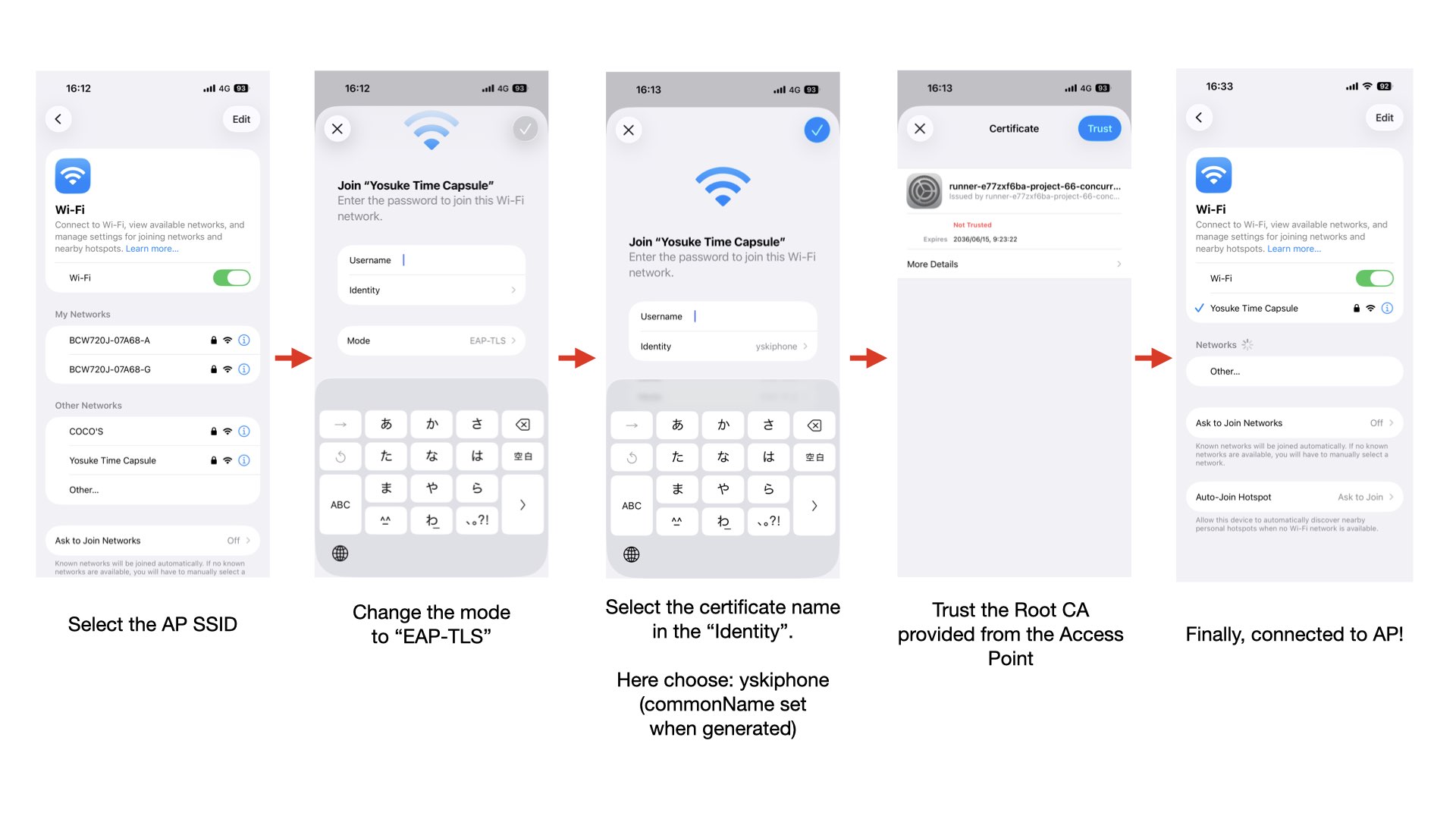
Then, connect to AP with this certificate as follow:
Authentication by ID/Pass (for Guest and IoT Devices)
For IoT devices and guest users, I will also setup the user authentications.
First, configure user accunt and password in users file in freeradius directory:
root@ysk-raspi5:/etc/freeradius/3.0# emacs users
Now, I will add “guest01” and “guest02” account. Write the following config in the end of the users file.
guest01 Cleartext-Password := "<set pasword>"
        Reply-Message := "Welcome, Guest!",
        Session-Timeout := 28800

guest02 Cleartext-Password := "<set password>"
        Reply-Message := "Welcome, Guest!",
        Session-Timeout := 28800
And, change eap configuration priority to tls as follow.
Open the mods-enabled/eap file.
root@ysk-raspi5:/etc/freeradius/3.0# emacs mods-enabled/eap
Then, change default_eap_type to “tls”
eap {
        #  Invoke the default supported EAP type when
        #  EAP-Identity response is received.
        #
        #  The incoming EAP messages DO NOT specify which EAP
        #  type they will be using, so it MUST be set here.
        #
        #  For now, only one default EAP type may be used at a time.
        #
        #  If the EAP-Type attribute is set by another module,
        #  then that EAP type takes precedence over the
        #  default type configured here.
        #
        #default_eap_type = md5
        default_eap_type = tls
Then, restart freeradius
systemctl restart freeradius
OK, now I try to connect my ESP32S3 XIAO with user/password authentication.
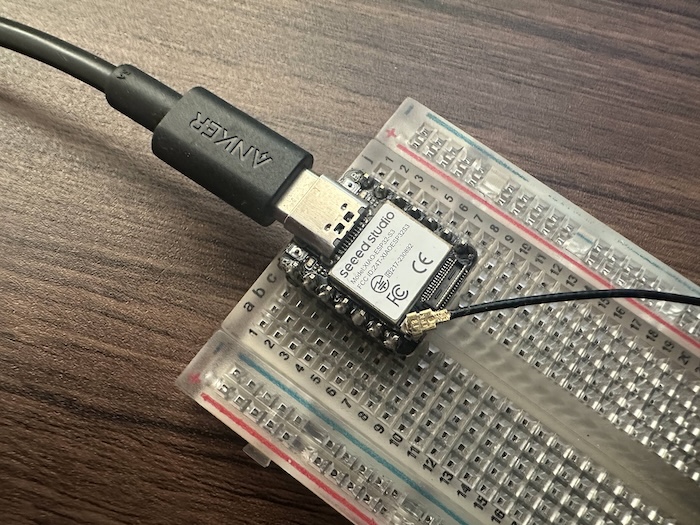
Here is the Arduino code for ESP32 WiFi Enterprise Connection. I used the sample code provided by ESP32 libraries.
#include <Arduino.h>
#include "sdkconfig.h"
#if CONFIG_ESP_WIFI_REMOTE_ENABLED
#error "WPA-Enterprise is only supported in SoCs with native Wi-Fi support"
#endif

#include <WiFi.h>                      //Wifi library
#define EAP_IDENTITY "login"           //if connecting from another corporation, use identity@organization.domain in Eduroam
#define EAP_USERNAME "guest01"           //oftentimes just a repeat of the identity
#define EAP_PASSWORD "<put the password for the accout>"        //your Eduroam password
const char *ssid = "Yosuke Time Capsule";          // Eduroam SSID
const char *host = "www.google.co.jp";  //external server domain for HTTP connection after authentication
int counter = 0;

// NOTE: For some systems, various certification keys are required to connect to the wifi system.
//       Usually you are provided these by the IT department of your organization when certs are required
//       and you can't connect with just an identity and password.
//       Most eduroam setups we have seen do not require this level of authentication, but you should contact
//       your IT department to verify.
//       You should uncomment these and populate with the contents of the files if this is required for your scenario (See Example 2 and Example 3 below).
//const char *ca_pem = "insert your CA cert from your .pem file here";
//const char *client_cert = "insert your client cert from your .crt file here";
//const char *client_key = "insert your client key from your .key file here";

void setup() {
  Serial.begin(115200);
  delay(10);
  Serial.println();
  Serial.print("Connecting to network: ");
  Serial.println(ssid);
  WiFi.disconnect(true);  //disconnect form wifi to set new wifi connection
  WiFi.mode(WIFI_STA);    //init wifi mode

  // Example1 (most common): a cert-file-free eduroam with PEAP (or TTLS)
  WiFi.begin(ssid, WPA2_AUTH_PEAP, EAP_IDENTITY, EAP_USERNAME, EAP_PASSWORD);

  // Example 2: a cert-file WPA2 Enterprise with PEAP
  //WiFi.begin(ssid, WPA2_AUTH_PEAP, EAP_IDENTITY, EAP_USERNAME, EAP_PASSWORD, ca_pem, client_cert, client_key);

  // Example 3: TLS with cert-files and no password
  //WiFi.begin(ssid, WPA2_AUTH_TLS, EAP_IDENTITY, NULL, NULL, ca_pem, client_cert, client_key);

  while (WiFi.status() != WL_CONNECTED) {
    delay(500);
    Serial.print(".");
    counter++;
    if (counter >= 60) {  //after 30 seconds timeout - reset board
      ESP.restart();
    }
  }
  Serial.println("");
  Serial.println("WiFi connected");
  Serial.println("IP address set: ");
  Serial.println(WiFi.localIP());  //print LAN IP
}
void loop() {
  if (WiFi.status() == WL_CONNECTED) {  //if we are connected to Eduroam network
    counter = 0;                        //reset counter
    Serial.println("Wifi is still connected with IP: ");
    Serial.println(WiFi.localIP());            //inform user about his IP address
  } else if (WiFi.status() != WL_CONNECTED) {  //if we lost connection, retry
    WiFi.begin(ssid);
  }
  while (WiFi.status() != WL_CONNECTED) {  //during lost connection, print dots
    delay(500);
    Serial.print(".");
    counter++;
    if (counter >= 60) {  //30 seconds timeout - reset board
      ESP.restart();
    }
  }
  Serial.print("Connecting to website: ");
  Serial.println(host);
  NetworkClient client;
  if (client.connect(host, 80)) {
    String url = "/rele/rele1.txt";
    client.print(String("GET ") + url + " HTTP/1.1\r\n" + "Host: " + host + "\r\n" + "User-Agent: ESP32\r\n" + "Connection: close\r\n\r\n");

    while (client.connected()) {
      String line = client.readStringUntil('\n');
      if (line == "\r") {
        break;
      }
    }
    String line = client.readStringUntil('\n');
    Serial.println(line);
  } else {
    Serial.println("Connection unsuccessful");
  }
}
Then, complined and write on the XIAO.... Finally, my ESP32S3 XIAO could be connected to the AP!
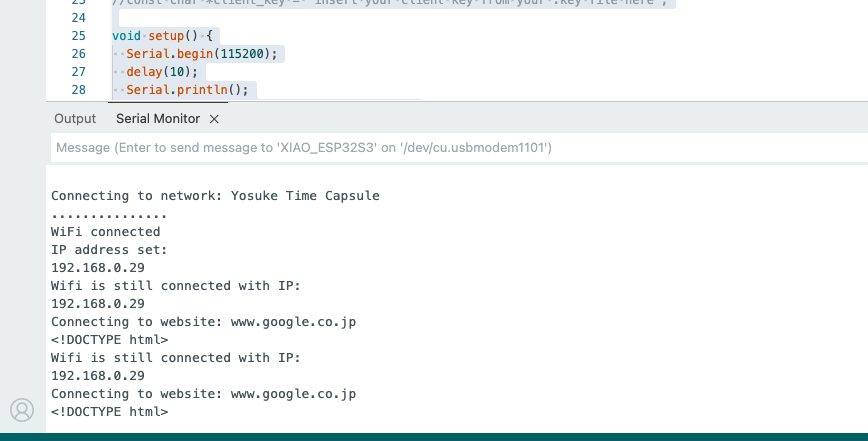
Some short notes.
- The Lab Machines such as Prusa Core One could not connected because that Wi-Fi function does not support WPA2-Enterprise. Therefore, I connected the machines via Ethernet LAN Cable.
- Also, I tried to connect my ESP32S3 XIAO with EAP-TLS, but there are something error occured when negotiating TLS communciation between XIAO and RADIUS Server.....
- The ideal for managements would be....
- Staff’s PC and iPhone should be connected via EAP-TLS.
- Setting up Guest user’s account for connection, but it should be expired in short times (at most, 1 days)
- For IoT devices, if the EAP-TLS could be used, it is better. If could not used it, it is acceptable to set a accunt for devices, but it have not to be leaked to others.
IDS/IPS
We will set up Suricada, an open-source IDS/IPS, to detect and respond to suspicious traffic within the lab network.
There are several ways to detect suspicious traffic flowing through a network using an IDS/IPS system. One method is to route all traffic through the IDS/IPS device. In this case, for example, if the device has two or more network interface cards (NICs), one is connected to the Internet gateway and the other to the intranet, and the incoming and outgoing traffic on each NIC is monitored. While this configuration is necessary to enable the IPS functionality, it requires enterprise-level equipment.
The second method involves configuring a mirror port on a switch to route traffic from a specific port on the switch to the IDS/IPS device for monitoring. While this setup can be achieved using a home-grade smart switch and a device such as a Raspberry Pi, it allows for detection but not prevention.
In this project, we will test the latter configuration. Specifically, we will use a smart switch (TP-Link TL-SG105E) and a Raspberry Pi 4 to mirror the port connected to the internet router and perform detection using Suricada.
Setting Up Simple Smart Switch (TP Link TL-SG105E)
The TP-Link TL-SG105E is an affordable smart switch that allows you to configure VLANs, port mirroring, Cable Diagnostics, and more. There are 5 ports this swithch has, and this time, I connected the cables from each device to the switch as shown below.
- Port 1: connect to AP (Time Capsule)
- Port 2: set a mirror port and connect to IDS Devices (Raspberry Pi 4)
- Port 3: Not use
- Port 4: RADIUS Device (Raspberry Pi 5)
- Port 5: connect to Router/Modem
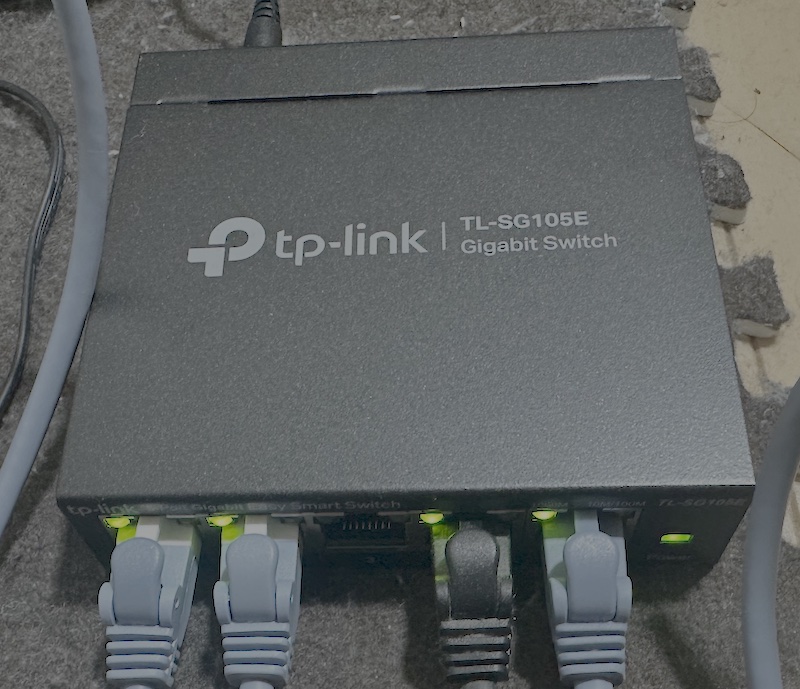
Next, access the TL-SG105E’s management interface using a web browser, and go to “Monitoring” -> “Port Mirror”. Then, configure as following.
- Port Mirror: Enable and set Port2 as Mirroring Post
- Mirrored Port: Select Port 1 as Mirrord Port, and set both Ingress/Egress as “enable”
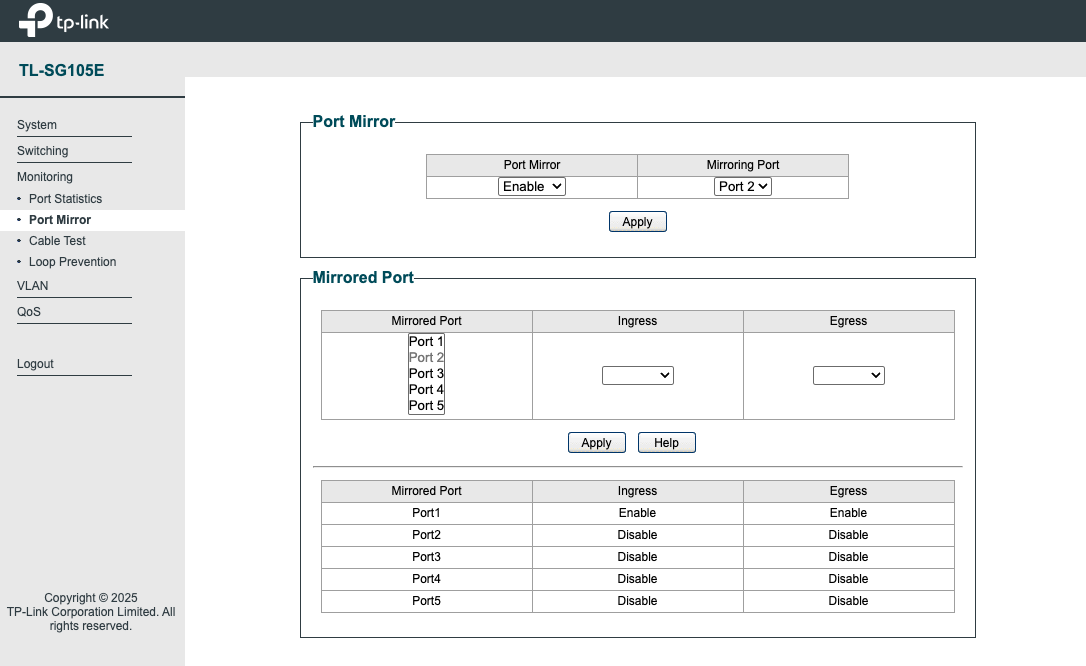
Install Open Source IDS/IPS (Suricada)
Setting up Raspberry Pi 4, and confirm the net interfaces.
yosuke@ysk-raspi4:~ $ ip link show
1: lo: <LOOPBACK,UP,LOWER_UP> mtu 65536 qdisc noqueue state UNKNOWN mode DEFAULT group default qlen 1000
    link/loopback 00:00:00:00:00:00 brd 00:00:00:00:00:00
2: eth0: <BROADCAST,MULTICAST,UP,LOWER_UP> mtu 1500 qdisc fq_codel state UP mode DEFAULT group default qlen 1000
    link/ether <MAC Address> brd ff:ff:ff:ff:ff:ff
3: wlan0: <BROADCAST,MULTICAST,UP,LOWER_UP> mtu 1500 qdisc fq_codel state UP mode DORMANT group default qlen 1000
    link/ether <MAC Address> brd ff:ff:ff:ff:ff:ff
yosuke@ysk-raspi4:~ $
eth0 is a LAN port connecting to Switch’s Mirroring Port. I will keep wlan0 (Wi-Fi connection) with WPA2-Enterprise for accessing via SSH.
So, let’s install suricata.
sudo apt-get install suricata
Then, confirming the version.
yosuke@ysk-raspi4:~ $ suricata -V
This is Suricata version 7.0.10 RELEASE
yosuke@ysk-raspi4:~ $
Then, setup a network range that are monitored at /etc/suricata/suricata.yaml as follow:
vars:
  # more specific is better for alert accuracy and performance
  address-groups:
    #HOME_NET: "[192.168.0.0/16,10.0.0.0/8,172.16.0.0/12]"
    HOME_NET: "[192.168.0.0/24]"
    #HOME_NET: "[10.0.0.0/8]"
    #HOME_NET: "[172.16.0.0/12]"
    #HOME_NET: "any"

    EXTERNAL_NET: "!$HOME_NET"
    #EXTERNAL_NET: "any"
Then, update the rule of detections.
sudo suricata-update
To monitor all incoming/outgoing traffics, change the NIC mode as promis cast mode.
sudo ip link set eth0 promisc on
To check whether the mirroring works or not, install tcpdump and check the in/out traffics.
sudo apt-get install tcpdump
And, the traffic from my Mac PC(192.168.0.12) to outside (74.125.102.198) could captured. That show the mirroring is working.
yosuke@ysk-raspi4:~ $ sudo tcpdump -i eth0 -n | head -20
tcpdump: verbose output suppressed, use -v[v]... for full protocol decode
listening on eth0, link-type EN10MB (Ethernet), snapshot length 262144 bytes
22:17:45.990782 IP 192.168.0.32.22 > 192.168.0.12.55301: Flags [P.], seq 4165504532:4165504728, ack 4099429335, win 132, options [nop,nop,TS val 3093218260 ecr 2535353313], length 196
22:17:45.990865 IP 192.168.0.32.22 > 192.168.0.12.55301: Flags [P.], seq 0:196, ack 1, win 132, options [nop,nop,TS val 3093218260 ecr 2535353313], length 196
22:17:45.993229 IP 192.168.0.12.55301 > 192.168.0.32.22: Flags [.], ack 196, win 2048, options [nop,nop,TS val 2535353321 ecr 3093218260], length 0
22:17:46.004397 IP 192.168.0.12.55301 > 192.168.0.32.22: Flags [P.], seq 1:37, ack 196, win 2048, options [nop,nop,TS val 2535353332 ecr 3093218260], length 36
22:17:46.004585 IP 192.168.0.32.22 > 192.168.0.12.55301: Flags [P.], seq 196:232, ack 37, win 132, options [nop,nop,TS val 3093218274 ecr 2535353332], length 36
22:17:46.004657 IP 192.168.0.32.22 > 192.168.0.12.55301: Flags [P.], seq 196:232, ack 37, win 132, options [nop,nop,TS val 3093218274 ecr 2535353332], length 36
22:17:46.005483 IP 74.125.102.198.443 > 192.168.0.12.50278: UDP, length 1250
22:17:46.007612 IP 192.168.0.12.55301 > 192.168.0.32.22: Flags [.], ack 232, win 2048, options [nop,nop,TS val 2535353335 ecr 3093218274], length 0
22:17:46.008019 IP 192.168.0.12.50278 > 74.125.102.198.443: UDP, length 66
22:17:46.026154 IP 192.168.0.12.55301 > 192.168.0.32.22: Flags [P.], seq 37:73, ack 232, win 2048, options [nop,nop,TS val 2535353354 ecr 3093218274], length 36
22:17:46.026383 IP 192.168.0.32.22 > 192.168.0.12.55301: Flags [P.], seq 232:268, ack 73, win 132, options [nop,nop,TS val 3093218296 ecr 2535353354], length 36
22:17:46.026448 IP 192.168.0.32.22 > 192.168.0.12.55301: Flags [P.], seq 232:268, ack 73, win 132, options [nop,nop,TS val 3093218296 ecr 2535353354], length 36
22:17:46.028772 IP 192.168.0.12.55301 > 192.168.0.32.22: Flags [.], ack 268, win 2048, options [nop,nop,TS val 2535353356 ecr 3093218296], length 0
22:17:46.030478 IP 74.125.102.198.443 > 192.168.0.12.50278: UDP, length 1250
22:17:46.033341 IP 192.168.0.12.50278 > 74.125.102.198.443: UDP, length 70
22:17:46.046160 IP 192.168.0.12.55301 > 192.168.0.32.22: Flags [P.], seq 73:109, ack 268, win 2048, options [nop,nop,TS val 2535353374 ecr 3093218296], length 36
22:17:46.046347 IP 192.168.0.32.22 > 192.168.0.12.55301: Flags [P.], seq 268:304, ack 109, win 132, options [nop,nop,TS val 3093218316 ecr 2535353374], length 36
22:17:46.046409 IP 192.168.0.32.22 > 192.168.0.12.55301: Flags [P.], seq 268:304, ack 109, win 132, options [nop,nop,TS val 3093218316 ecr 2535353374], length 36
22:17:46.048768 IP 192.168.0.12.55301 > 192.168.0.32.22: Flags [.], ack 304, win 2048, options [nop,nop,TS val 2535353376 ecr 3093218316], length 0
22:17:46.060238 IP 74.125.102.198.443 > 192.168.0.12.50278: UDP, length 1250
tcpdump: Unable to write output: Broken pipe
Now, start the suricata
sudo systemctl start suricata
sudo systemctl enable suricata
To test whether suricata works, use test signature access as following.
yosuke@ysk-raspi4:/var/log/suricata $ curl http://testmynids.org/uid/index.html
uid=0(root) gid=0(root) groups=0(root)
Then, check the /var/log/suricata/fast.log
yosuke@ysk-raspi4:/var/log/suricata $ tail -f fast.log
07/15/2026-22:22:19.693880  [**] [1:2100498:7] GPL ATTACK_RESPONSE id check returned root [**] [Classification: Potentially Bad Traffic] [Priority: 2] {TCP} 18.64.122.67:80 -> 192.168.0.32:59376
And, the signature detected as warning. The suricata works fine.
Visualizing Tools (Grafana, Loki, Promtail)
To visualize and monitor on the Web browser, I want to install visualizing tools of suricata logs. There are a couple of tools for visualizing such as Kibana+Elastic Search.... But, I am not sure whether those works well on Raspberry Pi.
So, to find out a appropriate tools for RPi, I asked Claude.ai as follow:
Please suggest me the visualizing tools for suricata alarts that works on Raspberry Pi 4 4GB model. Also, show how to set it up.
Then, claude suggested the grafana (visualizing dasuboard server) + Loki (log aggrgation) + Promtail (Log Collecting Agent).
To install Grafana, some apt configuration is required. First, add GPG key of Grafana.
sudo mkdir -p /etc/apt/keyrings/
wget -q -O - https://apt.grafana.com/gpg.key | gpg --dearmor | sudo tee /etc/apt/keyrings/grafana.gpg > /dev/null
Next, add Grafana to the repository
echo "deb [signed-by=/etc/apt/keyrings/grafana.gpg] \
    https://apt.grafana.com stable main" | \
    sudo tee /etc/apt/sources.list.d/grafana.list
Then, install Grafana via apt
sudo apt update
sudo apt install -y grafana
Finally, start Grafana
sudo systemctl enable grafana-server
sudo systemctl start grafana-server
Next, download loki binary file.
wget https://github.com/grafana/loki/releases/download/v3.0.0/loki-linux-arm64.zip
unzip and mov it to /usr/local/bin
unzip loki-linux-arm64.zip
chmod +x loki-linux-arm64
sudo mv loki-linux-arm64 /usr/local/bin/loki
Then, write a configure file in /etc/loki/loki-config.yaml as following:
auth_enabled: false

server:
  http_listen_port: 3100

common:
  path_prefix: /var/lib/loki
  storage:
    filesystem:
      chunks_directory: /var/lib/loki/chunks
      rules_directory: /var/lib/loki/rules
  replication_factor: 1
  ring:
    instance_addr: 127.0.0.1
    kvstore:
      store: inmemory

schema_config:
  configs:
    - from: 2024-01-01
      store: tsdb
      object_store: filesystem
      schema: v13
      index:
        prefix: index_
        period: 24h

limits_config:
  reject_old_samples: false
Last, download Promtail binary file.
wget https://github.com/grafana/loki/releases/download/v3.0.0/promtail-linux-arm64.zip
Then, unzip and move it to /usr/local/bin folder.
unzip promtail-linux-arm64.zip
chmod +x promtail-linux-arm64
sudo mv promtail-linux-arm64 /usr/local/bin/promtail
And, write a configurateion file into /etc/promtail/promtail-config.yaml
server:
  http_listen_port: 9080
  grpc_listen_port: 0

positions:
  filename: /var/lib/promtail/positions.yaml

clients:
  - url: http://localhost:3100/loki/api/v1/push

scrape_configs:
  - job_name: suricata
    static_configs:
      - targets:
          - localhost
        labels:
          job: suricata
          __path__: /var/log/suricata/eve.json
    pipeline_stages:
      - json:
          expressions:
            event_type: event_type
            src_ip: src_ip
            dest_ip: dest_ip
            dest_port: dest_port
            signature: alert.signature
            severity: alert.severity
      - labels:
          event_type:
          src_ip:
          dest_ip:
Then, add both to systemd service. First, add loki.service file into systemd folder.
sudo emacs /etc/systemd/system/loki.service
Then write a configration as follow:
[Unit]
Description=Loki
After=network.target

[Service]
ExecStart=/usr/local/bin/loki -config.file=/etc/loki/loki-config.yaml
Restart=always
User=root

[Install]
WantedBy=multi-user.target
Also, add promtail.service fle into systemd folder.
sudo emacs /etc/systemd/system/promtail.service
And write a configuration as follow.
[Unit]
Description=Promtail
After=network.target

[Service]
ExecStart=/usr/local/bin/promtail -config.file=/etc/promtail/promtail-config.yaml
Restart=always
User=root

[Install]
WantedBy=multi-user.target
OK, now is the time to start loki and promtail.
sudo systemctl enable loki promtail
sudo systemctl start loki promtail
So, let’s go to the visualization webpage via web browser. The address is “http://
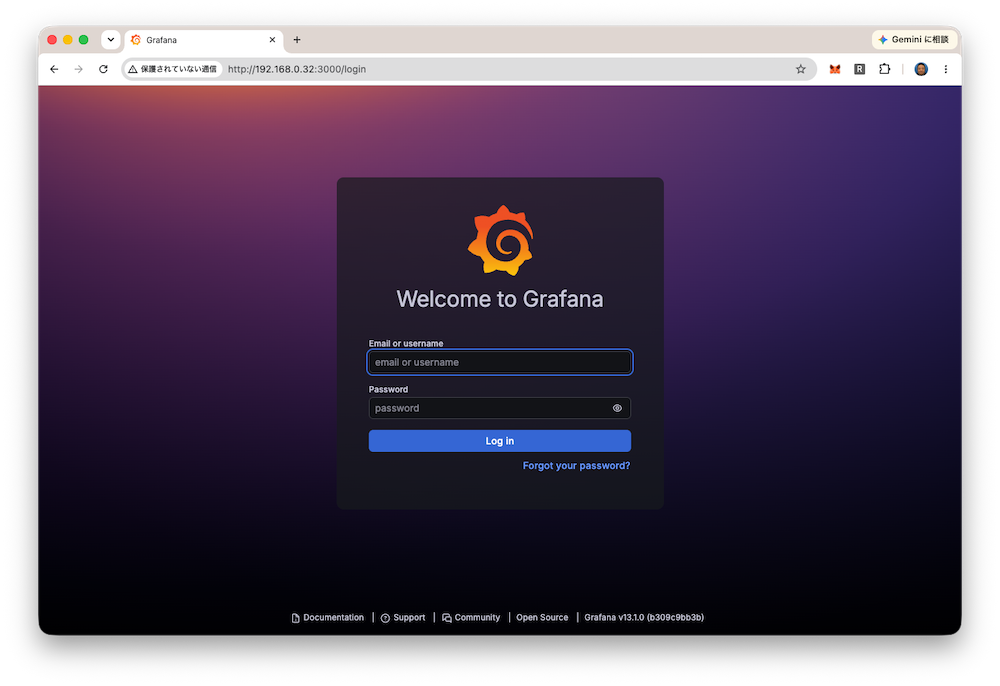
Login to Grafana with default username and password (admin/admin). Make sure that the password should be changed after login.
Here is the home page of Grafana.
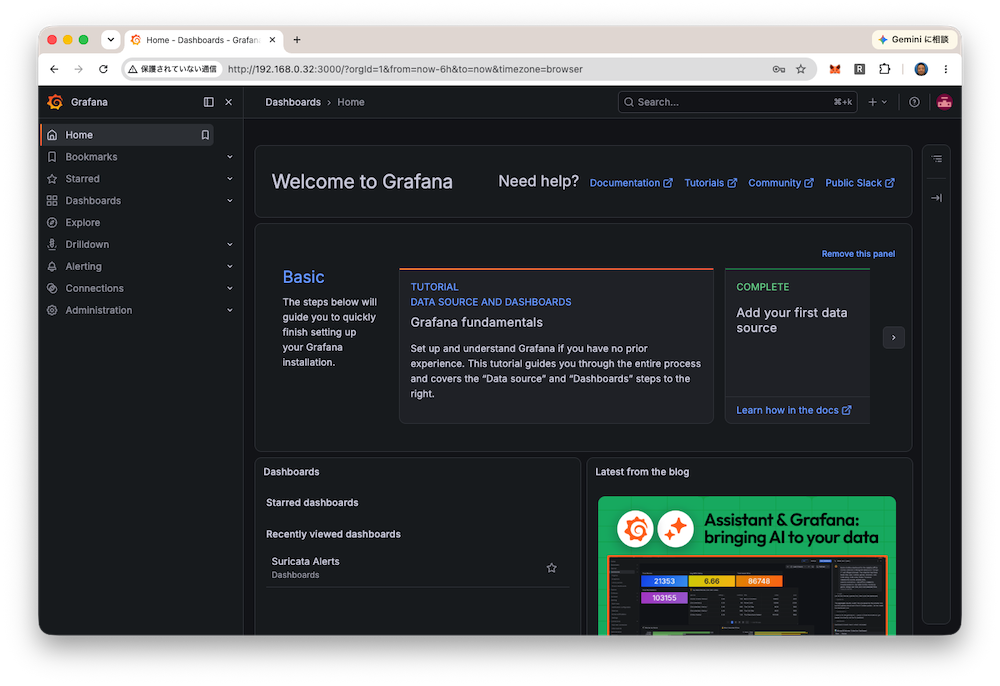
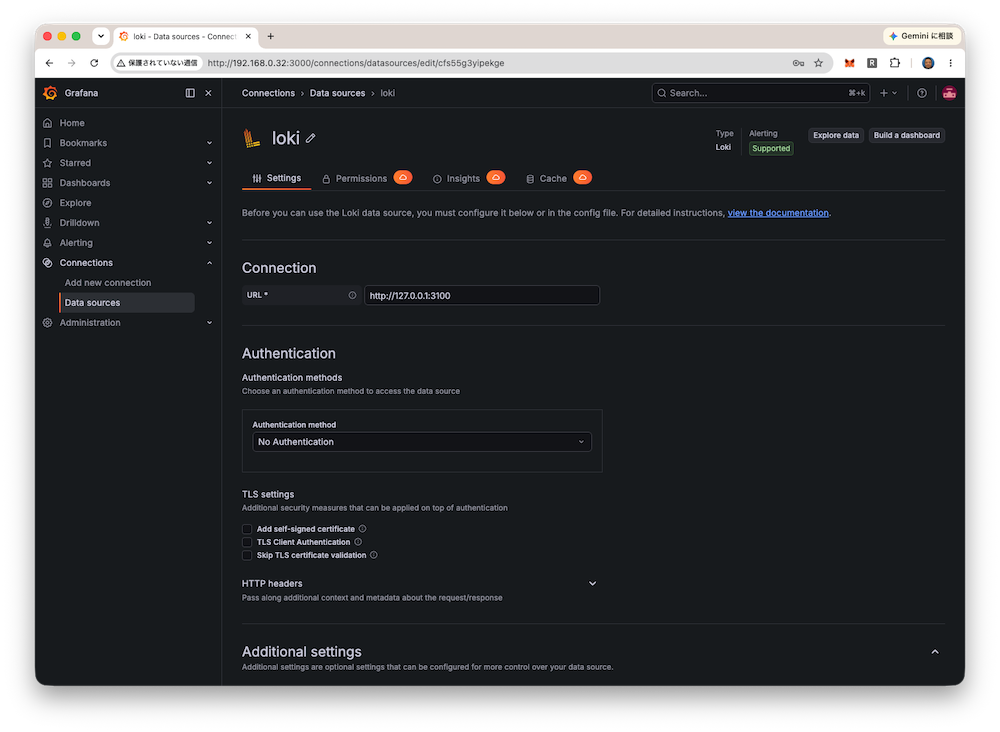
Go to “Connections” and add loki as a data source. Make sure the connection url is “http://127.0.0.1:3100” (the port number is different between grafana and loki (3000, 3100))
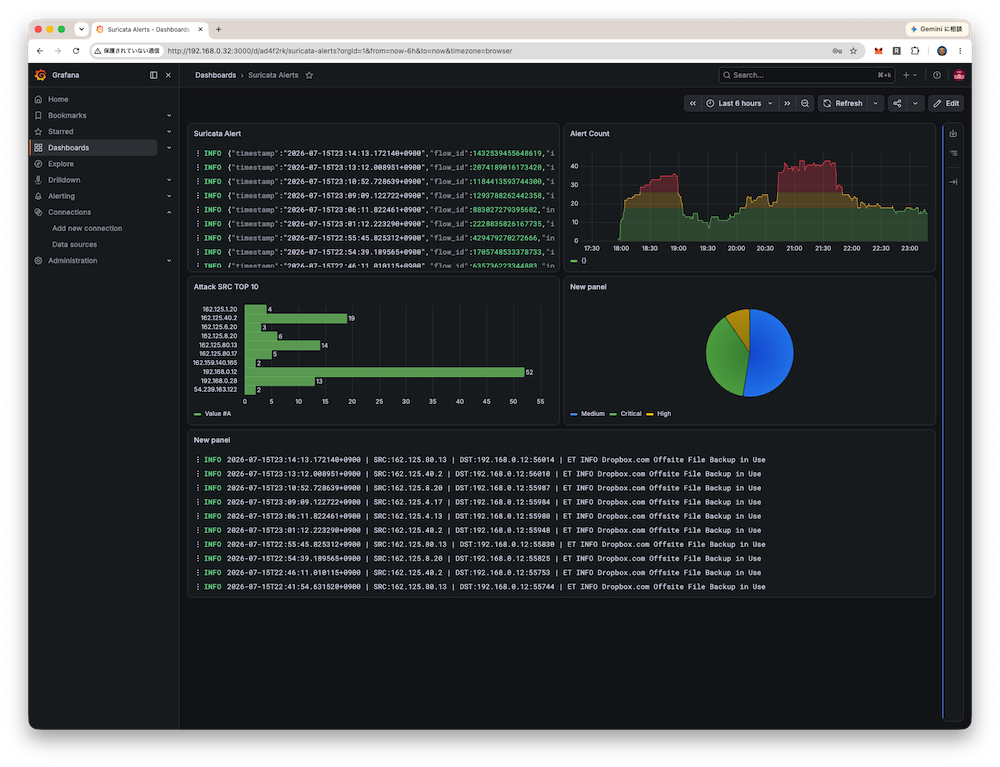
Finally, I could add the log and graphs from the suricata om the Dashboard!
Insight of IDS (Suricata)
A few hours after I started monitoring traffic with Suricata, I noticed a few interesting points while looking at the data visualized in Grafana.
Detacting the traffic of Cloud Storage Service (Dropbox)
First of all, I periodically detected the following alerts regarding traffic from my Mac.
{"timestamp":"2026-07-16T08:19:33.683877+0900","flow_id":1543174870379807,"in_iface":"eth0","event_type":"alert","src_ip":"162.125.21.2","src_port":443,"dest_ip":"192.168.0.12","dest_port":58689,"proto":"TCP","pkt_src":"wire/pcap","tx_id":0,"alert":{"action":"allowed","gid":1,"signature_id":2012647,"rev":7,"signature":"ET INFO Dropbox.com Offsite File Backup in Use","category":"Potential Corporate Privacy Violation","severity":1,"metadata":{"confidence":["High"],"created_at":["2011_04_07"],"signature_severity":["Informational"],"tag":["Description_Generated_By_Proofpoint_Nexus"],"updated_at":["2022_03_25"]}}
... (Omitted) ...
"app_proto":"tls","direction":"to_client","flow":{"pkts_toserver":5,"pkts_toclient":7,"bytes_toserver":595,"bytes_toclient":3595,"start":"2026-07-16T08:19:33.097154+0900","src_ip":"192.168.0.12","dest_ip":"162.125.21.2","src_port":58689,"dest_port":443}}
This is the alert tfor Dropbox.com Offsite File Backup in Use, regarded as “Potential Corporate Privacy Violation”.
“Dropbox Offsite File Backup” is a feature that allows Dropbox to back up and sync local PC to the cloud. Dropbox is indeed installed on my PC, and files placed in the Dropbox folder are regularly synced with my Dropbox storage in the cloud.
Why did Suricata detect Dropbox synchronization traffic as an alert? It is because Suricata defines Dropbox traffic as a “Policy Violation” in its rules. After researching this online, I found that these rules are designed to monitor and control the unauthorized use of cloud storage within an organization—specifically, the unauthorized transfer of trade secrets and confidential data (known as “Shadow IT”).
To disable specific rules, create a file named /etc/suricata/disable.conf.
sudo emacs /etc/suricata/disable.conf
Next, enter the Signature ID (SID) for the relevant rule in disable.conf. In this case, enter SID 2012647.
2012647
Then, update the suricata rule
yosuke@ysk-raspi4:/etc/suricata $ sudo suricata-update
16/7/2026 -- 08:59:37 - <Info> -- Using data-directory /var/lib/suricata.
16/7/2026 -- 08:59:37 - <Info> -- Using Suricata configuration /etc/suricata/suricata.yaml
16/7/2026 -- 08:59:37 - <Info> -- Using /etc/suricata/rules for Suricata provided rules.
16/7/2026 -- 08:59:37 - <Info> -- Found Suricata version 7.0.10 at /usr/bin/suricata.
16/7/2026 -- 08:59:37 - <Info> -- Loading /etc/suricata/disable.conf.
16/7/2026 -- 08:59:37 - <Info> -- Loading /etc/suricata/suricata.yaml
16/7/2026 -- 08:59:37 - <Info> -- Disabling rules for protocol pgsql
16/7/2026 -- 08:59:37 - <Info> -- Disabling rules for protocol modbus
16/7/2026 -- 08:59:37 - <Info> -- Disabling rules for protocol dnp3
16/7/2026 -- 08:59:37 - <Info> -- Disabling rules for protocol enip
16/7/2026 -- 08:59:37 - <Info> -- No sources configured, will use Emerging Threats Open
16/7/2026 -- 08:59:37 - <Info> -- Checking https://rules.emergingthreats.net/open/suricata-7.0.10/emerging.rules.tar.gz.md5.
16/7/2026 -- 08:59:38 - <Info> -- Fetching https://rules.emergingthreats.net/open/suricata-7.0.10/emerging.rules.tar.gz.
 100% - 5544037/5544037
16/7/2026 -- 08:59:41 - <Info> -- Done.
16/7/2026 -- 08:59:41 - <Info> -- Loading distribution rule file /etc/suricata/rules/app-layer-events.rules
16/7/2026 -- 08:59:41 - <Info> -- Loading distribution rule file /etc/suricata/rules/decoder-events.rules
16/7/2026 -- 08:59:41 - <Info> -- Loading distribution rule file /etc/suricata/rules/dhcp-events.rules
16/7/2026 -- 08:59:41 - <Info> -- Loading distribution rule file /etc/suricata/rules/dnp3-events.rules
16/7/2026 -- 08:59:41 - <Info> -- Loading distribution rule file /etc/suricata/rules/dns-events.rules
16/7/2026 -- 08:59:41 - <Info> -- Loading distribution rule file /etc/suricata/rules/files.rules
16/7/2026 -- 08:59:41 - <Info> -- Loading distribution rule file /etc/suricata/rules/http2-events.rules
16/7/2026 -- 08:59:41 - <Info> -- Loading distribution rule file /etc/suricata/rules/http-events.rules
16/7/2026 -- 08:59:41 - <Info> -- Loading distribution rule file /etc/suricata/rules/ipsec-events.rules
16/7/2026 -- 08:59:41 - <Info> -- Loading distribution rule file /etc/suricata/rules/kerberos-events.rules
16/7/2026 -- 08:59:41 - <Info> -- Loading distribution rule file /etc/suricata/rules/modbus-events.rules
16/7/2026 -- 08:59:41 - <Info> -- Loading distribution rule file /etc/suricata/rules/mqtt-events.rules
16/7/2026 -- 08:59:41 - <Info> -- Loading distribution rule file /etc/suricata/rules/nfs-events.rules
16/7/2026 -- 08:59:41 - <Info> -- Loading distribution rule file /etc/suricata/rules/ntp-events.rules
16/7/2026 -- 08:59:41 - <Info> -- Loading distribution rule file /etc/suricata/rules/quic-events.rules
16/7/2026 -- 08:59:41 - <Info> -- Loading distribution rule file /etc/suricata/rules/rfb-events.rules
16/7/2026 -- 08:59:41 - <Info> -- Loading distribution rule file /etc/suricata/rules/smb-events.rules
16/7/2026 -- 08:59:41 - <Info> -- Loading distribution rule file /etc/suricata/rules/smtp-events.rules
16/7/2026 -- 08:59:41 - <Info> -- Loading distribution rule file /etc/suricata/rules/ssh-events.rules
16/7/2026 -- 08:59:41 - <Info> -- Loading distribution rule file /etc/suricata/rules/stream-events.rules
16/7/2026 -- 08:59:41 - <Info> -- Loading distribution rule file /etc/suricata/rules/tls-events.rules
16/7/2026 -- 08:59:41 - <Info> -- Ignoring file f625293e2432dbf07497d06349de6f0b/rules/emerging-deleted.rules
16/7/2026 -- 08:59:49 - <Info> -- Loaded 67943 rules.
16/7/2026 -- 08:59:50 - <Info> -- Disabled 16 rules.
16/7/2026 -- 08:59:50 - <Info> -- Enabled 0 rules.
16/7/2026 -- 08:59:50 - <Info> -- Modified 0 rules.
16/7/2026 -- 08:59:50 - <Info> -- Dropped 0 rules.
16/7/2026 -- 08:59:51 - <Info> -- Enabled 136 rules for flowbit dependencies.
16/7/2026 -- 08:59:51 - <Info> -- Backing up current rules.
16/7/2026 -- 09:00:01 - <Info> -- Writing rules to /var/lib/suricata/rules/suricata.rules: total: 67943; enabled: 52007; added: 8; removed 2; modified: 1333
16/7/2026 -- 09:00:03 - <Info> -- Writing /var/lib/suricata/rules/classification.config
16/7/2026 -- 09:00:03 - <Info> -- Testing with suricata -T.
16/7/2026 -- 09:00:28 - <Info> -- Done.
Then, restart suricata
yosuke@ysk-raspi4:/etc/suricata $ sudo systemctl restart suricata
After disabled,,, this alart hove not come out.
It was very interesting that Suricata was able to detect this Dropbox traffic (cloud synchronization traffic that isn’t typically considered a problem during normal PC use). When we hear the term “security alert,” we tend to think of malware infections, port scans, or communication overloads like DDoS attacks. However, IDS/IPS systems like Suricata are designed to detect “communications suspected of violating an organization’s system or network operational policies”—such as those associated with shadow IT—by adopting a zero-trust approach (i.e., not trusting anything and inspecting everything).
Reflections
In this project, we demonstrated the construction of a secure network system designed for a small-scale home lab using open-source software and hardware. The following objectives were achieved in this project.
- Wi-Fi Authentication: Previously, the access point password was displayed on the lab wall in a shared format (WPA2 Personal), making the network accessible to any visitor to the lab. By setting up FreeRADIUS on a Raspberry Pi 5 and integrating it with the access point, we ensured that only devices with installed client certificates or those possessing individually issued user IDs and passwords could access the network. This allowed us to restrict what had previously been virtually unrestricted Wi-Fi access.
- Monitoring of Lab Network Traffic via IDS/IPS: Since the lab network generally trusted all connected PCs unconditionally, no specific traffic monitoring was performed. Consequently, even PCs used by guest users to connect to the Wi-Fi via an AES key were allowed unconditional network access without suspicion (this situation itself created a vulnerability whereby connected PCs could become infected with malware and engage in suspicious communications). This time, by configuring a mirror port on a smart switch (TP-Link TL-SG105E) and setting up Suricata on a Raspberry Pi 4 to monitor and visualize traffic, we are now able to continuously monitor all communications on the lab network and detect and investigate any suspicious activity as it occurs.
On the other hand, since I set up this experiment using my home network as a stand-in for the lab network, there are likely to be some differences from the actual lab configuration. Depending on the internet service provider, the gateway device may serve as both a modem and a Wi-Fi router, which could make it impossible to configure RADIUS integration. In that case, it would be necessary to install a separate access point (AP) capable of RADIUS integration and configure Wi-Fi access to route through that AP. Additionally, a key challenge for Fab Labs moving forward will be establishing network connectivity for each piece of equipment in the lab (such as 3D printers and laser cutters). The Prusa Core One covered in this project does not support WPA2 Enterprise; however, since it supports Ethernet connectivity, it was possible to connect it to the network separately from the Wi-Fi network. On the other hand, entry-level models that are becoming widespread in many labs these days (such as the Bambu Lab A1 and A1 Mini) present the problem that they can only use Wi-Fi that supports WPA2/3 Personal.
When setting up a secure network like the one described here in the future, it will likely be necessary to segment the lab network—for example, into segments for staff, guests, experiments, and lab equipment—and consider which segments require enhanced security or which segments should have restrictions on accessible ports or devices. Although we have not yet implemented this level of segmentation, devices like the TP-Link smart switches we installed this time allow for VLAN configuration at the port level, so it would be a good idea to use these features to gradually separate the segments.
The most valuable aspect of the “Fab Future – Cyber Security” course was gaining insights into security at each level (Internet, OS, software, hardware, and human behavior). In particular, it was extremely valuable to be able to actually test the methods attackers use. For this final project, I focused primarily on the topics covered in the first session on cryptography (the necessity of public-key authentication), as well as Internet security (the “Three Questions for Any Security Mechanism”) and human security. Moving forward, I plan to explore methods for protecting actual devices within secure networks in small fab labs, as well as hardware and software implementations designed to counter attacks on the CPU and memory.
Acknowledgements
I would like to thanks all the class mate and instructors of Fab Future - Cyber Security all over the world. Especially, thanks for the class mate in the Skylab Workshop for studying each other for this one month.
I also would like to thanks for Claude.ai. Some of this documentations are proofreaded by him/her. And, assisted by claude to install Grafana/Loki/Promtail (Suricata Visualizaiton).