Internet Security
Class 2 - Internet security June 25, 2026
Speakers
Homework assignments
Homework assignments
For each of the following systems, research and document 3 parts what threat does it address? what’s the trust model? what’s the residual risk?
- PGP (end to end email security)
- SSH (secure remote access)
- VPN / IPsec (network-layer tunneling)
- MACsec (link-layer encryption)
- DNS Security (DNSSEC & DNS spoofing)
- IDS / IPS (detection vs. prevention)
Complete these exercises:
- TLS Handshake Trace
Trace a real TLS handshake and an encrypted data segment. Identify how the session is established — cipher suite, certificate, key exchange — and confirm what an observer can and cannot see.
- Port Scan & Firewall
Your VM will be subjected to a port scan. Determine what it reveals about your exposed services, then configure the firewall to reduce what’s reachable from outside.
✅ Threats, Trust Models, and Residual Risks
Threats, Trust Models, and Residual Risks
For each of the following systems, research and document 3 parts what threat does it address? what’s the trust model? what’s the residual risk?
- PGP (end to end email security)
- SSH (secure remote access)
- VPN / IPsec (network-layer tunneling)
- MACsec (link-layer encryption)
- DNS Security (DNSSEC & DNS spoofing)
- IDS / IPS (detection vs. prevention)
| System | What threat does it address? | Trust model | Residual risk |
|---|---|---|---|
| PGP (Pretty Good Privacy) | Protects email by encrypting messages so that only the intended recipient can read them. It also uses digital signatures so recipients can verify who sent the message and whether it has been modified. | PGP uses a Web of Trust, where users decide which public keys to trust by verifying identities themselves or relying on trusted people who have already verified those keys. | Security depends on users verifying keys correctly. If a private key is stolen or users trust the wrong public key, attackers can impersonate someone or read encrypted messages. |
| SSH (Secure Shell) | SSH creates an encrypted connection that allows users to securely send commands, manage servers remotely, and transfer files over an untrusted network. It replaces older protocols like Telnet that send data in plain text. | SSH usually uses Trust On First Use (TOFU). The first time a client connects to a server, it stores the server’s public key and warns the user if the key changes in future connections. | If the very first connection is intercepted, the client may trust an attacker’s key instead of the real server. Compromised private keys or infected devices are also risks. |
| VPN / IPsec | IPsec protects data travelling across public networks by encrypting IP packets and authenticating where they came from. It is commonly used to build secure VPN connections. | Before creating a secure tunnel, the two VPN endpoints authenticate each other using shared keys or digital certificates, then exchange encryption keys for secure communication. | IPsec only protects data while it is travelling across the network. If either endpoint is compromised or user credentials are stolen, attackers can still gain access. |
| MACsec (IEEE 802.1AE) | MACsec protects Ethernet traffic on a local network by encrypting frames travelling between directly connected devices, preventing eavesdropping and tampering. | Neighboring devices authenticate each other before encrypting traffic on the Ethernet link. | Protection is only provided for a single network link. Once traffic leaves that link, another security mechanism is needed. |
| DNSSEC | DNSSEC protects against DNS spoofing and cache poisoning by adding digital signatures to DNS records. This allows devices to verify that DNS responses have not been changed by an attacker. | DNSSEC creates a chain of trust from the DNS root servers down to the individual domain, allowing resolvers to verify each DNS response. | DNSSEC verifies that DNS data is authentic, but it does not encrypt DNS queries, so it does not provide privacy. Domains that do not use DNSSEC remain vulnerable. |
| IDS / IPS | An Intrusion Detection System (IDS) monitors network traffic and alerts administrators to suspicious activity. An Intrusion Prevention System (IPS) goes one step further by automatically blocking detected attacks. | IDS/IPS rely on known attack signatures and behavioural analysis to identify malicious traffic. | Unknown attacks, encrypted traffic, false positives, and false negatives can reduce their effectiveness. |
References
-
PGP - Pretty Good Privacy - wiki, PGP Web of Trust: Delegated Trust and Keyservers
-
SSH - What is the Secure Shell (SSH) protocol?, Trust on first use - wiki
-
VPN / IPsec - What is IPsec? | How IPsec VPNs work, What Is a VPN? (Cloudflare)
-
MACsec - MACsec Explained (Nokia), What is MACsec? (Fortinet)
-
DNSSEC - How DNSSEC Works (Cloudflare), Domain Name System Security Extensions - wiki
-
IDS / IPS - IDS vs IPS: Key Differences (Cloudflare), Intrusion Detection System - wiki
✅ TLS Handshake Trace
TLS Handshake Trace
Trace a real TLS handshake and an encrypted data segment. Identify how the session is established — cipher suite, certificate, key exchange — and confirm what an observer can and cannot see.
OK, now for some fun stuff. TLS handshake trace. But what is a TLS handshake. The TLS handshake looks something like this. image from cloudflare
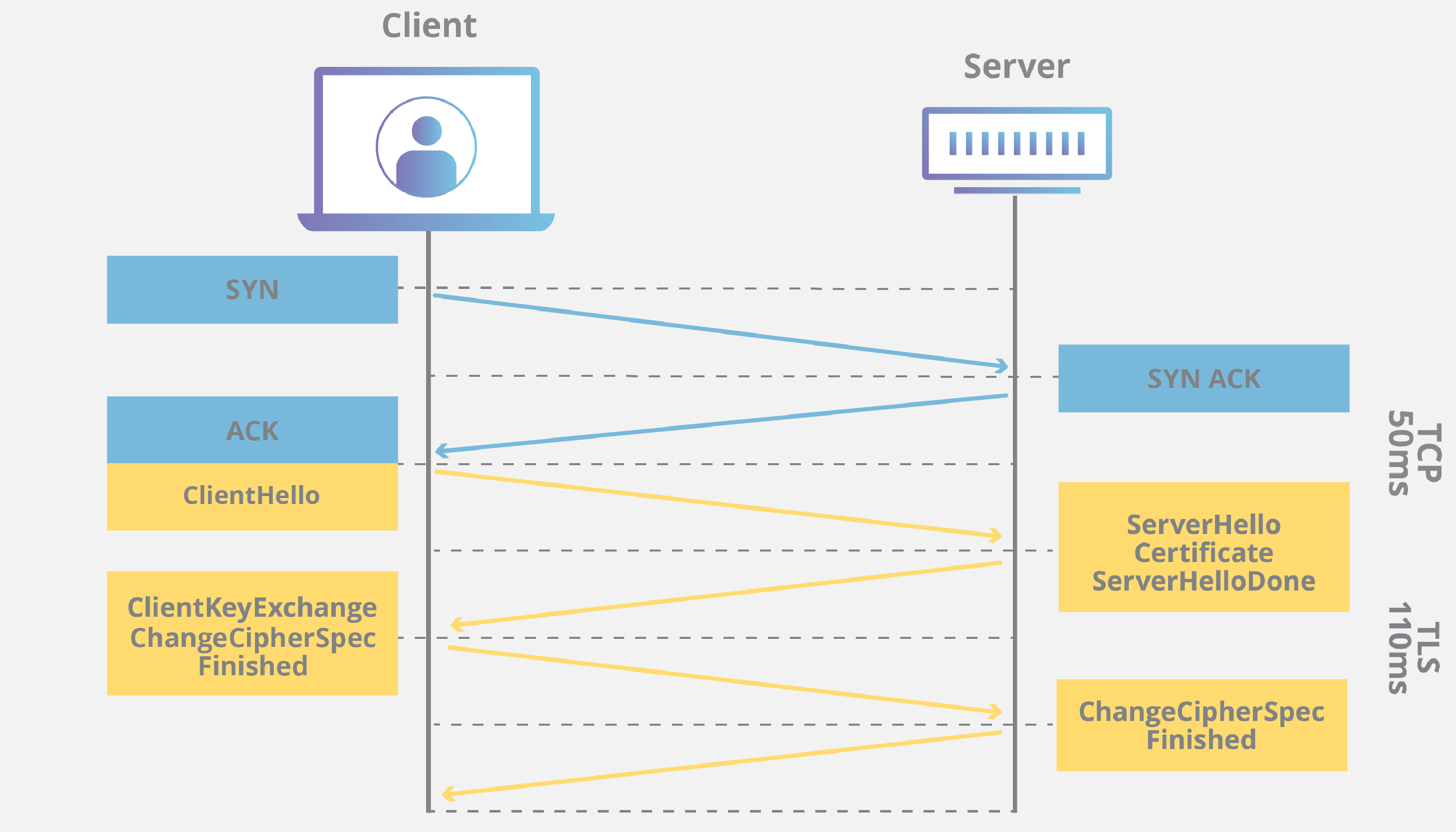
So, what is really happening? Before the website can send me encrypted data we first need to agree on how we are going to talk securely. We start by saying hello, then agree on a secret code, then we can start our private conversation.
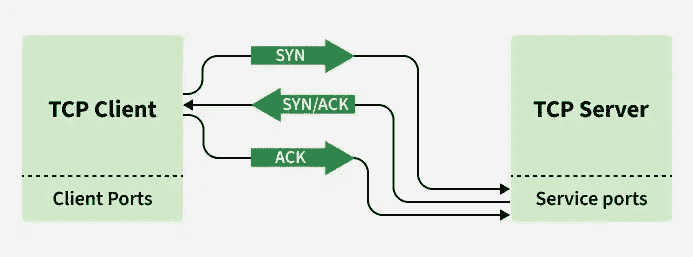
We start by establishing a connection using TCP three-way handshake. image from Geeksforgeeks
-
The client starts by sending a SYN(Synchronize Sequence Number) which tells the server that, I, the client want to start communication. => “Hello, can we talk?”
-
The server sends back SYN ACK (Synchronize Acknowledgement). The server ACKnowledges the client’s SYN while sending the server’s own Initial Sequence Number (ISN). => “Sure! I hear you, and I’m ready.”
-
The client sends an ACK (Acknowledgement) telling the server that they ACKnowledge the received sequence number and confirms successful receipt of the segment. => “Great! Let’s begin.”
So, at this point, a connection exists and the client and server have started communicating but nothing is encrypted yet. Geeksforgeeks
Now the TLS handshake begins.
-
The client sends the ClientHello message. the client sends a “hello” message that includes which TLS version the client supports, what cipher suites are supported as well as a string of random bytes known as the “client random”.
-
Then the server sends back its ServerHello message that includes what cipher suite the server has picked from the cipher suites supported by the client and also a string of random bytes known as the “server random”. It also sends the server certificate during the handshake so the client can verify the server’s identity.
-
The client verifies the SSL certificate with the certificate authority that issued it. This is confirmation that the server is who it says it is and that the client is interacting with the actual owner of the domain. The client and server then perform a key exchange to create a shared secret that will be used to generate the session keys.
-
The client and server both generate session keys using the client random, server random and shared secret. The client sends an encrypted finished message, encrypted using the session key. The server does the same.
The handshake is now complete and communication continues using the session keys. Cloudflare
Let’s open Wireshark and look at the entire TCP-TLS handshake in action.
In Wireshark I double click on wlo 1 to start listening to the wifi.
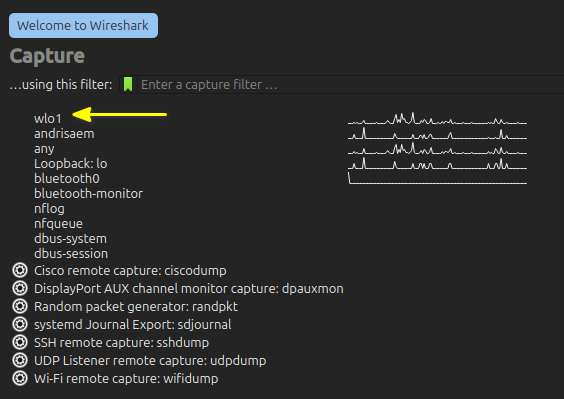
I click the stop button to stop listening, then I click the shark fin button to start listening again, open an incognito window in Chromium and go to a website I know should be secure www.cloudflare.com. I let Wireshark listen for a few seconds then hit the stop button. I know have more than 7500 messages to look at.
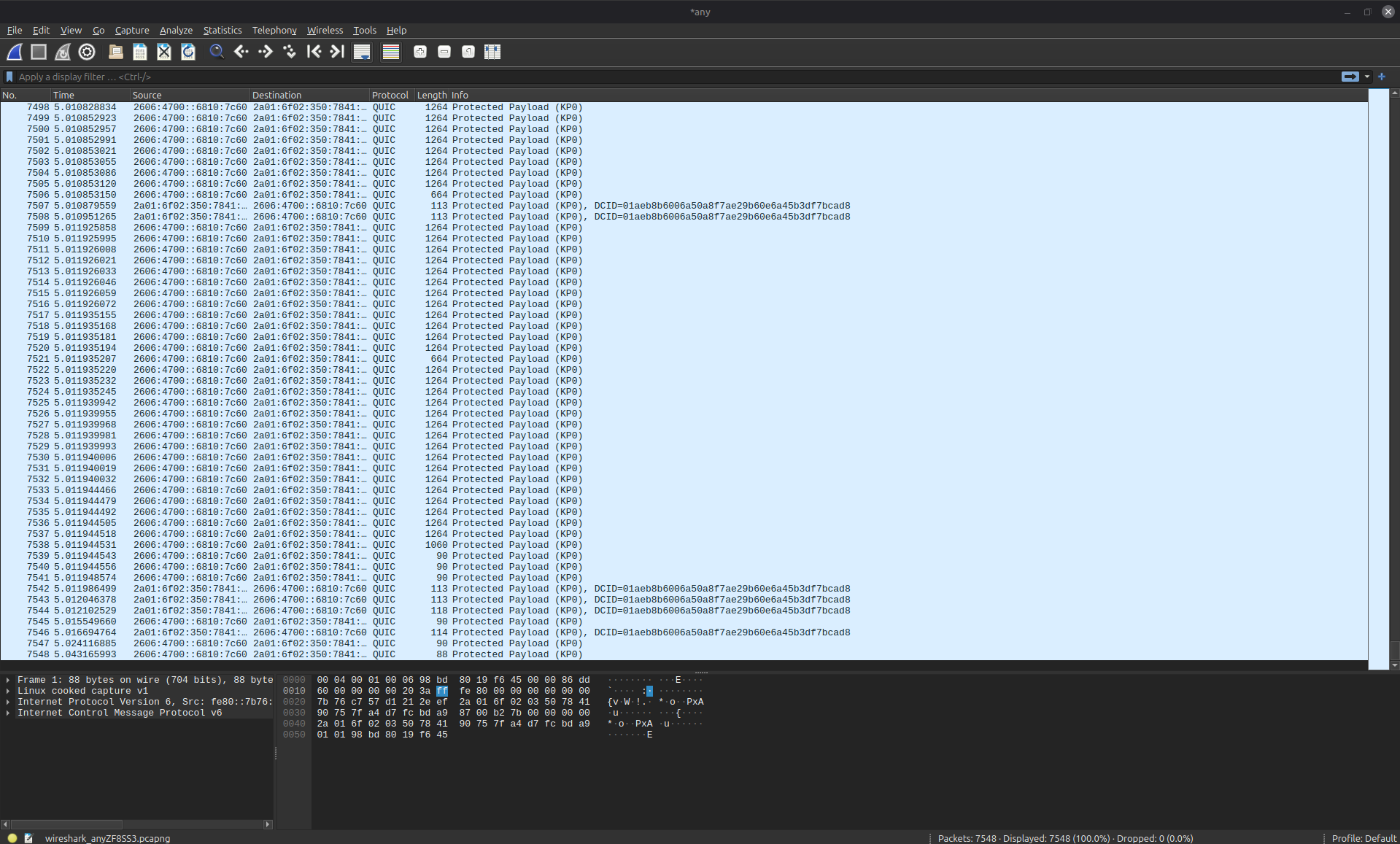
To filter out noise and only look at what I really want to see I type in tls.handshake in the filter.

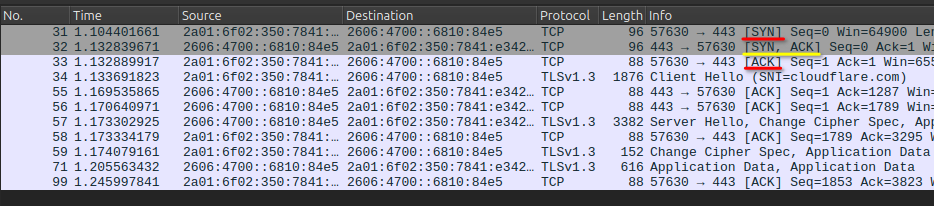
I right click packet 34 and go to Conversation filter -> TCP, this filters out more stuff so I see the TCP three way handshake.
-
Packet 31: The client sends a SYN to ask if the server is available and to start a TCP connection. => “Hello, can we talk?”
-
Packet 32: The server replies with SYN-ACK, confirming it received the request and is ready to communicate. => “Sure! I hear you, and I’m ready.”
-
Packet 33: The client sends an ACK, completing the TCP three-way handshake. “Great! Let’s begin.”
At this point, the connection exists, but nothing is encrypted yet.
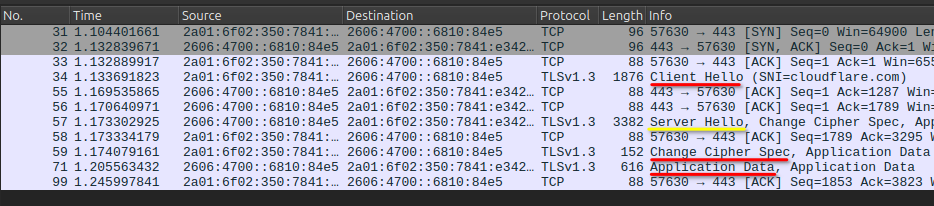
Now we can take a closer look at the TLS handshake.
-
Packet 34: The client sends the ClientHello message.
-
Packet 57: The server sends back its ServerHello message.
-
Packet 59: Both sides switch to encrypted communication.
-
Packet 71: The first Application Data packet is sent.
From this point, everything is encrypted.
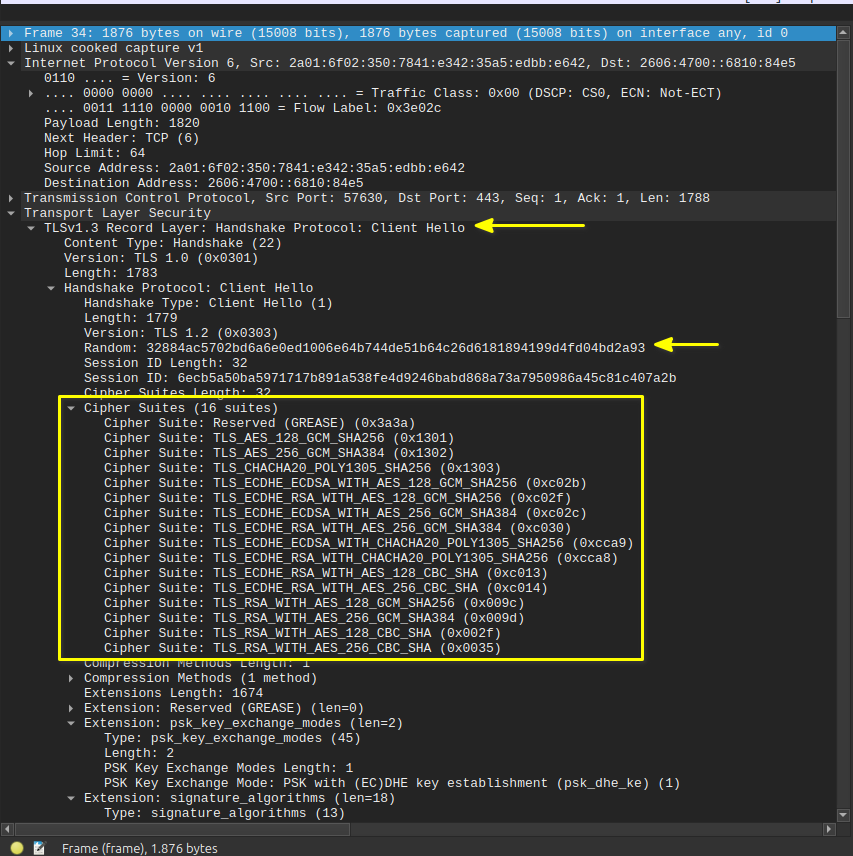
If I take a closer look at frame 34, the clientHello, I can see which TLS versions, cipher suites and security features the client supporst. I can also see the random value that helped make the encrypted session.
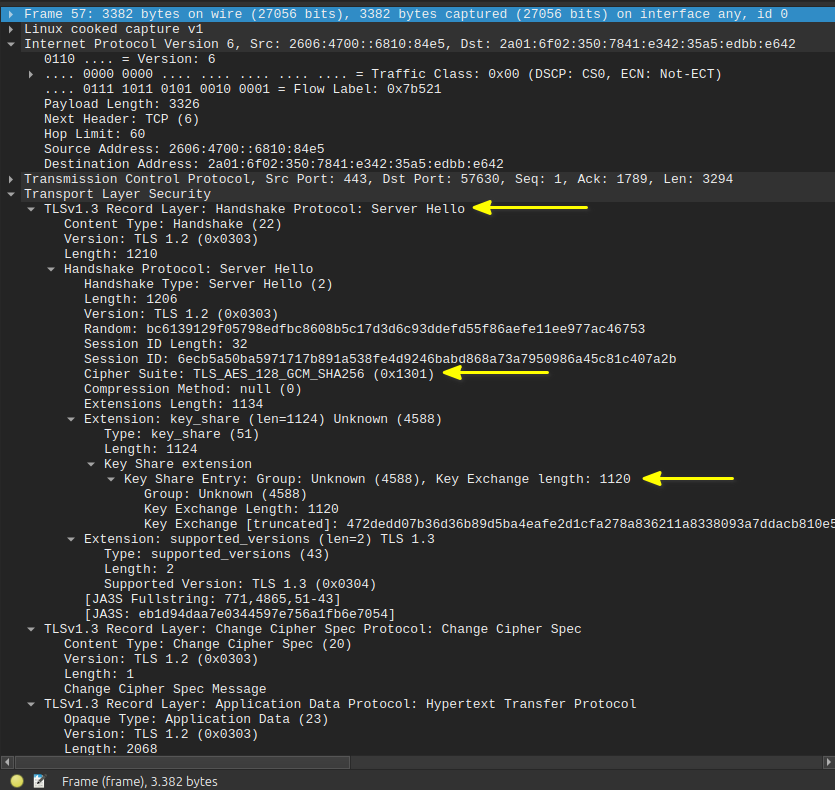
If I take a closer look at frame 57, the serverHello, I can see the cipher suit the server picked, the TLS version and the key exchange.
So what can I see using Wireshark.
-
I can see both the Source and Destination IP addresses
-
TCP ports
-
TLS version used in the session(1.3)
-
Cipher suite picked by the server(TLS_AES_128_GCM_SHA256)
-
Packet sizes
-
The Server Name Indication (SNI), such as cloudflare.com
What I am unable to see using Wireshark
-
Passwords
-
Cookies
-
Web page contents
-
Forms
-
Images
-
Session keys
I am unable to see these things because it is all encrypted.
Summary
To start the communication with the server, the client and server begin with the three way TCP handshake using, SYN, SYN ACK, ACK. Then the TLS hanshake starts with the Client Hello, where the client tells the server what TLS versions it has and what cipher suites it has. The server then responds with the Server Hello, picking from one of the TLS versions and cyper suits, then makes the key echange to create a shared encryption key. Then the client and server use the encryption key to begin encrypted communication.
References
✅ Port Scan & Firewall
Port Scan & Firewall
Your VM will be subjected to a port scan. Determine what it reveals about your exposed services, then configure the firewall to reduce what’s reachable from outside.
I started by looking into port scanning, and found nmap. This tutorial gave me a quick insight into how to use nmap. I used nmap to scan port on a major news website in Iceland.
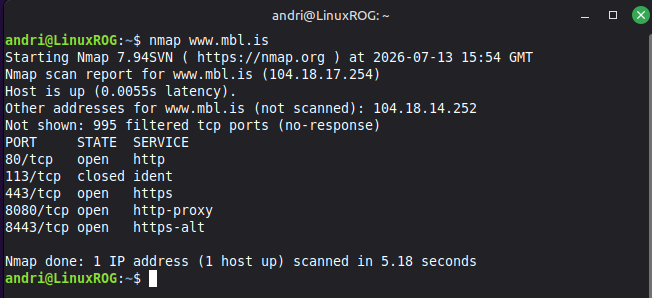
nmap launced a TCP port scan of the most popular 1000 ports, 995 showed no response while 4 ports are open and 1 is closed. The open ports are 80 which is used for HTTP, 443 is for HTTPS, 8080 is HTTP alternative, 8443 for alternative HTTPS. The closed port, 113, does not tell me what it is used for.
I then tried to run nmap on my VM from my local machine.

From my local machine I could see two open ports on my VM. So, I logged into my VM to see if I there were any other ports that nmap missed.
I log into my VM using ssh ubuntu@192.168.80.148 and enter my password. In my VM I ran cat /etc/services which lists all the ports on the system.
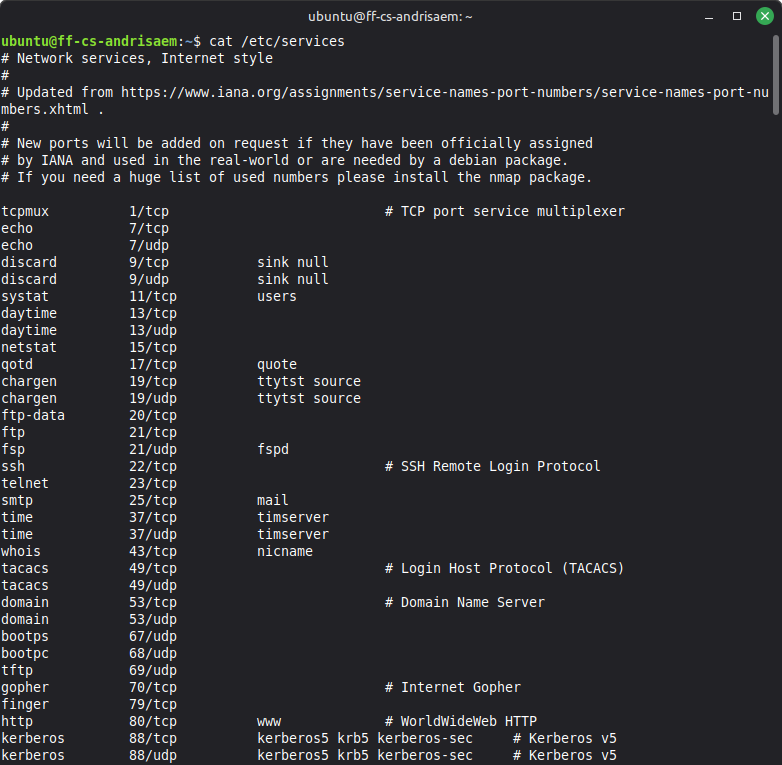
The ports are categorized by the range of port numbers as follows:
-
From 0 to 1023: These ports are known as well-known ports. These ports can only be used by system (or root) processes or by programs executed by privileged users.
-
From 1024 to 49151: These ports are known as the Registered ports. These ports can be used by ordinary user processes or programs executed by ordinary users.
-
From 49152 to 65535: These ports are known as Dynamic Ports. Reference
I then ran ss -lntu to list all open ports on my system.
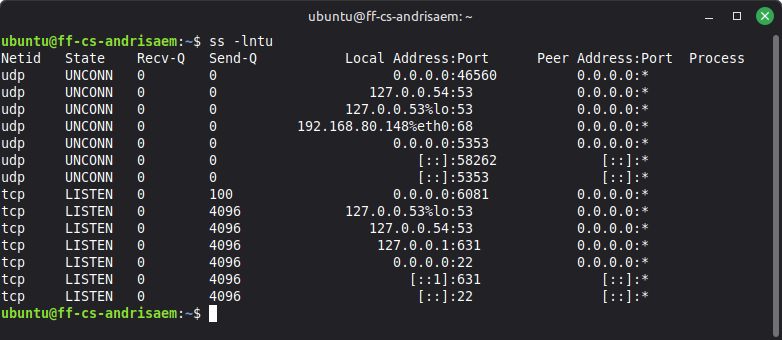
Any service listening on 127.0.0.1 or ::1 is only accessible from the VM itself. So, that leaves me with 0.0.0.0:6081 and 0.0.0.0:22. I know that port 22 is for my ssh connection so I want to take a closer look at port 6081.
I then listed all the open ports using sudo lsof -i -P -n | grep LISTEN which lists all open files and the processes that are using them.
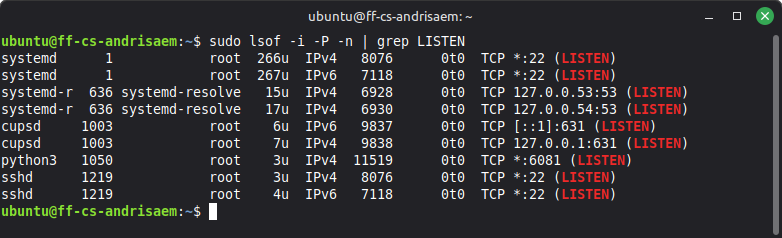
I can see from the lsof command that a Python3 program is listening on port 6081. Not sure what the program is doing so next is checking the firewall and try to block the program.
To check the status of my firewall I ran sudo ufw status verbose

Which just returned Status: inactive, which means the firewall is, you guessed it, inactive. So, to turn on the ufw firewall I ran sudo ufw enable

It gave me a warning before enabling but I just hit y and continued, and the firewall was now active. I then checked the status of the firewall again:
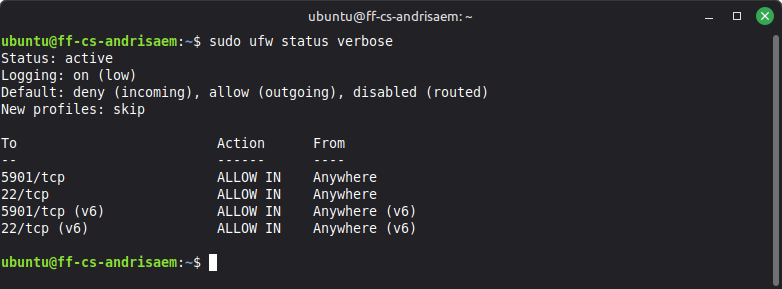
This showed me that port 22 is set to ALLOW IN and also port 5901. I do not see port 6081 on this list so the firewall is probably blocking it. Im not really sure what port 5901 is for but I know I want port 22 open since I use that to ssh into the machine so I want to close port 5901.
Typing in sudo ufw deny 5901 gave me this.

I checked the status of the firewall once more:
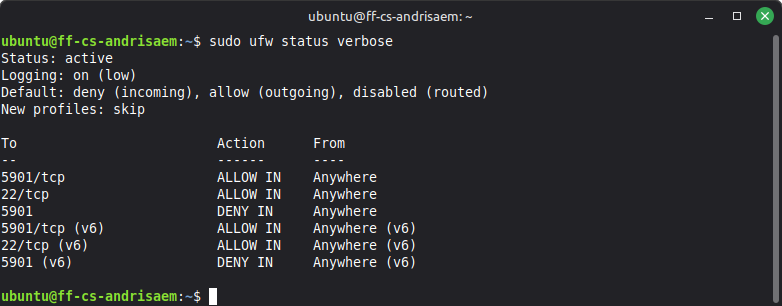
This showed me that port 5901 was denied access in but 5901/tcp was still allowed, so I tried running sudo ufw deny 5901/tcp
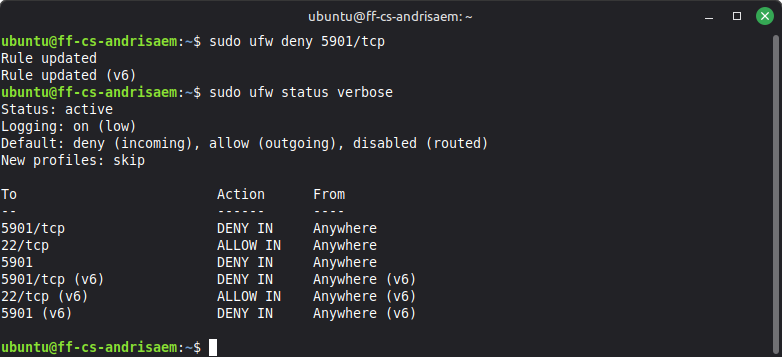
Now the only thing that is allowed in is port 22. Let’s go back to my local machine and see if nmap returns anything else than port 22.
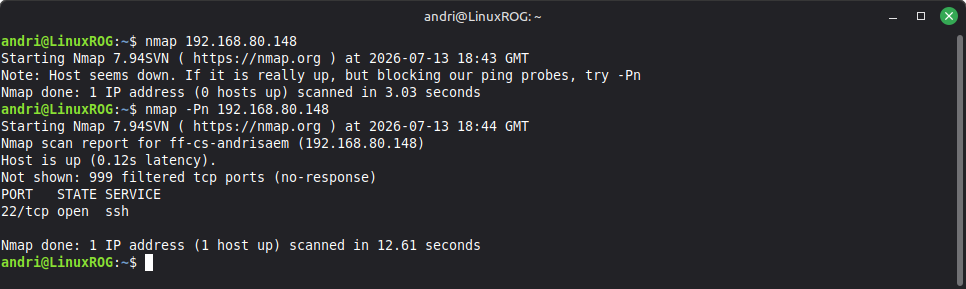
My first attempt at using nmap did not succeed but the error message hinted at using nmap -Pn <address> which did succeed and it showed that only port 22 was open and reachable from outside the VM. I had successfully activated the firewall on my VM and denied access to port 5901 so the only port allowed on my VM was port 22.