Virtual Session 11: building an hybrid lab (on-prem + Cloud) with Microsoft technologies
Microsoft 365 holds approximately 30% to 45% of the global office productivity and collaboration market, while its main competitor, Google Workspace, holds a similar or slightly larger share. However, Microsoft strongly dominates the large enterprise and government sectors, recently surpassing 450 million paid commercial seats. Microsoft 365 is the preferred choice for many Canadian small and medium-sized businesses (SMBs) handling regulated data. This is largely because its tenant infrastructure stores customer data at rest directly in Canadian Azure regions (including Toronto and Québec City)
(from https://fusioncomputing.ca/google-workspace-vs-microsoft-365-from-an-mssps-perspective/ )
The target
Wonka Electronics is a great setup but I feel I miss something: office productivity and collaboration tools. Microsoft 365 is not the only option but it is a major player. Ok, I’m not a Google guy, you got it…
In the early days, to deploy a Microsoft environment at work, you had to start with a few (physical) servers, each with specific roles (Domain Controller, File Server, Web and email, ..)
And them came Microsoft 365. You can setup an entreprise-grade infrastrcture without any physical server on prem.
The not-so-obvious secondary target
At Wonka Electronics, as at FabLab4D, we have a few things that we cannot just “lift-and-shift” (IT guys use that expression when they have to migrate a physical server to the Cloud (like Azure) with minimal changes). Wonka Electronics has a system to control physical access, QR code scanners and a truck-size scale. Cannot virtualize that.
I cannot virtualize a CNC, a laser cutter or a 3D printer. Those will remain (for a while) physical things. And I see the problems coming… In the pinky-cloudy Microsoft world, it’s all about user, user sessions, user data. Be yourself, no matter where you are, no matter what computer your use …
In the FabLab world, nobody wants to log off the CNC computer to switch identity. Even worst, some programs and tools we use are just not designed to run in a “single computer, multiple users” model.
And then we end up with a user name and a post-it on the CNC controller. Bad, very bad !
So, my secondary goal will be to find a way to fit those realities.
The strategy
-
Join Microsoft 365 Developer Program, which gives a full tenant with sample data plus E5 licenses for 90 days, renewable.
-
Get to know the best practices to secure the environment.
-
Brainstorm on my secondary goal
Microsoft 365 Developer Program
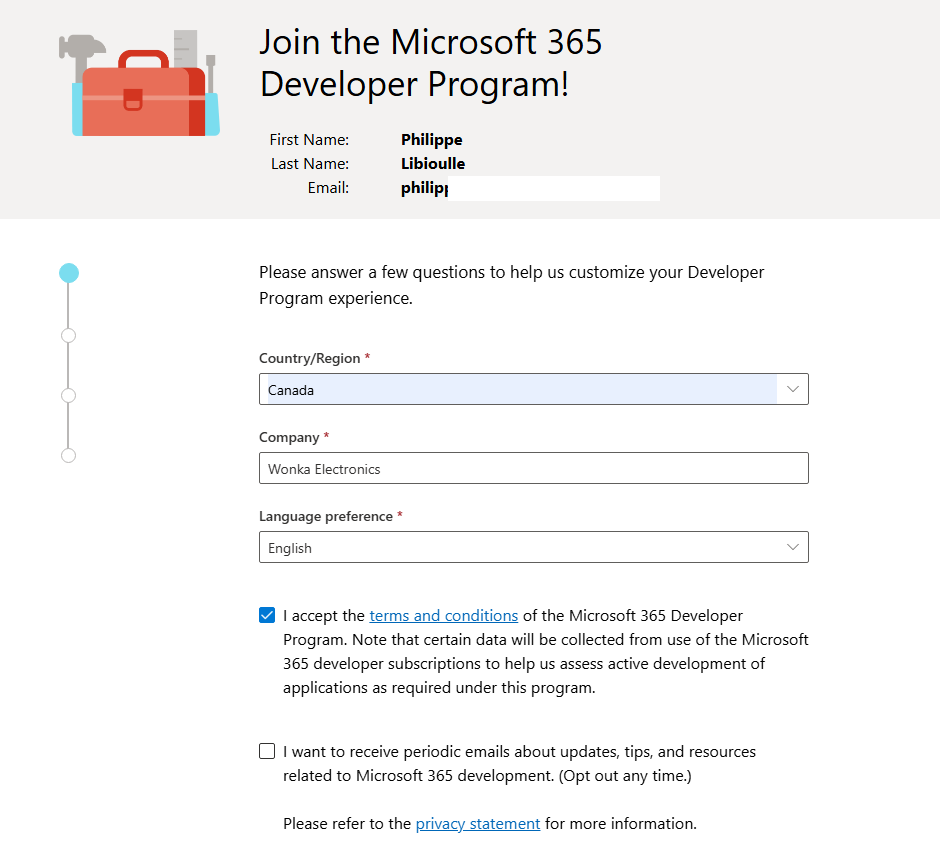
Note: it works, unless your phone number is already associated to any existing Microsoft tenant.
In cloud computing, a tenant is a single user, group, or organization that leases cloud infrastructure, software, or storage. Think of it like renting an apartment in a large building: you have your own private, secure space and resources, but you share the underlying building (servers/hardware) with others.
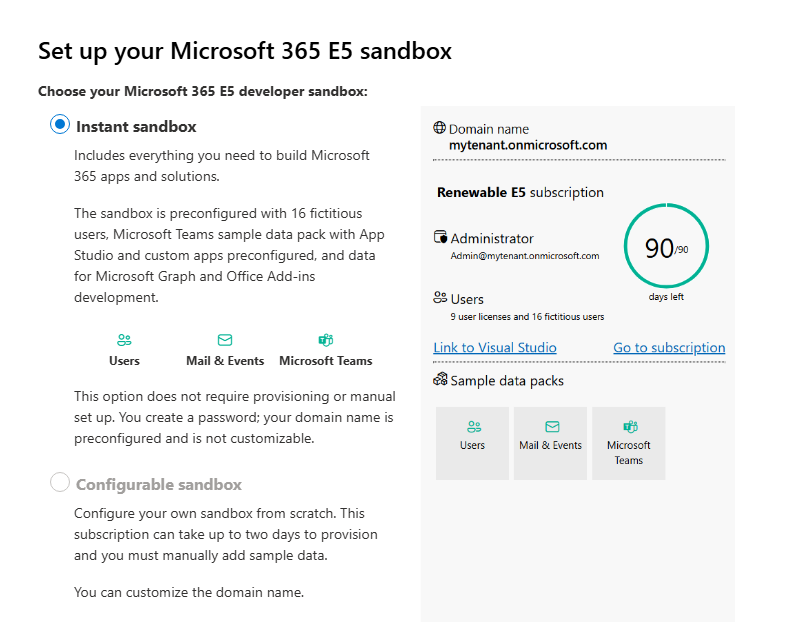
It takes a few minutes, a few text-and-retype codes dand… here it is. My tenant is online, with a E5 licence, at least for the next 90 days
Get to know the best practices to secure the environment.
MFA (Multi-Factor Authentication)
The first pop-up I got just after a few seconds was
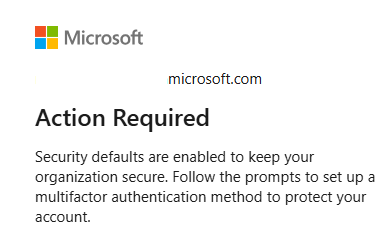
I will come back hereafter on this but it’s a pretty good remnder that something has to be done
Dealing with an hybrid cloud & on-prem environment
According to the documentation, I should have a look on Entra Connect or Entra Connect Syn. More on this hereafter…
Another good practice : backups !
Everyone has backups, no one runs restore unless they have no other choice left (quoting myself :-)
More on this hereafter…
The implementation - MFA (Multi-Factor Authentication)
It works by requiring two or more independent types of proof before granting access, instead of relying on just a password. Here’s the breakdown:
The Core Concept: Factors
Authentication factors fall into three categories:
- Something you know — password, PIN, security question
- Something you have — phone, hardware token, authenticator app, smart card
- Something you are — fingerprint, face scan, other biometric
MFA requires at least two different categories — a password plus a fingerprint counts; a password plus a security question does not (both are “something you know”).
The Typical Flow
- You enter your username and password (factor 1: something you know).
- The system verifies the password is correct.
- Instead of granting access immediately, it prompts for a second factor.
- You provide it — e.g., approve a push notification, enter a 6-digit code from an authenticator app, insert a security key, or scan a fingerprint.
- Only after both factors succeed does the system issue a session/token granting access.
Common Second-Factor Methods (from weakest to strongest)
- SMS/voice code — weakest; vulnerable to SIM swapping and interception
- Email code — weak if email itself isn’t well protected
- Authenticator app (TOTP) — time-based 6-digit codes, generated offline, much harder to intercept
- Push notifications (like Microsoft Authenticator’s “Approve/Deny”) — convenient, but vulnerable to MFA fatigue attacks (attacker spams prompts hoping user accidentally approves)
- Number matching — Microsoft’s improved push method; user must type a number shown on screen into the app, defeating simple fatigue attacks
- FIDO2 security keys / Windows Hello / biometrics — phishing-resistant, considered the strongest, since they’re cryptographically bound to the specific site/service
In Entra ID Specifically
- MFA is enforced via Conditional Access policies (the modern method) rather than “per-user MFA” (legacy, being deprecated).
- Entra ID Identity Protection can also require MFA conditionally — e.g., only when sign-in risk is detected (unfamiliar location, anonymized IP, leaked credentials) rather than every single time, balancing security and user friction.
- Number matching and passwordless options (FIDO2 keys, Windows Hello for Business, Authenticator app sign-in) are increasingly pushed as the strong, phishing-resistant standard.
How to avoid to be locked out of my own tenant
A misconfigured CA policy can lock you out of your own tenant.
- Go to Entra admin center → Identity → Users → New user.
- Create an account like breakglass1@yourtenant.onmicrosoft.com.
- Assign it Global Administrator.
- Give it a long, randomly generated password (store it somewhere safe — password manager, printed and locked away, etc.).
- Do not enroll this account in MFA, and you’ll exclude it from every CA policy you build.
- Set the password to never expire (or track expiry manually) so you don’t get locked out later.
Configuring MFA
To start, I remove the email OTP authentication method, it is too risky
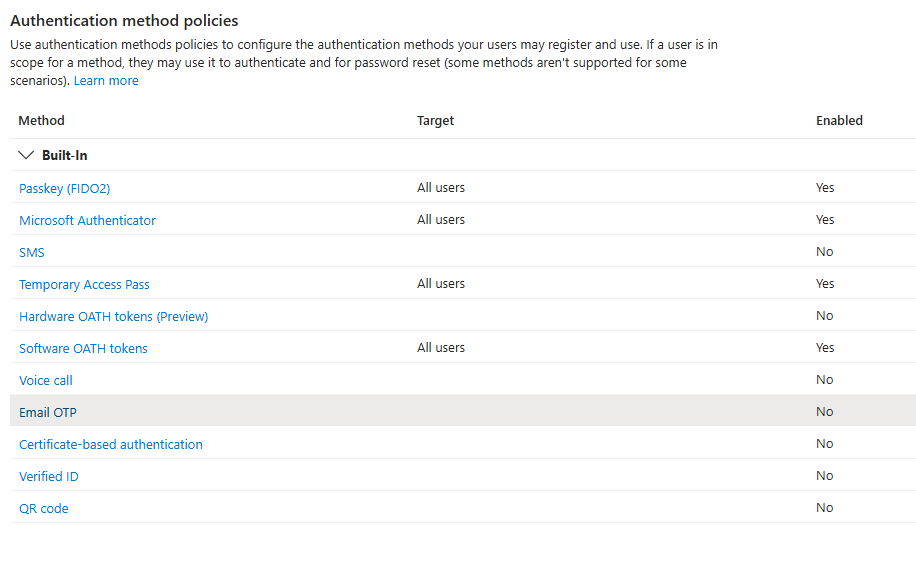
Then I ran a wizard to enable Adaptative MFA
Adaptive MFA (sometimes called risk-based MFA) is the practice of prompting for a second factor only when risk signals suggest it’s needed, rather than every single time — balancing security with user friction. Here’s how it works, especially in the Entra ID context:
Instead of a static rule (“always require MFA”), the system evaluates real-time signals at sign-in and decides dynamically whether to challenge, allow, or block. Low-risk sign-ins pass through smoothly; suspicious ones get stopped.
In Entra ID (via Identity Protection, which needs P2), risk is calculated using machine-learning-based detections, including:
- Atypical travel — sign-in from a location impossible to reach from the last known location in the available time
- Anonymous IP address — Tor, known anonymizing proxies
- Leaked credentials — username/password found in known breach dumps
- Unfamiliar sign-in properties — device, browser, or location not seen before for that user
- Malware-linked IP address — sign-in from an IP known to communicate with bots/malware
- Password spray detection — patterns consistent with spray attacks across the tenant
- Token/session anomalies — impossible travel on token reuse, suspicious token issuer, etc.
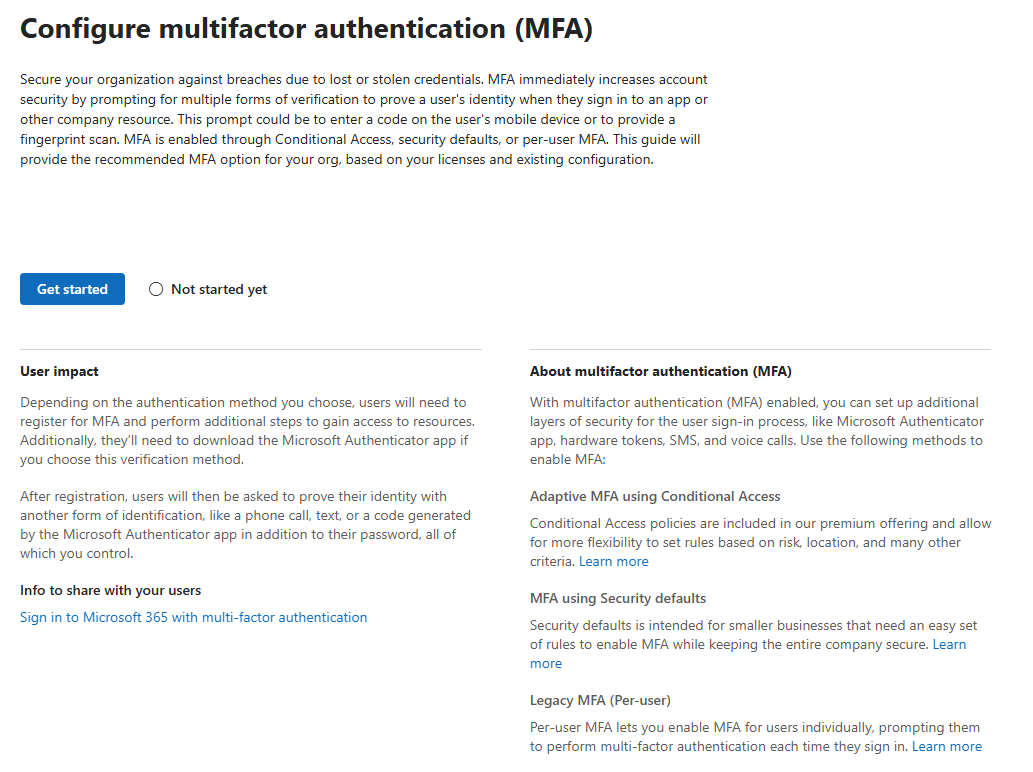
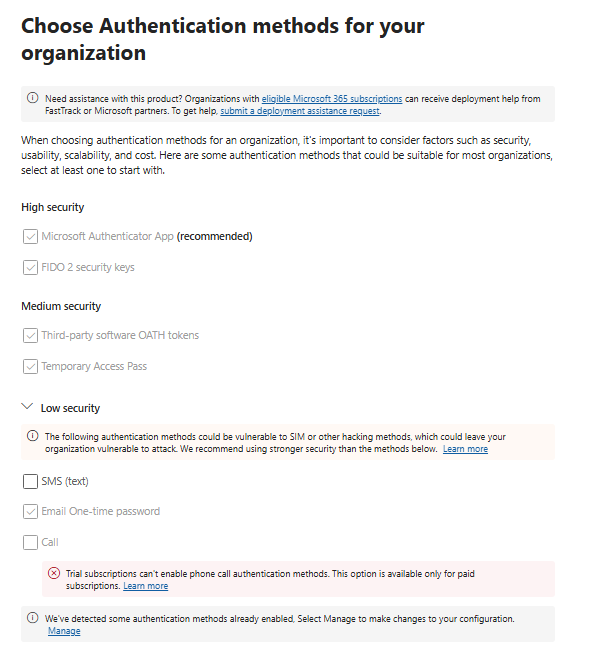
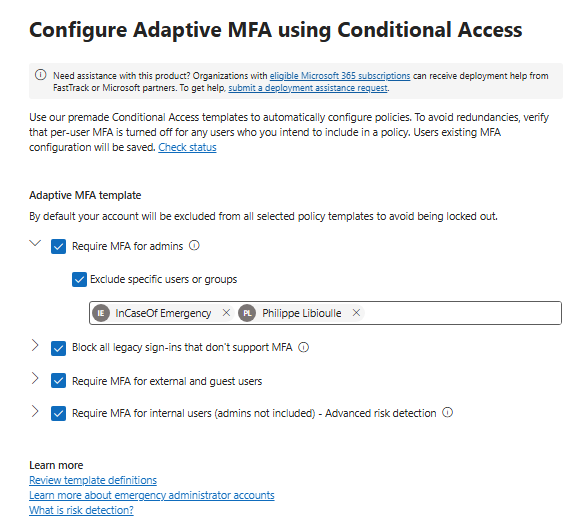
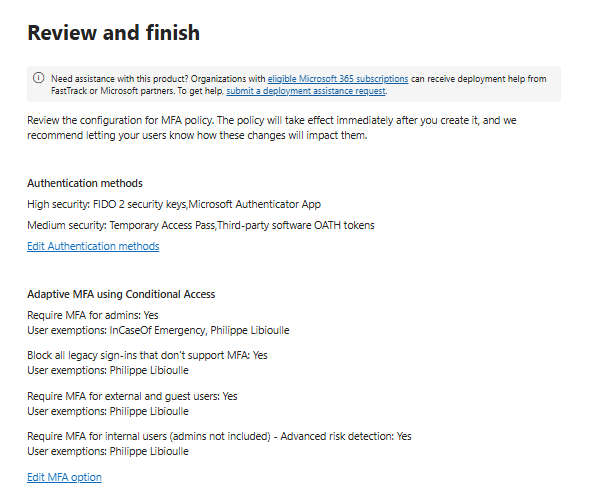
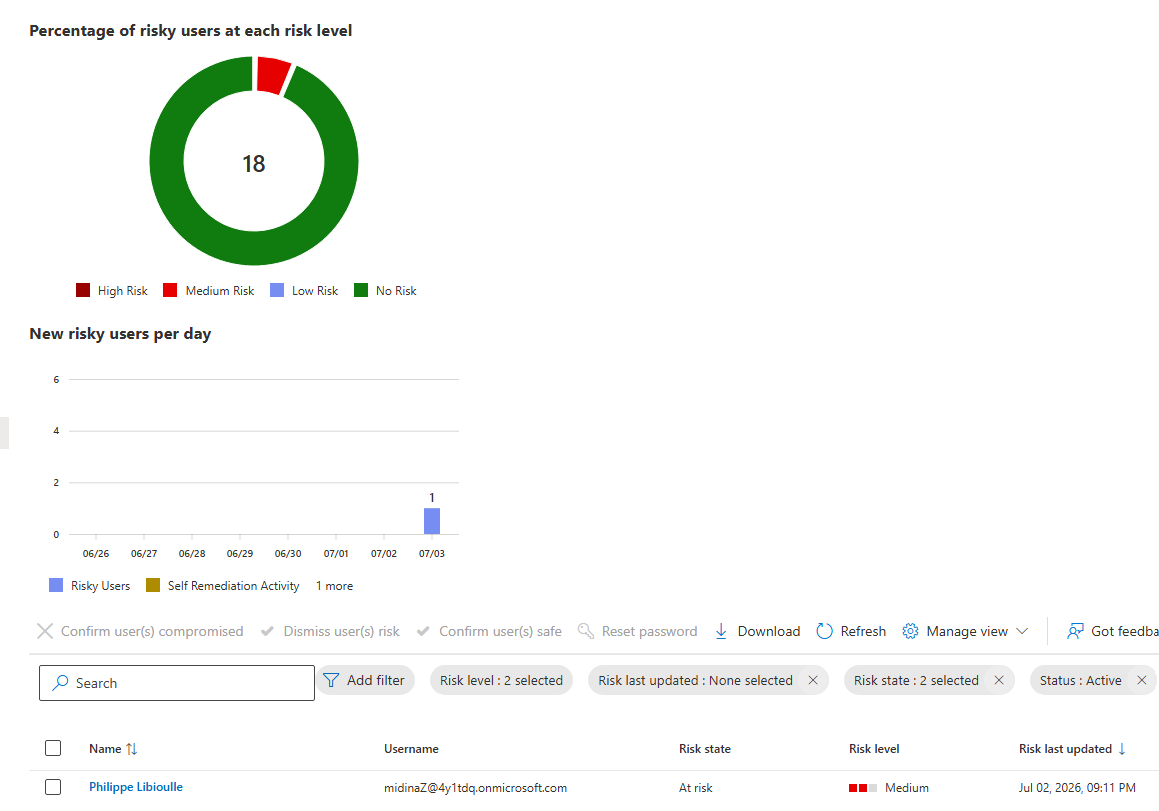
Once done, you get access to a nice dashboard that helps to monitor the problems on your tenant
The implementation - The hybrid environment
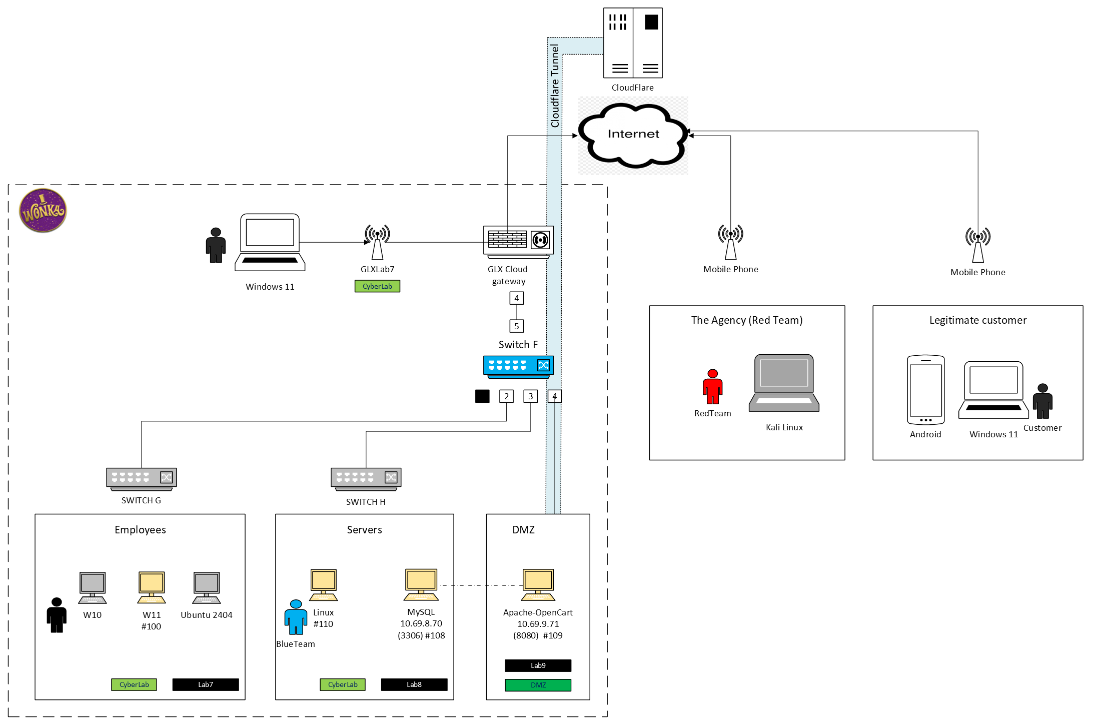
Let’s have a look on the topology
The e-commerce portal
The server in the DMZ is a public facing e-commerce portal (based on OpenCard). The data is in a MySQL database in the server zone. All Linux, no MS stuff here. It would be great to have a unified login (i.e use the @wonkaelectronics account to log to the server) but I can start without it.
Could it be different, should it be ?
On-prem servers are kind of an old way to do things. You are very dependent on your local infrastructure (power, telecom, intrusions, fire hazard and even climate changes !) The other approach could be to migrate the entire e-commerce platform to the cloud.
One option would be to virtualize (to Azure VMs for exemple). No local risks anymore but you still have to manage the servers.
Another option would be to use a SaaS solution. They manage the infra, you deal with your data.
A quick reminder on the acronyms:
-
SaaS is a complete, fully managed software application that you access through a web browser. The provider manages everything—from the infrastructure, servers, and data storage to the application itself
-
PaaS provides a framework and environment for developers. The vendor manages the hardware, operating systems, and software tools so developers don’t have to. Instead of dealing with server management, developers can simply focus entirely on writing code and building the app
-
IaaS is the most flexible cloud model, offering raw, foundational computing resources over the internet. Instead of buying physical servers, you rent virtual servers, network connections, and storage. You are responsible for managing the operating systems, data, and applications
Assuming it stays like it is, could i still get a unified login ?
Since we don’t have AD (Active Directory) on-prem and we don’t want to deploy and maintain Windows Servers on-prem to make tht happen, there are two remaining options:
-
Azure Arc: a bridge that extends Microsoft Azure’s management and security capabilities to your on-premises datacenters, edge locations, or other cloud providers (like AWS or Google Cloud). It acts as a unified control plane, allowing you to manage fragmented infrastructure as if it were a native part of Azure. But it requires an Azure subscription, not part of what we got with the Developer Lab..
-
authd: an authentication daemon for cloud-based identity providers. It helps ensure the secure management of identity and access for Ubuntu machines anywhere in the world, on desktop and the server. authd’s modular design makes it a versatile authentication service that can integrate with multiple identity providers. MS Entra ID and Google Cloud’s Identity and Access Management are currently supported and several other identity providers are under active development.
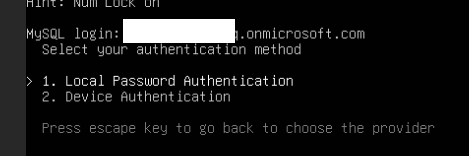
Let’s try the second one (see https://ubuntu.com/docs/authd/stable-docs/howto/configure-authd/ for a detailed procedure)
- Register an app in Entra ID (for device code flow)
- Install and configure authd on the Linux computer
And here is our proof of concept (using a cloud based account )

Workstations
Most of the employee’s workstation run Windows 11. No issue here, they will sign-in to the cloud infra we just put in place. Productivity and collaboration tools will live there. From an IT point of view, we can manage the workstations using Microsoft InTune
What about the printers ? No issue neither. Most modern printers have networking capabilities. No need for a print server, just tell users to connect directly (mDNS helps when available but a classic fixed IP works too). A more fancy solution (with fine grain access management) would be to use Microsoft Universal Print, when printer supports it.
And last point, what do we do with the computers that are dedicated to a specific use (it could be the controller of a truck-size massive scale in Wonka Electronic’s parking lot or a CNC in our FabLab) ?
The cybersecurity point of view
Once everything is in place, here is what we should do:
- Monitor usage in admin center.
- Set up regular license/user audits.
- Consider a “Secure Score” review in the Microsoft 365 Defender portal to tighten security over time.
Export sign-in and audit logs to a Log Analytics workspace or Sentinel (if you want SIEM practice) — this is where a lot of the real learning happens: watching Conditional Access evaluate in real time, seeing risk detections fire, etc.
The implementation - Backups
We have Microsoft backups, dont’we ??
Microsoft’s built-in protections are retention and recovery, not true backup:
- Deleted Items / Recoverable Items folder (Exchange): ~30 days, then permanently gone unless litigation hold is set.
- OneDrive/SharePoint Recycle Bin: 93 days, two-stage (user + site collection).
- Version history: available but can be manually purged by a user or wiped by malware/ransomware.
- No protection against: accidental permanent deletion past retention windows, admin error, insider threats, ransomware encrypting synced files, or retention policy misconfiguration.
Set the 3-2-1 Rule as Your Backbone
- 3 copies of data (production + 2 backups)
- 2 different storage types/locations
- 1 copy offsite/offline (cloud backup counts, as long as it’s a separate service from your primary M365 tenant)
For a small company: production data in M365 + backup copy in your chosen backup vendor’s cloud storage generally satisfies this, especially if the vendor offers geo-redundant storage.
A few words about Microsoft Purview
Microsoft Purview is a comprehensive suite of data governance, security, and compliance solutions designed to help organizations discover, protect, and manage sensitive information across their entire digital estate.
If your organization has to comply with regulations regarding data gouvernance, that’s the way to go. It could be expensive.. (both for doing it and if you do not do anything)
One example: you can define ‘retention tags” and “retention policies” (like “Keep Sharepoint files from a specific document libray for 7 years”) and it applies automatically to any document added there by anybody. Even if they try to delete it (read on “Preservation Holding Libray” for more info about this)
What are the cybersecurity challenges with the backups ?
Ransomware-Specific Protections
- Ensure backup storage is immutable or has version locking so ransomware can’t encrypt/delete the backups themselves.
- Enable MFA everywhere — most ransomware starts with compromised credentials.
- Test that your backup vendor’s restore process works before you’re in a crisis.
Compromised Admin Credentials
Backup platforms typically have god-mode access to restore (or delete) all company data. A stolen admin password for the backup vendor’s portal is as dangerous as one for M365 itself.
Backup Data as a Data Breach Target
- Backups often contain a complete historical copy of sensitive data — sometimes more sensitive than production because old, “should have been deleted” data lingers there.
- If the backup vendor itself is breached (supply-chain risk), your entire data history could be exposed.
Untested/Corrupted Backups (Silent Failure)
Not a direct “attack,” but a major security-adjacent risk: backups that have been silently failing or getting corrupted (sometimes deliberately, by malware designed to sit dormant and corrupt backups slowly) mean you discover the problem only during a real incident.