2. Final Assignment > Development
Objective > Secure Lab Network
For the fablab that I run, internet access is a mission critical service. The lab relies on it for communication, knowledge access, data sharing, entertainment, etc. The lab’s wifi network is available to all users of the lab.
For my final assignment, I want to look to make my lab’s wifi network more secure. *Specifically, I would like to look into:
- Intrusion Defense > Strengthening the barrier between the internet and my lab network
- Access Segmentation > different access privileges for staff vs visitors
Work Plan
- Assess the lab network situation
- Assess the current risk profile
- Identify any ongoing attacks
- Plan improved defenses
-
Execute defense program
-
protect private information
- defend against network intrusion > bandwidth stealing
- protect internet activity
- defend against access to hardware on the internet
Assessing the Lab Network > The Router/Modem
I had originally listed a fair amount of detail about my router including photos of it and documented it here. But as I learned and worked to harden my network, I came to understand that this was a security risk…so I removed all mention and details about my lab’s router.
**Some basic, relevant, information about my router as follows: **
- The router was provided by my ISP
- A fiber optic cable come out of the wall (no connector), connects to a fiber to CAT cable converter (with warnings not to open it up)
- It has 1x TA port, 3x LAN ports and 1x USB port (what for?)
- It has a WPS and WPA button on the side (what for?)
- It is capable of download speeds up to 2 GBps
- The ethernet ports are an older type capable of only 1 GBps speeds
- It has built-in dual band WiFi (802.11ac)
- The ISP router is rather old and does not have the latest authentication and encryption tools
- The ISP router does not have advanced security tools like network segmentation, IDS, IPS, etc.
I did find the manual for the router on the internet that provide reasonably good detail about the device functionality and capabilities.
Router Configuration Access
A line in the first google response worried me. Specifically…“internet service providers lock down administrative rights on these carrier-grade devices”. Is it true that I don’t have administrative configuration rights for this router?
Instructions were provided in the user manual to access router configuration.
- Opening an internet browser I typed the ISP Router’s IP Address into the address bar, then press Enter. The ISP Router’s Log-in using the admin credentials stated in the manual. The Username and Passwords were terryfyingly simplistic.
With successful login, I am greeted with a warning…
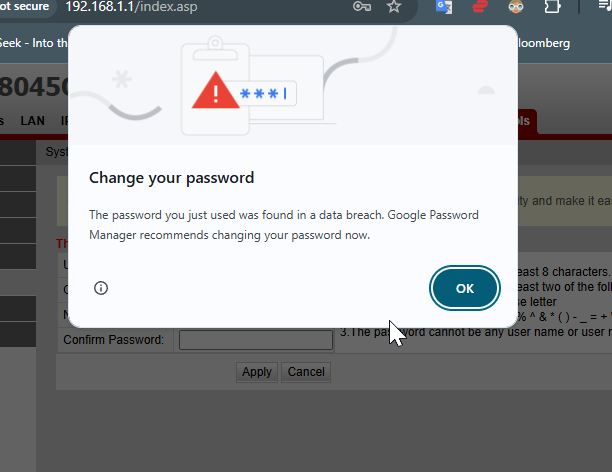
…and a plethora of configuration menu options organized under the tab names:
- Status
- LAN
- IPv6
- WLAN
- Security
- Forward Rules
- Network Applications
- System Tools
HG8045Q Admin Configuration Menus
Status


LAN


IPv6


WLAN


Security


Forward Rules


Network Applications


System Tools


Alot to work through. Lots of new words and jargon to understand. But improving security looks promising. Of particular interests initially are:
- System Tools > Modify Login Password
- The Security tab > IPv6 Firewall
- The WLAN tab > settings for 2.5GHz and 5GHz wifi networks
Assess the current risk profile*
To achieve modern security protocols, I will have to upgrade my network hardware. And since I must use the ISP Router, I need to investigate how to attach additional hardware to it that would make up for the ISP Router’s shortcomings.
Research
First, let’s get a handle on all of the networking jargon.
**Network Concepts**
Watching Privacy Matters: Every Networking Concept Explained in 8 Minutes I learned:
VPN
- A secure, encrypted connection between your device and a remote server
- Protect your data when you are on a public wifi network
- Access (region) restricted content
- Your traffic routed through a Secure Server (how do we know?)
- VPN masks your real IP address…making it look like browsing is occurring from a different location
- Enhances privacy, hides online activities, protects against hackers
DNS
- The internet’s phone book
- DNS translates URL into IP Address
DHCP
- Assigns IP addresses to devices connected to a network
- …from a pre-configured pool of addresses
NAT
- Modifies source or destination IP Addresses of Packets as they pass through a router
- Multiple connected devices on a network can share a single IP Address
VLAN
- Allows network admin to create logically separated networks within a physical network
- Isolate traffic between devices for better security
- Separate different network user categories to control access to some or all of the network
Router
- A hardware device that connects different networks
- …ex: local networks to the internet
- IP Addresses are used to find the best route from one network to another
- Add’l Features: Firewalls, NAT, DHCP servers
- ensure devices on different networks can communicate effectively
Switch
- Connects multiple devices within the same network (different from a router?)
- Uses MAC (Media Access Control) addresses to forward data to the correct device
Firewall
- A security device or software that monitors incoming and outgoing traffic
- Acts as a barrier between your internal network and the external world
- Blocks unsafe traffic, allowing safe traffic
- …based on pre-defined security rules
- Essential for protecting networks from Cyber Attacks, Viruses and Unauthorized Access
OSI
- Open System Interconnection Model
- Divides network communication into 7 layers
- Physical Layer > deals with physical transmission of data over cables or wireless signals
- Data Link Layer > ensures reliable communication between 2 devices by managing MAC addresses and Data Frames
- Network Layer > routes data to the correct destination based on IP addresses
- Transport Layer > ensures reliable end-to-end communication, providing flow control and error correction
- Session Layer > manages sessions and maintains the state of communication
- Presentation Layer > forrmats and encrypts data for the application layer, ensuring data is readable
- Application Layer > interacts with software applicatins to provide Network Services
WAN
- Wide Area Network
- A network that spans a large geographic area
- …connects multiple LAN (local area network)
- ex: Internet
- Slower and more expensive to maintain
- Essential for connecting devices over long distances
MAC Address
- A unique identifier assigned to Network Interface Cards and ICs
- Used to connect devices to a network
- 48-bit address
- Used by routers and switches to direct traffic within a network
- Ensures data is delivered to the correct device in a LAN
ARP
- Maps IP address (network address) to its corresponding MAC address (device address) within a LAN
- ARP request sent from one device to find the MAC address of the recipient
- Ensures data reaches the correct device
- Routers rely on MAC addresses for communication within a LAN
ICMP
- For error reoorting and diagnostic purposes within a network
- the PING command > checks if a device is reachable within a network and measures the time it takes to make a connection (latency)
VOIP
- Allows voice communication to be transmitted via the internet
- Skype, Zoom, etc.
LAN
- A network confined to a small geographic area
- home, office, campus, etc.
- Connects devices allowing resource sharing (vulnerability?) and communicate efficiently
- Wired (cables) or Wireless (wifi) connections between devices
Load Balancing - Distributes network demand across different servers
NFC
- Allows devices to exchange data over short distances (<10 cm)
- Used for payment systems…Apple Pay, Google Pay, etc.
MPLS
- A routing technique used in large networks to improve speed and data transfer efficiency
- Uses labels not just IP Addressses to make connection decisions
SD WAN
- A modern WAN management technique
- Uses software to control the flow of data across multiple network connections such as Broadband, LTE or MPLS
- Ensuring better performance, security and cost efficiency
Proxy Server
- The intermediary between your device and the internet
- When connecting to a website through a proxy…
- …requests are sent through a proxy server
- …fetches website data and returns to you
- Increase privacy, filter content and cache frequentyly accessed web pages for faster browsing
- Bypass geographical restrictions by masking IP addresses
BGP
- The protocol that manages how data is routed between networks across the internet
- Finds the most efficient path for data to travel between large scale networks (secure?) called Autonomous Systems (ASC)
- Essential for Internet stability, prevents routing loops and ensure that data is sent efficiently factoring for network performance and availability
Q0S
- A technique to manage Network Traffic
- Ensures that critical applications (VOIP, etc.) receive priority over less time-sensitive data (file downloads)
- Ensures low latency and min jitter for high priority traffic (who decides priority?)
- Most important for low bandwidth locations
Network Protocols
Watching Privacy Matters: Every Network Protocol Explained in 18 Minutes I learned:
Understanding Attacks
Then, let’s find out how networks are vulnerable
Hacking Home Network
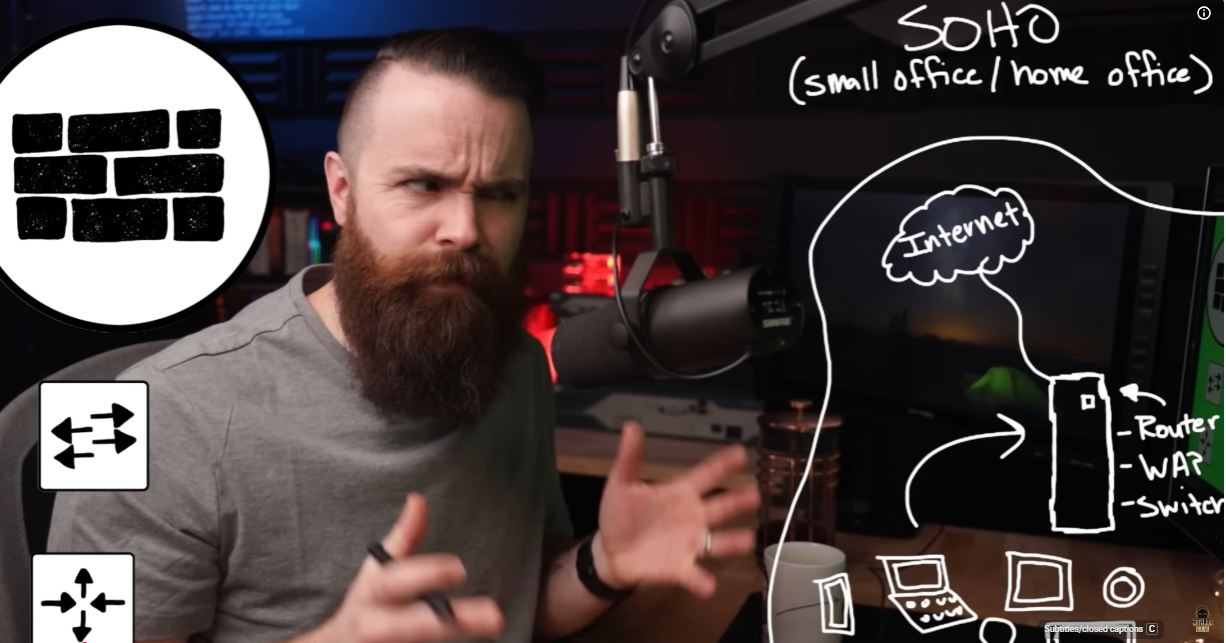
Watching Network Chuck: Let’s Hack Your Home Network I learned:
- SOHO = Small Office Home Office
Network Vulnerabilities
1. The Internet
2. Devices Connected to the Network
3. Network Wifi
4. Connection to external server
The Internet
- Your network has a Public IP Address
- Using the What is my IP Address website to find out what your network IP Address is…AND where (on a map) you live!
- With the IP Address know…the network can be hacked
-
Hacking Method #1 > Pentest Tools
- Pentest-Tools.com > scans for open ports
- Open ports allows hackers to bypass the firewall
-
Hacking Method #2 > NMAP
- free and open source
- requires a server outside the network (to look back in towards the network)
- TCP Scan: “nmap -sT (IP Address)
- number of ports
- open ports
- Vulnerability Scan: “nmap –script vuln
- presence of known vulnerabilities
Don’t tell people your public IP address!!
- Use a VPN to hide IP Address
- Solution 1: Harden router
- Solution 2: Get a better router
- 6 things to do to harder your router
    - Enable **Firewall**
    - Check **Port Forwarding** for open ports
    - Turn OFF **Remote Management**
    - Change default **Username & Password**
    - Update Router Firmware > new feature or fixed vulnerability
    - Wifi Encryption and Password > use WPA2, AES and strong passwords
    - Turn OFF "Respond to ping" for LAN and WAN
- Defend against devices connected to the network > including IOT devices (smart lightbulb, Alexa, etc.)
- Device Segregation: Disallow communication between IOT devices
- Cisco equipment are infiniteely configurable
- Dreeam Machine: All in one
- Home Network vs Enterprise Network
- IDS = detects suspicious activity
- IPS = mitigates suspicious activity
- Communication between home and work server > VPN
- Remote Access VPN > Secure tunnel from home to work server, invisible to hacker
- Firewall device...intermediates between your device (PC) and your router...to ensure secure communication with the work server
- Remote access by you via VPN service or server
Learn How to Make a Network More Secure
LAN Best Practices

I watched Dave’s Garage: Your Home Network is Exposed (this is one of my favorite learning resources) and learned some important techniques to dealing with ISP provided routers:
- Attack surface multipled by the number of instances to attack
- Hackers will target routers provided by ISPs to their customers
- Defense means being different from the crowd
- …using multiple layers of defense
- Start by securing the router
Router = connects different networks together, managing traffic between them and directing packets to their correct destination across networks…the box that allows packets to go to and from the internet
Switch = connects devices within the same network facilitating communication and data sharing among them by using their MAC addresses to forward data to the correct device
- One device can perform many different functions
- The Router…serves as the firewall, DHCP server and Gateway against Bad Actors
- Must know the Router’s IP Address…use it in the browser to get access to the router’s configuration menus
- Rename the administration Username and Password from default > avoid obvious names
Secure LAN Best Practices
- Update the router firmware > ensure the latest security patches are in place
- Disable Remote Management > enable only if ABSOLUTELY necessary (unlikely)
- Use WPA3 encryption > or WPA2-AES if WPA3 not available…AVOID WEP, WPA/WPA2 with TKIP (outdated and vulnerable)
- Use a Strong Password > avoid english words (easy to break with ‘Dictionary Attack’), use combo of letter, numbers, and special characters
- Disable WPS WPS is a security vulnerability (Brute force attacks that exploit WPS to gain wifi access)
- Create a ‘Guest’ network for visitors, isolates guests from main home network…allow internet access without LAN access
- Disable UPnP (Universal Plug and Play), UPnP is vulnerable to port attacks
- Monitor Connected Devices regularly unrecognized devices could mean unauthorized access
- Limit the number of DHCP Leases limits the number of devices that can connect at one time, avoid your router becoming a public hotspot
- Enable firewall and SPI features and configure any available security settings such as Stateful Package Inspection (SPI)
- Use a Secure Router to protect the LAN from any attacks that make it through the ISP…the router should have a minimum of 2 LAN ports (input, output) plus one more for local management. Can be built cheaply from a mini PC.
Setting up A Secure LAN
-
ISP in Bridge Mode bypasses the ISP router, allows the LAN router to be the primary gateway of internet traffic. Not possible with all ISP routers.
-
Double NAT (Network Address Translation) a 2 router setup, the ISP router and the LAN router (2-levels deep)…can disrupt port forwarding and other networking features (not a recommended approach)
-
IDS (Intrusion Detection System) and IPS (Intrusion Prevention System) are critical components of modern network security implemented in the router to protect against malicious activity. Monitors incoming and outgoing traffic and analyze data packets in real-time.
- IDS (Intrusion Detection System) = detection, analysis and alerting. Monitors network traffic for system violations. Signature-base & anomaly-based detection, and stateful protocol analysis. Alerts admins of attacks, typically a log file, but could be emailed.
- IPS (Intrusion Prevention System) = prevention, enforcement and mitigation. Works with IDS, prevents malicious attacks from succeeding in reaching the target and causing harm. Enforce network policies (prevent certain network request, such as Tor). Can close connections, reconfiguring network devices or modify malicious content in transit to neutralize it.
- PFSense and OPNSense are software that provides IDS and IPS services and Firewall. Setup on a small-form factor PC with at least 2 ethernet ports.
Subnet vs VLAN
I watched Subnets vs VLANS and learned:
- Both used to breakdown a network into smaller networks
- Reasons: beter performance, security, manageability
- Subnets are physical separations
- VLANs are virtual separations
Subnet = sub-network
- Created using routers
- Each creating its own smaller network
VLAN = Virtual Local Area Network
- Created using switches
Both methods seem to be for LAN networks. What about wifi networks?
*Hardware Upgrade: Understand how to do better than an ISP provided router
Double NAT
I watched What is Double NAT and learned:
- NAT = Network Address Translation. Keeps track of each device’s Source Port number and translates it to a unique IP address.
- Add a 2nd router when an ISP porivde router doesn’t allow for desired configuration changes
- ISP router would be set as a ‘Pass-thru’, ‘Bridge’ or ‘DMZ’ device…leaving gateway control responsibilities to the second (new, more modern, fully configurable) router
- Double Nat issues = too much extra overhead (NAT occurring twice), prevents ‘port forwarding’
- The 2nd router needs to be assigned a new IP address to differentiate it from the ISP router
- DMZ hosting = area where all ports are routed to
Hardening the Lab Wifi Network
Here’s the plan:
[ ] Analyze lab network security configuration, connected devices, network traffic, vulnerabilities
[ ] Improve ISP router settings and configurations to increase network security
[ ] Address network vulnerabilities with solutions not handled by router configurations
[ ] Implement network access segmentation > VLAN
[ ] Improve network hardware
**1. Analyzing the Lab Network**

ChatGPT
Nmap Analysis > Network Vulnerabilities
- Who’s on the network?
- Which ports are open?
- What services are running?
- What OS?
Wireshark Analysis > Traffic Dissection
- What packets are being sent?
- Who is communicating with whom?
- What protocols are being used?
- Is anything unusual happening?
Analysis > Wireshark
First we analyze the lab network’s traffic. Wireshark will be used for this step. I asked ChatGPT to walk me through the process, as I am short on time and do not want to do anything wrong.
Note: The entire network hardening process has been a bit nerve wracking as I am performing adjustments to a functioning network with very limited knowledge. What to change and why is very murky at this point and there is a lingering fear that if I get things wrong, the network could be damaged some how. This anxiety is excascerbated by the time pressure I am under to get the work done. No choice but to get the assistance of GenAI to help me get through the weeds in one piece. But this act brings with it its own risk…
1. Launch Wireshark
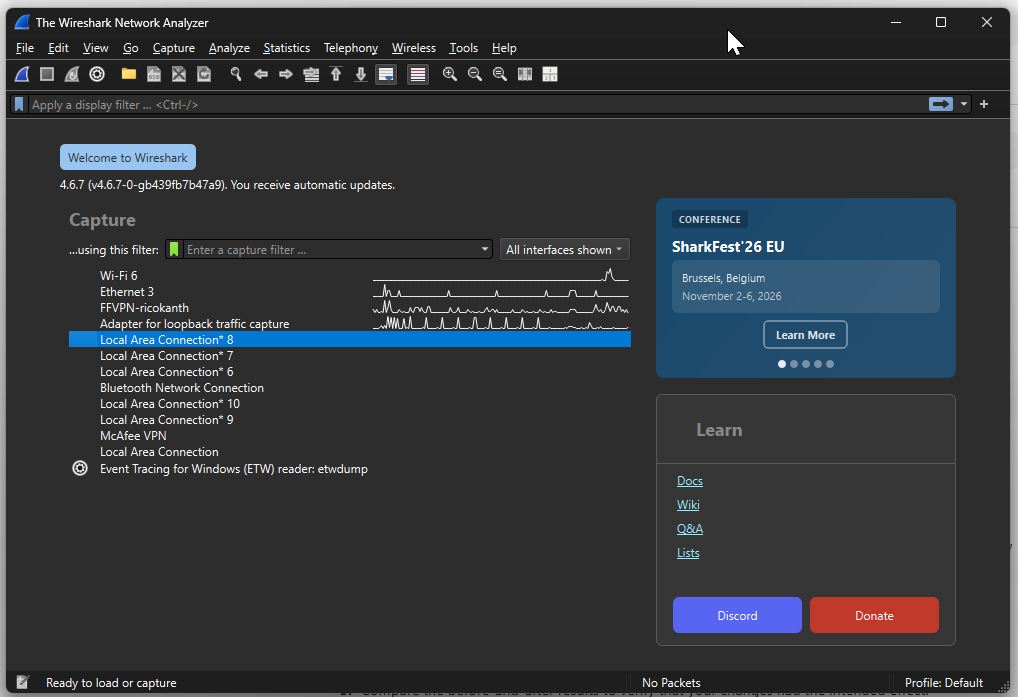
- WiFi 6 is the most active and recommended by ChatGPT for deeper analysis
2. WiFi6
- Double-clicking ‘WiFi 6’ a traffic scan is initiated
- ChatGPT recommended a run of 2 minutes during which time I should perform normal internet access (open youtube, whatsapp, etc.)
After stopping the run and taking a screenshot of the log, I wondered if it was safe to post this image with ‘source’ and ‘destination’ IP Addresses shown? ChatGPT replied with this…
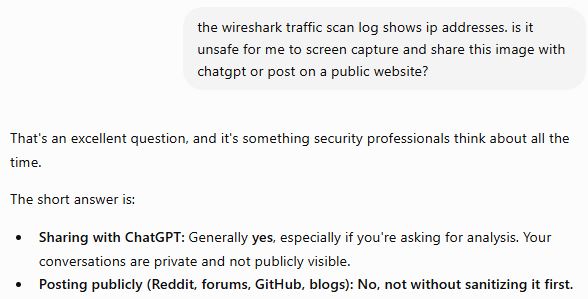
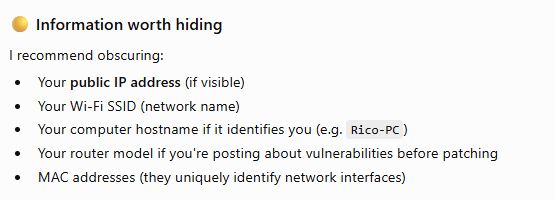
What ChatGPT recommends I avoid posting:
- Private IP Address
- Router IP Address
- MAC Addresses
- Router Manufacturer and Model Number
So here is the scan log image with sensitive information redacted:
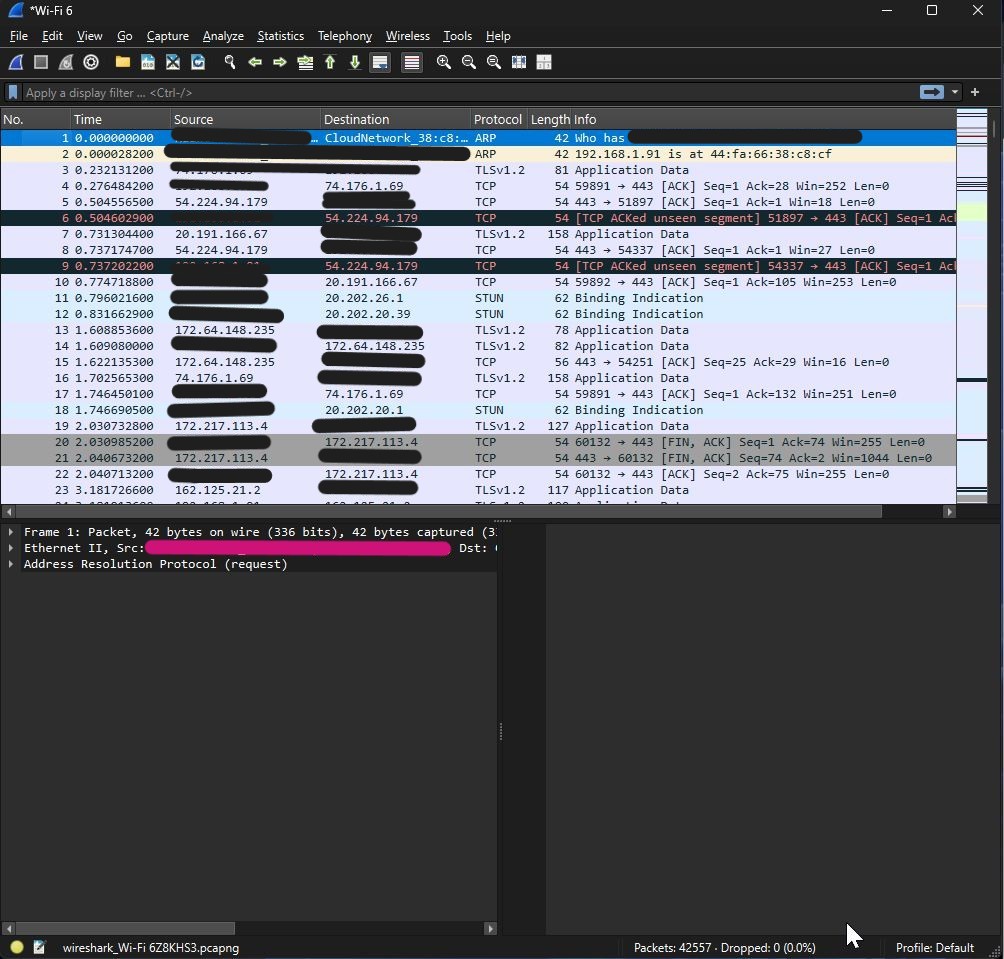
- The log begins with an ARP (Address Resolution Protocol) request by the router confirming my PC’s IP Address and MAC Address (data frames are delivered to MAC addresses not IP addresses)
- According to ChatGPT, ARP is vulnerable to ARP spoofing/ARP poisoning…where the malicious device lies about its MAC address enabling a Man-in-the-Middle Attack.
Protocols noted in the Log:
- ARP
- TLS v1.2
- TLS v1.3
- TCP
- STUN
- Wireguard
- DNS
- UDP
- ICMP v6
- HTTP
- SSDP
- QUIC
ChatGPT recommends the following analysis procedure:
- FilterED Search Review >
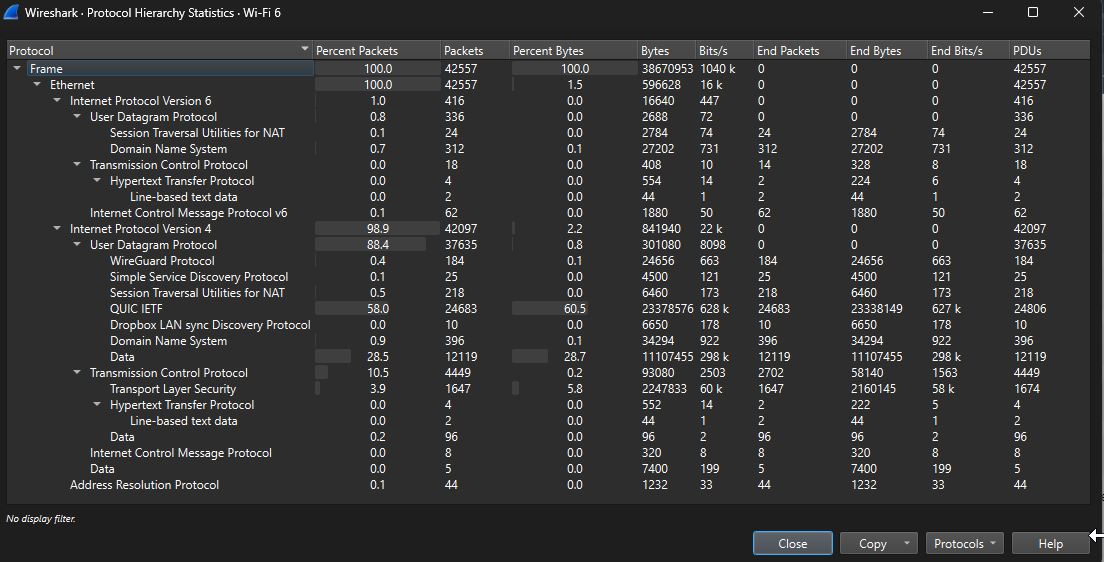
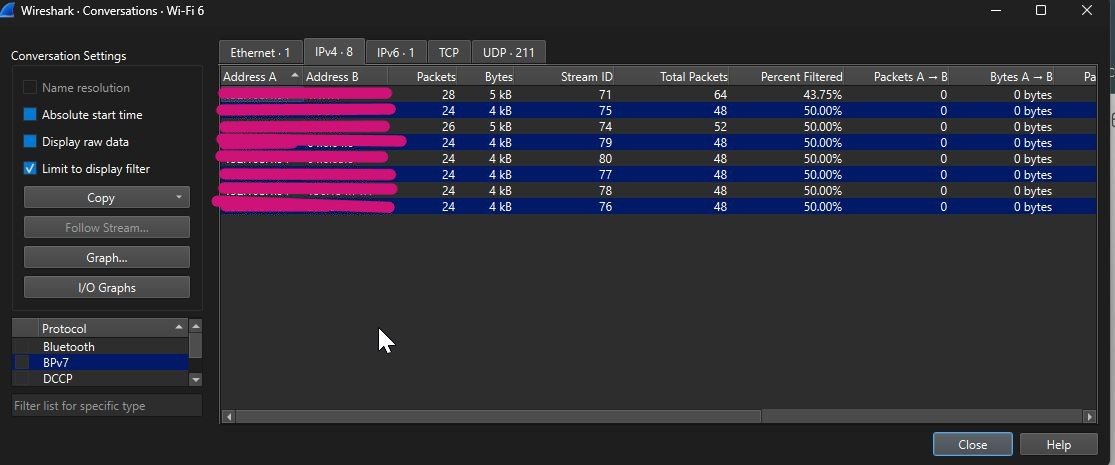
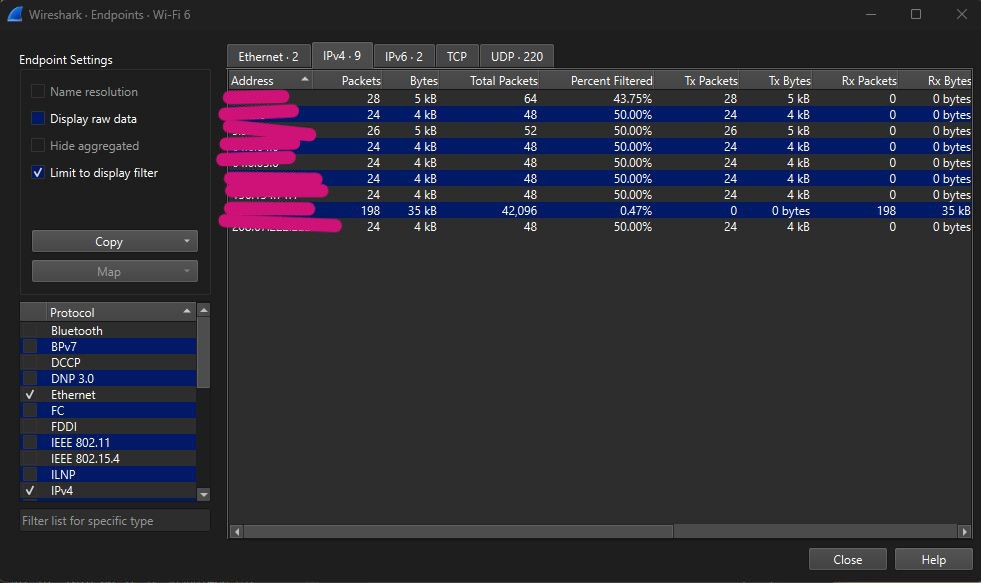
- Statistics Reports > Conversations, Endpoints, Protocol Heirachy
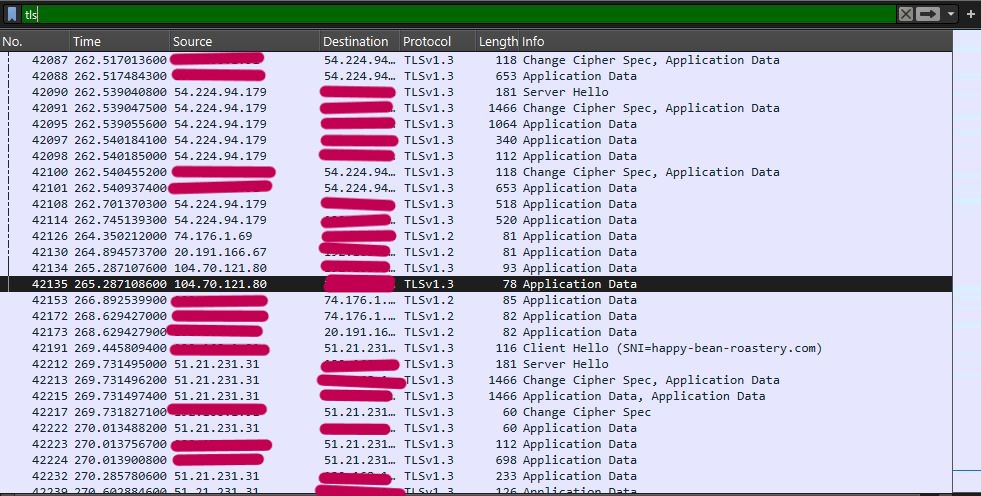
ChatGPT helped to assess general network traffic and observed:
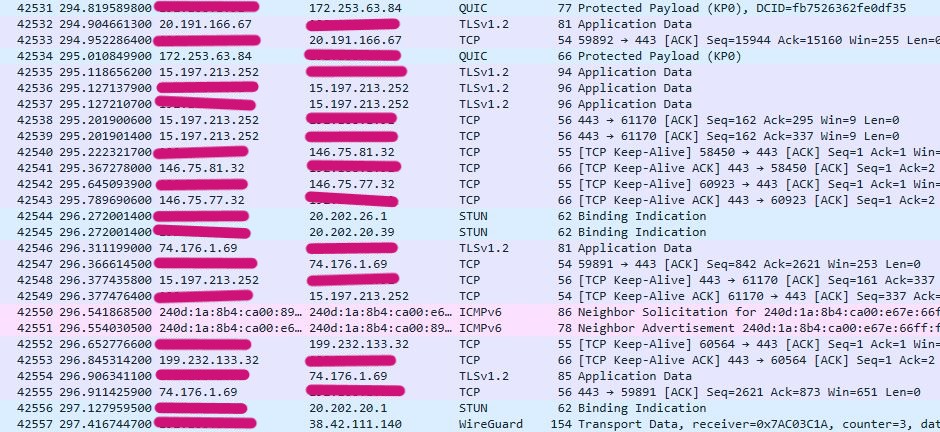
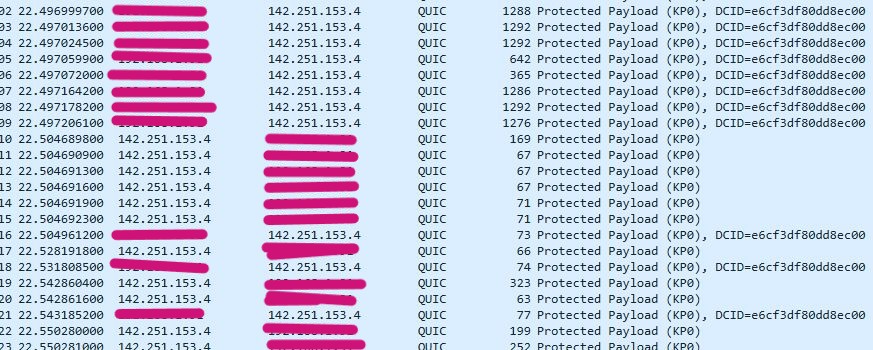
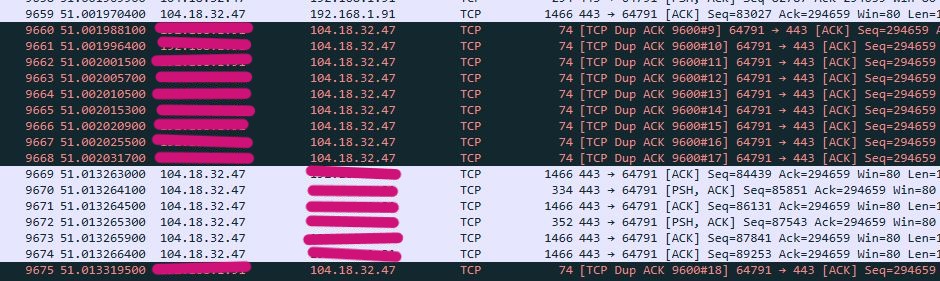
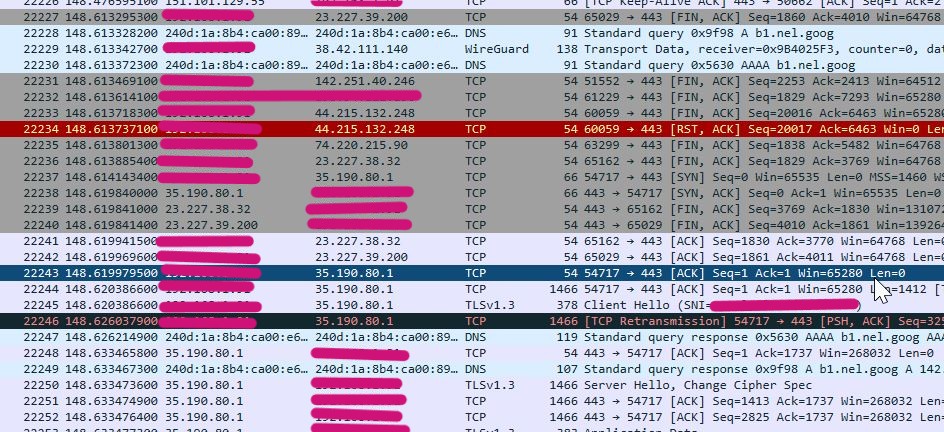
Filtered Views
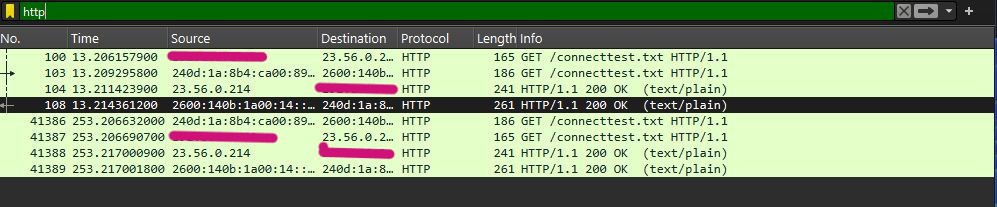
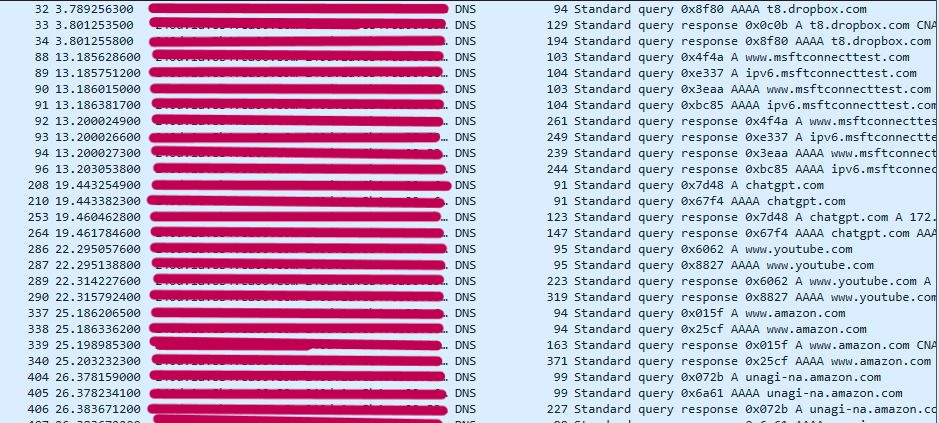
Protocol Heirachy Statistics Report Observations
Conversation Statistics Report Observations
- The largest conversations ware between my PC and ISP Router
- …other MAC conversations are very small (but why do they exist at all?)
Endpoint Statistics Report Observations
- A handful of MAC addressses only (what are they?)
DNS Destinations
ChatGPT recommended a look at where DNS queries are going.
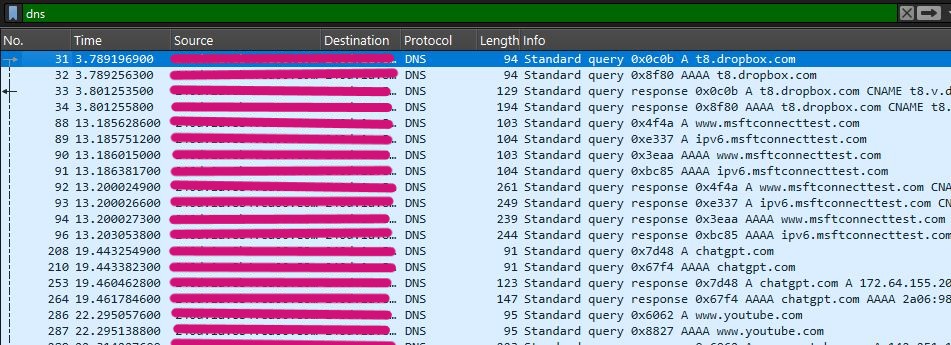
The ‘Destination’ column seems to point to communication with the ISP Router’’s IPv6 address (according to ChatGPT), which in turn is routing the traffic to its final destination on the internet. Confirmed when one of the DNS packets expanded for more information.
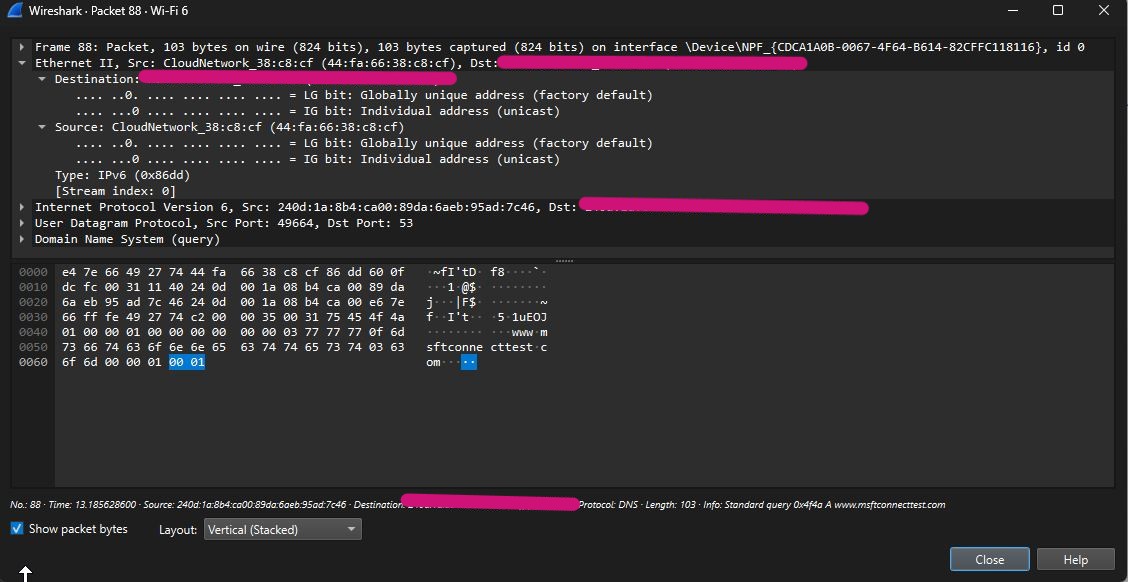
Wireshark Analysis Conclusions
- No evidence of malware, intrusion or compromise
- IPv4 traffic most of the time
- Encrypted QUIC traffic (faster than HTTPS) appears often…indicative of Chrome, YouTube, Google, ChatGPT, Cloudflare traffic
- UDP dominates over TCP protocol traffic because UDP used by QUIC
- TLS 1.2 and TLS 1.3 appears often
- Many DNS queries, consistent with web browsing
- Few ARP packets indicates Network Stability and unlikely ARP storms, loops, ARP Spoofing issues
Other Observations
- DNS queries for chatgpt.com, youtube.com, amazon.com, dropbox.com…all websites I had visited during the traffic scan run period
- Also a query for msftconnecttest.com…which ChatGPT said was Microsoft testing internet connectivity and is normal
- Several potentially insecure HTTP incidents are associated with the Microsoft test > not a security issue
- Several flagged instances of ‘Duplicate ACKs’ and ‘TCP Retransmission’…ChatGPT says are normal indications of packets arriving out of order, WiFi retransmission, brief congestion or lost packets…but their infrequent appearance is perfectly normal
- ‘Stun Binding Indications’ appearances are also said to be normal for services like Discord and Teams…both of which I use
- No presence of worrying signs > Telnet, FTP, SMB exposed to the internet, large amounts of HTTP, ARP storms, Broadcast storms, Malware beaconing, unusual protocols or unknown local devices
Analysis > Nmap
Again, I am relying on ChatGPT to make sure I don’t do anything stupid and to guide my learning.
I am told to run Nmap through Windows Powershell.
- Start with ‘ipconfig’ command to discover my network IP Address
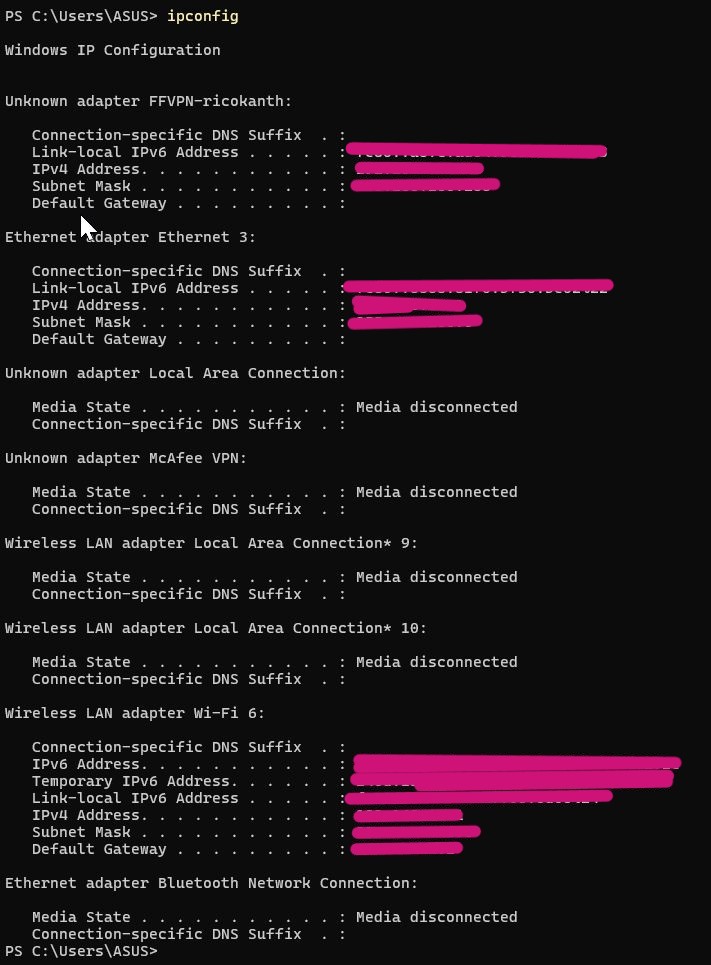
I see 3 active networks …a VPN I setup for the Fab Futures class, an Ethernet network, a Wireless LAN network.
- Run an NMAP ‘Ping Scan’ with ‘-sn’ command flag
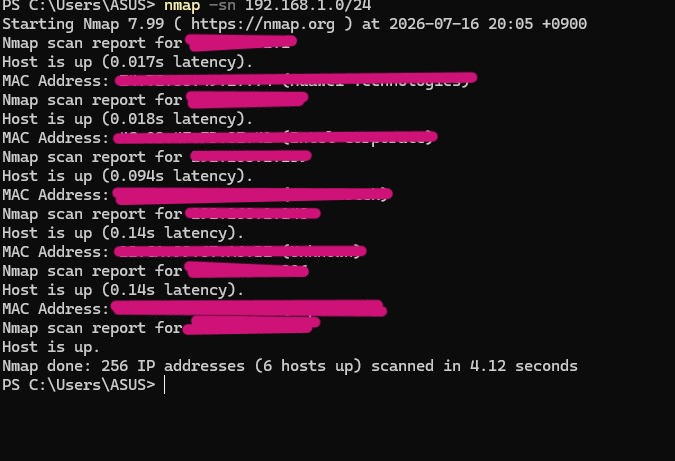
- 6 devices connected to my network
- 5 devices I can identify > 2x PCs, 1x ISP Router, 1x Smart TV, 1x 3D printer
-
1 unknown device I cannot identify (my mobile phone?)
-
Identify Open Ports
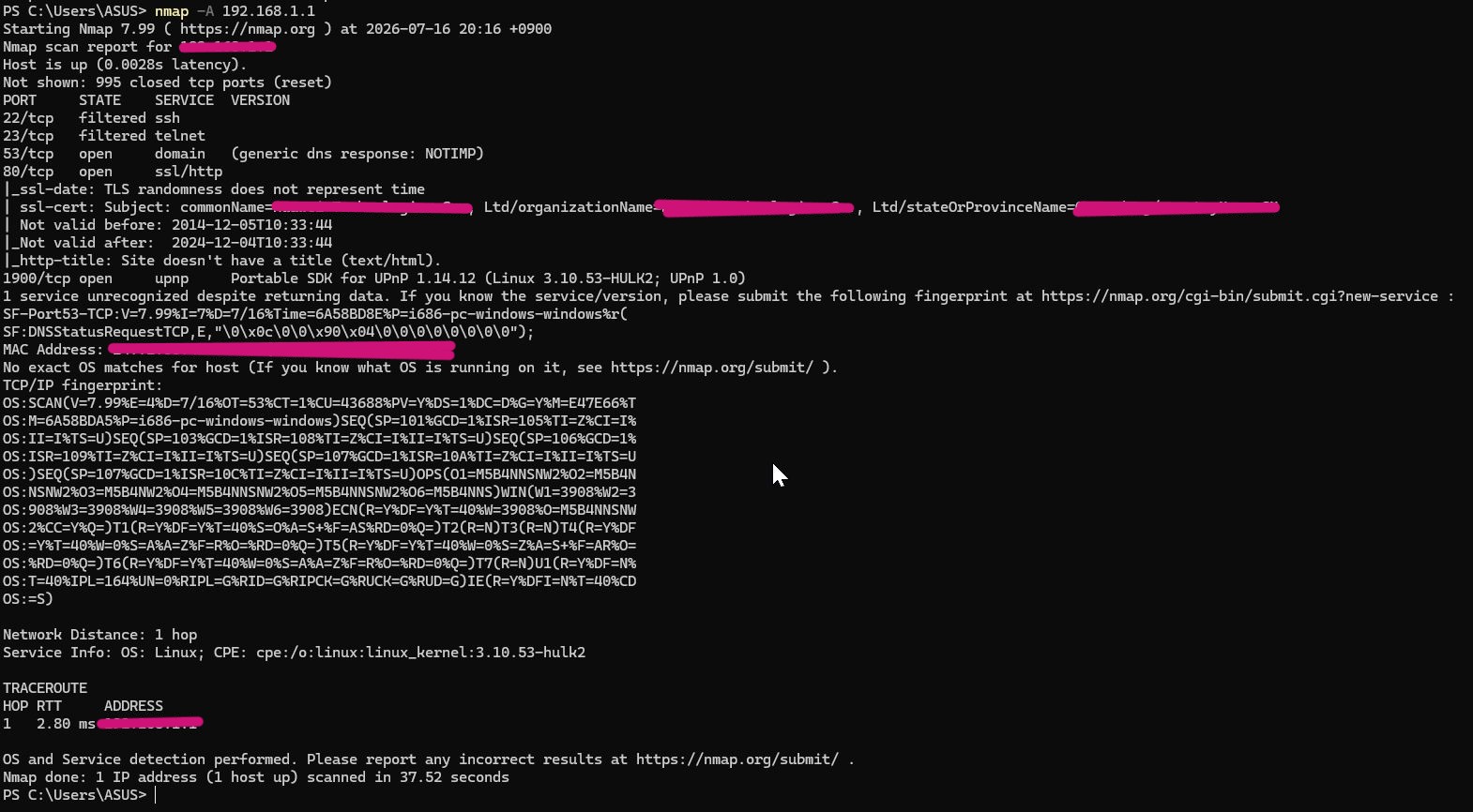
- very few services occuring on the router
- 4 open ports
- 22/tcp filtered ssh
- 23/tcp filtered telnet
- 53/tcp open domain (router)
- 80/tcp ssl/http (router web mgmt interface)
- SSH blocked
- Telnet blocked
- No obvious exposure to Remote Management
- UPnP enabled > should disable
- HTTPS certificate expired > apparently normal for ISP routers, OK if router access is only from local network
- 1 hop network distance > normal
-
995 Closed ports > no exposure to unnessary services
-
Investigate UPnP Issue
UPnP is not enabled on my ISP router. Why is NMAP showing UPnP enabled? ChatGPT suggests running a more focused scan with ‘nmap -sV -p 1900 (router IP Address)’ and ‘nmap -sU -p 1900 (router IP Address)’
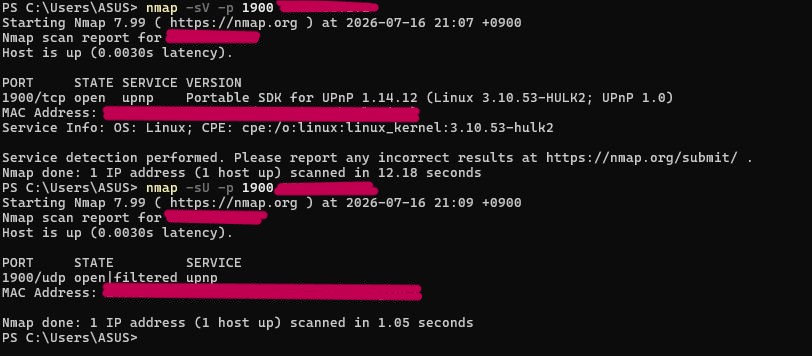
- Scan results suggests that the ISP router firmware still has UPnP service listening, even though it has been ‘disabled’ in the management application.
- TCP 1900 is Open
- UDP 1900 Open/Filtered
ChatGPT explains that the router runs UPnP for ‘SSDP Discovery’ but disables the function that creates port mappings. Or the firmware has a bug where disabling the UPnP checkbox doesn’t stop the process.
Testing if UPnP works with ‘nmap –script upnp-info -p1900 (router IP Address)’.
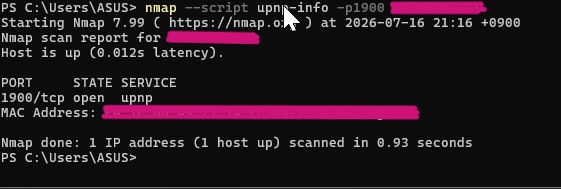
ChatGPT says that the result of the UPnP test is good. While the ISP Router is listening to port 1900, it is not exposing any usable UPnP service. UPnP functionality has been shut, but daemon or socket is open.
Check to see if the ISP router is advertising itself via SSDP broadcast
The broadcast NSE script sends an SSDP multicast discovery packet and listens for reply. When run the result was:
- no string output > no useful UPnP advertisements received
-
no targets were specified, 0 hosts scanned
-
Run PC Scan
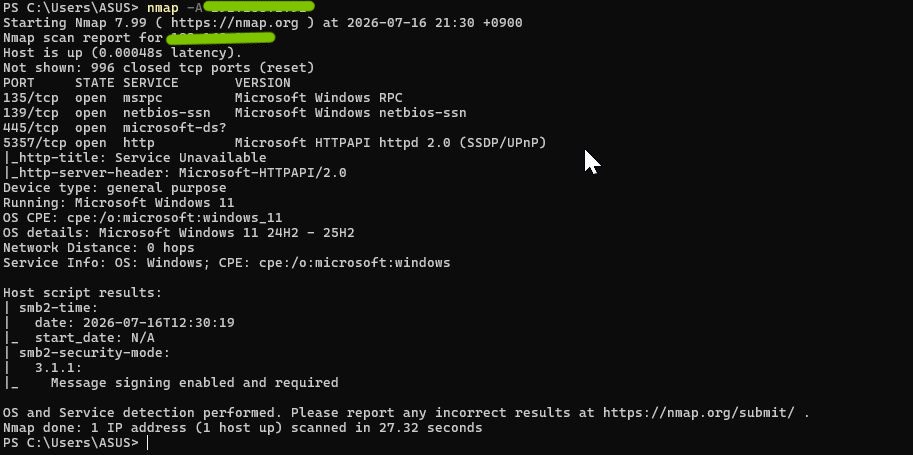
- only 4 TCP services
- all are normal Windows services
- Port 135 > Windows RPC, normal
- Port 139 > old NetBIOS file-sharing protocol
- Port 445 > SMB, used for shared folders, network drives, printers…can mitigate with disabling ‘File and Printer Sharing’
- Port 5357 > Web Services on Devices (WSD)…can disable if network printers or scanners not used
- SMB signing enabled and required
ChatGPT scores the Router situation an 8.5 from 10. The security situation is not too bad.
ChatGPT scores the PC situation a 9 from 10. An excellent situation.
Vulnerabilty Scan
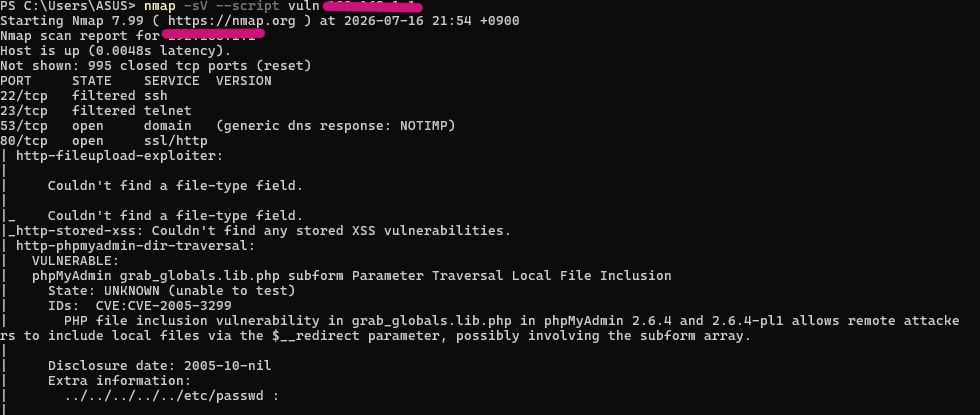
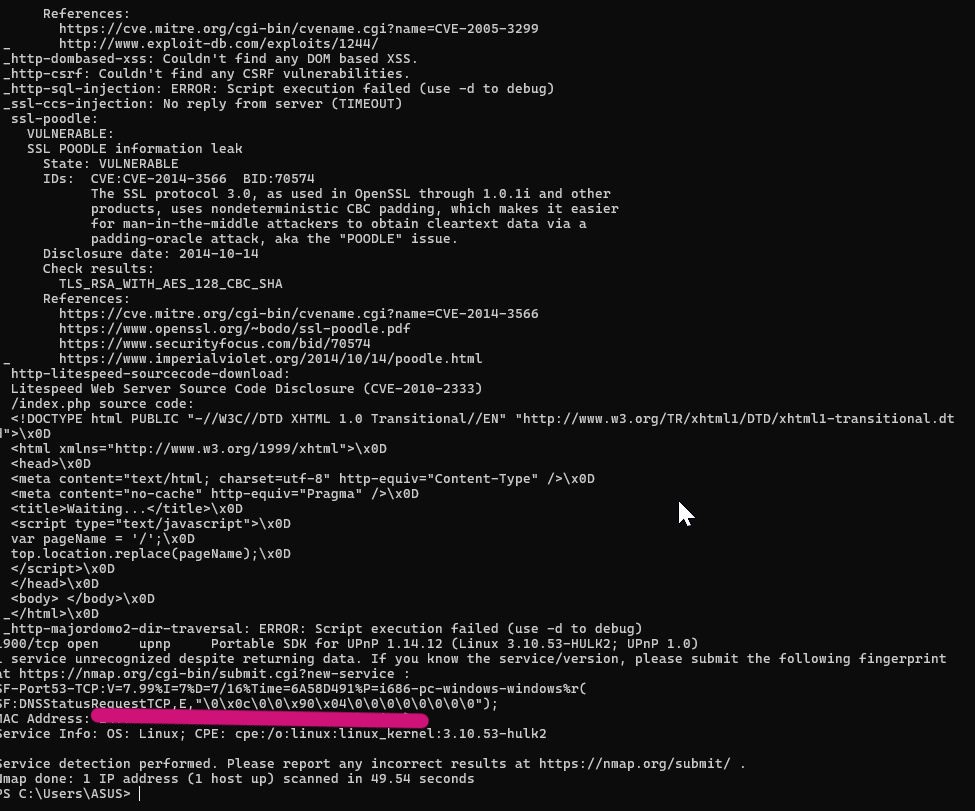
Vulnerabilty Report
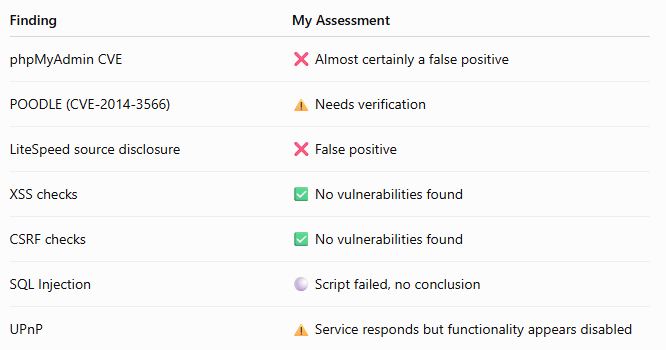
I was a bit shocked to discover that some vulnerabilities were identified. ChatGPT to the rescue to interpret the results.
phyMyAdmin > unknown unable to test
- my ISP router doesn’t run phpMyAdmin as the mgmt interface
- not really a vulnerability
Poodle
- Port 443 is closed
- The ISP Router is managed over insecure HTTP
- Likely cause is same service misidentification by Nmap (need to investigate further)
LiteSpped
- “Litespeed Web Server Source Code Disclosure” just means that the router is returning a small HTML page
- Not a real vulnerability
XXS
- Couldn’t find stored XSS
- Couldn’t find DOM XSS
- These are good results (according to ChatGPT)
CSRF
- “Couldn’t find CSRF vulnerabilities”
- no issues
SQL Injection
- “Script execution failed”
- the script could not complete its check
According to ChatGPT…
Embedded routers often return generic HTML or non-standard reseponses, which can accidentally match old signatures.
- Identify the Web Server software
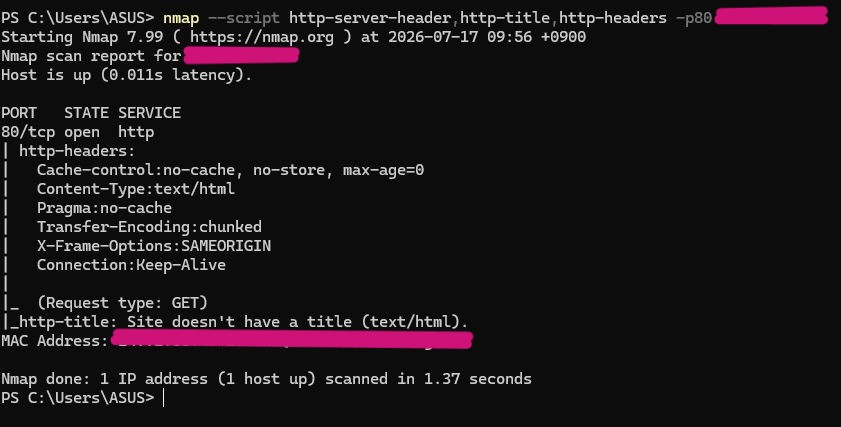
- The scan looks deep at Port 80
- Confirms that it is an ‘open’ port running unsecure ‘HTTP’ protocol
- Earlier, Nmap incorrectly identified port 80 as the secure ‘ssl/http’ protocol > a ‘service fingerprinting error’ (according to ChatGPT)
- Cache Control > no caching of pages (including sensitive pages), always refreshes pages
- Content Type, Transfer-Encoding & Connection > all normal for web servers
- X-Frame-Options > ‘sameorigin’ is a security feature that prevents the router’s web interface from vbeing embedded inside another website…protect against ‘clickjacking attacks’
- No Header Information > the ISP Router deliverately hides that information from attackers
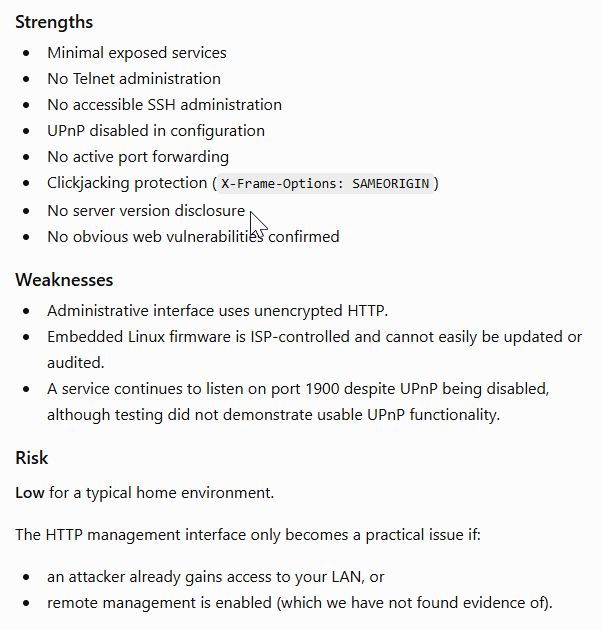
Conclusion > Small Vulnerability
The ISP Router’s primary weakness is the use of ‘HTTP’ protocol instead of the more secure ‘HTTPS’ for its management interface webpage
Penetration Test Summary
ChatGPT summerarizings the findings of the NMAP scan work as follows:
What the ISP Router is capable of
I uploaded all the menu options for my ISP router into ChatGPT to ask it to assess what security settings it recommends. ChatGPT responded with the following:
- The ISP router is described as “basic”
- It can be hardened for a home network
- …but lacks enterprise features like VLANs, IDS/IPS, DNS filtering or Network Segmentation
Recommended hardening actions:
- Select WPA2 or WPA3
- Disable WPS
- Strong Admin password
- Firmware update (ISP only)
- Disable UPnP
- Disable DMZ
- Remove Port Forwarding
- Enable ALL DoS protection
- Disable unused USB services
- Disable unnecessary ALGs
- DHCP reservations
- MAC filtering is unnecessary
-
URL filtering is rarely used
-
Disable all ALG configuration
2. Securing the Lab Router
Borrowing from learnings from xxxx, I will implement his 10 best practices to move my lab network from its unsecured state to one with improved security. The 10 checklist items include:
[ ] 1. Update the router firmware > ensure the latest security patches are in place
[ ] 2. Disable Remote Management > enable only if ABSOLUTELY necessary (unlikely)
[ ] 3. Use WPA3 encryption > or WPA2-AES if WPA3 not available…AVOID WEP, WPA/WPA2 with TKIP (outdated and vulnerable)
[ ] 4. Use a Strong Password > avoid english words (easy to break with ‘Dictionary Attack’), use combo of letter, numbers, and special characters
[ ] 5. Disable WPS WPS is a security vulnerability (Brute force attacks that exploit WPS to gain wifi access)
[ ] 6. Create a ‘Guest’ network for visitors, isolates guests from main home network…allow internet access without LAN access
[x] 7. Disable UPnP (Universal Plug and Play), UPnP is vulnerable to port attacks
[ ] 8. Monitor Connected Devices regularly unrecognized devices could mean unauthorized access
[x] 9. Limit the number of DHCP Leases limits the number of devices that can connect at one time, avoid your router becoming a public hotspot
[ ] 10. Enable firewall and SPI features and configure any available security settings such as Stateful Package Inspection (SPI)
[ ] 11. Use a Secure Router to protect the LAN from any attacks that make it through the ISP…the router should have a minimum of 2 LAN ports (input, output) plus one more for local management. Can be built cheaply from a mini PC.
Following the above instruction:
I go to the router admin browser page and enter recommended credentials > success!!

Immediately a dialogue box pops up to tell me to change the admin password…because it is no longer secure.

1. Firmware Update
I should also do a firmware update! Now, how do I do that?
A ChatGPT query suggests that firmware update is not easy to do, because the router is “an ISP-managed GPON ONT” and the “firmware versions are customized for each ISP”. Likely, the firmware is being automatically updated by the ISP…the “ISP schedules and deploys updates”.
So firmware updates are out of my hands. This inability to have full control of the router to manage internet security feels like a major flaw in my security protocol. It seems like it would be better to have a router that I have full control of.
(Since) bridge mode isn’t available, you can still improve security by: disabling the Huawei’s Wi-Fi, connecting your new router’s WAN port to a LAN port on the Huawei, connecting all of your devices only to the new router, leaving the Huawei to handle only the ISP connection
WiFi Settings
Next, I chose to look at the configuration for 5 GHz Basic Settings.
- SSID Name: no change to provided (the more cryptic the better)
- Enable SSID: kept checked
- Number of assoicated device: reduced from 32 to 5
- Broadcast SSID: should I do this? need more research
- Enable WMM: kept checked
-
Authentication Mode: kept WPA/WPA2 PreSharedKey
-
Encryption Mode: kept as AES
-
WPA PreSharedKey: changed to new password
- WPA Group Key Regeneration Interval: kept at 3600
- Enable WPS: kept checked
- WPS Mode: kept PBC
- PBC: kept Start WPS
Too many new words in the settings menu for me to do more than the couple of changes I made.
- I made it harder for someone without admin privileges to get access to my router
- I reduced privileges to the 5 GHz network…reducing the number of devices that can connect at one time and distinguishing the password from that of the 2.4 GHz network
Googling “password key seems to be low security WPA. how to increase security” returned:
“To increase your Wi-Fi security from TKIP/WPA to the more secure WPA2-PSK (AES) standard on your (ISP Router), you must log into the internal router settings from an internet browser. The (ISP Router) does not support the latest WPA3 standard, but switching to WPA2-PSK with AES encryption will remove any “Low Security” warnings on your devices.”
Step 2: Change the Authentication Mode
- Look at the top menu bar and click on the WLAN tab.
- From the left sidebar menu, choose either 2.4G Basic Network Settings or 5G Basic Network Settings (you will need to repeat these steps for both networks if you use both).
- Find the Authentication Mode dropdown option. Change it from WPA PreSharedKey or WPA/WPA2 PreSharedKey to WPA2 PreSharedKey.
- Find the Encryption Mode dropdown option. Set it to AES. Avoid TKIP as it is structurally insecure.
Step 3: Update Password and Apply
- In the WPA PreSharedKey field, you can type a new, strong Wi-Fi password (minimum 8 characters, using a mix of letters and numbers).
- Click Apply at the bottom of the page to save the changes.
Step 4: Reconnect Your Devices
- Once applied, your current Wi-Fi connection will disconnect immediately.
- You must go into the Wi-Fi settings on your phone, laptop, or TV, “Forget” or delete the old network profile, and then search for the network and log back in using your password.
Segregating Network Access by User Type
Network Segmentation as a strategy to limit access to the network based on permission types, from low-level access to admin.
Does the router support VLAN? According to Google, yes.
Device Types:
- Staff PC
- Personal mobile devices
- Visitors/Guests
- IOT devices (3D printers, CNC Machine, Lasercutter, Microcontroller projects, etc.)
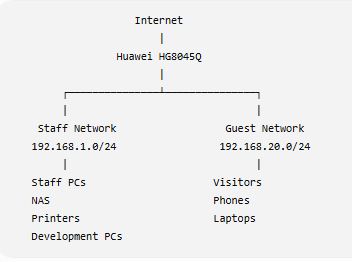 image by ChatGPT
Isolating a Guest Network
According to Google, for the HG8045Q router:
- A combination of VLAN Tagging and Port Isolation will be required (SSID to VLAN mapping)
- In WLAN Basic Configuration > enable a second SSID
-
According to ChatGPT, for the HG8045Q router:
- It is an ISP-supplied ONT/router
- …with limited segmentation features
- Not a Business Firewall, OPNsensee, pfSenseee, UniFi MikroTik, etc.
This chart generated by ChatGPT outlines its features and limitations:
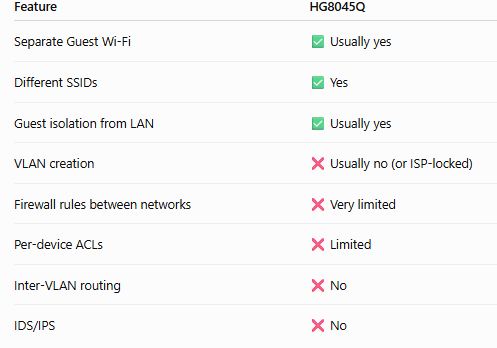
The bad news…I can only create additional SSIDs to separate different user profiles, but cannot perform true network isolation.
If SSIDs are on the same subnet (the 3rd set of numbers in an IP address)…the devices can freely communicate. If the SSIDs are on different subnets, firewall rules can be set to segregate the different subnets.
WPS has a history of security vulnerabilities
WMM is a Quality of Service (QoS) features, prioritizes different types of traffic (voice and video) before less urgent data (file downloads)
Improve Network Hardware
2 Router NAT
1. Since my ISP provided router is not fully in my control, I will consider it as the outermost, Perimeter Defense only
2. A second router, fully under my control, will become the primary perimeter defense, with guards that I post
I watched Home Networking 101: Setting Up 2 Routers in One Home Network I learned:
- The newest and best router is the primary router
WPA2+AES

Bridging

Set up Firewall
IPv6

Disable UPnP
Disable UPnP

Hardware Upgrade
Specs:
- Wifi 6
- 2x 2.5GBps Ports
- Runs OpenWRT
- VPN (capable of running Wireguard server, allow connection from anywhere in the world @ 900MBps)
Definitions
DHCP Server = Dynamic Host Configuration Protocol, automatically assigns IP addresses and essential network settings to devices connecting to a network…eliminates manual configuration, IP address conflicts, allows seamless internet connection (google)
DHCP Leases = time-limited agreement where a server assigns a specific IP address to a device on your network, prevents IP address exhaustion by reclaiming addressses when devices leave or go offline (google)
IP Address = Internet Protocol, a unique numerical label assigned to every device connected to a computer network…a digital mailing address…allows devices to locate, send and receive data from one another across the internet (google)
WPS = Wifi Protected Setup, a built in feature on routers that allows device connection WITHOUT password. Requires only pushing a button on the router or entering a PIN (google)
SPI = Stateful Packet Inspection is a dynamic firewall technology that tracks the operating state and context of network connections…maintains a state table to verify that incoming traffic matches an active, legitimate request…blocking unauthorized access and spoofed traffic (google)