Session 1: Introduction & Development Pipeline

Summary
Chips are integrated circuits built on silicon. The development pipeline goes from specification to tested silicon. We will use open source tools: Yosys, OpenROAD, Magic. PDKs define how to design for a specific fab process. Low-cost tapeout options make custom silicon accessible.
Course Material
Assignment
- Install the course toolchain (Docker container)
- Run a “hello world” synthesis
- Verify tools work before next class
Install the course toolchain (Docker container)
I accessed the website provided by FabFoundation. After pushing the “Start Container” button, I got the address and key.
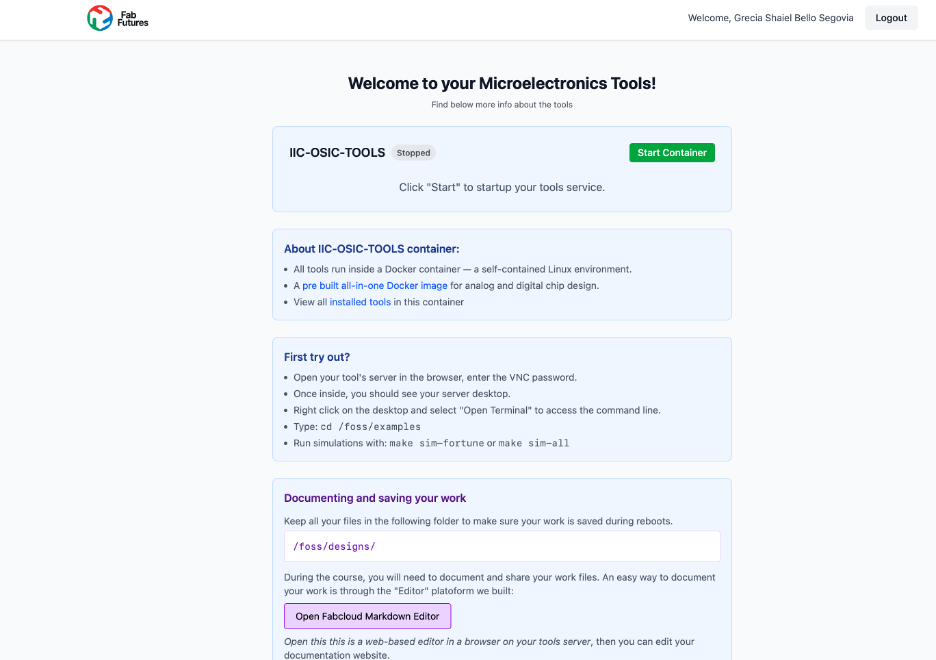
I connected using RealVNC Viewer for macOS. You can download it here: https://www.realvnc.com/en/connect/download/viewer/macos/
Step 1
Download and install RealVNC Viewer from the link above.
Step 2
Open RealVNC Viewer. In the address bar, type your IP address and port number:
your-ip:your-port-number
Step 3
Enter the password shown in the Tools Launcher page and click OK.
Step 4
A Linux desktop will appear. You are now inside the container.
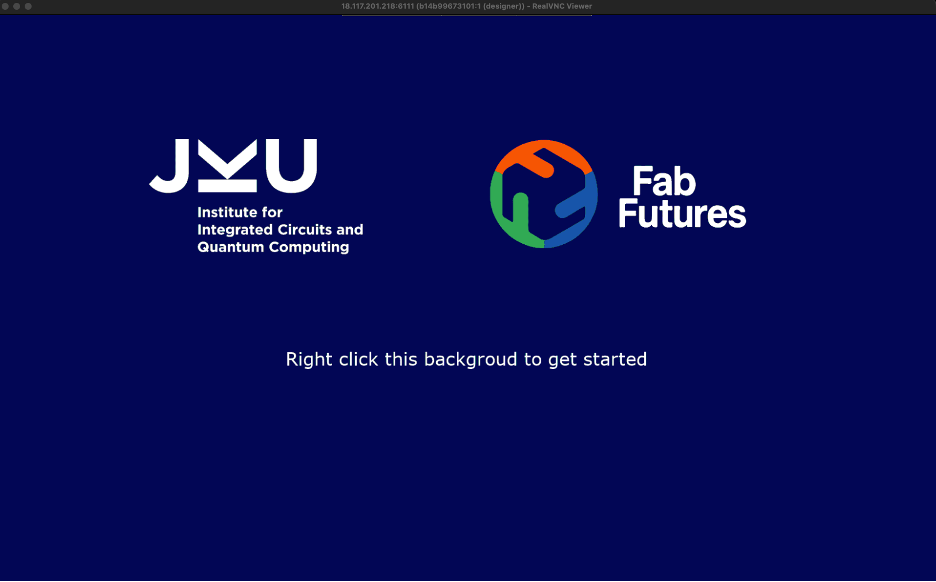
Important: Always save your files inside
/foss/designs— if the container restarts, files outside that folder will be lost.
Run a “hello world” synthesis
The image has some examples inside the /foss/examples folder.
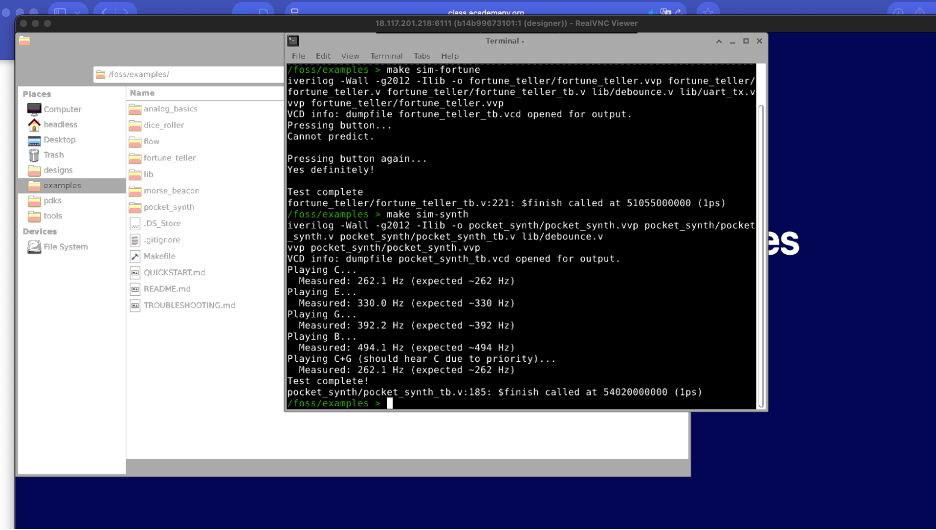
I right-clicked inside the folder to open the Terminal directly in that directory.

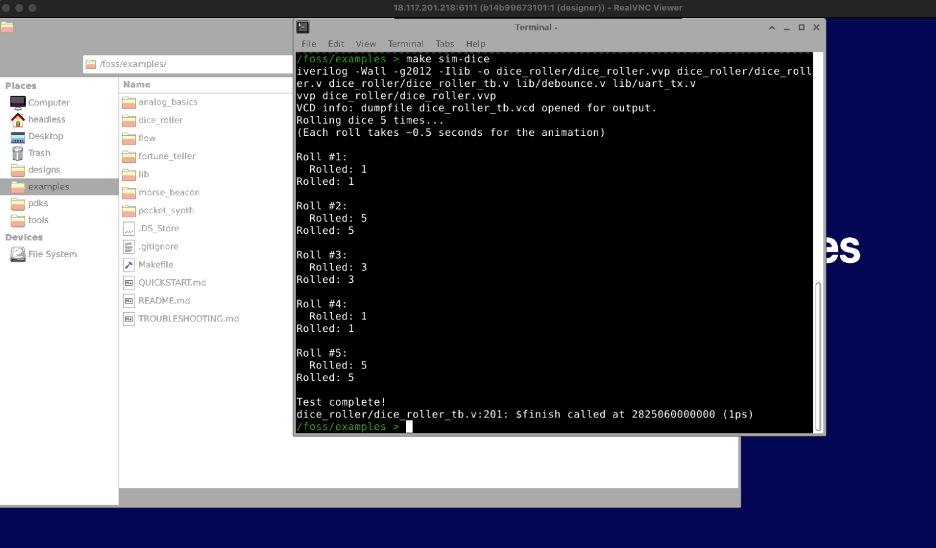
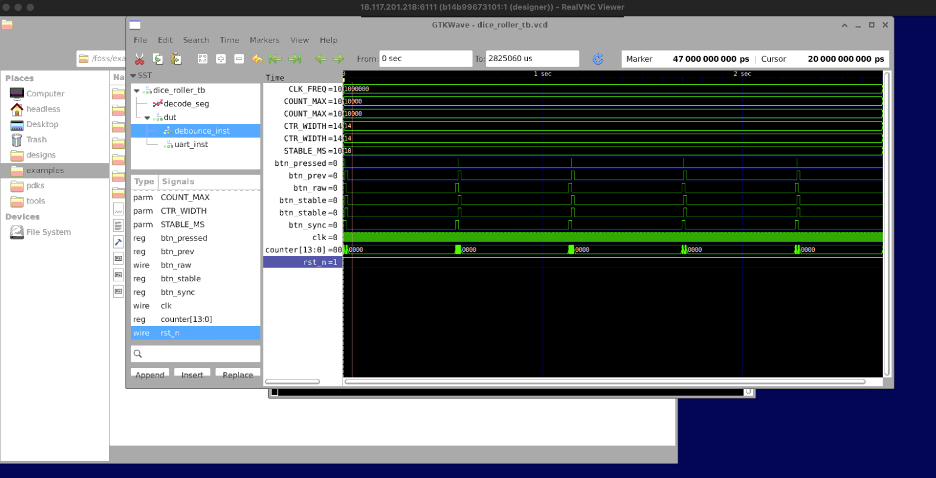
I ran the fortune teller and dice roller simulations:
make sim-fortune
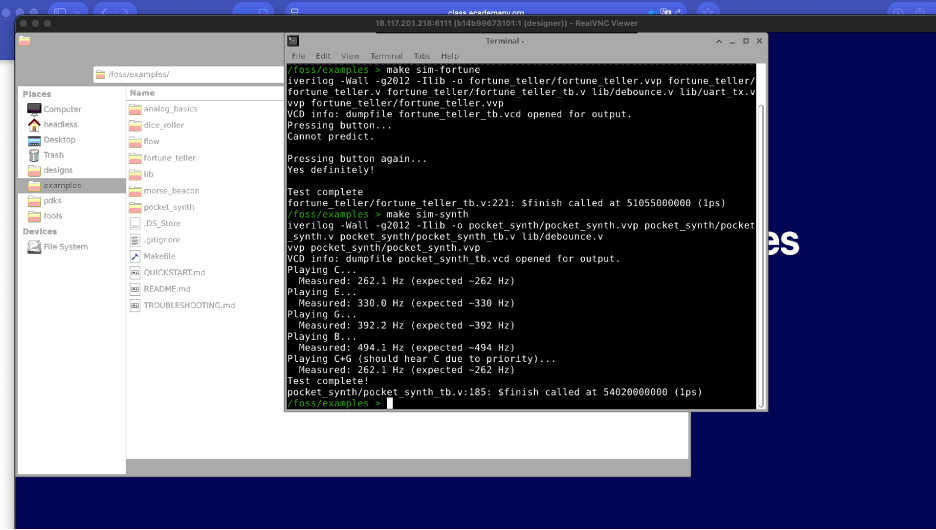
make sim-dice
gtkwave dice_roller_tb.vcd
Hello World in Verilog
Step 1
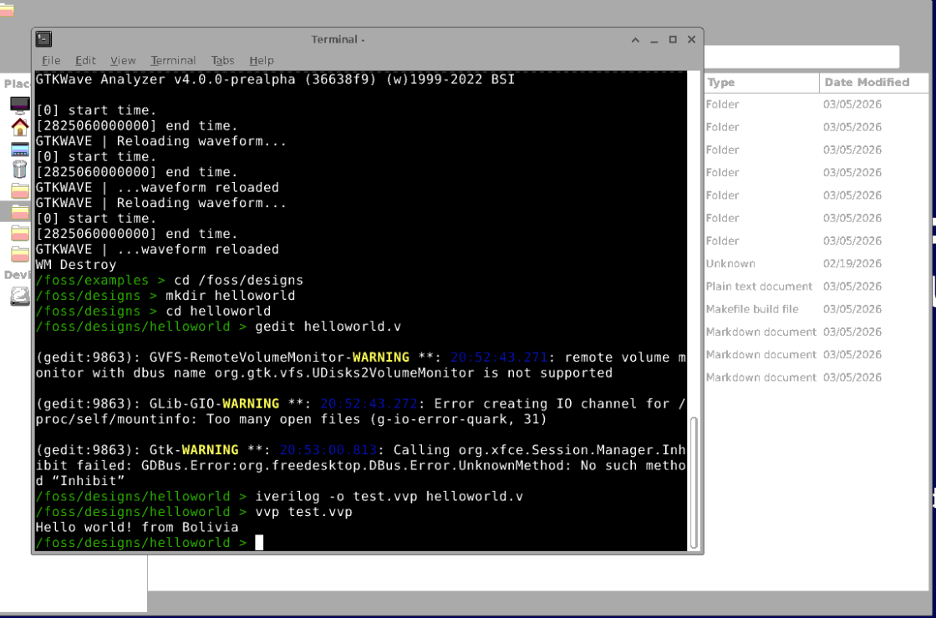
Navigate to your designs folder and create a new directory:
cd /foss/designs
mkdir helloworld
cd helloworld
Step 2
Create the Verilog file:
gedit helloworld.v
Write the following code inside:
module helloworld;
    initial begin
        $display("Hello world! from Bolivia");
    end
endmodule
Step 3
Compile and run:
iverilog -o test.vvp helloworld.v
vvp test.vvp
Result:
Hello world! from Bolivia
Installing iic-osic-tools locally on my MacBook
Step 1
Clone the repository:
git clone https://github.com/iic-jku/IIC-OSIC-TOOLS.git
Step 2
Run the start script:
cd IIC-OSIC-TOOLS
./start_vnc.sh
Step 3
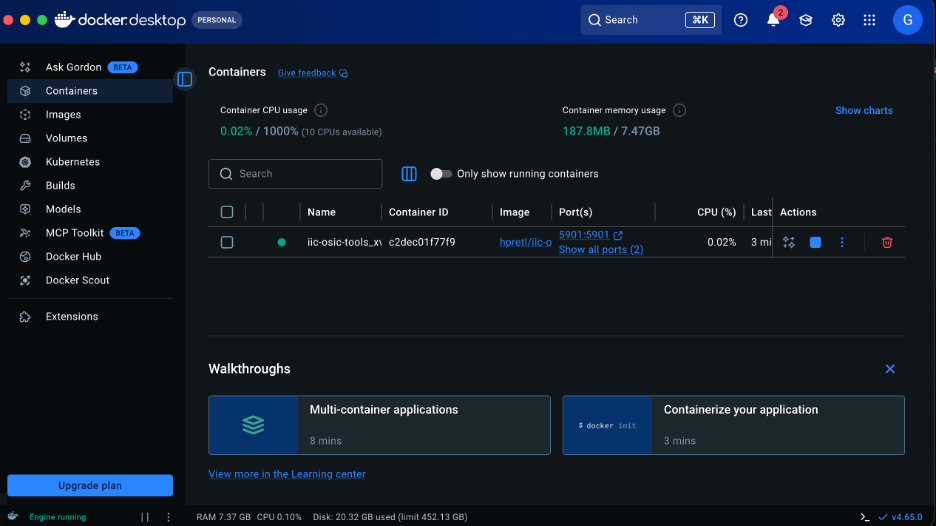
Open Docker Desktop — the address to access the tools will appear there.
Step 4
Open the address in your browser. Default password is:
abc123
Then connect with RealVNC Viewer to localhost:5901 for a better experience.
Tools
RealVNC Viewer
RealVNC Viewer is a remote desktop client that gives a smoother experience than the browser when connecting to the container on macOS.